
Password · guide
How to export passwords from Chrome, and what to do with the file
By Alberto Gulotta · Updated · 15 min read
How to export passwords from Chrome: five pages give the same last step, opening the Google Password Manager settings and pressing Download file. They differ on the menu route, on which password may be asked, and on when to delete the unencrypted file. Google puts that warning under importing, not exporting.
| Question | Answer | Where it comes from |
|---|---|---|
| Where is the export? | In Google Password Manager settings, under “Export passwords”, with a Download file button | Google, NordPass, 1Password, Bitwarden, Proton |
| What may it ask for? | The computer’s password (1Password, Bitwarden) or the Google Account password (NordPass); Google’s lines mention neither | 1Password, Bitwarden, NordPass |
| What is the file? | A CSV, which NordPass calls plaintext, readable by anyone who opens it | NordPass, Bitwarden, Proton |
| When is it deleted? | After importing (Google, 1Password, Bitwarden) or once the passwords sit in a vault (NordPass) | Google, 1Password, Bitwarden, NordPass |
| What does not come across? | 1Password imports only passwords: not cards, addresses or passkeys | 1Password |
Where the export lives, on a computer and on a phone
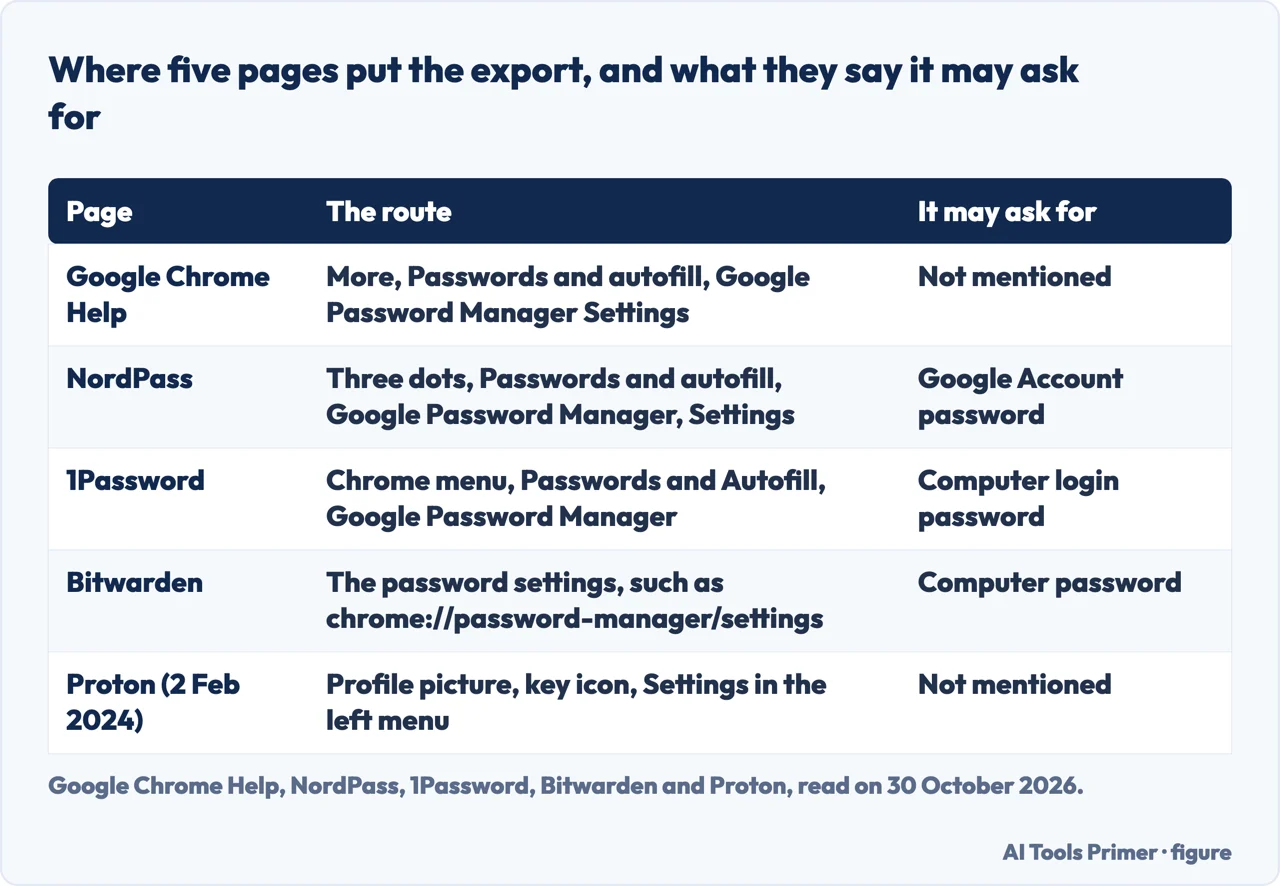
The Google Chrome Help page about this has a title that names both passwords and passkeys, and its export section is five short lines. On a computer you open Chrome; at the top right you select More, then Passwords and autofill; you select Google Password Manager Settings; you scroll to “Export passwords”; and you select Download file. The rest of that page is about importing passwords into Chrome, not out of it.
The other four pages reach the same button by their own wording. NordPass, which sells a password manager, writes the route as the three-dot icon, then “Passwords and autofill”, “Google Password Manager” and “Settings”, then “Export passwords” and “Download file”. 1Password, another vendor, says the Chrome menu in the toolbar, then Passwords and Autofill and Google Password Manager, then Settings in the sidebar, then Download file in the Export passwords section. Bitwarden, also a vendor, says to open the password settings of the browser and gives chrome://password-manager/settings as an example of where they are, then to locate Export Passwords and click Download file.
Proton, which sells Proton Pass, describes a different first step. Its article, dated 2 February 2024 and the oldest date among the pages we read that carry one, says to click the profile picture at the top right and then the key icon, to select Settings in the menu on the left, and to click Download file where it says Export passwords. The menus differ from page to page, and the pages do not say whether Chrome shows more than one way in. What they share is the last two steps: the export setting and the Download file button.
The pages differ more on what happens after you press the button. 1Password says to enter the password you use to log in to your computer, and Bitwarden says you may be prompted to enter the computer’s password for authorization. NordPass says you may be prompted to enter your Google Account password. The Google lines say nothing about a prompt, so the pages we read give two different passwords and one silence. After that, NordPass and Bitwarden both say to choose where to save the file, Bitwarden adding that the format should be comma-separated values (CSV), and 1Password says to save Chrome Passwords.csv to the desktop.
On a phone, the pages we read that cover it are NordPass and Bitwarden. NordPass says to tap the three-dot icon (top right on Android, bottom right on iOS), choose “Settings”, then “Password Manager”, then “Settings” at the bottom right, then “Export passwords”, confirm, and possibly verify your identity before choosing where to save. Bitwarden says to tap the menu button, then Password Manager, then Settings, then Export Passwords, and that you may be asked for your device PIN or a biometric. The Google page we read is the computer version, and its export lines are for a computer.
Before you press Download file
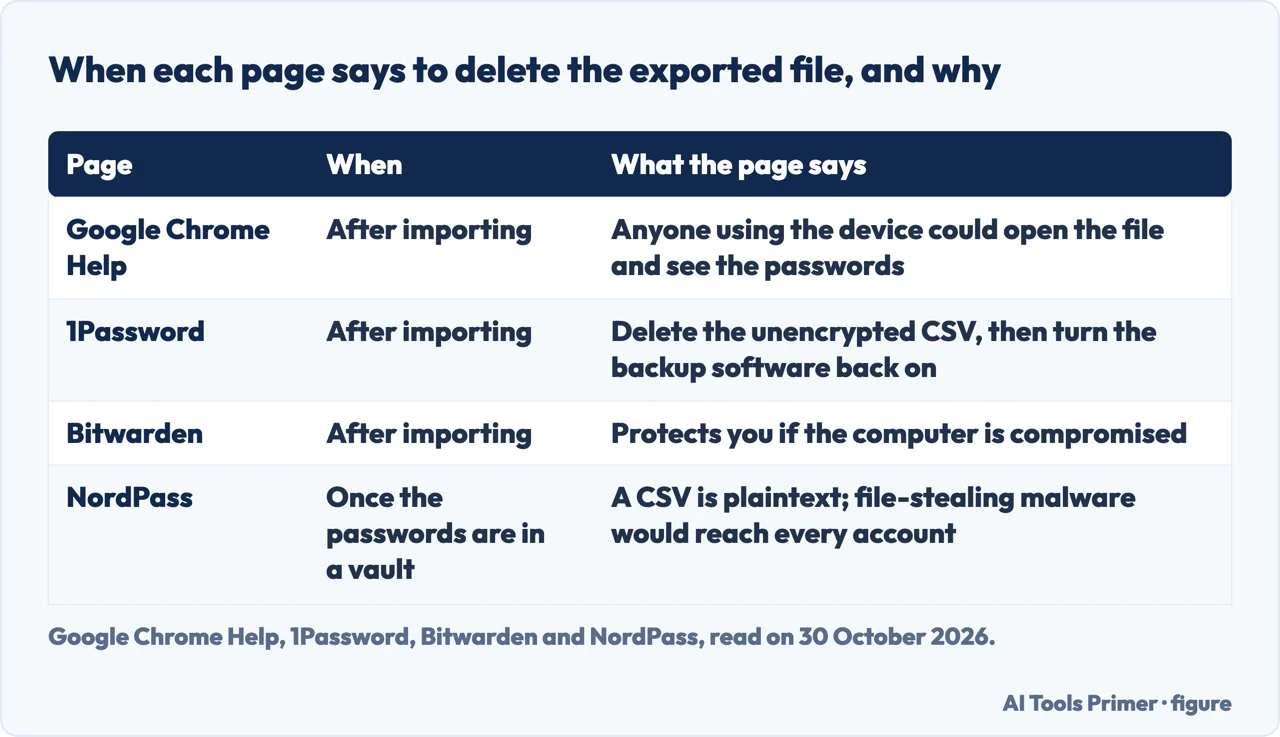
The file Chrome hands over is not protected. NordPass says the CSV stores data in plaintext, an unencrypted format readable to anyone who opens it, and that if the device had malware built to read and steal files, all the accounts in it would be in danger. It adds that keeping the file in a folder within a folder may seem innocent enough, and it says to delete the file permanently. NordPass sells a password manager, so the page is written from that side. Bitwarden asks you to check that the export is a CSV, and Proton says Chrome prepares one.
1Password adds a step that comes before the export rather than after it. Its Important box says that before you export you should temporarily turn off any backup software you may be using, so the unencrypted export file is not backed up. After the import it says to delete the unencrypted CSV and then turn the backup software back on. The vendor pages we read besides Google’s do not mention backup software.
Google puts its warning in a different place from where a reader exporting would look. The five export lines end at Download file. The warning is in Step 3 of the importing section, titled about deleting the .csv password file on your device: if you do not delete it, Google says, anyone who uses the device can open the file and access your passwords, and it points to the device’s documentation for how to delete it. Bitwarden words it as a protection in case the computer is compromised. So the advice to delete the file is on four of the five pages, and each ties it to the import or to the move into a vault, not to the moment of export.
What the file can and cannot carry
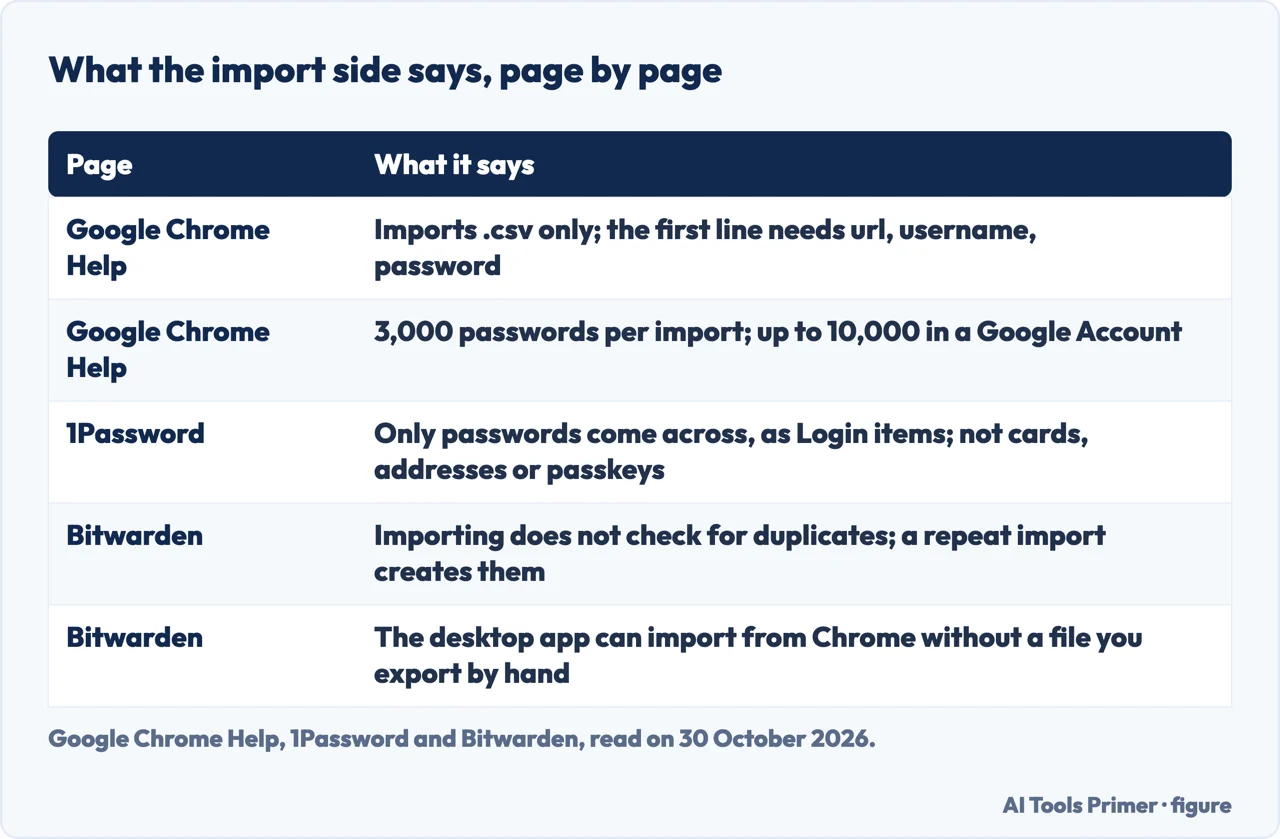
Google’s page says that Google Password Manager can only import passwords in the .csv file format, and its tip says the first line of the file should carry three column names, “url”, “username” and “password”; if it does not, you update the file to include them. That is stated as a requirement for importing into Chrome. The pages we read do not list what the file Chrome exports contains beyond that.
1Password is the page that says what it will take from the file. When you import from Chrome, it says, your passwords become 1Password Login items, and only passwords are imported: credit cards, addresses, passkeys and other information are not. For cards and addresses it tells you to copy them into 1Password by hand, opening 1Password and using the plus button to add items. Google’s page names passkeys in its title and opening sentence, but its export lines do not mention them. The pages we read do not say whether passkeys leave Chrome in the exported file. 1Password only says they are not imported.
One more point from 1Password concerns a phone. If you do not see your saved passwords in Chrome on your computer, it points to a separate article on syncing the passwords saved in Chrome on your mobile device with your computer, so that they can be moved to 1Password. We did not read that article.
Google adds two limits for the direction into Chrome. You can import 3,000 passwords at a time, and if you must import more, it says to split them into several .csv files; you can store up to 10,000 passwords in your Google Account. It also says that not every app and site name migrates into the correct field, and that an imported password you cannot find can be searched for by the app or site name in the search box. The pages we read from Bitwarden, 1Password, NordPass and Proton do not state a limit of that kind for their own import.
Getting the file into the new manager
The pages split the work in two. Chrome gives you the file; the other manager reads it. 1Password says its apps import from Chrome through the File menu on a Mac, with Chrome chosen from the list, an Add File button for the CSV and a choice of account, and that the same can be done on 1Password.com by selecting your name at the top right and then Import data. Bitwarden says data can be imported from the web app, browser extension, desktop app and command line, and that it is encrypted locally before being sent to the server. In the web app you choose Tools, then Import, pick where to save the data, pick the file format from a dropdown, and either choose the file or paste its contents into a box.
Bitwarden is also the page that warns about repeating the step. It says importing does not check for duplicates: import the same file more than once, or import items already in your vault, and duplicates are created. Its import and export FAQ explains that every import creates every record as a new item, whether or not a matching item exists, and recommends either editing the file so it holds only new items or purging the vault before importing. It adds that an “Import error” message means no data was added, so you fix the file and try again.
Bitwarden also describes a way that skips the file. In its desktop app, File and then Import data, choose the browser as the format and then Import directly from browser; select the browser profile that has your passwords, select Import, and enter your computer password to confirm. The page lists Chrome, Edge (Windows and macOS only), Opera, Brave, Vivaldi (Windows and macOS only) and Arc (macOS only), and says the option is available on the Windows and macOS desktop apps installed from the downloads page and on Linux when installed via AppImage, not on desktop apps downloaded from app stores. It also says the helper process behind the option is known to be flagged by some endpoint security software, or on Windows by User Account Controls. The page presents this as an alternative to an export you make by hand; we did not run it.
Closing the old door
Exporting and importing leave the passwords in Chrome as well. The pages we read that go on to this step describe it in different orders. 1Password gives four steps: export, import, turn off the built-in password manager in Chrome (with the 1Password extension installed), then delete the saved passwords from Chrome. It gives the reason for the last one: Chrome will continue to fill saved passwords even after the built-in password manager is turned off, so to have 1Password fill them instead, the saved ones have to go.
It also says that deleting is permanent. Following those steps deletes your passwords and passkeys from Chrome, and you will not be able to recover them, so it says to make sure everything from Chrome is saved in 1Password first. It points to one procedure for deleting all the passwords at the same time and another for deleting them individually; we did not read either.
NordPass puts the order differently. After the export it says to switch off Chrome’s autofill in the browser settings; to go to Google Password Manager’s settings and toggle off “Offer to save passwords and passkeys”; and then, it says, you can delete all passwords stored in that vault. It says it does not recommend keeping two password managers active, though you may want to leave Google Password Manager on while you move from one provider to another. Proton says the deletion is done by hand: it says to delete all the passwords one by one, clicking an entry on the main screen of the manager and then Delete. Proton sells a competing manager, so we use its page only for the export route, the date and the one-by-one deletion. Bitwarden is the shortest: after the import, delete the exported file, and when importing from another browser you may also want to delete data from that tool.
What the pages we read do not mention
Some questions a person exporting would reasonably ask are not answered in the pages we read. They do not say what an exported file holds beyond the columns Google names for importing. They do not say where the file lands if you do not choose a folder; only 1Password names a place, the desktop, and the others say to choose where to save. Google’s export lines do not say whether Chrome asks for a password first, and the vendor pages we read besides Google’s give two different answers. They do not say whether deleting the file also removes it from the Trash or Recycle Bin, how long the data remains readable on the device, or whether the file is tracked in any way.
The order is where the pages disagree most. Google, 1Password and Bitwarden tie the deletion to the end of the import; 1Password adds a step before the export; NordPass ties it to the passwords being in a vault. Taken together, the steps the pages name run in this sequence: backup software turned off (1Password), the export with its possible prompt for a password, the import, the deletion of the CSV, and then the clearing of Chrome (1Password, NordPass and Proton).
We tested nothing in Chrome. The statements above come from the six pages listed in the sources, published by Google, 1Password, Bitwarden, NordPass and Proton, each read on 30 October 2026.
Where to start
Four ways in.
- “Where do I find the export?”
- Where the export lives, on a computer and on a phone — path
- “Is the file safe to keep?”
- Before you press Download file — before
- “What happens to passkeys and cards?”
- What the file can and cannot carry — carries
- “Do I delete my Chrome passwords?”
- Closing the old door — close
Browsers with their own managers
The password managers built into Edge, Firefox and Opera.
Google, Apple and Bitwarden
One page each on three more managers.
Questions people also ask
How to export passwords from Chrome to NordPass?
NordPass gives the Chrome side: the three-dot icon, Passwords and autofill, Google Password Manager, Settings, then Export passwords and Download file, saved as a CSV. It points to a Help Center article for the import into NordPass, which we did not read.
How do I get all my passwords from Chrome?
Google, NordPass, 1Password, Bitwarden and Proton all end at the Download file button in Google Password Manager settings. Bitwarden also describes importing directly from the browser in its desktop app, and 1Password points to syncing the phone’s passwords with the computer if some are missing.
How to export passwords as CSV?
The pages we read describe no separate CSV step. NordPass says the file is saved in CSV format, Bitwarden says to verify the format is CSV when you save, and Proton says Chrome prepares a CSV file.
Where do Chrome passwords save locally?
The pages we read do not say where Chrome keeps them on the device. They say where the export goes: 1Password says to save it to the desktop, while NordPass, Bitwarden and Proton say to choose a location.
Not covered here. We tested nothing in Chrome. The statements come from Google Chrome Help, 1Password Support, Bitwarden Help, NordPass and Proton, all read on 30 October 2026.
The search volume and difficulty behind this page come from a Semrush reading of 29 August 2026, older than the 60 days the site normally allows.
Sources
- Google Chrome Help — Import or export passwords and passkeys with Chrome — support.google.com, read 30 October 2026.
- 1Password Support — Move your passwords from Chrome to 1Password — support.1password.com, read 30 October 2026.
- Bitwarden Help — Import from Chrome, Edge, & Chromium Browsers — bitwarden.com, read 30 October 2026.
- Bitwarden Help — Import & Export FAQs — bitwarden.com, read 30 October 2026.
- NordPass — How to export passwords from Chrome — nordpass.com, read 30 October 2026.
- Proton — How to export passwords from Chrome — proton.me, read 30 October 2026.
Written by Alberto Gulotta
Founder and editor of AI Tools Primer, writing from Palermo, Italy. Thirty-five years of taking computers apart, starting with a Commodore 64 — the long version is on the about page.
Something wrong on this page? Write to aitoolsprimer@gmail.com and it gets fixed.
Written on 30 October 2026.
Independence and limits
No affiliate links and no paid placements anywhere on this site. Nobody pays to appear here, and no company has seen this page before you did.
This is general information, not professional advice. Where a page touches money, health, safety or the law, it names its source and the date it was read — and your situation may still differ. See the privacy page and the cookie policy.