
Password · guide
Change password: what NIST, the NCSC and four services say
By Alberto Gulotta · Updated · 16 min read
Whether to change password on a schedule: NIST tells services not to require it and the UK’s NCSC advises against it. Both say a change is due after a compromise, NIST on evidence and the NCSC on knowledge or suspicion. This page sets out those rules, what a new password needs, and where four services put the button.
| Question | Answer | Where it comes from |
|---|---|---|
| Do the standards ask for a change every so often? | NIST tells services not to require it; the NCSC advises against regular expiry | NIST, NCSC |
| When is a change required? | NIST says on evidence of compromise; the NCSC says when you know or suspect one | NIST, NCSC |
| How long should the new one be? | NIST says 15 characters alone and 8 as one factor of several; Login.gov says 12 | NIST, Login.gov |
| What happens to other devices after a Google change? | You are signed out everywhere except a short list of devices | Google Account Help |
| Which password goes first? | The pages we read give no order; ours is on this page and labelled as ours | This site |
What NIST and the NCSC say about changing on a schedule
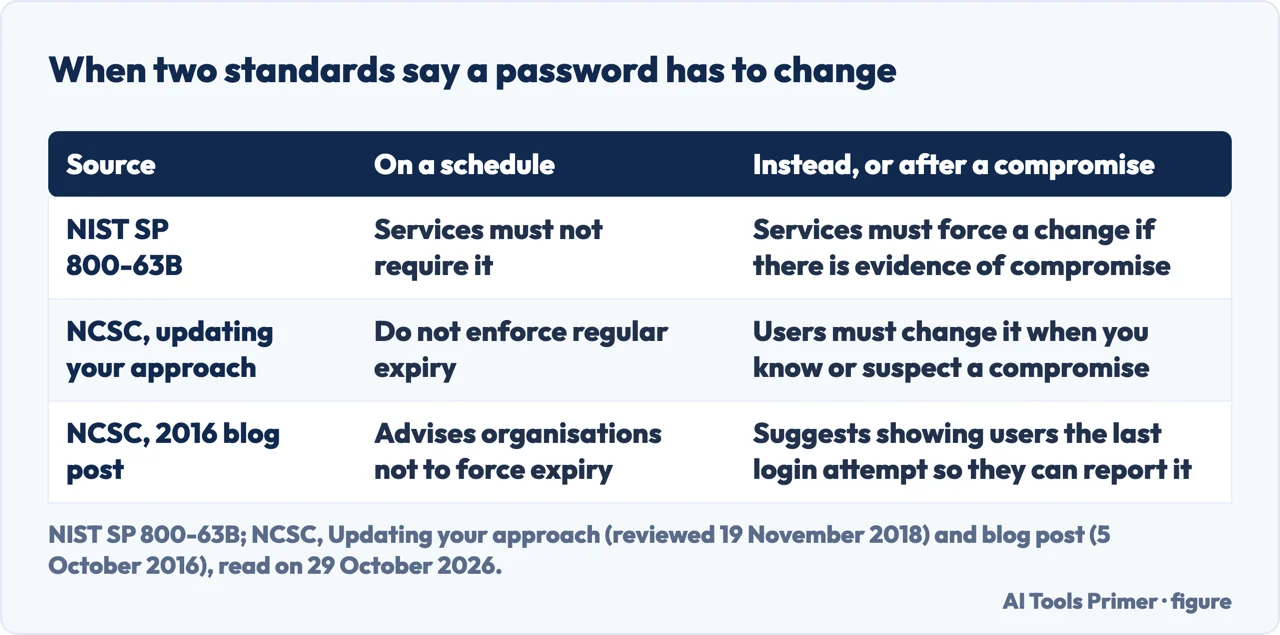
Two documents in the pages we read speak to the habit of changing a password every few weeks. NIST SP 800-63B, in its section on passwords, says that verifiers and credential service providers shall not require subscribers to change passwords periodically. The NCSC, the UK’s National Cyber Security Centre, says in its guidance on password administration not to enforce regular password expiry, and describes expiry as a change forced at intervals that are typically 30, 60 or 90 days. A blog post of 5 October 2016 on the NCSC site says the same advice was already in the password guidance it published in 2015, and calls it, for many, an unexpected recommendation.
NIST writes for the services that check passwords, and the NCSC writes for the people who run systems. What the pages let us report is a rule about what a service should demand, not a habit for you to adopt, and we have not turned one into the other.
The two differ on what triggers a change. NIST says verifiers shall force a change if there is evidence that the authenticator has been compromised. The NCSC page ends its section on expiry with a note that users must change their passwords when you know, or suspect, that one has been compromised. Evidence is a higher bar than suspicion, so the NCSC’s trigger is the wider of the two. The NIST page we read does not show the date or the status of the revision, 800-63-4, so we do not call it the latest edition.
Why the NCSC says a scheduled change does harm
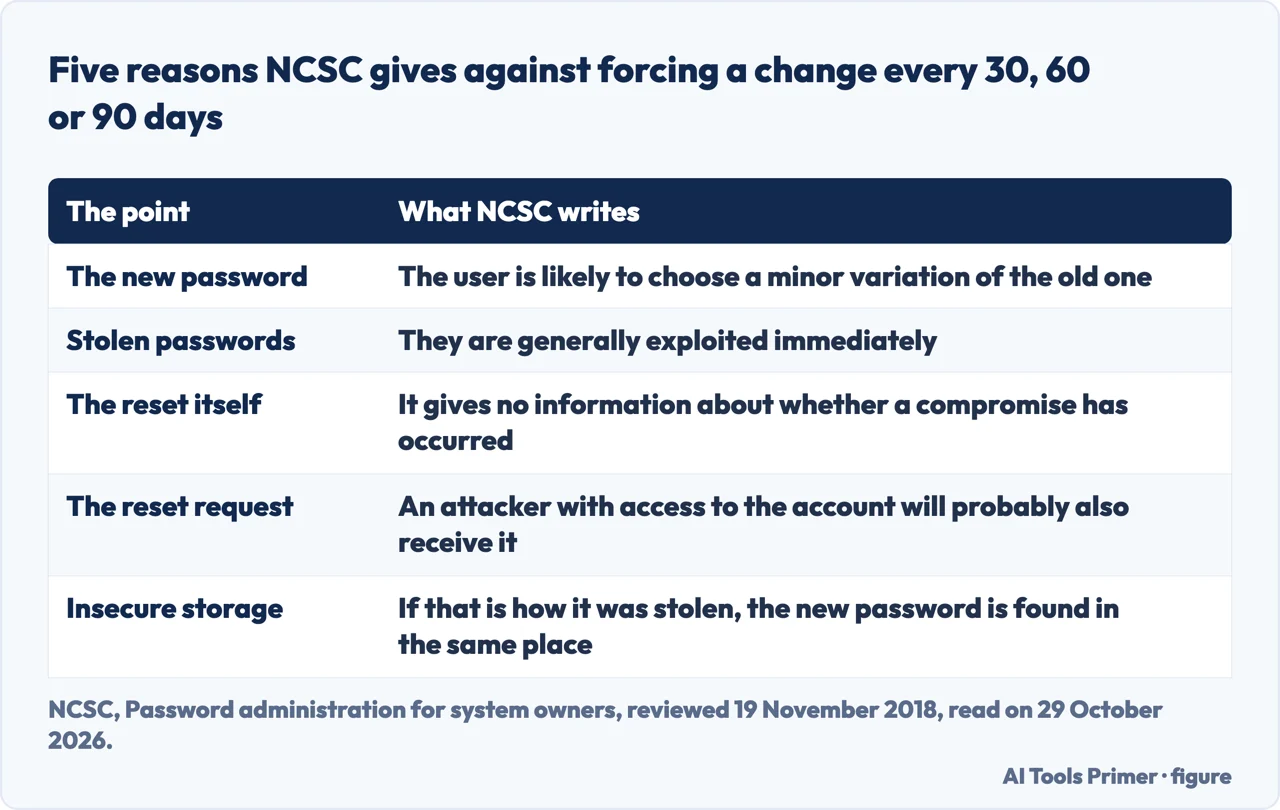
The NCSC page on password administration states that regular password changing harms rather than improves security. It gives five reasons, which the table below sets side by side. The user is likely to choose a new password that is only a minor variation of the old one. Stolen passwords are generally exploited immediately. Resetting a password gives no information about whether a compromise has occurred. An attacker with access to the account will probably also receive the request to reset it. And if the password was compromised through insecure storage, the attacker will find the new one in the same place.
The 2016 blog post argues from the cost to the user. Password policies already ask for passwords that are hard to remember, and the post says that people cannot manage that for the dozens of passwords of an online life. Forced to change one, the chances are that the new password will be similar to the old, which attackers can exploit. The post adds that the new password may have been used elsewhere, is more likely to be written down and is more likely to be forgotten, which means lockouts and password resets by a service desk. Its conclusion is that the more often users are forced to change passwords, the greater the overall vulnerability can be.
NIST reaches a neighbouring conclusion in Appendix A, which is marked as informative. It says people respond to composition rules in a predictable way: someone who would have chosen password is likely to choose Password1 if a capital and a number are required, and Password1! if a symbol is required too. It also says highly complex passwords are less likely to be remembered and more likely to be written down or stored electronically in an unsafe way. Its summary is that blocklists, secure hashed storage, machine-generated random passwords and rate limiting are more effective against modern brute-force attacks than extra requirements. Appendix A also admits a limit: keystroke logging, phishing and social engineering work as well on long and complex passwords as on simple ones, and it leaves them outside its scope.
In place of expiry the NCSC lists locking inactive accounts automatically, monitoring logins for suspicious behaviour such as unusual login times or new devices, and encouraging users to report anything suspicious. It adds multi-factor authentication, which it says makes a compromised password less useful to an attacker, and notes that a code sent by text or email can even warn a user, because it arrives when they did not ask for it. Our page on two-factor and two-step verification covers that second lock.
When a change is called for, and the order we would use
For system owners, the NCSC page on password administration also says to change all default passwords that come with a system, software or device before it is deployed. Our page on changing a Wi-Fi password covers the home network, a related case.
What follows a change differs by service. Google says that after you change or reset your password you are signed out everywhere except on the devices you use to verify that it is you, on some devices with third-party apps you have given account access, and on home devices you have given account access. Its page also says to choose a password you have not already used with that account. Facebook’s page says you can reset a password only a certain number of times a day, without giving the number, and that with two-factor authentication on you cannot use the same mobile number for the reset that you use for the codes. Login.gov says that if your identity was verified, a password reset deactivates the profile until you reactivate it with your personal key, and that you should save the new personal key it gives you. Our pages on changing a Facebook password and an Instagram password go further on each of those accounts.
An order, and why it is ours. The pages we read do not say which password to change first, or in what order. What follows is our own reasoning, built on one of the NCSC’s five reasons: an attacker with access to an account will probably also receive the request to reset its password. Google’s page says an email is sent when you recover an account, and Facebook’s says a reset link is sent to your email. If reset messages go to an email account, whoever controls that account can receive the reset requests for every account that sends there. On that reasoning, if you are changing more than one password, the email account comes first, so that the other resets do not land in a mailbox that is still exposed. Our page on resetting a Gmail password covers that account when it is a Gmail one.
After the email account, we would take the accounts where there is an indication or a suspicion of compromise, because that is the NCSC’s trigger, and then the rest. The NCSC reason about insecure storage adds one more step to our reading: if the old password was taken from a place where it was kept badly, the new one should not go back to that place. This order is our reasoning, not a rule stated in the pages we read, and a different order may suit a different situation.
What the new password has to be
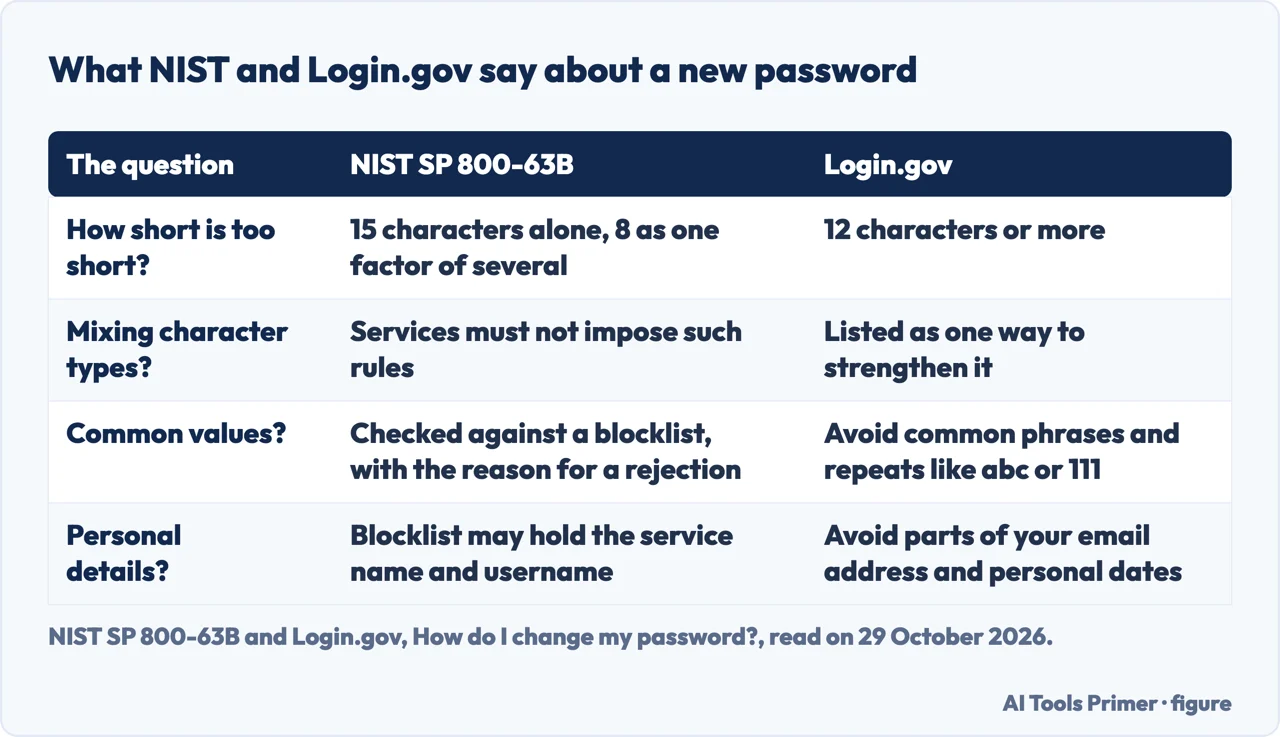
The minimum length is not the same on every page. NIST says passwords used as a single-factor mechanism need at least 15 characters, and allows passwords used only as part of multi-factor authentication to be shorter, with a minimum of eight. Login.gov asks for 12 or more. The pages do not say why the numbers differ. NIST adds that services should permit a maximum length of at least 64 characters and should accept spaces and Unicode characters, and its Appendix A says length is a primary factor in strength and that passphrases, meaning passwords of several words, are often an effective way to get a longer one. Login.gov points the same way when it suggests multiple words with spaces to reach 12 characters. The NCSC guidance for system owners does not recommend complexity requirements, asks for a minimum length, and says the ‘three random words’ technique helps people make passphrases they can actually remember; it also recommends a password manager’s built-in generator.
On mixing character types the two part ways in tone. NIST says services shall not impose other composition rules, for example requiring a mixture of character types. Login.gov lists numbers and special characters among the ways to strengthen a password, as a suggestion. What Login.gov does ask you to avoid is common phrases, repeated characters like abc or 111, parts of your email address, personal dates such as a birthday, and the same password or parts of it used for other accounts, such as a bank account or email.
When you create or change a password, NIST says the service shall compare it with a blocklist of commonly used, expected or compromised values. It gives as examples passwords from earlier breaches, dictionary words and context-specific words such as the service name or the username. The whole password is compared, not pieces of it. If yours is on the list, the service has to make you choose another and give the reason for the rejection, and it has to offer guidance on choosing a strong one. On our reading, that check is one reason a service may refuse an otherwise long password.
NIST also says services shall allow password managers and autofill, and should permit pasting, and it notes that managers have been shown to increase the chance of stronger passwords, especially when they include generators. Our page on whether Bitwarden is safe looks at one such manager. NIST says services shall not let you store a hint that someone not yet signed in can read, and shall not prompt for knowledge-based answers such as the name of a first pet when you choose a password. That is about choosing a password. Microsoft’s page, covered below, uses security questions you set at account creation for a different moment, resetting a local account.
Where to change it: Google, a Windows local account, Facebook and Login.gov
Google. Google’s help page says to open your Google Account, click Security & sign-in at the top left, and click Password in the section called How you sign in to Google. You may need to sign in again. Enter the new password and select Change Password. If you forgot the password, the page sends you to the account recovery steps, where you answer some questions to confirm it is your account and an email is sent. If it does not arrive, Google says to check junk, spam and bulk folders, add its no-reply address to your address book and check every address you might have used to sign up or sign in.
A Windows local account. Microsoft’s page covers an account that signs in to the PC with a local password, not a Microsoft account. When you are signed in, open Settings, select Accounts and Sign-in options, then Password and Change; you must enter your old password to create a new one. When you are not signed in, select the password entry button on the sign-in screen, then Reset password, and answer the security questions you set up at account creation, or use a password reset disk if you made one. From another account on the PC that is an administrator, open Computer Management, expand Local Users and Groups and Users, right-click the user and select Set Password. Without an administrator account, the page says you will need to reset the device. It also says that Microsoft support cannot help you retrieve or circumvent a lost or forgotten password, and that its agents are not allowed to send password reset links. For the online account, see our page on changing a Microsoft password.
Facebook. Facebook’s help page says to log in, click your profile picture at the top right, then Settings & privacy and Settings, then Accounts Center and Password and security, and click Change password and the account you want to update. If you do not remember the current password, you select Forgot your password and may be asked for a confirmation code sent to your email. From the login screen, Forgot password asks for the email, mobile number, full name or username on the account.
Login.gov. Its help page says to sign in at secure.login.gov with your email and password, authenticate with one of the methods you set up, select Edit next to the password field, enter the new password and click Change password. Our pages on a ChatGPT password and on the Instagram reset email cover two more services.
What we did not use
We changed no password on any account for this page. Apple’s steps for changing a password are not covered here. The pages we read do not mention how often a private person should change a password, give a number of Facebook resets per day, or list every device that stays signed in after a Google change. The NIST text and the NCSC pages are written for services and system owners, and we have not treated them as advice to a person. We did not look for figures on how often passwords are reused, so this page gives none.
Where to start
Four ways in.
- “Do I have to change it regularly?”
- What NIST and the NCSC say about changing on a schedule — schedule
- “When must I change it, and which first?”
- When a change is called for, and the order we would use — when
- “What should the new one be?”
- What the new password has to be — new
- “Where do I change it?”
- Where to change it: Google, a Windows local account, Facebook and Login.gov — where
Changing it on one service
The same task, one account at a time.
Around the password
The email, the second lock and the manager.
Questions people also ask
How can I change my password in Settings?
For a Windows local account, Microsoft says to open Settings, select Accounts and Sign-in options, then Password and Change, and enter the old password. The Google page we read gives computer steps only, so we give no phone steps for Google. Facebook puts it under Settings & privacy.
How do I get to my Google Account to change my password?
Google says to open your Google Account, click Security & sign-in at the top left, click Password under How you sign in to Google, sign in again if asked, enter the new password and select Change Password.
How do I change my login password?
It depends on the login. For a Windows local account, Microsoft points to Settings. For Login.gov, sign in at secure.login.gov, authenticate, select Edit next to the password and click Change password.
How do I reset my password when I forget it?
Microsoft says a local account can be reset from the sign-in screen by answering the security questions set at creation. Google sends you through account recovery and an email. Facebook asks for the email, mobile number, name or username on the account.
Not covered here. We changed no password on any account. The statements come from two NIST pages, two NCSC pages, and the help pages of Google, Microsoft (local accounts), Facebook and Login.gov, all read on 29 October 2026.
The search volume and difficulty behind this page come from a Semrush reading of 29 August 2026, older than the 60 days the site normally allows.
Sources
- NIST — SP 800-63B, Authenticators (passwords) — pages.nist.gov, read 29 October 2026.
- NIST — SP 800-63B, Appendix A, Strength of Passwords — pages.nist.gov, read 29 October 2026.
- NCSC — The problems with forcing regular password expiry — www.ncsc.gov.uk, read 29 October 2026.
- NCSC — Password administration for system owners — www.ncsc.gov.uk, read 29 October 2026.
- Google Account Help — Change or reset your password — support.google.com, read 29 October 2026.
- Microsoft Support — Change or reset your local account password in Windows — support.microsoft.com, read 29 October 2026.
- Facebook Help Center — Change your password — www.facebook.com, read 29 October 2026.
- Login.gov — How do I change my password? — www.login.gov, read 29 October 2026.
Written by Alberto Gulotta
Founder and editor of AI Tools Primer, writing from Palermo, Italy. Thirty-five years of taking computers apart, starting with a Commodore 64 — the long version is on the about page.
Something wrong on this page? Write to aitoolsprimer@gmail.com and it gets fixed.
Written on 29 October 2026.
Independence and limits
No affiliate links and no paid placements anywhere on this site. Nobody pays to appear here, and no company has seen this page before you did.
This is general information, not professional advice. Where a page touches money, health, safety or the law, it names its source and the date it was read — and your situation may still differ. See the privacy page and the cookie policy.