Uninstall apps on Mac and dragging an icon to the Trash is a large part of the answer, not the whole of it. What it leaves behind is set out by Apple itself — in two sentences at the top of its own page that are more useful than the instructions underneath them.
“Deleting or uninstalling an app doesn’t cancel any subscription that you purchased
with the app.”
“Deleting or uninstalling an app doesn’t remove any documents or other files that you
created with the app. But you might need the app in order to open such files.”
Both of these are Apple’s, both are in a section headed Before you begin, and both are
about the same thing: deleting an app removes the app and nothing else. The money keeps
going out. The files stay — and become unopenable at the moment you remove the only thing that
could read them.
So where is the “nothing else”? Apple’s support pages say what
deleting does not touch; Apple’s developer documentation says where those things
live, and names the convention that makes them findable. Of
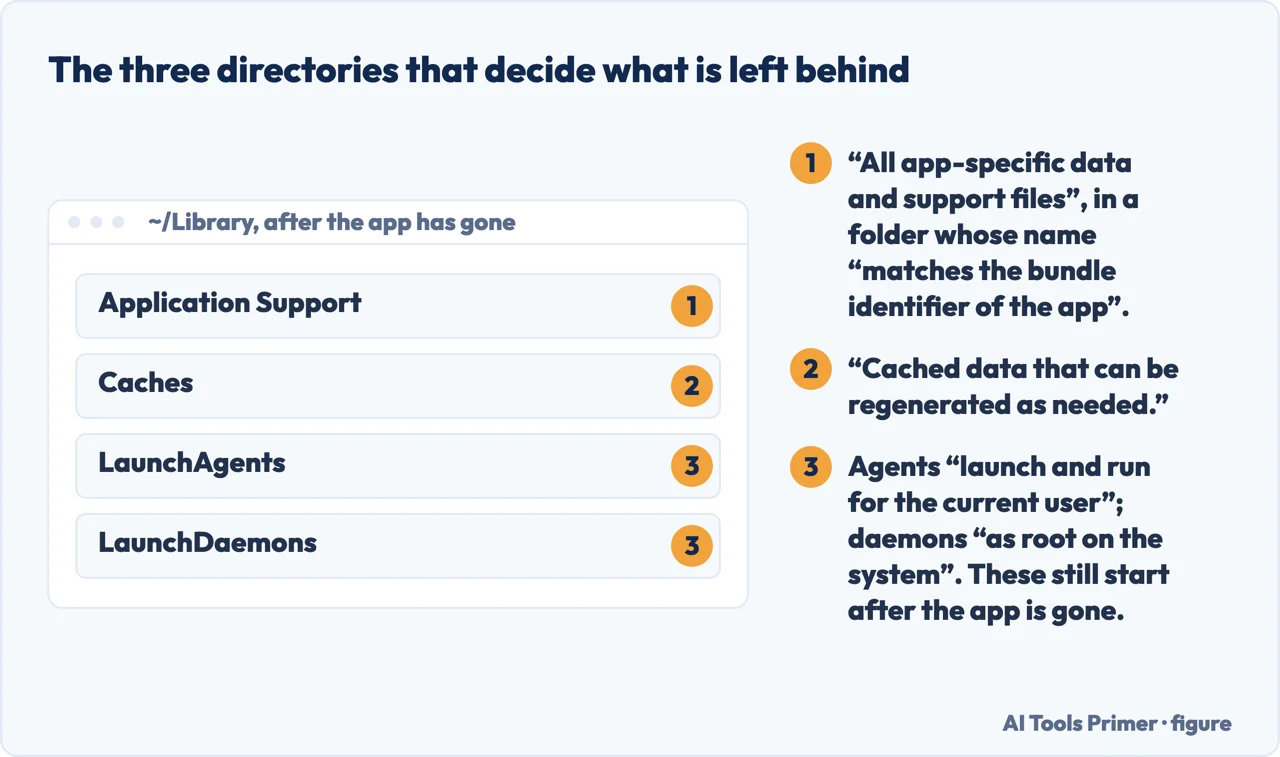
~/Library/Application Support: it “contains all app-specific data and
support files… files that your app creates and manages on behalf of the user and can
include files that contain user data”. And the naming rule: “By convention, all of
these items should be put in a subdirectory whose name matches the bundle identifier of the
app” — so an app published as com.example.MyApp leaves its things in
~/Library/Application Support/com.example.MyApp/, and that is a name you can
search for rather than a folder you have to recognise.
Two of those directories behave very differently, and the difference decides what is safe to
remove. Caches “contains cached data that can be regenerated as
needed”, and Apple adds that apps “should never rely on the existence of cache
files”. LaunchAgents, on the other hand, “specifies the agent apps to
launch and run for the current user”, and LaunchDaemons those to
“launch and run as root on the system”.
That last pair is the reason this page does not end at the Trash. A cache left behind
costs disk space. An agent or a daemon left behind is something that still starts — after
the app that put it there is gone. Apple documents the directories; it does not offer a way to
read what is in them in plain language.
A cache costs disk space; an agent is something that still starts. Figure drawn by AI Tools Primer.
For reading that list there is a tool published by Objective-See, “a non-profit 501(c)(3) foundation”, which is worth naming for what it is rather than recommending: it enumerates what is set to start. Its own description is “see what’s persistently installed on your Mac”, and the categories it walks include Launch Items, Login Items, Browser Extensions, Kernel Extensions, Cron Jobs and Shell Configuration Files. Its page does not state a price, so this page does not either. One detail on it belongs here for its own sake: “There is no need to install anything, and KnockKnock can be run from anywhere” — which also means there is nothing to uninstall afterwards, on a page about uninstalling.
Checked on Apple’s own pages, 23 August 2026
Apple’s current instructions for removing an app do not mention Launchpad at
all. Neither its support article nor its Mac User Guide page names it; both send you to
Spotlight and the Finder instead. The help page that used to be called “Use Launchpad to
view and open apps on Mac” now carries the same article number under a different title —
“View and open apps on Mac” — and opens with “Spotlight is the central location where you
can search, browse, and open your apps.” The older title is still readable if you switch
that page to macOS Sequoia 15.
Which matters because of what almost every guide to this still says: open
Launchpad, press and hold until the icons wobble, click the X. That is a route Apple no
longer documents, and on a Mac running the current macOS it is not where the vendor points
you. The instructions below are the ones Apple publishes today.
The subscription line is the one to act on today. An app removed from the Mac is still an app you are paying for, and the place to stop that is the account the subscription was bought through rather than the machine it was installed on. Deleting the icon changes nothing about the billing.
The file line is the one to think about before you delete anything unusual. A document is only a document if something can open it; remove the only program that reads a format and you have kept the files and lost their contents. For an ordinary app that reads ordinary formats this does not arise. For the one piece of software that made those drawings, it is the whole question.
With that settled, the mechanics — and the first decision is which kind of app you have.
An app with an uninstallerUse it
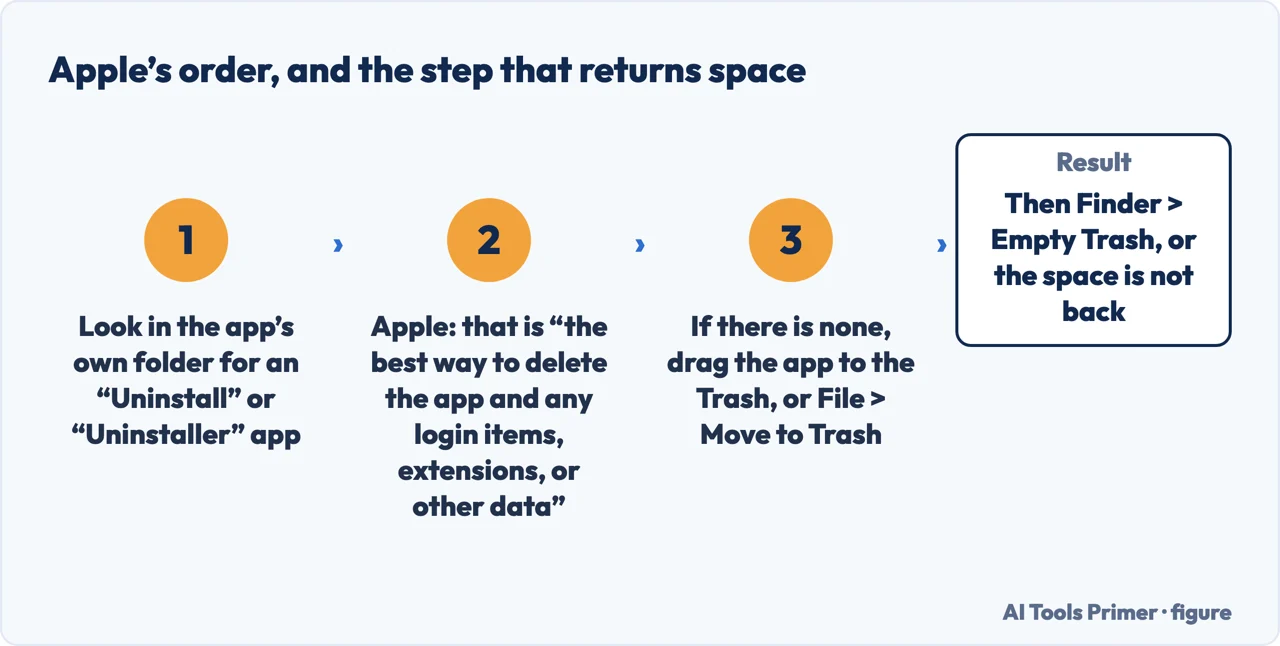
Apple: if the app “isn’t made by Apple, find out whether it includes an ‘Uninstall’ or
‘Uninstaller’ app, which might be in the same folder as the app itself.”
And the reason to prefer it, in Apple’s own words: “that’s the best way to delete the app and
any login items, extensions, or other data the app might have stored in other
locations.” Dragging to the Trash leaves those where they are.
Everything elseDrag it to the Trash
“If the app doesn’t include an uninstall app or feature, drag the app to the Trash. Or select
the app, then choose File > Move to Trash from the menu bar in the Finder.”
Some apps put the same thing inside themselves — Apple notes that a few “offer an uninstall
(or remove or reset) feature as a menu item or setting within the app.”
Until the Trash is emptied the app is moved, not removed. Figure drawn by AI Tools Primer.
That first card is Apple’s own recommendation rather than an opinion, and it rests on a phrase worth noticing: the app may have stored things “in other locations”. Dragging the icon away moves the icon. The program the developer wrote to remove the app is the one that knows what else there was. Checking costs nothing: open the folder the app is in, and see whether something with Uninstall in its name is sitting beside it.
The order Apple gives, including the two steps that are easy to skip
Quit the app first. “If the app is currently open, quit the app before continuing.” This
is also the answer when the Mac says the app is in use.
Find it in the Finder. Apple: “Most apps are in the Applications folder” — but it names a second place:
“other apps might be installed in the Applications folder of your home folder, which you can open by choosing Home from the Go menu in the menu bar.” Two folders
with the same name, and things hide in the second one.
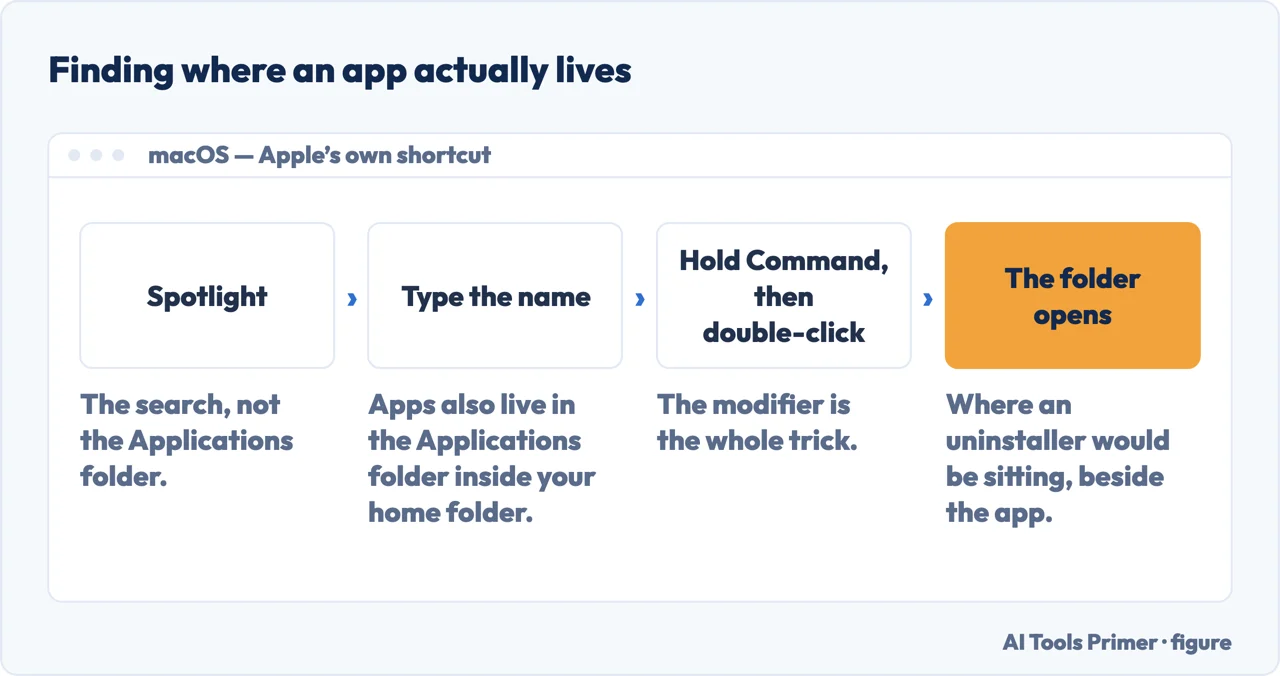
Or find it with Spotlight. The trick worth stealing: search for the app, then “press and
hold the Command (⌘) key while double-clicking the app in the Spotlight search results” —
which opens its folder rather than the app.
Enter an administrator password if asked. “Enter the name and password of an
administrator account on your Mac. This is usually the name and password that you use to log in to your Mac.”
Empty the Trash. The step that actually does it: “To permanently delete the app and make
its storage space available for other items, choose Finder > Empty Trash from menu bar in the Finder.” Until then
the app is moved, not removed, and the space is not back.
The folder is where an uninstaller would be sitting. Figure drawn by AI Tools Primer.
The last of those is where the storage question is actually settled. Moving an app to the Trash changes nothing about how full the disk is; Apple is explicit that the space becomes available on emptying it. Anybody who has deleted a great deal of software to make room, and then looked at the storage figure with dismay, has stopped one step early.
Some of them will not go, and that is not a fault. Apple: “You can’t use the Finder to
delete apps that are required by your Mac. This includes many apps that are installed by macOS,
such as Mail, Music, Books, Notes, Podcasts, Maps, News, and Stocks, as well as any apps in
the System folder, which is reserved by macOS.”
That list is worth reading before you set about trying to remove Stocks. If an app on
it is in your way, the question to ask is not how to delete it but how to get it out of sight — and
Apple’s own related link is about removing items from the Dock, which is a different job with a
much easier answer.
There is one more asymmetry between the two kinds of app, and it runs the other way from everything above. Where the app came from decides whether deleting it is reversible — and for one of the two kinds it is completely reversible, at no cost, from a machine that no longer has the app on it.
“In the App Store, all of your purchases are tied to your Apple Account, and
can’t be transferred to another account.”
Apple writes that as a warning about transfers. Turned around it is the most reassuring line
on this page: an App Store app you delete is still yours to download again. Apple’s own
route back has three steps — open the App Store, “click your name in the bottom-left corner”,
then find the purchased app and download it. There is a setting that does it without being
asked, too: App Store > Settings, then “Automatically download apps purchased on other
devices”.
For the other kind of app, Apple is precise about when the deletion happens:
“The app is permanently removed from your Mac the next time you or the Finder empties the
Trash.” Until that moment nothing has actually been deleted — which is also the window in
which putting it back costs one drag.
And Launchpad is not the only door. For a purchased app Apple documents the Finder route as
well: “Click Applications in the sidebar, Control-click the app icon, then choose Move to
Trash.” The jiggling icons are a convenience, not a requirement.
And one last route for the app that simply refuses. Apple’s own closing paragraph is short and worth following in order: “If you can’t delete an app because your Mac says that it’s in use, make sure that the app isn’t open. If necessary, restart your Mac or start up in Safe Mode, then try again.” Three attempts in a stated order, and the point of following it is that each one is cheaper than the next.
The guides below take it four ways: what deleting leaves behind, finding the app in the first place, the uninstaller worth looking for, and the apps that will not go at all.
Not covered here. It will not tell you to install a cleaner to do this. Apple names the better route itself — the developer’s own uninstaller — and it is already on your machine when it exists.
It will not pretend deleting an app ends a subscription. Apple says the opposite in its first paragraph, and the money keeps leaving until you cancel it where you bought it.
And it will not suggest ways to remove the apps macOS requires. Apple lists them, the Finder refuses them, and the useful version of that wish is a tidier Dock. What holds instead is simple: what deleting never touches is Apple’s own wording, and the tool that finds the leftovers comes from a non-profit whose page names no price.
Sources
Apple — macOS User Guide, Use Launchpad to view and open apps on Mac, the macOS Sequoia 15 version of article mh35840, where the older title is still published — the same article number that on the current version is titled “View and open apps on Mac” — support.apple.com, read 6 September 2026.
Apple — macOS User Guide, View and open apps on Mac (the page carrying article number mh35840, formerly titled “Use Launchpad to view and open apps on Mac”, which now opens “Spotlight is the central location where you can search, browse, and open your apps.”) — support.apple.com, read 6 September 2026.
Apple Support — Delete or uninstall apps on Mac (the note that deleting does not cancel a subscription or remove documents, the instruction to quit the app first, the two Applications folders, the Command-double-click Spotlight route, the recommendation to use a developer’s uninstaller and what it also removes, the administrator password, the Empty Trash step, and the named list of apps required by macOS). Published date given on the page: 8 June 2026 — support.apple.com, read 22 August 2026.
Apple Support — Install and uninstall purchases from the App Store on Mac, macOS 15 (the route to install an app purchased on another device by going to the App Store app, clicking your name in the bottom-left corner or Sign In, locating the purchased app and clicking the download button; the App Store > Settings option to automatically download apps purchased on other devices; that reinstalling follows the same steps; the Launchpad route of clicking and holding the app icon until it begins to jiggle and then clicking the close button; the Finder route of clicking Applications in the sidebar, Control-clicking the app icon and choosing Move to Trash; the note that in the App Store all purchases are tied to your Apple Account and cannot be transferred to another account; and that apps which are part of macOS, such as Safari and Mail, cannot be uninstalled) — support.apple.com, read 24 August 2026.
Apple Support — Install and uninstall apps from the internet or a disc on Mac, macOS 14 (the instruction to click the Finder icon in the Dock and then Applications in the Finder sidebar; to check the app folder for an uninstaller, double-click it and follow the onscreen instructions; otherwise to drag the app from the Applications folder to the Trash; the warning that the app is permanently removed from the Mac the next time you or the Finder empties the Trash and that files created with the app may no longer be openable; and the direction to use Launchpad for apps from the App Store) — support.apple.com, read 24 August 2026.
Apple Developer, macOS Library Directory Details — File System Programming Guide, archived documentation updated 9 April 2018 (that Application Support contains all app-specific data and support files, including files that contain user data; that by convention those items go in a subdirectory whose name matches the app’s bundle identifier; that Caches contains data that can be regenerated and that apps should never rely on cache files existing; and that LaunchAgents specifies agent apps to launch for the current user while LaunchDaemons specifies daemons to launch as root on the system) — developer.apple.com, read 26 August 2026.
Objective-See, KnockKnock — published by a non-profit 501(c)(3) foundation, and the page states no price (that the tool shows what is persistently installed on a Mac; that the categories it enumerates include Launch Items, Login Items, Browser Extensions, Kernel Extensions, Cron Jobs and Shell Configuration Files; and that there is no need to install anything and it can be run from anywhere) — objective-see.org, read 26 August 2026.
AG
Written by Alberto Gulotta
Founder and editor of AI Tools Primer, writing from Palermo, Italy. Thirty-five years of
taking computers apart, starting with a Commodore 64 — the long version is on the
about page.
Written on 22 August 2026 · last checked 23 September 2026.
§
Independence and limits
No affiliate links and no paid placements anywhere on this site. Nobody pays to appear here,
and no company has seen this page before you did.
This is general information, not professional advice. Where a page touches money, health,
safety or the law, it names its source and the date it was read — and your situation may
still differ. See the privacy page and the
cookie policy.