
Code · guide
GitHub secret scanning and the order for a leaked key
By Alberto Gulotta · Updated · 17 min read
GitHub secret scanning looks for credentials such as API keys, passwords and tokens in a repository, and GitHub's documentation says it covers the entire Git history on all branches. This page sets that against a vendor's claim, then gives GitHub's order for a key that is already public, from revoking it to cleaning history.
| Question | Answer | Where it comes from |
|---|---|---|
| What does it scan? | The entire Git history on all branches, plus issues, pull requests, discussions, wikis and secret gists | GitHub Docs |
| Is it free? | On public repositories, yes; organization-owned private ones need Secret Protection on Team or Enterprise Cloud, and user-owned ones depend on the plan (see the section below) | GitHub Docs |
| A key is already public: what first? | Revoke it with the provider; removing it from the code does not stop it being used | GitHub Docs |
| Must the history be rewritten? | Often not once the credential is revoked; the rewrite has side effects | GitHub Docs, OWASP |
| Does it scan history at all? | GitHub Docs says yes; Rafter, which sells scanning, says no | GitHub Docs, Rafter |
What it looks for, and where it runs
GitHub Docs says secret scanning scans your entire Git history on all branches of a repository for hardcoded credentials, among them API keys, passwords, tokens and other known secret types, and that GitHub also rescans periodically when new secret types are added. It lists more places that are scanned automatically: descriptions and comments in issues, titles, descriptions and comments in pull requests and in GitHub Discussions, wikis and secret gists. GitHub’s own article on the subject, dated 5 March 2025, describes the tools in general as parsing code for patterns that resemble known secret formats, and names API keys, authentication tokens and encryption keys as examples of secrets.
The Supported patterns page sorts what is detected into three categories. Provider patterns are tied to a service such as AWS, Azure or Stripe and are matched with regular expressions. Generic patterns are not tied to a provider and include private keys and database connection strings; the page lists EC, OpenSSH, PGP and RSA private keys, and connection strings for MongoDB, MySQL and PostgreSQL, and gives each a precision level, High or Medium, estimated from its typical false positive rate. The third category is AI-detected: passwords and other unstructured secrets. The page says validity checks are not supported for generic patterns or for passwords. Beyond the defaults, GitHub Docs lists custom patterns, which are regular expressions you define, and validity checks, which it says may contact the issuing service to learn whether a secret is still active.
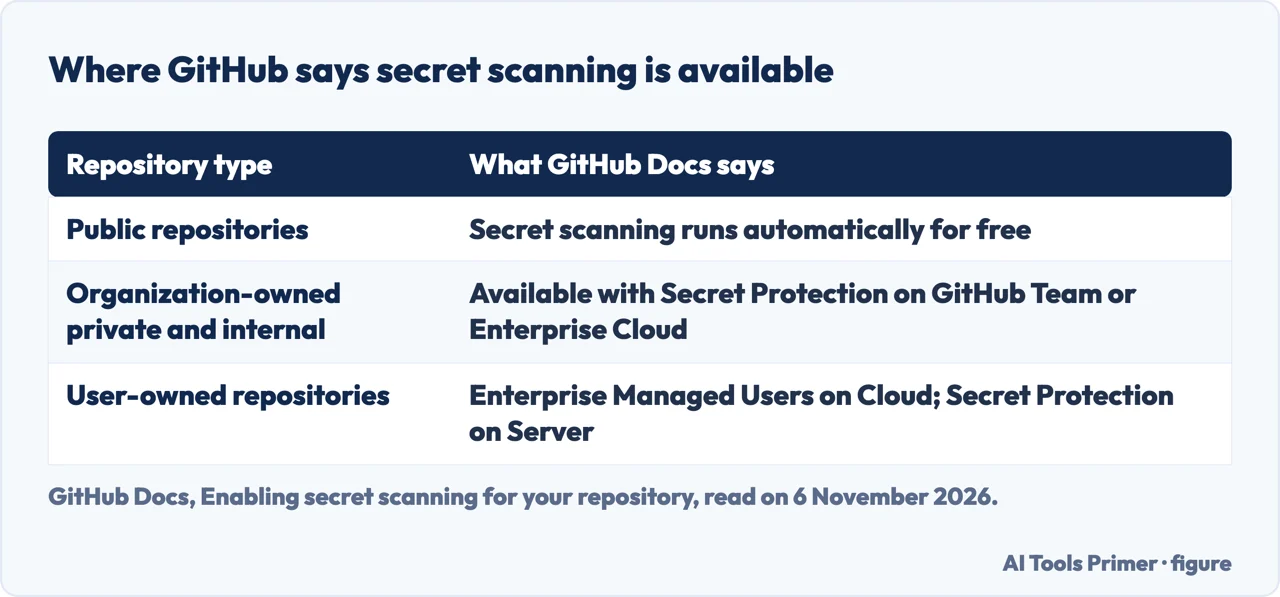
Where it runs depends on the repository. Public repositories: secret scanning runs automatically for free. Organization-owned private and internal repositories: it is available with GitHub Secret Protection enabled on GitHub Team or GitHub Enterprise Cloud. User-owned repositories: it is available on GitHub Enterprise Cloud with Enterprise Managed Users, or on GitHub Enterprise Server when the enterprise has Secret Protection enabled. To switch it on for a repository, the enabling page says to open Settings, then Advanced Security in the “Security and quality” section, click Enable beside Secret Protection and review the impact; an administrator can turn it off again at any time. The same About page adds that an organization can run a free assessment of its code for leaked secrets: open the organization’s Security and quality tab, display the Assessments page and click Scan your organization. Organization owners can enable it for many repositories at once through security configurations.
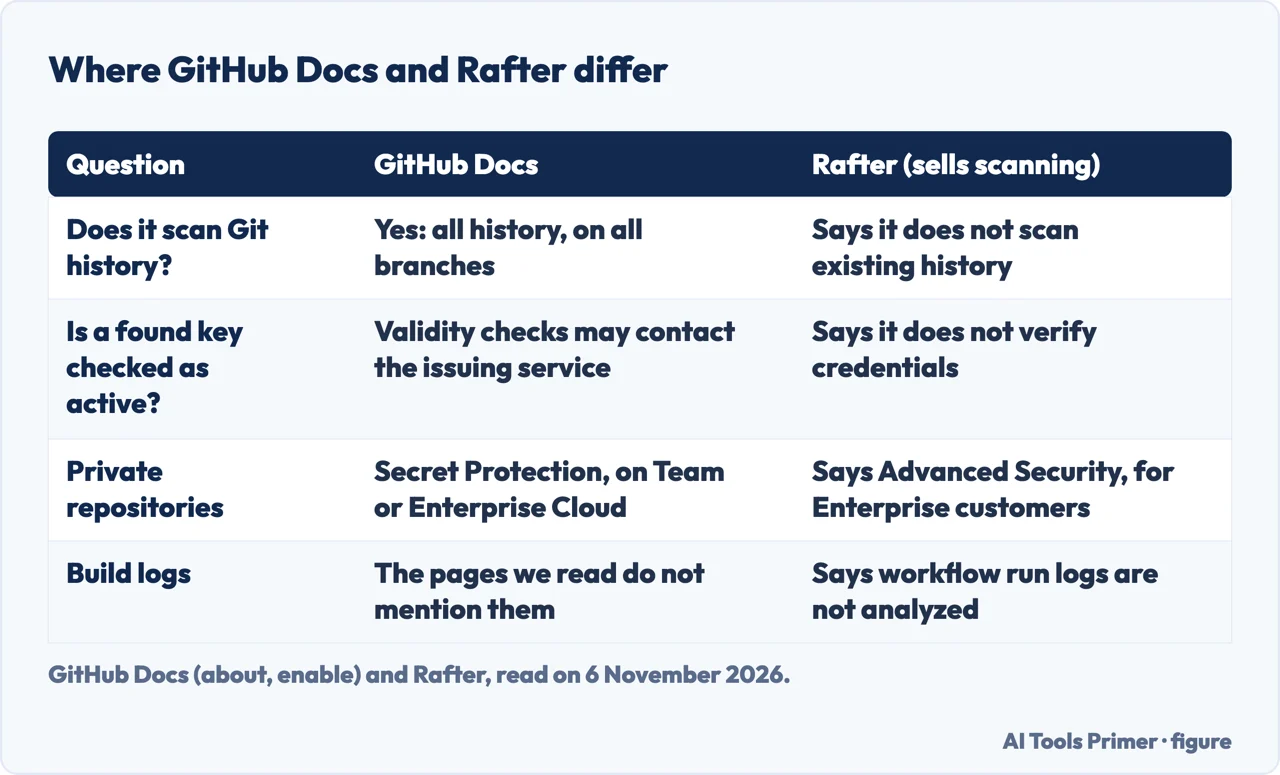
Rafter’s article names the private-repository requirement differently: it says GitHub Advanced Security, a paid add-on for GitHub Enterprise customers. The GitHub pages we read use the name Secret Protection and name Team and Enterprise Cloud, so this page follows them.
Push protection and the three kinds of alert
Push protection is the part that acts before the leak. GitHub Docs says it blocks a push that contains a secret before it reaches the repository and shows a message that explains the block; you then review the code, remove the sensitive information and try the push again. The Push protection page we read stops there: it does not say how to take a secret out of an older local commit, so this page does not claim a method for that. It can block partner patterns, generic patterns, custom patterns and, in a public preview the page marks as subject to change, secrets found with AI. The page lists the places it applies: pushes from the command line, commits made in the GitHub interface, file uploads, requests to the REST API, and the GitHub MCP server for public repositories.
There are two kinds. Push protection for repositories needs Secret Protection and is disabled by default; a repository administrator, organization owner, security manager or enterprise owner can enable it. Push protection for users is available only on GitHub.com, belongs to your own account and is enabled by default; it stops you pushing secrets to public repositories and does not raise an alert when you bypass it unless the repository has push protection too.
For repositories, by default anyone with write access can bypass a block by giving a reason. GitHub then creates an alert, records the event in the audit log and emails the owners, security managers and administrators who are watching the repository. The reason decides the alert: “used in tests” or “false positive” gives a closed alert, and “I’ll fix it later” gives an open one. Delegated bypass lets you choose who may bypass, who may approve other people’s requests and who is exempt. Rafter, which sells scanning, calls the bypass a design choice and writes that a promise to fix it later can turn into never fixing it.
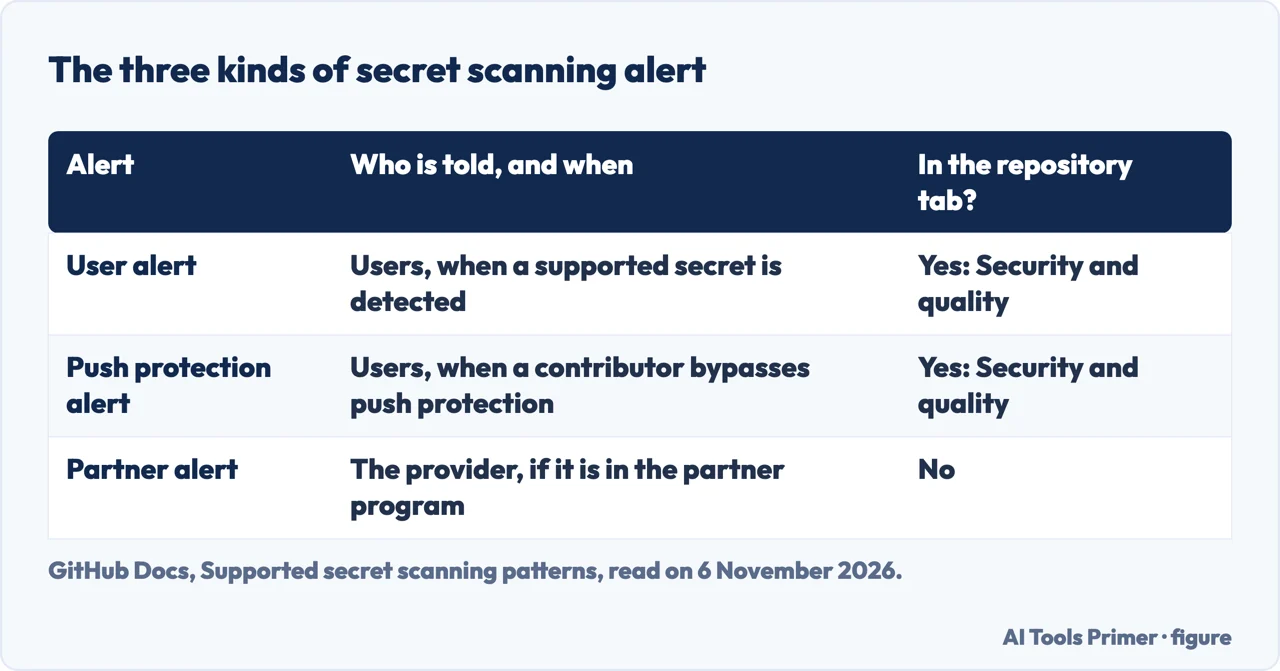
The Supported patterns page names three kinds of alert. A user alert goes to users in the Security and quality tab when a supported secret is detected. A push protection alert appears there when a contributor bypasses the block. A partner alert goes straight to the provider if it is in the partner program, and is not shown in the repository’s tab. GitHub Docs says the provider can then act, for instance by revoking the credential.
A key is already public: the order GitHub gives
GitHub’s tutorial on remediating a leaked secret starts from one rule: treat any leaked secret as compromised at once. It says removing the secret from the code, pushing a new commit, or deleting and recreating the repository does not prevent the secret from being exploited. The first step is to gather context: the secret’s type and provider, the repository, file and line, and its owner, for which it suggests the CODEOWNERS file and git log -S to see who committed it.
The second step is to judge the risk. With secret scanning on, the alert shows whether the secret is active, inactive or of unknown validity, and carries labels for public exposure and multiple leaks; for a GitHub personal access token it can show when it was last used and its access scope. Without scanning, the page suggests checking whether the repository is public, whether the secret has been used lately, and what the file is: a production deployment script or an admin key reads as higher risk than a test file. It also tells you to weigh which services depend on the secret and what a revocation would interrupt.
Step three sorts the cases. A secret that is still active, in a public repository, or a production credential is high risk, and the page recommends revoking it immediately. It says automated scanners can find publicly exposed secrets within minutes and that malicious actors can exploit them within hours. GitHub’s article gives a shorter window, a few seconds to a few minutes to locate and exploit one, and also says over 39 million secrets were detected on GitHub repositories in 2024; the number is the article’s and may be updated. If you worry about downtime, the tutorial says you may generate a new secret with the same permissions first, make the application use it, then revoke the old one. A secret that is inactive, in a private repository or a test credential is medium to low risk: the page says to alert the responsible team, agree a time to revoke and rotate, and still deal with it.
Step four is the one the tutorial calls the most important: revoke the secret with its provider, through the provider’s portal or by asking the secret’s owner or a repository administrator if you lack access. GitHub revokes leaked GitHub personal access tokens in public repositories by itself. For one in a private repository, the alert has a “Report leak” button. For other types in public repositories that match a partner pattern, GitHub reports the leak to the provider, who may revoke it at once. If the same login was reused elsewhere, our page on credential stuffing covers what that means for passwords.
After the revocation: find it, replace it, read the logs
Step five is to find every place the secret is used. The tutorial suggests GitHub’s code search across code, issues and pull requests, with org: to search an organization or repo: to search one repository, then a look at the repository’s deploy keys and its secrets and variables under Settings, and at installed GitHub Apps and integrations. You then update the application with the new secret and test it. The page gives a vault as a safe way to supply credentials and names the “Secrets and variables” store in the repository settings as the way to make them available to GitHub Actions workflows.
Step six is to check for unauthorized use while the secret was exposed. The tutorial points to your personal security log, the organization audit log and the enterprise audit log; the organization and enterprise logs can be searched for events performed by an access token, and access depends on your role, so you may need an organization owner or enterprise administrator. It adds the provider’s own logs, giving AWS CloudTrail as its example. The OWASP Secrets Management Cheat Sheet frames the same work as containment: revoke at once, rotate to a new secret, remove the old one from the exposed system, and keep a record of who had access, when they used it and when it was last rotated. It adds that a secret found in logs needs a process to remove it while keeping the log intact.
Steps eight and nine close the case, after the question of rewriting history (step seven) that the next section covers. In the alert, you select Close as and mark it “Revoked”, then document what you did and learned. To prevent a repeat, the page says to enable push protection and strict bypass controls for the repository, keep Push protection for users on in your own account, store secrets in environment variables or a secret management tool instead of hardcoding them, and rotate secrets regularly.
Rewriting history: when it is worth it
Step seven of the tutorial is to clean the repository, and it sounds a caution: cleaning Git history can be destructive and disruptive because it may involve force pushing, so you weigh it with the repository’s security leads against your compliance and security obligations. The About page is blunter about the order: removing the secret from history is time-intensive and often unnecessary if you have already revoked the credential. The page on removing sensitive data says the same from its side: first revoke or rotate, which may be sufficient, and the extra steps of a rewrite may not be warranted. OWASP lists squashing the history as a possibility and warns that it rewrites Git history and breaks other links to a commit, so you should plan for the consequences.
GitHub’s page lists those consequences. Anyone with a clone from before the rewrite who runs git pull then git push can bring the sensitive data back. Work on branches that still hold it can be lost or have to be redone. Commit hashes change from the first affected commit onward, which breaks tooling that depends on them. Branch protection that blocks force pushes must be turned off, at least for a while. The diff view of closed pull requests breaks, open pull requests can lose comments, and signatures on commits and tags are lost. The page adds that a changed history can show someone with an old clone where the removed data was.
If you go ahead, the page says you need git-filter-repo at version 2.47 or later, which has the --sensitive-data-removal option. You can remove a file from all branches and tags with --invert-paths and --path, or replace text listed in a file with --replace-text. Before pushing you count the pull requests affected, because once you move on the rewrite becomes irreversible; then you force push with git push --force --mirror origin. The pushes of refs under refs/pull/ fail because GitHub marks them read-only, so you contact GitHub Support with the repository name, the number of affected pull requests and the First Changed Commit that git-filter-repo reports. Once you have cleaned up all references other than pull requests and no fork holds references to the data, Support can dereference or delete the affected pull requests, run garbage collection and remove cached views. The page says commits that exist in forks stay accessible there, that GitHub cannot give you the fork owners’ contact details, and that Support only helps with sensitive data when the risk cannot be mitigated by rotating the credentials.
What it may miss, and where the sources disagree
Rafter’s article, dated 26 February 2026, is the one page we read that lists limits of GitHub secret scanning. Rafter sells scanning of its own and its article ends with an offer to start a scan, so we use it only for what it says GitHub does not do, and we label each point as its claim. The first collides with GitHub Docs: Rafter says the scanning does not look at existing history and only analyzes commits as they are pushed, while GitHub Docs says it scans the entire history on all branches. The pages we read do not explain the difference, so this page leans on the documentation and gives Rafter’s version beside it.
Rafter lists more. It says custom patterns need a paid license, which it names GHAS, while GitHub Docs lists custom patterns without that statement in the pages we read. It says GitHub does not tell you whether a found key is still active, where GitHub Docs describes validity checks that may contact the issuing service. It says GitHub does not analyze workflow run logs or build artifacts and gives no special treatment to .env files, Docker Compose secrets or Terraform state, and that the scan only works on GitHub-hosted repositories. The GitHub pages we read do not mention build logs, and the OWASP cheat sheet, which suggests considering more than one detection utility and correlating and de-duplicating their results to find areas of detection weakness, says a human-made password can be missed when it does not match the detection rules.
Our page on AI code review covers checking code a model wrote, where a key can be pasted into a file without anyone noticing.
Where to start
Four ways in.
- Does GitHub scan private repositories?
- What it looks for, and where it runs — scope
- “My push was blocked.”
- Push protection and the three kinds of alert — push
- “I already pushed a key.”
- A key is already public: the order GitHub gives — leaked
- “Do I have to rewrite the history?”
- Rewriting history: when it is worth it — history
What goes into the code
The assistant, the review and the packages behind it.
When a password or key is out
Where a reused login leads after a leak.
Questions people also ask
What is secret scanning?
GitHub’s article calls it a security process that automatically scans code and other data sources for sensitive information, such as exposed credentials and API keys in repositories, logs and commit histories. GitHub Docs describes its own version as scanning the entire Git history on all branches for hardcoded credentials.
What is secret scanning in GitHub?
GitHub Docs says it detects credentials committed to a repository, such as API keys, passwords and tokens, and generates an alert in the repository’s Security and quality tab. It tells you to rotate the affected credential immediately.
Is there a way to read GitHub secrets?
The pages we read do not describe reading back the values kept in Secrets and variables. They do describe finding a leaked secret: GitHub’s code search with org: or repo:, and the alert, which carries details about the exposed credential.
Does GitHub scan private repositories?
GitHub Docs says organization-owned private and internal repositories are covered with Secret Protection enabled on GitHub Team or Enterprise Cloud. User-owned private repositories need Enterprise Cloud with Enterprise Managed Users, or Enterprise Server with Secret Protection.
Not covered here. The statements come from six GitHub Docs pages, a GitHub article, a Rafter article and the OWASP Secrets Management Cheat Sheet, all read on 6 November 2026.
The search volume and difficulty behind this page come from an Ubersuggest reading of 5 November 2026 (United States, free plan); the difficulty is Ubersuggest’s own SEO difficulty, not Semrush’s KD, and no Semrush reading of this key has been made. The site’s 29 August 2026 Semrush reading is older than the 60 days it normally allows and does not include it.
Sources
- GitHub Docs — Secret scanning — docs.github.com, read 6 November 2026.
- GitHub Docs — Enabling secret scanning for your repository — docs.github.com, read 6 November 2026.
- GitHub Docs — Supported secret scanning patterns — docs.github.com, read 6 November 2026.
- GitHub Docs — Push protection — docs.github.com, read 6 November 2026.
- GitHub Docs — Remediating a leaked secret in your repository — docs.github.com, read 6 November 2026.
- GitHub Docs — Removing sensitive data from a repository — docs.github.com, read 6 November 2026.
- GitHub — What is secret scanning? — github.com, read 6 November 2026.
- Rafter — GitHub Secret Scanning: What It Catches and What It Misses — rafter.so, read 6 November 2026.
- OWASP — Secrets Management Cheat Sheet — cheatsheetseries.owasp.org, read 6 November 2026.
Written by Alberto Gulotta
Founder and editor of AI Tools Primer, writing from Palermo, Italy. Thirty-five years of taking computers apart, starting with a Commodore 64 — the long version is on the about page.
Something wrong on this page? Write to aitoolsprimer@gmail.com and it gets fixed.
Written on 6 November 2026.
Independence and limits
No affiliate links and no paid placements anywhere on this site. Nobody pays to appear here, and no company has seen this page before you did.
This is general information, not professional advice. Where a page touches money, health, safety or the law, it names its source and the date it was read — and your situation may still differ. See the privacy page and the cookie policy.