
Docs · guide
How to change default font in Outlook: four paths, three boxes
By Alberto Gulotta · Updated · 10 min read
How to change default font in Outlook depends on which Outlook you have. In classic Outlook for Windows it is File, Options, Mail, Stationery and Fonts. In new Outlook for Windows it is View, View settings, Mail, Compose, under Message format. On the web it is Settings, Mail, Compose, and on a Mac it is Outlook, Settings, Composing.
Two details decide whether the change sticks. Classic Outlook keeps separate fonts for new messages and for replies, and new Outlook keeps one per account. And the default itself has changed: Microsoft replaced Calibri with Aptos, and a university help desk notes the switch may arrive on its own through a Microsoft 365 update.
| Outlook | Where the default font is set | Set separately for |
|---|---|---|
| Classic Outlook for Windows | File, Options, Mail, Stationery and Fonts | New mail, replies and forwards, plain text |
| New Outlook for Windows | View, View settings, Mail, Compose | Each account |
| Outlook on the web and Outlook.com | Settings, Mail, Compose | Only when messages are composed in HTML |
| Outlook for Mac | Outlook, Settings, Composing | New mail, and reply or forward |
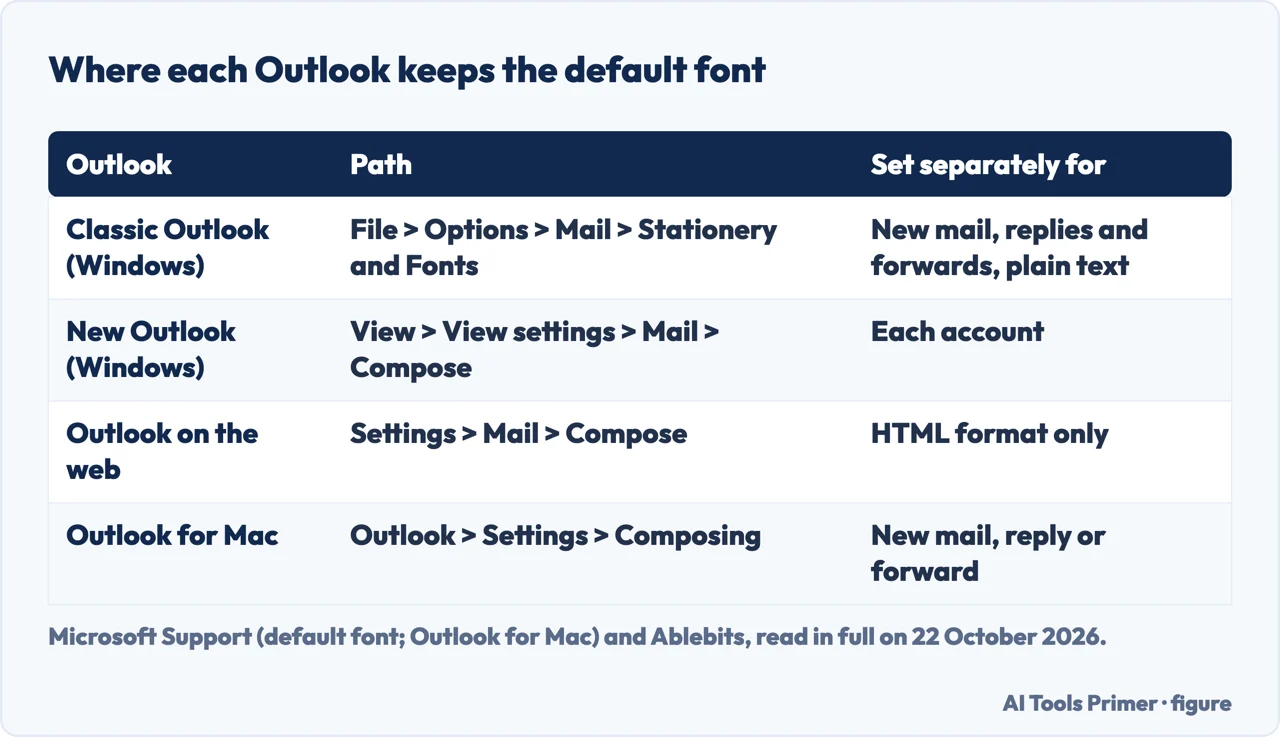
Classic Outlook for Windows: Stationery and Fonts
Microsoft’s steps for the desktop program with a File tab:
- On the File tab, choose Options, then Mail.
- Under Compose messages, choose Stationery and Fonts.
- On the Personal Stationery tab, choose Font under New mail messages, or under Replying or forwarding messages.
- In the Font box, choose the font, style, size and color. A preview shows the change as you make it.
- Choose OK three times to return to Outlook. Microsoft says the new settings take effect immediately.
Three fonts, not one. Microsoft notes that the font for new messages and the font for replies and forwards are set independently. The same tab has a third Font button, for composing and reading plain text messages; both Ablebits and the IT help desk of Southern Illinois University Edwardsville tell you to set all three. If you change only the first, your replies keep the old font.
Going back. To return to Microsoft’s initial settings, the same dialog takes these values: Font +Body, Font style Regular, Size 11, Font color Automatic. Microsoft writes +Body, not the name of a typeface.
What the recipient sees. If the font you pick is not installed on the recipient’s computer, Microsoft says their mail program substitutes one that is. A rare font is a choice for your own screen, not a guarantee for theirs.
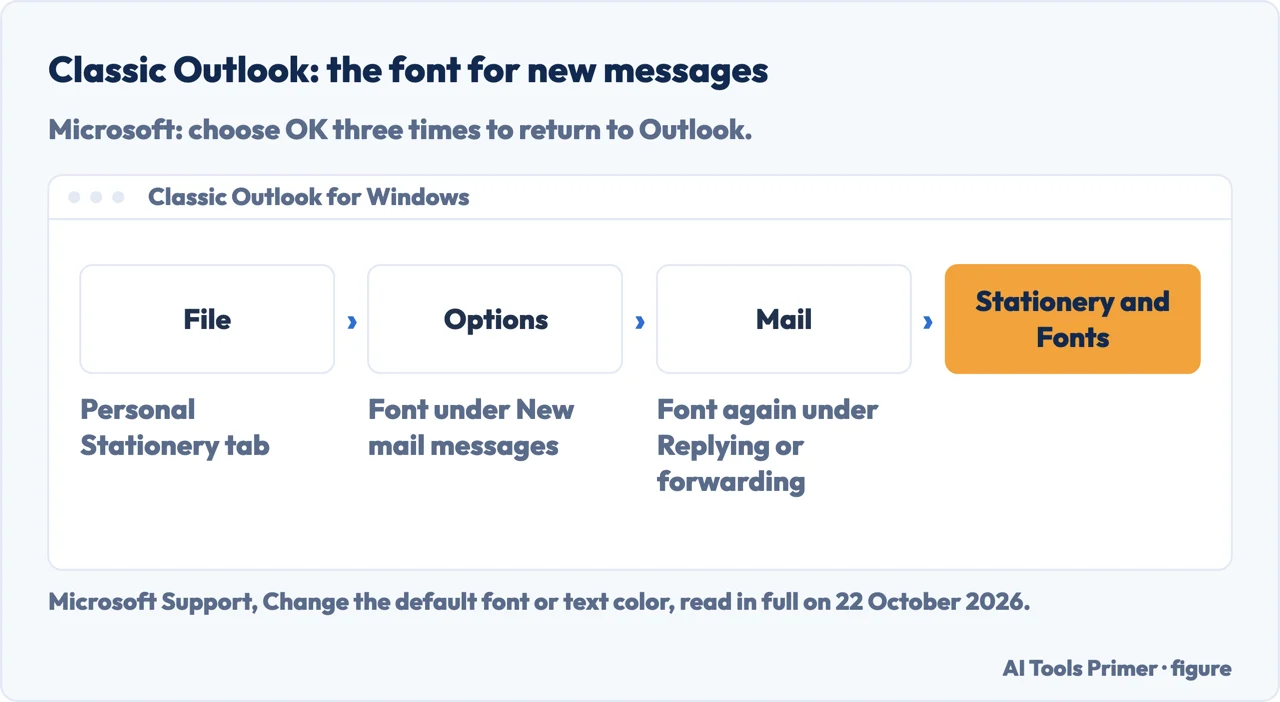
New Outlook for Windows and Outlook on the web
In new Outlook, Microsoft’s path is shorter:
- On the View tab, select View settings.
- Select Mail, then Compose.
- Under Message format, choose the font, size and style, then select Save.
Microsoft’s article calls the page Compose; Ablebits and the Southern Illinois help desk call it Compose and reply, which is the name to look for if the list shows that instead. Ablebits adds that in new Outlook the message format is set at the account level: with several accounts, pick the one at the top of the page before choosing the font, and repeat for each.
If those steps do not match your screen, Microsoft’s own note says you may not be using new Outlook yet, and the classic steps above are the ones to follow.
Outlook on the web and Outlook.com. Go to Settings, Mail, Compose. Microsoft adds a condition here: fonts can only be changed when messages are composed in HTML, so under Message format, Compose messages in has to be set to HTML. Then set the font and size and select Save.
Outlook for Mac
Microsoft’s article applies to Outlook for Microsoft 365 for Mac, Outlook 2024 for Mac and Outlook 2021 for Mac, and gives two sets of steps, one for current Outlook for Mac and one for legacy Outlook for Mac.
- In the menu bar, open the Outlook menu and select Settings.
- On the left, choose Composing.
- For Composing (New mail) and for Reply or forward, click Select.
- In the Font panel, choose the font and size, then select OK.
In legacy Outlook for Mac the default fonts sit under Outlook, Settings, Fonts, with a Font button next to each composition style, for example New mail. The Advanced tab there sets scale and spacing. The same page warns that support for legacy Outlook for Mac ends in October 2026.
The Mac page also notes that incoming HTML messages can carry their own fonts and sizes, which your setting may not change.
Why the default became Aptos
Microsoft’s support article still opens with the old answer: “In Outlook, the default font is Calibri in black.” Other Microsoft sources say otherwise. On 13 July 2023, Microsoft Design announced that “Aptos will start appearing as the new default font across Word, Outlook, PowerPoint and Excel”, and that over the following months it would become the default for all its customers.
Aptos was one of five fonts Microsoft commissioned; it was called Bierstadt while it was being tried, and the announcement says it stays in the font list under that name too. Ablebits now gives the default for composing as Aptos at 12 points, and so does a member of Microsoft’s external staff answering on Microsoft Q&A in January 2026.
The Southern Illinois help desk describes the switch as a change that may have arrived on its own through a Microsoft 365 update, affecting new emails, replies and calendar invites. Its fix is the one above: set Calibri, or any other font, in each of the font boxes. The announcement itself says Calibri is pinned at the top of the new font menu, for now only on the web.
When the font will not stay changed
- Replies still use the old font. In classic Outlook the reply font is a separate box (see above). In new Outlook, check that you changed the right account.
- The setting is right but new messages are still Aptos. Users report exactly this, in early 2024, in a Microsoft Q&A thread about new Outlook. The accepted answer, from a community moderator, repeats the steps above, and the thread ends without a confirmed cause. Checking which Outlook you are in, and which account, is where Microsoft’s own pages point.
- Quick Parts come out in another font. One user in the same thread reports that inserted Quick Parts arrive as Calibri 11 after the default was changed. That is a user report, not something Microsoft documents.
- The text is fine but the inbox is too small. That is a different setting. In classic Outlook it is View, View Settings, Other Settings, then Row Font for the subject lines and Column Font for the headers. In new Outlook it is View, View settings, Mail, Layout, with Text size and spacing set to Small, Medium or Large.
- You only want to read bigger text. Use Zoom in the Reading Pane. In classic Outlook, click the percentage next to the slider and tick Remember my preference to keep it. For new Outlook the sources disagree: Microsoft says the zoom applies only to the email you are looking at, while Ablebits says new Outlook remembers it.
Signatures carry their own formatting and are covered on our page about signatures in Outlook.
Where to start
Five ways in.
- “My Outlook has a File tab.”
- Classic Outlook — classic
- “My Outlook has a Settings gear.”
- New Outlook and the web — new outlook
- “I am on a Mac.”
- Outlook for Mac — mac
- “Where did Aptos come from?”
- The 2023 change — aptos
- “I changed it and nothing happened.”
- When it does not stick — not sticking
More on Outlook settings
The other settings that live next to this one, each with a different place in each Outlook.
Questions people also ask
How do I permanently change my default font in Outlook?
In classic Outlook, go to File, Options, Mail, Stationery and Fonts and set the font under New mail messages and again under Replying or forwarding messages. In new Outlook, set it under View settings, Mail, Compose, Message format, then Save.
How do I change the default font back to Calibri in Outlook?
Open the same setting and choose Calibri in each font box: new mail, replies and forwards, and plain text in classic Outlook, or Message format in new Outlook and on the web. The Southern Illinois University Edwardsville help desk gives exactly these steps.
Why is Aptos the default font in Outlook?
Microsoft Design announced on 13 July 2023 that Aptos would replace Calibri as the default across Word, Outlook, PowerPoint and Excel, rolling out to all customers over the following months.
Why do my replies use a different font?
Because classic Outlook sets the font for replies and forwards separately from the font for new messages. Change both in Stationery and Fonts.
Not covered here. We did not change these settings ourselves: the paths are those of Microsoft Support, Ablebits and the Southern Illinois University Edwardsville help desk, read on 22 October 2026, and Microsoft moves them between versions.
The Microsoft Q&A threads used here are answers from community moderators and reports from users, not Microsoft documentation. The Reddit threads among the search results were not read.
The search volume and difficulty behind this page were read in Semrush on 29 August 2026.
Sources
- Microsoft Support — Change the default font or text color for email messages in Outlook (new Outlook, classic Outlook, web) — support.microsoft.com, read 22 October 2026.
- Microsoft Support — Change font sizes in Outlook for Mac (current and legacy Outlook for Mac) — support.microsoft.com, read 22 October 2026.
- Microsoft Support — Change the font or font size in the message list — support.microsoft.com, read 22 October 2026.
- Microsoft Design — A change of typeface: Microsoft’s new default font has arrived (13 July 2023) — medium.com, read 22 October 2026.
- Ablebits — How to change default font & increase text size in Outlook — www.ablebits.com, read 22 October 2026.
- Southern Illinois University Edwardsville, ITS — Outlook (Desktop/Web): Default Font Changed from Calibri to Aptos — kb.siue.edu, read 22 October 2026.
- Microsoft Q&A — Change default font in new outlook app? (migrated community thread) — learn.microsoft.com, read 22 October 2026.
- Microsoft Q&A — How do I change the font size permanently for my email messages? — learn.microsoft.com, read 22 October 2026.
Written by Alberto Gulotta
Founder and editor of AI Tools Primer, writing from Palermo, Italy. Thirty-five years of taking computers apart, starting with a Commodore 64 — the long version is on the about page.
Something wrong on this page? Write to aitoolsprimer@gmail.com and it gets fixed.
Written on 22 October 2026.
Independence and limits
No affiliate links and no paid placements anywhere on this site. Nobody pays to appear here, and no company has seen this page before you did.
This is general information, not professional advice. Where a page touches money, health, safety or the law, it names its source and the date it was read — and your situation may still differ. See the privacy page and the cookie policy.