
Docs · guide
How to add a signature in outlook, and in which Outlook
By Alberto Gulotta · Updated · 7 min read
Every set of instructions for how to add a signature in outlook is three clicks long, and a good proportion of them do not work — not because they are wrong, but because they describe a different Outlook from the one on your screen. Microsoft’s own page solves this by having tabs, one per version.
First: which Outlook is this?
Microsoft’s own page has tabs for four of them, and the menus are not in the same place. Its note is blunt: “If the steps under this New Outlook tab don’t work, you may not be using new Outlook for Windows yet.”
- New Outlook for Windows
- Settings › Accounts › Signatures › Add signature
- Classic Outlook for Windows
- Open a new email › Message menu › Signature › Signatures
- Outlook on the web, and Outlook.com
- Their own settings, separate from anything on your computer
- Outlook for Mac
- A separate Microsoft page again
That is the whole reason this is a common question with an easy answer. The steps are three clicks; the difficulty is that there are five Outlooks, and an instruction that does not say which one it means is unusable.
If a guide told you to open a new email and look in the Message menu, and there is no Signature entry there, you are almost certainly in new Outlook — where it moved into Settings. If a guide told you to go to Settings and there is no Accounts section, the reverse. Neither guide was wrong and neither was written for you.
With the version settled, the steps are short and the interesting part is what you are asked to decide while you are in there.
The per-account point deserves a moment, because it prevents a specific embarrassment. If you have a work address and a personal one in the same Outlook, a signature is attached to an account, not to the program. Setting up the work one does nothing for the personal one, and the default for the second account is whatever you left it at.
Then there is the note that explains the most reported problem with Outlook signatures, and it appears as a small aside in Microsoft’s own page rather than as a warning.
“Signatures on this device are stored locally on the device where they were created and may not be available when you use Outlook on another device.”
Microsoft, in a note inside the classic Outlook instructions. This is the answer to an experience that feels like a bug: you set the signature up carefully on your work computer, open Outlook in a browser that afternoon, and it is not there.
The same page says it again for the specific pairing: between classic Outlook and Outlook on the web, “you need to create a signature in both products.” And it gives the way out: “to use the same signature across supported Outlook experiences, create and manage your signature through your Microsoft account where available.”
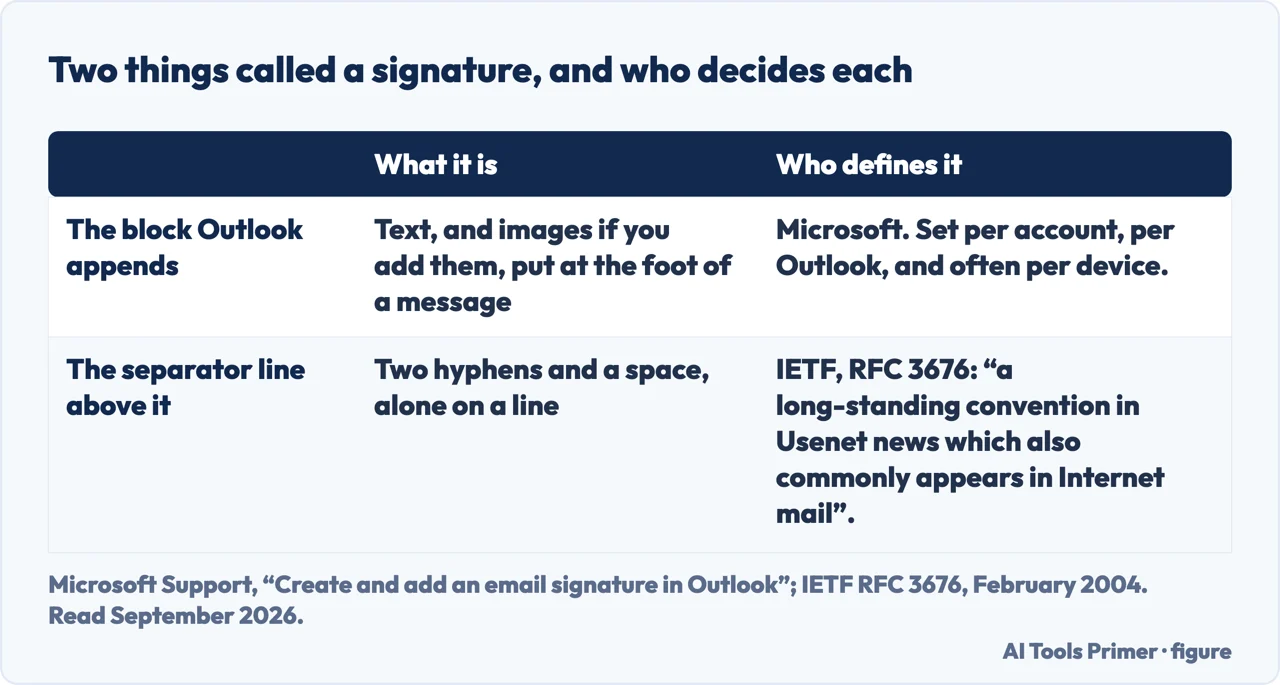
Read that as a planning instruction rather than a complaint. If you use Outlook in more than one place — a desktop at work, a browser at home, a phone on the train — the signature is not one thing that follows you around unless you deliberately set it up through the account rather than the device. Otherwise it is several separate signatures that happen to look alike, and they drift: the job title changes in one and not the others.
A last practical note about content, which is the part no software can help with. A signature is appended to every message including the two-word ones, so length is the whole design problem. Name, role, organisation, one way to reach you that is not the email you are already using. Microsoft supports images and logos and social icons, and each of them is something that will be blocked, stripped or shown as a broken box in somebody’s client — which is an argument for a plain text block that always arrives intact.
The guides below take it four ways: the versions, the choices inside the settings, making it look right, and the rest of what happens to a message after you press send.
Where to start
Four ways in.
- “The menu the guide describes is not there.”
- Start at which outlook
- “It looks wrong when it arrives.”
- That is making it look right
- “It is on my desktop but not in the browser.”
- That is which outlook
Which Outlook
Five products under one name, with the setting in a different place in each. This wing is about identifying yours before following any instructions.
Making it look right
The half that goes wrong at the far end rather than yours. Everything decorative in a signature is something that can be stripped.
After you send
The rest of this wing. A signature is one of several things attached to a message that behave differently from how they look.
Not covered here. It will not give you one set of steps. There are five Outlooks and Microsoft itself uses tabs; pretending otherwise is why the instructions often do not work.
It will not promise your signature follows you. Microsoft says signatures made on a device are stored on that device, and that is the whole explanation for the commonest complaint.
And it will not recommend a logo. Every decorative element is something that may be blocked at the other end, and a plain block always arrives. What holds instead is simple: the routes for each version and the note that signatures are stored locally are Microsoft’s own wording.
Sources
- Microsoft Support — How to add and change an email signature in Outlook (the separate routes for new Outlook, classic Outlook, Outlook on the web and Outlook.com, the per-account signatures, the automatic-inclusion checkboxes, the suggestion to build complex signatures in Word, and the note that signatures are stored locally on the device where they were created) — support.microsoft.com, read 22 August 2026.
- IETF — RFC 3676, The Text/Plain Format and DelSp Parameters, February 2004, section 4.3, for the two-hyphens-and-a-space separator line that marks the start of a signature, and what generating and receiving programs must do with it — www.rfc-editor.org, read 5 September 2026.
Written by Alberto Gulotta
Founder and editor of AI Tools Primer, writing from Palermo, Italy. Thirty-five years of taking computers apart, starting with a Commodore 64 — the long version is on the about page.
Something wrong on this page? Write to aitoolsprimer@gmail.com and it gets fixed.
Written on 22 August 2026 · last checked 23 September 2026.
Independence and limits
No affiliate links and no paid placements anywhere on this site. Nobody pays to appear here, and no company has seen this page before you did.
This is general information, not professional advice. Where a page touches money, health, safety or the law, it names its source and the date it was read — and your situation may still differ. See the privacy page and the cookie policy.