If Outlook says cannot start Microsoft Outlook, start it in safe mode, Microsoft’s first test after its troubleshooter: Windows key + R, type Outlook /safe, choose OK. If it opens, an add-in is the likely cause; if not, Microsoft points next at a second profile. Both tests can be undone.
Which symptom points at which of Microsoft’s five routes
What you see
Where Microsoft sends you
What it proves
It opens with Outlook /safe but not normally
Disable the add-ins, then
re-enable them one at a time
An add-in is the cause, and you can name which
It fails in safe mode too
“try the next proposed solution below, entitled Create a new Outlook profile”
The add-ins are not the cause
A new profile opens normally
Nothing further
“You’ve
identified your Outlook profile as being corrupt”
None of the above helped
Outlook.exe
/resetnavpane
Nothing on its own, and the pane’s customisations are gone
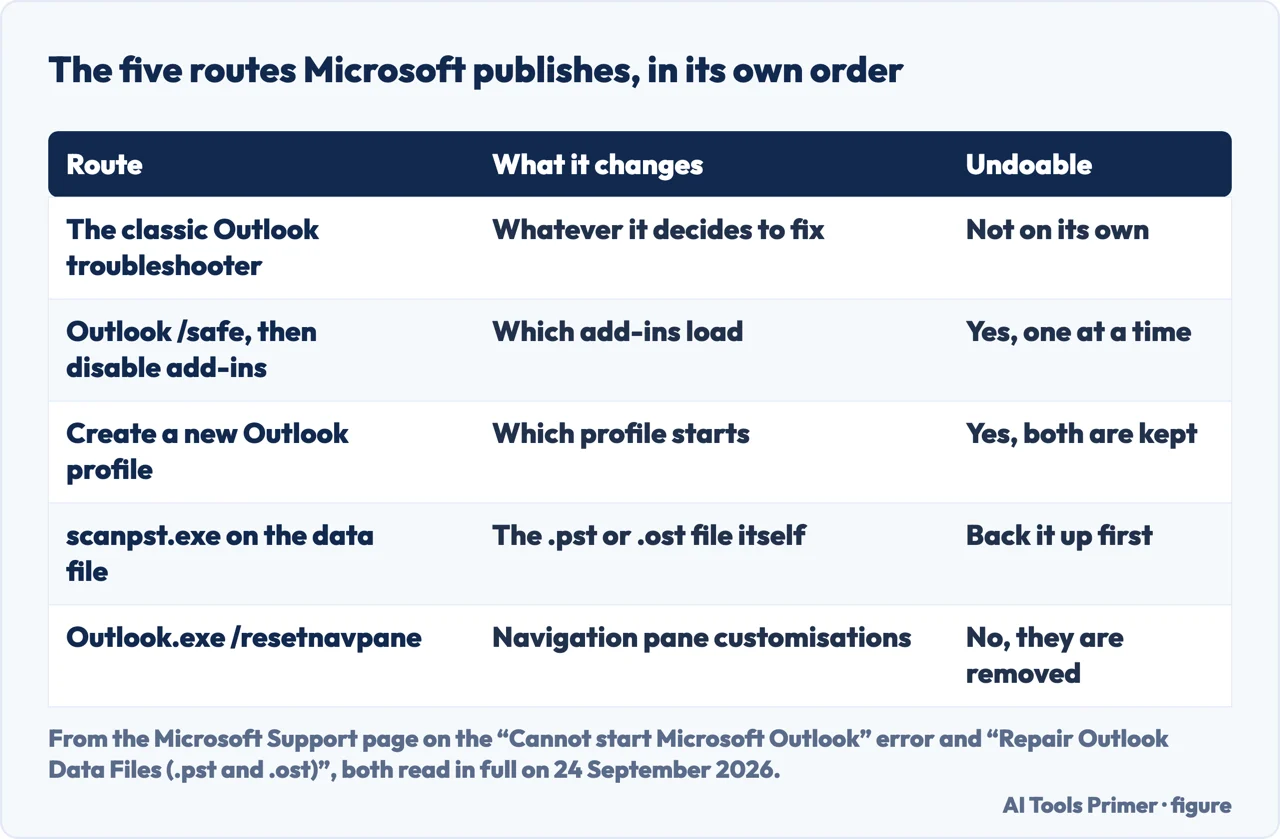
Microsoft’s own order, with the column it does not print: what each route costs you if it does not help. Figure drawn by AI Tools Primer from the Microsoft Support page on this error, read on 24 September 2026.
Which Outlook this answer is about
“Applies To Outlook for Microsoft 365 Outlook 2024 Outlook 2021”
That is the whole scope line on Microsoft’s page: three labels, with no punctuation between them. Neither Ablebits nor TechHQ nor the Microsoft Q&A thread, all read on 24 September 2026, carries a scope line at all — and the second Microsoft page used here, the one for the Inbox Repair Tool, carries a longer one, with Outlook 2019 and Outlook 2016 on it as well. The automatic fix at the top of the same page is named for what it covers: the
“classic Outlook startup troubleshooter”, offered “to diagnose and fix several common classic Outlook for Windows issues”, needs Windows 10 or higher, and has
to be run on the same PC. This is a page about classic Outlook on Windows.
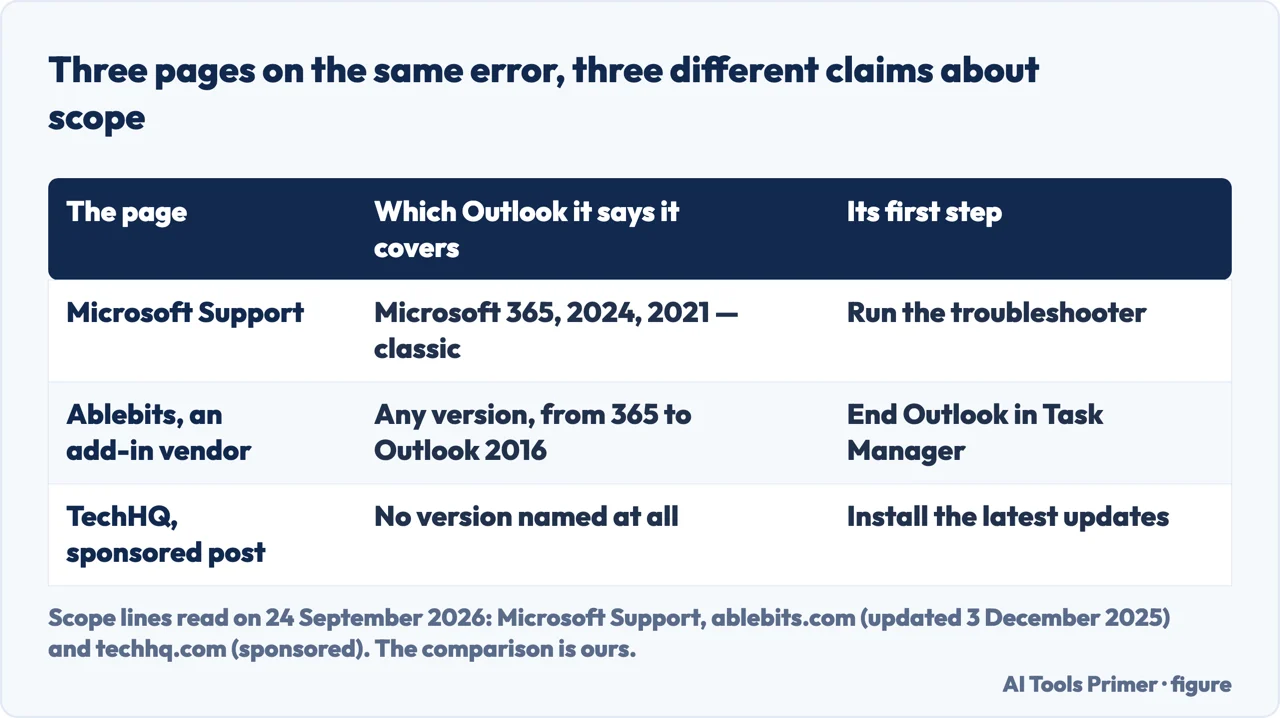
Both of the guides we read claim more. Ablebits, whose guide is where the AI
answer takes its first step, opens with “The fixes work for any version, from Microsoft
365 to Outlook 2016”. The sponsored article on TechHQ names no version at all and starts
with “check if your Outlook is patched with the latest updates”. Microsoft’s
page ends the other way round, by pointing at a note that support for Office 2016 and 2019 clients connecting to Microsoft 365 services has ended.
The tags on the Microsoft Q&A thread say the same thing in one line: Classic Outlook
for Windows | For home. If you are in the new Outlook for Windows, or in Outlook on the
web, none of the five routes below is written for you.
Microsoft publishes five routes, in this order. The guided troubleshooter first, because it decides for you; then safe mode, which changes nothing; then a second profile, which leaves the first one where it is; then the repair tool, which touches the file your mail lives in; then /resetnavpane, which “removes all customizations to the navigation pane”. Read down that list and it ends with the one route you cannot take back, which is a good reason to try them in that order.
Close every copy of Outlook first, and check there is not one already running. This
step is not on Microsoft’s page — it comes from Ablebits, a company that sells
Outlook add-ins, and it is the step Google’s AI answer put first on 24 September 2026: Ctrl+Shift+Esc, look under
Processes, end any Outlook task.
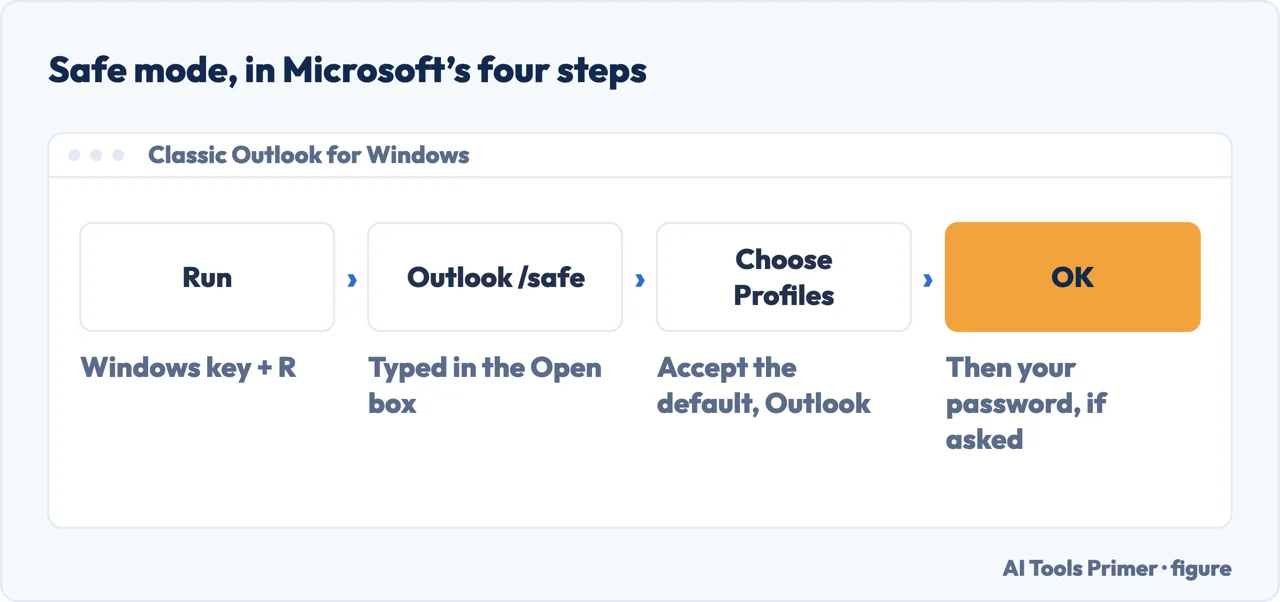
Start it in safe mode. Microsoft’s steps: “Press the Windows key + R to
open the Windows Run dialog”, type Outlook /safe, choose OK, and in the Choose
Profiles dialog “accept the default setting of Outlook and choose OK”.
If it opens that way, turn the add-ins off. File › Options › Add-ins,
set the Manage box to COM Add-ins, choose Go. Microsoft asks you to write down what was
ticked first, and warns: “Click a check box to clear it. Don’t select an add-in
and choose Remove.”
Turn them back on one at a time, restarting in between. Microsoft’s wording:
“An error could be caused by more than one add-in”, so the process does not stop
at the first one you find.
If safe mode fails too, make a second profile and start with that. Microsoft sends
you to its own page on creating a profile, then to the Choose Profile dialog to pick the new
one. Keep the old profile: removing it is a separate decision with a cost, below.
If Outlook opens but the data file is suspect, run the Inbox Repair Tool.
“Exit Outlook to use the Inbox Repair Tool” — Microsoft’s words
— then let scanpst.exe scan and repair the file.
The four steps Microsoft gives for safe mode, which is the test that changes nothing. Figure drawn by AI Tools Primer.
Safe mode: the cheapest test
Microsoft’s reason for it: “Starting Outlook in safe mode, which
starts Outlook without add-ins loaded, can tell you if an add-in is the source of the
problem.”
It changes nothing permanently, and its answer is useful either way. The page even names
one add-in by name, an outdated ABBYY FineReader, as a possible cause.
A new profile: free to make, not to delete
“Your profile contains your Outlook settings. Occasionally, that profile can become
corrupted.” Making a second one and choosing it at startup is a test you can undo.
Deleting the old one is not. Microsoft: “All offline cached content will be deleted
when you choose Remove.”
/resetnavpane: small, and not undoable
“Running the /resetnavpane command removes all customizations to the navigation
pane.” That pane holds the folder list and the icons for Mail, Calendar, People and Tasks, and whatever you set up there goes.
And it is local, so Microsoft adds that if you have more than one computer you have to
run it on each of them.
The step Google’s AI answer gave first on 24 September 2026 is not in the documentation at all. It opens with Task Manager: end any Outlook process still running, then try again. It is a reasonable step, and Ablebits says it “often brings it back” — but on Microsoft’s page the words Task Manager and End task do not appear once. It comes from Ablebits, a company that sells Outlook add-ins, whose guide lists it as “Fix 1. Check if Outlook is already running”. That is worth knowing not because the step is wrong but because of what follows it: the same guide promises to cover every version back to Outlook 2016, and Microsoft’s page does not.
Four things to read before you click, all of them Microsoft’s own words
From the page on this error and the repair page it links to, read in full on 24 September 2026.
Before removing a profile
“Should you decide to remove a profile, back up the data files first. All offline
cached content will be deleted when you choose Remove.” Creating a second profile
costs nothing; removing the first one can cost the local copy of a mailbox.
Disable, not remove
“Click a check box to clear it. Don’t select an add-in and choose Remove. If
you have administrator rights, you could actually delete the add-in.” Clearing the box and choosing Remove do very different things.
The navigation pane reset is per machine
“If you have more than one computer, run the command on all computers because the
navigation pane customizations are specific to the local Outlook on a computer.”
Before the repair tool
“Exit Outlook to use the Inbox Repair Tool.” It works on the data file directly, which is the one thing on this page that holds your mail rather than your settings. The repair page it links to adds: “We recommend backing up your existing Outlook data file before you start the Inbox Repair tool.”
Three pages on one error: one names three versions, one claims all of them, one names none. Figure drawn by AI Tools Primer.
The message has a longer form, and it points somewhere else. On the Microsoft Q&A thread that comes up beside the support page, the question reads “Cannot start Microsoft Outlook. Cannot open the Outlook window. The set of folders cannot be opened. The attempt to log on to Microsoft Exchange has failed.” That last sentence names a failed logon to Microsoft Exchange, and the support page does not mention Exchange once. The thread has 34 answers and is locked.
What to do if none of the five helps. Microsoft’s page ends with a link about support for Office 2016 and 2019 clients having ended, and the first reply in the Q&A thread, sorted by Most helpful, is a registry deletion that Microsoft’s page does not mention. Between those two there is a gap, and the sponsored article above fills it with a product. If your mail is on an Exchange account, Microsoft’s repair page says the offline file can be deleted and that “Outlook will recreate” it the next time it opens: the copy on this machine is not the only one.
A guided troubleshooter, safe mode, a second profile, the repair tool and a pane reset — in Microsoft’s order, which ends with the one route you cannot take back.
Microsoft’s page walks through add-ins, a corrupted profile, damaged data files and a navigation-pane reset. Safe mode separates the first from the rest, and changes nothing.
How do I start Outlook in safe mode?
Press the Windows key + R, type Outlook /safe and choose OK. In the Choose Profiles dialog, accept the default and choose OK. You can tell you are in it by the label at the top of the window.
How to fix cannot start Microsoft Outlook the set of folders cannot be opened?
In the Microsoft Q&A thread on it, the message ends “The attempt to log on to Microsoft Exchange has failed”, and the support page never mentions Exchange. Of its five routes, the second profile is the one that starts from fresh settings: “Your profile contains your Outlook settings.”
Does creating a new profile delete my email?
Creating one does not. Removing the old one can: Microsoft warns that “all offline cached content will be deleted when you choose Remove”, and says to back up the data files first.
What does Outlook.exe /resetnavpane actually do?
It “removes all customizations to the navigation pane”, the leftmost pane with the folder list and the icons for Mail, Calendar, People and Tasks. It has to be run on each computer you use, because those customizations are local.
Is Task Manager part of the official fix?
No. Ending a stuck Outlook process is a sensible first move, but it is not on Microsoft’s page: the words do not appear there. It comes from a guide published by a company that sells Outlook add-ins.
Not covered here. It does not cover the new Outlook for Windows or Outlook on the web: Microsoft’s page is about the classic one.
It does not cover Outlook on a Mac, which the page never mentions.
And it does not recommend a repair tool. What holds instead is simple: every step, warning and version list here is quoted from the Microsoft page that publishes it, and where a source sells a remedy the sentence says so.
Sources
Microsoft Support — I can’t start Microsoft Outlook or receive the error “Cannot start Microsoft Outlook. Cannot open the Outlook Window”: the five routes, the safe-mode steps, the add-in warning, the profile warning about offline cached content, scanpst.exe and /resetnavpane. Applies to Outlook for Microsoft 365, Outlook 2024 and Outlook 2021 — support.microsoft.com, read September 2026.
Microsoft Q&A — the thread on the same error with the longer message about the set of folders and the Exchange logon, asked on 8 October 2024. Cited for the question and for its state: 34 answers, marked “Same question (90+)”, and locked. Tagged Classic Outlook for Windows — learn.microsoft.com, read September 2026.
Microsoft Support — Repair Outlook Data Files (.pst and .ost): the advice to back up the data file before the Inbox Repair tool, and that on an Exchange account the offline .ost file can be deleted and Outlook will recreate it. Applies to Outlook for Microsoft 365, 2024, 2021, 2019 and 2016 — support.microsoft.com, read September 2026.
Ablebits — Outlook won’t open. Solutions for “Cannot start Microsoft Outlook” error, by Svetlana Cheusheva, updated 3 December 2025: the Task Manager step the AI answer repeats, and the claim that the fixes work for any version back to Outlook 2016. Ablebits sells Outlook and Excel add-ins, and the page says so where it is quoted here — www.ablebits.com, read September 2026.
TechHQ — How to fix “Cannot start Microsoft Outlook. Cannot open the Outlook window”?, 5 September 2025: cited only as what it declares itself to be, a post marked Sponsored, written by a Technical Marketer at Stellar Data Recovery and ending with a recommendation for that company’s repair tool — techhq.com, read September 2026.
AG
Written by Alberto Gulotta
Founder and editor of AI Tools Primer, writing from Palermo, Italy. Thirty-five years of
taking computers apart, starting with a Commodore 64 — the long version is on the
about page.
No affiliate links and no paid placements anywhere on this site. Nobody pays to appear here,
and no company has seen this page before you did.
This is general information, not professional advice. Where a page touches money, health,
safety or the law, it names its source and the date it was read — and your situation may
still differ. See the privacy page and the
cookie policy.