Pick one of the offered times or set your own, then Send. Microsoft: “the message remains in the Draft folder until the delivery time.”
One limitation stated up front: “This feature is not available for IMAP or POP accounts.”
Waits in: Drafts

Docs · guide
By Alberto Gulotta · Updated · 9 min read
There are two ways to answer how to schedule an email in outlook, because there are two Outlooks, and the difference between them is not the menu. It is where the message sits while it waits — which decides whether it goes at the time you chose.
Pick one of the offered times or set your own, then Send. Microsoft: “the message remains in the Draft folder until the delivery time.”
One limitation stated up front: “This feature is not available for IMAP or POP accounts.”
Open the Message Options arrow in the Tags group, tick Do not deliver before, choose the date and time, Close, then Send as normal.
Microsoft: “the message remains in the Outbox folder until the delivery time.” That word is the whole difference, and it is explained below.
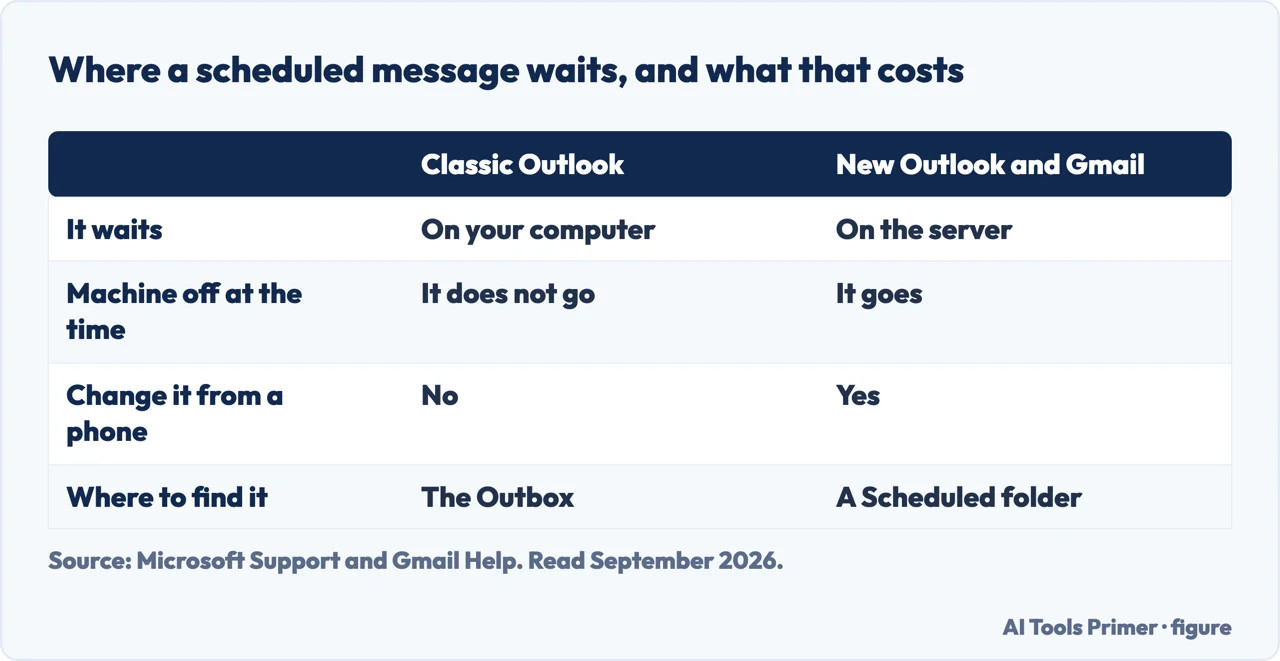
Both routes look identical from the composing window: pick a time, press Send, the message disappears. What happens next is different, and Microsoft says so in a one-line note under the instructions.
“Outlook needs to be online and connected for this feature to work.”
Microsoft, in a one-line note under the classic Outlook instructions. Read together with the sentence above it — the message waits in your Outbox — it says something people discover the hard way: a message scheduled this way is sitting on your computer, not on a server.
Which means the seven o’clock email you scheduled on Friday afternoon goes at seven o’clock only if the machine is on, awake, and connected at seven o’clock. Shut the laptop and the message waits in the Outbox until the next time Outlook runs — then sends, late, timestamped now.
This is not a fault and it is not obscure — it is what an Outbox is. The Outbox is a queue on your machine of things waiting to leave; a scheduled message joins that queue with a release time on it. Nothing about that arrangement can act while the program is closed.
So the practical rule is short. If the timing genuinely matters — an application deadline, a message that must not arrive before an announcement — schedule it somewhere that holds it on a server, which means new Outlook, Outlook on the web, or Outlook.com rather than the classic desktop program. If you are on classic Outlook and cannot move, the machine has to be awake at the appointed time, and that is a thing to arrange rather than assume.
Sending it now after all, or stopping it
Scheduling works one message at a time, which means it only helps when you already suspected you might regret this one. Classic Outlook has the other version, and Microsoft documents it as a rule: “You can delay the delivery of all messages by up to two hours by creating a rule.”
The route is File > Manage Rules & Alerts > New Rule > “Apply rule on messages I send”. The step that feels wrong is the one to get right: leave every condition unticked. Microsoft explains what that does — “if you do not select any check boxes, a confirmation dialog box appears. If you select Yes, the rule that you are creating is applied to all messages that you send.” Then the action: “select the defer delivery by a number of minutes check box”, and in the description below, “select the underlined phrase a number of and enter the number of minutes”. The ceiling is stated: “delivery can be delayed up to 120 minutes.”
What you get afterwards is a window rather than a feature: “after you select Send, each message remains in the Outbox folder for the time that you specified.” Two minutes is enough to catch the missing attachment and the wrong recipient, and it costs nothing on every other message. It also inherits the warning above — a message waiting in the Outbox needs Outlook open and connected when its moment arrives.
The cancel route is worth knowing before you need it, because a scheduled message is out of sight and the folder holding it is not one you open by habit. In new Outlook it is sitting in Drafts, looking like an ordinary unfinished message. In classic Outlook it is in the Outbox, a folder that normally empties itself unattended.
The account-type limitation is worth pausing on too, because it is the second time it appears in this wing. Scheduling in new Outlook is “not available for IMAP or POP accounts”, exactly as automatic out-of-office replies are not. The pattern is the same underneath: features that have to happen while you are not there need a server that is willing to act on your behalf, and an account that Outlook merely reads from does not provide one.
One last use worth naming, since it is the reason a good number of people look this up. Writing an email at eleven at night and sending it at eight in the morning is not deception; it is declining to teach colleagues that you answer at eleven at night. The feature is as much about the expectations a timestamp sets as about the timing itself.
The other mail system waits in a different place, and says so. Gmail schedules on the server: the message sits in a Scheduled folder, you can open it, change it or cancel it from another device, and Google notes the limit — “you can have up to 100 scheduled emails” — plus the detail that decides when it actually leaves: “your emails will be sent based on the timezone you schedule them in.” That is the comparison worth making before you rely on either: one waits on a computer that has to be awake, the other waits on a machine that always is.
The guides below take it four ways: scheduling it, stopping it, the account types where it does not work, and the rest of what happens to a message on the way out.
Four ways in.
Two routes and two different holding places. The menus differ; the important difference is the folder the message sits in.
Cancelling before the time arrives, which requires opening a folder that normally looks after itself.
A pattern rather than a one-off: several Outlook features need a server that acts for you, and some account types do not have one.
Not covered here. It will not tell you the two Outlooks behave the same. One holds the message in Drafts and one holds it in your Outbox, and Microsoft says which is which.
It will not skip the connection note. “Outlook needs to be online and connected for this feature to work” is the sentence that decides whether the schedule is real.
And it will not recommend an add-in. Both versions do this natively, and the limitation is in the account type rather than in the software. What holds instead is simple: both routes and the connection requirement are Microsoft’s own wording, including where each version leaves the message waiting.
The four things Outlook does with your calendar and other people's.
Written by Alberto Gulotta
Founder and editor of AI Tools Primer, writing from Palermo, Italy. Thirty-five years of taking computers apart, starting with a Commodore 64 — the long version is on the about page.
Something wrong on this page? Write to aitoolsprimer@gmail.com and it gets fixed.
Written on 22 August 2026 · last checked 23 September 2026.
Independence and limits
No affiliate links and no paid placements anywhere on this site. Nobody pays to appear here, and no company has seen this page before you did.
This is general information, not professional advice. Where a page touches money, health, safety or the law, it names its source and the date it was read — and your situation may still differ. See the privacy page and the cookie policy.