
Select New Event, give it a title, then Invite attendees and start typing. Outlook offers suggestions “based on the people you’ve met with or emailed recently.”
Docs · guide
How to send a calendar invite in Outlook, and when it becomes one
By Alberto Gulotta · Updated · 8 min read
There is no Send Invitation command, which is why how to send a calendar invite in outlook is harder to look up than it should be. Outlook has one kind of thing in the calendar, and whether it stays private or goes out to other people is decided by something you may not notice you are doing.
“An appointment is an event for yourself like a lunch date or medical appointment. A meeting is an event that you send to other people.”
Microsoft, defining the whole thing in two sentences. There is no separate command for an invitation: you make an event, and it turns into one the moment a name goes in the attendee box. The proof is the button, which renames itself — “Select Save if this is an appointment you created for yourself or Send if this is a meeting with attendees.”
Once that is clear the sequence is short, and there are three ways in depending on where you are standing when the thought arrives.
New Items > Meeting, or the shortcut Ctrl + Shift + Q. Worth learning if
you do this more than once a day.
Microsoft: you “can choose which calendar to create an event in by selecting it from the drop-down list at the top of the new event window.” It defaults; it does not ask.
The step people linger on is choosing the time, and it is also the step Microsoft attaches a condition to. The instruction reads: “If you’re using a work or school account in Outlook with Microsoft 365 or Exchange, use the Scheduling Assistant tab to see attendee schedules.” The Scheduling Assistant then “will show free/busy times for each user”, with the selected slot marked by a blue bar and each person’s availability listed under their name — which Microsoft notes “can be especially helpful if attendees are in different time zones.” It is the single most useful part of the whole feature, and the part that most depends on everyone being on the same system.
Below the attendee box there is a room field as well, and it is worth using rather than typing an address into the location line. Microsoft describes browsing for a bookable room: open the full window, then Search for a room or location > Browse more rooms, and choose a location or search for a city or room list. Microsoft calls what you are browsing “available rooms”; the location line is only text.
Response options — three controls behind one menu
- Request responses. The switch behind the small pile of accept-and-decline mail your invitation produces. Worth turning off for the all-staff notice nobody needs to answer.
- Allow forwarding. Whether an attendee can pass the invitation on. Turning it off is the difference between a meeting and a meeting that quietly grows.
- Hide the attendee list. Everyone gets the invitation; nobody sees who else did. It is the calendar’s version of Bcc, and it sits one menu deeper than the three obvious controls.
That third one deserves its own paragraph, because it answers a question people ask about email and never think to ask about calendars. Microsoft’s wording is that Response options let you “choose if you want to request responses from attendees, allow the meeting request to be forwarded, or hide the attendee list.” Anyone who has ever put forty addresses in the To line of a message and watched somebody reply to all of them already knows why the third option exists.
One thing the sender is told, which surprises the forwarder. If somebody who is not the owner forwards a meeting on — Respond, then Forward — Microsoft is explicit about what happens next: “The meeting owner will receive notification that you’ve forwarded the meeting request to another person.”
So passing an invitation to a colleague is not a private act. That is worth knowing in both directions: as the person forwarding, and as the person who wondered how the room ended up with eleven people in it.
After it has gone out, the useful part is what Outlook does without being asked: it “reserves time on your calendar for the meeting and tracks who accepts the invitation.” You do not have to keep a list.
Adding somebody later is where a small choice does real work. Open the meeting, add the person, then select Send Update — and Microsoft offers two buttons rather than one: “Only added/removed attendees” or “All attendees”. The first sends the invitation to the newcomer and leaves everyone else alone. The second puts an update in every other mailbox as well, which is how ten people find out that an eleventh is coming.
Two small defaults worth knowing before you send anything. The reminder is not silent: Microsoft says that “by default, the reminder time is set to 15 minutes before the event”, which is either exactly right or exactly wrong depending on whether the meeting is upstairs or across a city. And a recurring meeting is not a different command either — you fill in the same form and then choose Recurring, set the interval, and only then press Send.
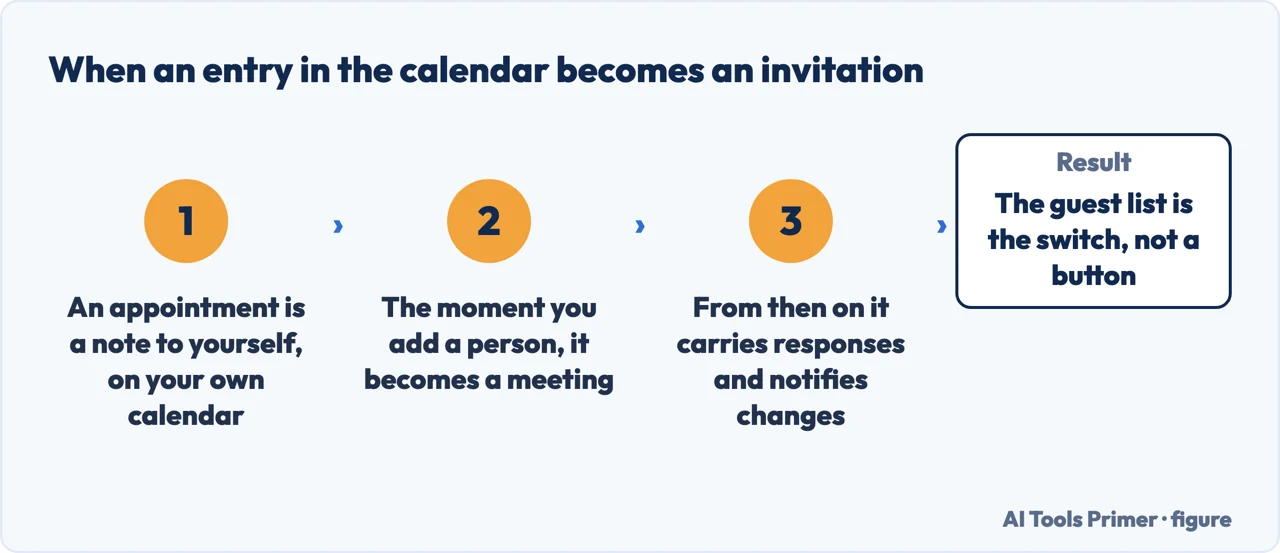
The other calendar makes the same distinction, with the same consequence. In Google Calendar an event becomes an invitation the moment you add guests, and from then on it carries RSVPs and notifies the people on it when anything changes. Same shape as Outlook’s appointment and meeting: the difference is not the button you pressed, it is whether anybody else is on the entry. Worth knowing when you edit a time — on a plain entry nothing happens, on an invitation everybody hears about it.
The guides below take it four ways: which of the two things you are actually making, how to pick a time and a room, the three response options behind one menu item, and what to do once it has gone.
Where to start
Four ways in.
- “Mine did not go to anybody.”
- Start at appointment or meeting
- “I do not want them all seeing each other.”
- That is the response options
Appointment or meeting
The distinction the whole feature rests on, and the reason an event you thought you had sent is sitting quietly on your own calendar.
The response options
Three switches behind one menu item, each of which changes what the other people can see or do. Most invitations are sent without anybody opening it.
Not covered here. It will not tell you a calendar invitation is a neutral thing to send. It puts a block in somebody else’s day, and half the guides here are about sending a smaller one.
It will not pretend the Scheduling Assistant works everywhere. Microsoft attaches a condition to it, the condition is quoted above, and a page that leaves it out is wasting your afternoon.
And it will not recommend a third-party scheduling service before saying what Outlook already does. Where the built-in route works, that is the route the guide gives. What holds instead is simple: the difference between an appointment and a meeting is Microsoft’s own, and so are the Send Update choices.
Arranging time with other people in Outlook
The four things Outlook does with your calendar and other people's.
- The same job, in the other places it comes up
- How to share Outlook calendar, and why their address decides it
- Out of office message, and everybody who receives it
- How to schedule an email in outlook, and where it waits
Sources
- Microsoft Support — Create, modify, or delete a meeting request or appointment in Outlook on the web (the definition of an appointment against a meeting, Save against Send, the three response options, choosing which calendar, browsing for a room and the 15-minute reminder default) — support.microsoft.com, read 22 August 2026.
- Microsoft Support — Schedule a meeting or event in Outlook (the tracking of acceptances, the Scheduling Assistant and the account it names, the Ctrl+Shift+Q shortcut, the Send Update choices and the notification sent to the owner when an attendee forwards) — support.microsoft.com, read 22 August 2026.
- Google Calendar Help — Invite people to your Calendar event: adding guests is what turns an entry into an invitation, and what that then does — support.google.com, read 4 September 2026.
Written by Alberto Gulotta
Founder and editor of AI Tools Primer, writing from Palermo, Italy. Thirty-five years of taking computers apart, starting with a Commodore 64 — the long version is on the about page.
Something wrong on this page? Write to aitoolsprimer@gmail.com and it gets fixed.
Written on 22 August 2026 · last checked 23 September 2026.
Independence and limits
No affiliate links and no paid placements anywhere on this site. Nobody pays to appear here, and no company has seen this page before you did.
This is general information, not professional advice. Where a page touches money, health, safety or the law, it names its source and the date it was read — and your situation may still differ. See the privacy page and the cookie policy.