To switch on Outlook spell check in classic Outlook, go to File › Options › Mail and tick Always check spelling before sending. In new Outlook, Outlook on the web and Outlook.com there is no such box: Editor underlines as you type, and its switches are under the (…) menu of an open message › Editor › Editor Settings.
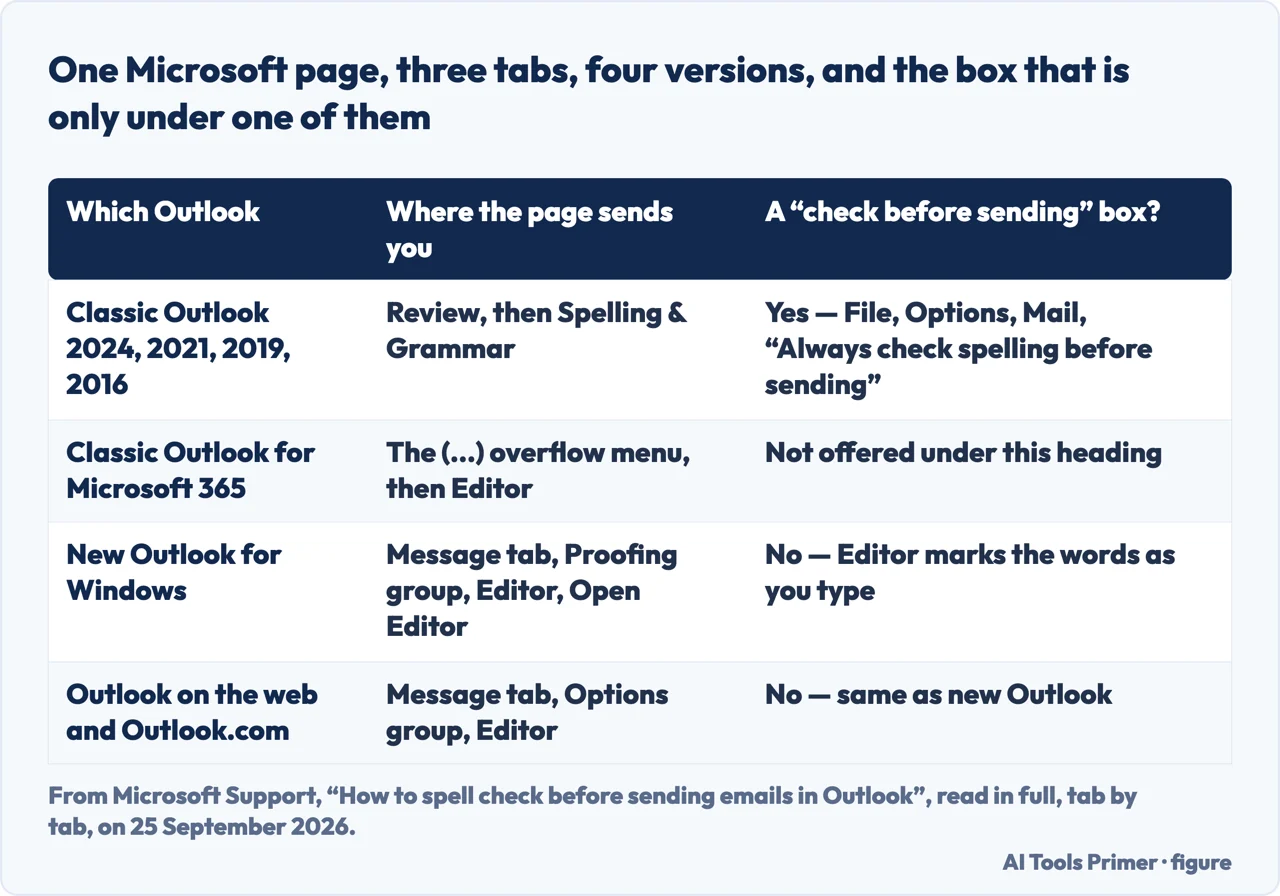
One Microsoft page, three tabs, four versions, and the box that is only under one of them
Which Outlook
Where the page sends you
A “check before sending” box?
Classic Outlook 2024, 2021, 2019, 2016
Review › Spelling & Grammar
Yes — File › Options › Mail › “Always check spelling before sending”
Classic Outlook for Microsoft 365
The (…) overflow menu › Editor
Not offered under this heading
New Outlook for Windows
Message tab, Proofing group › Editor › Open Editor
No — Editor marks words as you type
Outlook on the web and Outlook.com
Message tab, Options group › Editor
No — same as new Outlook
One Microsoft page with three tabs and four versions, and the send-time box that appears under only one of them. Figure drawn by AI Tools Primer from the Microsoft Support page on spell check in Outlook, read in full on 25 September 2026.
The two questions Google printed under the results on 25 September 2026 have different answers.How do I get a spell check on my Outlook email? has the answer above. Why is my Outlook not spell checking anymore? can have a different one: nothing was switched off, the application changed underneath. The box you remember ticking belongs to classic Outlook, and Microsoft’s own page keeps it under the Classic Outlook tab and nowhere else.
Find out which Outlook you are in, because the answer changes. Microsoft’s own test is the Settings gear in the top right corner: “If you have the Settings button, you have the new Outlook. If the Settings button is missing, you’re using classic Outlook.”
In classic Outlook, turn on the check that runs at Send. Microsoft’s steps:
“select File > Options > Mail. Under Compose messages, check the Always check
spelling before sending box.” From then on, “when you select Send, classic
Outlook checks spelling automatically”.
In classic Outlook, turn on the red squiggles too. They are a separate setting, and
on a different screen: File › Options › Mail › Spelling and
Autocorrect, then the Check spelling as you type box.
In new Outlook, open Editor instead. “To use Editor, on the Message tab in the Proofing group, select Editor, then Open Editor.” There is no send-time check to switch on here:
Editor underlines in red as you write, and keeps a running count under the message.
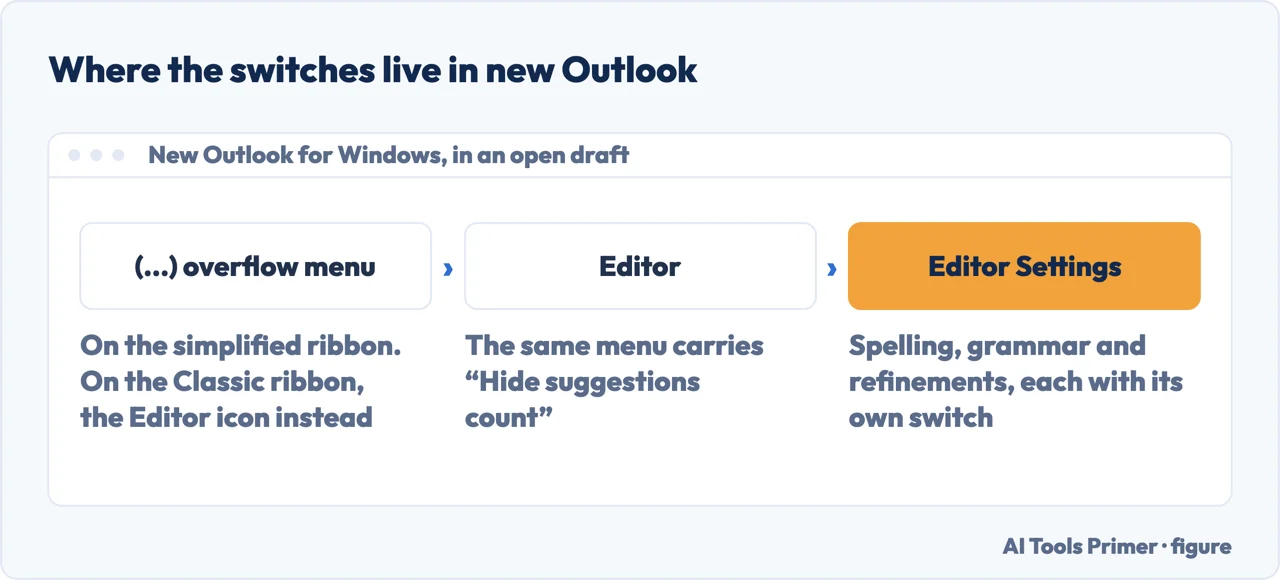
If Editor is quiet, open its settings before anything else. The (…)
overflow menu › Editor › Editor Settings, where spelling, grammar and
refinements each have their own switch, with a Reset to default button.
If the words being ignored are in another language, add it. Editor Settings ›
Manage spellcheck languages › Add another language. Microsoft warns that the
choice you make inside a draft “will only apply to that specific email draft”.
Where the switches are in new Outlook, in Microsoft’s own words for each step. Figure drawn by AI Tools Primer.
The settings panel is worth opening even when you think nothing is wrong with it, because it is where Microsoft puts the parts that can be switched off one at a time: “The Microsoft Editor Settings panel is displayed. Select the buttons on or off per your preferences. If needed, you can select Reset to default.” The same menu holds Hide suggestions count: with it on, the running tally under the message disappears, which can look as though Editor is not running.
The box that only exists in classic
“Under Compose messages, check the Always check spelling before sending box.”
That instruction sits under the Classic Outlook tab of Microsoft’s page, and
under no other tab.
If you moved to new Outlook and went looking for it, you were looking for something the
documentation places somewhere you no longer are.
Two settings, two screens
Checking at Send and underlining as you type are separate. The second one lives under File › Options › Mail › Spelling and Autocorrect, where the box is Check spelling as you type.
Microsoft also notes that automatic grammar checking “is available only in Outlook,
Word, and PowerPoint”.
The language is set per draft
Adding a proofing language inside a message does not change Outlook. Microsoft:
“The proofing language selection that is done within email composition will only
apply to that specific email draft.”
Which is why a message full of correct words can come up entirely underlined, or entirely
unchecked, and the next one behaves.
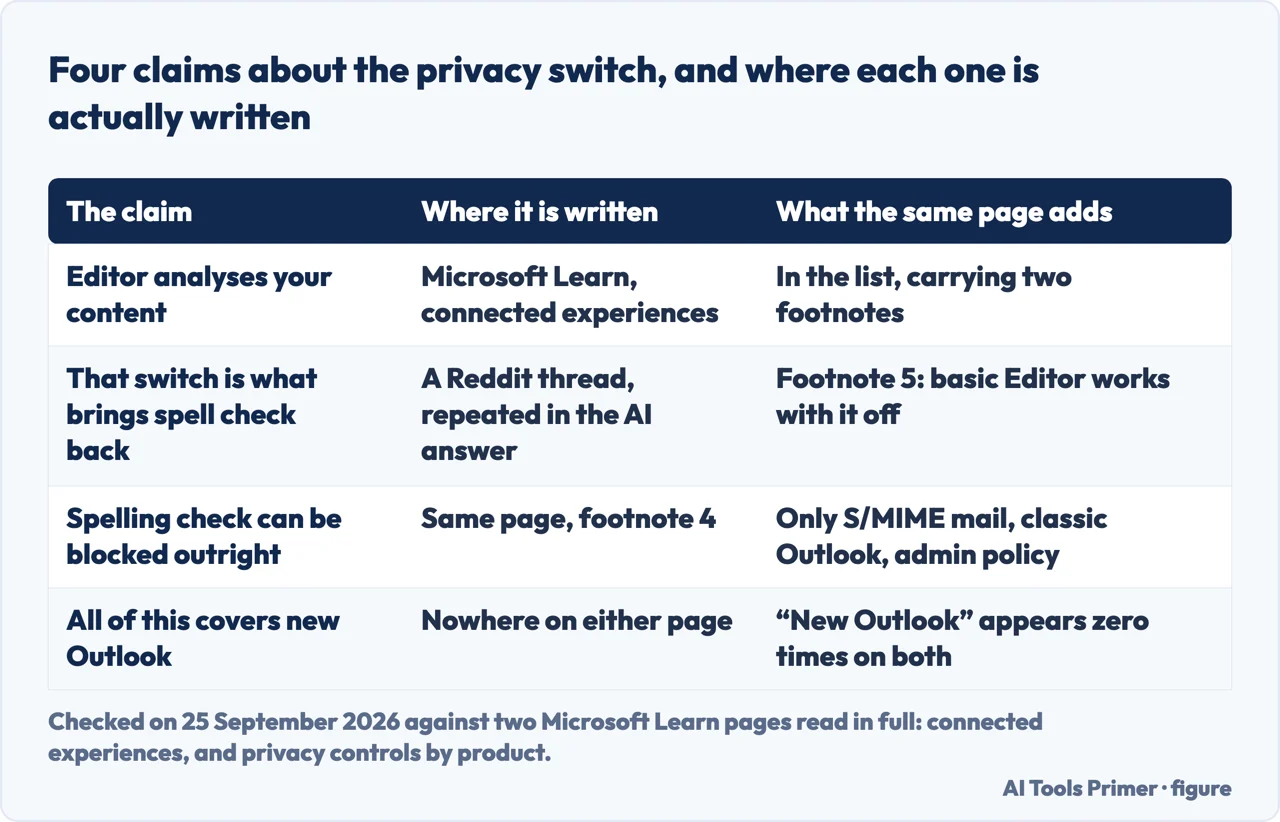
What Microsoft really writes about the privacy switch
“Basic functionality of Editor remains available even if you’re not
connected to the internet. That same basic functionality also remains available if you decide
to disable the use of connected experiences that analyze your content.”
The advice going round the forums, and repeated in Google’s AI answer on 25 September
2026, is that spell check in new Outlook comes back once you switch on the privacy setting
for experiences that analyse your content. Microsoft does list Editor among those
experiences — “Microsoft Editor checks grammar and more in documents, mail, and
the web” — so half of that is right. The sentence above is the footnote attached
to it, and it says the basic checking survives the switch being off.
There is a case where spelling and grammar checking really does stop, and it is a
narrow one. A second footnote on the same page describes it: classic Outlook on Windows,
messages using S/MIME encryption, an administrator policy called “Block
processing of S/MIME encrypted messages by certain connected experiences” set to
Enabled, and certain builds or later. In that case, Microsoft writes, “For Editor, only
spelling and grammar check are affected.”
And neither page is written about the new Outlook. The phrase “new Outlook”
appears nowhere on the connected-experiences page, nor on “Privacy controls available
for Office products”, the page it points at for scope — which lists Outlook on
Windows from version 1904 and Outlook for Mac from 16.28. That does not prove the setting has
no effect there. It means that, as of this reading, the claim is not documented by the page
people are being sent to.
The column nobody prints: not what is claimed, but where the claim is written down. Figure drawn by AI Tools Primer.
Microsoft’s page on this subject is not written for every Outlook, and its own scope line says so. “How to spell check before sending emails in Outlook” applies to Outlook 2024, Outlook 2021, Office 365 Small Business, Outlook.com and New Outlook for Windows. Classic Outlook for Microsoft 365 is not in that list, although the body of the page has a section for it. The general Office page, “Check spelling and grammar in Microsoft 365”, covers far more — Excel, Word, Outlook, PowerPoint, Publisher, Project, Visio and the Mac versions of several — and its Outlook instructions all begin at the File menu, which new Outlook does not have. The Mac page in the results is narrower still: three Mac versions, and it is about detecting languages, not about switching checking on.
Five sentences from Microsoft, and what each one settles
All read in full on 25 September 2026, on the pages listed under Sources.
Which tab you are on
“If the steps under this New Outlook tab don’t work, you may not be using new
Outlook for Windows yet. Select Classic Outlook and follow those steps instead.”
Microsoft puts this warning at the top of the new Outlook tab, before the steps.
Where Outlook keeps its proofing options
“In Outlook: On the File menu, select Options, choose Mail, and then select Spelling
and Autocorrect.” OneNote, PowerPoint, Publisher, Visio and Word keep them under Proofing; Outlook keeps them under Mail. New Outlook’s ribbon, Microsoft says, has Home, View and Help.
What grammar checking covers
“Automatic grammar checking is available only in Outlook, Word, and PowerPoint.”
So a blue underline is something Outlook can do and Excel cannot, whatever the settings say.
Bringing back what you told it to ignore
“In Outlook you’ll find this under Mail and select Spelling and Autocorrect”,
then Recheck Document. Microsoft warns first: you will see “the warning message
about resetting the spelling and grammar checker”.
On a Mac, the language can find itself
Outlook for Mac has a setting to detect the language automatically, on a page that applies
only to Outlook for Microsoft 365 for Mac, Outlook 2024 for Mac and Outlook 2021 for Mac.
No Windows version is on it.
There is a second answer for the browser, and it is not about Outlook at all. IONOS, a hosting company whose guide on this question sits on the first page of results, writes: “By default, Outlook’s web version doesn’t have automatic spell and grammar checking activated. You can either activate the spell checker in your browser or enable your operating system’s spell checker for all applications.” Its steps go to Chrome › Settings › Languages › Basic spell check, and to Windows 11 › Settings › Time and language › Typing › Highlight misspelled words. Microsoft’s page describes Editor working in Outlook on the web, so the two do not agree about what checks what; the article is dated 20 March 2025, and the company it belongs to sells Exchange mail. It is one explanation, not Microsoft’s, for underlines that change from one browser to another on the same account.
What is left when all of that is done. If checking is still silent after Editor Settings has been opened and the proofing language added, the next step that is actually documented is not a privacy toggle — it is Recheck Document, which undoes every “Ignore” ever clicked, and which Microsoft warns about before you use it.
In classic Outlook: File › Options › Mail, then tick Always check spelling before sending. In new Outlook and on the web: Message tab › Editor › Open Editor, which checks as you type.
Why is my Outlook not spell checking anymore?
One documented reason is that the Outlook changed, not the setting. The send-time box lives only in classic Outlook; new Outlook replaces it with Editor, whose switches are under the (…) menu › Editor › Editor Settings.
Where is Spelling and Autocorrect in Outlook?
Microsoft: “In Outlook: On the File menu, select Options, choose Mail, and then select Spelling and Autocorrect.” That is the screen with Check spelling as you type, reached from a File menu that new Outlook’s ribbon does not have.
Does the privacy setting control spell check in Outlook?
Microsoft lists Editor among the connected experiences that analyse your content, but adds that “basic functionality of Editor remains available” if you disable them. The one documented case where spelling and grammar checking stops is S/MIME-encrypted mail in classic Outlook under an administrator policy.
Why does Outlook underline everything, or nothing?
One documented cause is the proofing language. Editor Settings › Manage spellcheck languages, and note Microsoft’s warning that a language chosen inside a draft “will only apply to that specific email draft”.
How do I get back the corrections I told Outlook to ignore?
File › Options › Mail › Spelling and Autocorrect, then Recheck Document. Microsoft warns you will see a message about resetting the spelling and grammar checker, because it clears every past Ignore.
Not covered here. It does not cover Outlook on Android or iOS, which none of the pages read here mention.
It does not cover autocorrect, which is a different list of settings on the same Outlook screen.
And it does not cover what to do when a word is spelled correctly and Outlook still flags it, which is a dictionary question rather than a settings one. What holds instead is simple: every step, setting name and scope line here is quoted from the page that publishes it, and where a source sells a remedy the sentence says so.
Sources
Microsoft Support — How to spell check before sending emails in Outlook: the Always check spelling before sending box under the Classic Outlook tab, the Editor steps for new Outlook and the web, Editor Settings, and the per-draft proofing language. Applies to Outlook 2024, Outlook 2021, Office 365 Small Business, Outlook.com and New Outlook for Windows — support.microsoft.com, read September 2026.
Microsoft Support — Check spelling and grammar in Microsoft 365: the File > Options > Mail > Spelling and Autocorrect route for Outlook, the Check spelling as you type box, Recheck Document, and the note that automatic grammar checking is available only in Outlook, Word and PowerPoint — support.microsoft.com, read September 2026.
Microsoft Support — What version of Outlook do I have?: the Settings test that tells new Outlook from classic, and the ribbon of each — Home, View and Help in new Outlook, a File tab in classic. Applies to Outlook for Microsoft 365, 2024, 2021, 2019 and 2016, the Mac versions of the first three, Outlook.com, new Outlook for Windows and Outlook Web App — support.microsoft.com, read September 2026.
Microsoft Learn — Connected experiences in Office: Editor in the list of connected experiences that analyse your content, the footnote that basic Editor functionality remains available when they are disabled, and the S/MIME policy footnote under which spelling and grammar check is affected — learn.microsoft.com, read September 2026.
Microsoft Learn — Privacy controls available for Office products: the page the one above points at for scope, listing Outlook on Windows from version 1904 and Outlook for Mac from 16.28. Read here to check what it covers — learn.microsoft.com, read September 2026.
IONOS Digital Guide — Why is spell check not working in Outlook? Possible causes, by the IONOS editorial team, 20 March 2025: the claim that the web version has no automatic checking by default, and the two routes it gives instead, through the browser and through Windows. IONOS sells Exchange mail hosting, and the page says so where it is quoted here — www.ionos.com, read September 2026.
Microsoft Support — Let Outlook for Mac automatically detect and spell check languages in your emails: cited for its scope, which is Outlook for Microsoft 365 for Mac, Outlook 2024 for Mac and Outlook 2021 for Mac, and for nothing on Windows — support.microsoft.com, read September 2026.
AG
Written by Alberto Gulotta
Founder and editor of AI Tools Primer, writing from Palermo, Italy. Thirty-five years of
taking computers apart, starting with a Commodore 64 — the long version is on the
about page.
No affiliate links and no paid placements anywhere on this site. Nobody pays to appear here,
and no company has seen this page before you did.
This is general information, not professional advice. Where a page touches money, health,
safety or the law, it names its source and the date it was read — and your situation may
still differ. See the privacy page and the
cookie policy.