
Scams · guide
How to report phishing in Outlook, and why it does not block anyone
By Alberto Gulotta · Updated · 13 min read
To report phishing in outlook: select the message in the list, choose Report above the reading pane, then Report phishing. Four clicks, and you never open the message. The part worth reading past that is what the button does not do — it reports the sender without blocking them, and it deletes the message from your mailbox.
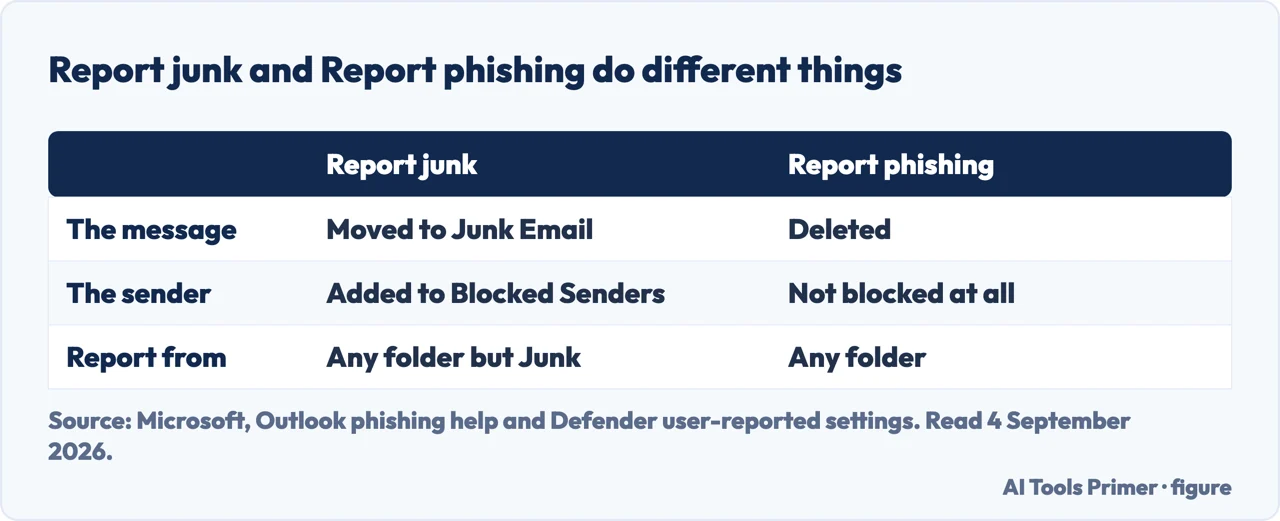
| Report junk | Report phishing | Source | |
|---|---|---|---|
| What happens to the message | “Moved to the Junk Email folder” | “The messages are deleted” | Microsoft |
| What happens to the sender | “Automatically added to the user’s Blocked Senders list” | Nothing — “the sender is reported but is not blocked” | Microsoft |
| Where you can report from | “Any email folder other than Junk Email” | “Any email folder” | Microsoft |
| Where the report goes | “To the reporting mailbox, to Microsoft, or both” — your organisation’s settings decide which | Microsoft | |
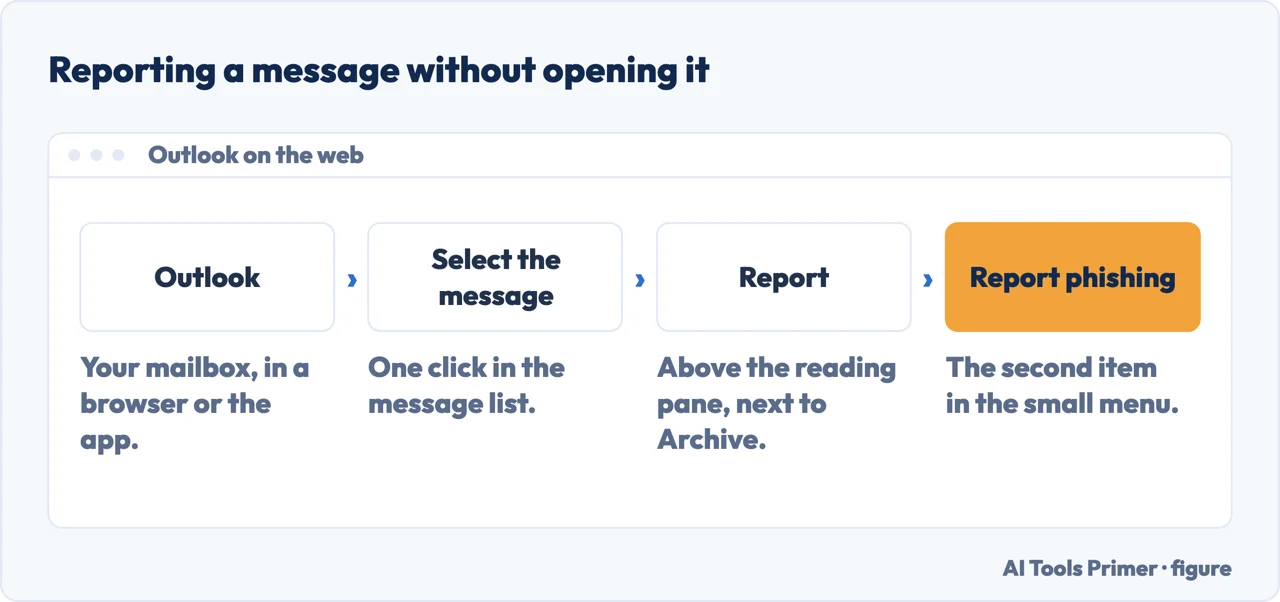
- Do not open anything inside it. Reporting works from the message list; you do not need to click a link or an attachment to report the message, and there is no reason to.
- Select the message in the list. One click. You can select several at once if a run of them arrived together.
- Select Report above the reading pane. In new Outlook and Outlook on the web it sits on the top ribbon; in the desktop app it is on the Home tab.
- Choose Report phishing. Microsoft’s instruction is exactly this: “above the reading pane, select Report › Report phishing to report the message sender”. That button reaches Microsoft; the industry bodies that also take reports are separate destinations.
- Block the sender separately, if you want them blocked. This is the step almost everyone skips, because reporting feels like it should include it. Microsoft: “the sender is reported but is not blocked from sending you additional messages. To actually block a sender, add the sender to your blocked senders list.”
- If money or a password has already gone, stop reporting and start with the account. Reporting protects other people from the next copy; it does nothing for the account already reached.
Where the message actually goes after you report it
Not into a void, and not always to Microsoft. On a work account the destination is set by your organisation, and that setting decides who ever sees what you sent.
When there is no Report button at all
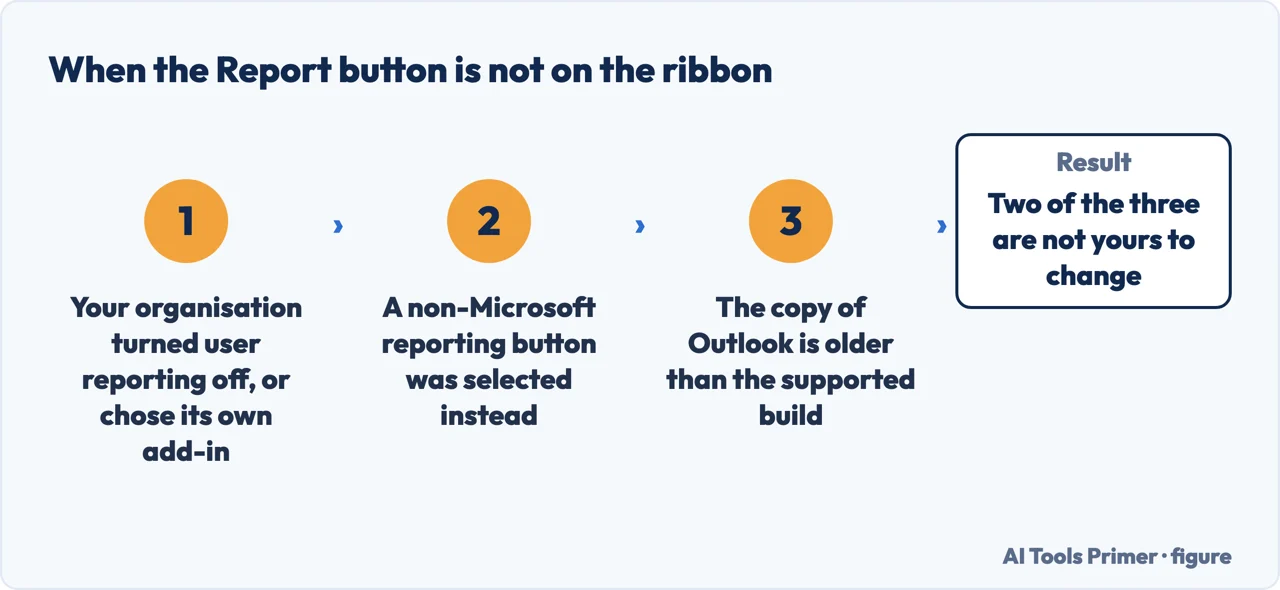
It is a setting in the organisation, not a fault on your computer. Microsoft lists two conditions for the built-in button to appear: “user reporting is turned on”, and the button is configured in the user reported settings in the security portal. And it names the case that removes it: “if user reporting is turned off and a non-Microsoft add-in button is selected, the Report button isn’t available in supported versions of Outlook.”
Which means a missing button often means a different button. Plenty of organisations deploy their own reporting add-in — a differently named item on the ribbon that sends the message to the security team rather than to Microsoft. If yours has one, that is the one to use, and the Microsoft route is not a substitute for it.
The version matters too. The built-in button exists in supported builds of new Outlook, Outlook on the web, and the desktop, Mac and mobile apps from specified versions onwards. An old build simply does not have it, and the fix is an update rather than a setting.
And on a shared mailbox there is one more condition. Microsoft: a delegate reporting from a shared mailbox “needs Send As permissions”, and without it “the reported message is not sent to the reporting mailbox. Instead, the reported message is removed from the folder only.” The message disappears and nothing is reported — which looks exactly like success.
The two marks Outlook puts on a message before you decide
- A question mark where the sender’s photo should be. Microsoft: “when Outlook can’t verify the identity of the sender by using its email authentication techniques, it displays a ‘?’ in the sender photo.” The honest caveat is theirs as well: “not every message that fails to authenticate is malicious.” What makes it worth looking at is the change — a sender who normally has no question mark suddenly acquiring one “could be a sign the sender is being spoofed”.
- An underlined via after the sender’s name. This appears “when Outlook detects a difference between the sender’s actual address and the address on the From address”. Legitimate mail sent through a mailing service shows it too, so it is not a verdict; it is the gap between who the message says it is from and where it actually came from.
- Neither mark is a decision, and their absence is not a clearance. A message that authenticates perfectly can still be a scam, because authentication proves the domain sent it and says nothing about whether the domain is honest. The marks narrow the question; they do not answer it.
Reporting is for everybody else; the first hour is for you. These are two different jobs and they get confused. If you have only received the message and done nothing, reporting it is the whole of the response. If you entered a password, paid an invoice or approved a sign-in prompt, the report can wait ten minutes: change the password on the real site, check whether a forwarding rule has appeared in your mailbox, and tell whoever handles security where you work. A reported message protects the next person, not the account that was already reached.
The mailbox rule is the step people miss. A frequent second act, once credentials are taken, is a quiet rule that forwards or deletes incoming mail so the owner never sees the replies. It takes twenty seconds to check — Settings, Mail, Rules and Forwarding — and a rule you did not create is worth more attention than the original message ever was.
Why report at all, when deleting is faster. Because the same message is arriving at thousands of other mailboxes at the same moment, and Microsoft runs user reports through the same analysis it runs for administrators. One report from an ordinary account is a data point; several thousand within an hour is how a campaign gets stopped for everybody still to receive it.
Where the message lands, seen from outside Microsoft. Gettysburg College’s IT knowledge base documents the same button for its own staff and describes the outcome slightly differently: “the email will automatically go to your Trash folder, and Microsoft will also be notified to improve our spam filters.” Trash rather than deleted outright — the same thing seen from the mailbox rather than from the server, and worth knowing if you need the message back. Its other note is one Microsoft does not make: “the option to install this Add-in may not be available on certain Outlook versions.”
An honest limit on all of this. None of these marks and buttons decide whether a message is genuine, and no filter catches everything. The single habit that outperforms every check on this page: when a message asks you to act now, leave it and reach the organisation by a route you chose yourself — the number on the back of the card, the address you have used before. That works on the message shape nobody has seen yet.
The reporting steps, the note that reporting does not block a sender, the junk-and-phishing behaviours and the conditions for the button to appear are quoted from Microsoft’s own Outlook and Defender documentation, read on 4 September 2026 and listed below. The advice on the first hour and on mailbox rules is ours.
Where to start
Four ways in.
- “Just tell me the clicks.”
- Six steps, above — then after you report
- “They are still emailing me.”
- Reporting is not blocking — see after you report
- “There is no Report button.”
- Almost always a setting — the missing button
- “I already clicked the link.”
- Then the account first — reading the marks
After you report
The message is deleted, the sender is not blocked, and where the report goes depends on a setting you do not control.
The missing button
Three reasons it is not there, and only one of them is on your computer. Two are decisions somebody else made.
Reading the marks
A question mark on the sender photo and an underlined via tag. Two hints, neither of them a verdict, and their absence proves nothing.
The first hour
If something was already entered, reporting is not the urgent part. The account is, and so is the rule somebody may have left behind in it.
Questions people also ask
How do I report a phishing email in Outlook?
Select the message in the list, then “above the reading pane, select Report › Report phishing”. You do not need to open the message, and you should not.
Does reporting phishing block the sender?
No. Microsoft is explicit: “the sender is reported but is not blocked from sending you additional messages. To actually block a sender, add the sender to your blocked senders list.” Reporting and blocking are two separate actions.
Why is the Report phishing button missing in Outlook?
Usually because your organisation turned user reporting off or deployed its own add-in instead. Microsoft: if user reporting is off “and a non-Microsoft add-in button is selected, the Report button isn’t available”. An out-of-date Outlook is the other reason.
Where does the email go when I report it?
It depends on your organisation’s settings: “messages reported as junk or phishing are sent to the reporting mailbox, to Microsoft, or both”. A message reported as phishing is also deleted from your mailbox.
Should I report it as junk or as phishing?
Junk for unwanted marketing — it moves the message to Junk and adds the sender to your Blocked Senders list automatically. Phishing for anything trying to take money, credentials or access — that deletes the message and reports it, but does not block anyone.
Not covered here. It will not teach you to spot every phishing email; what one looks like taken apart is a separate page. The shapes change; the habit of leaving the message and reaching the organisation yourself does not.
It will not cover Gmail, Apple Mail or a company’s own reporting add-in, each of which sends the report somewhere different.
And it will not suggest replying to find out whether it is genuine. A reply confirms the address is read by a person, which is the one thing worth selling. What holds instead is simple: the junk-and-phishing behaviours and the conditions for the Report button are quoted from Microsoft’s own documentation, with the date each page was read.
Sources
- Microsoft Support — Phishing and suspicious behaviour in Outlook: the Report › Report phishing steps, the note that reporting does not block the sender, and the ? and via marks — support.microsoft.com, read 4 September 2026.
- Microsoft Learn — User reported settings and the built-in Report button in Outlook: what happens to junk and phishing reports, where they are sent, and the conditions for the button to appear — learn.microsoft.com, read 4 September 2026.
- Gettysburg College IT Knowledge Base — How to report phishing emails to Microsoft: the same steps written for staff by an organisation that sells nothing, including where the message goes and the add-in that is not on every version — it.sites.gettysburg.edu, read 4 September 2026.
Written by Alberto Gulotta
Founder and editor of AI Tools Primer, writing from Palermo, Italy. Thirty-five years of taking computers apart, starting with a Commodore 64 — the long version is on the about page.
Something wrong on this page? Write to aitoolsprimer@gmail.com and it gets fixed.
Written on 4 September 2026 · last checked 23 September 2026.
Independence and limits
No affiliate links and no paid placements anywhere on this site. Nobody pays to appear here, and no company has seen this page before you did.
This is general information, not professional advice. Where a page touches money, health, safety or the law, it names its source and the date it was read — and your situation may still differ. See the privacy page and the cookie policy.