
Docs · guide
How to enable macros in Excel, and when not to
By Alberto Gulotta · Updated · 13 min read
There are two answers to how to enable macros in excel, and reaching for the wrong one costs an afternoon. For a single workbook, click Enable Content on the yellow bar. If that bar never appears, the file came from the internet and Office blocked it earlier — and no setting inside Excel will change that.
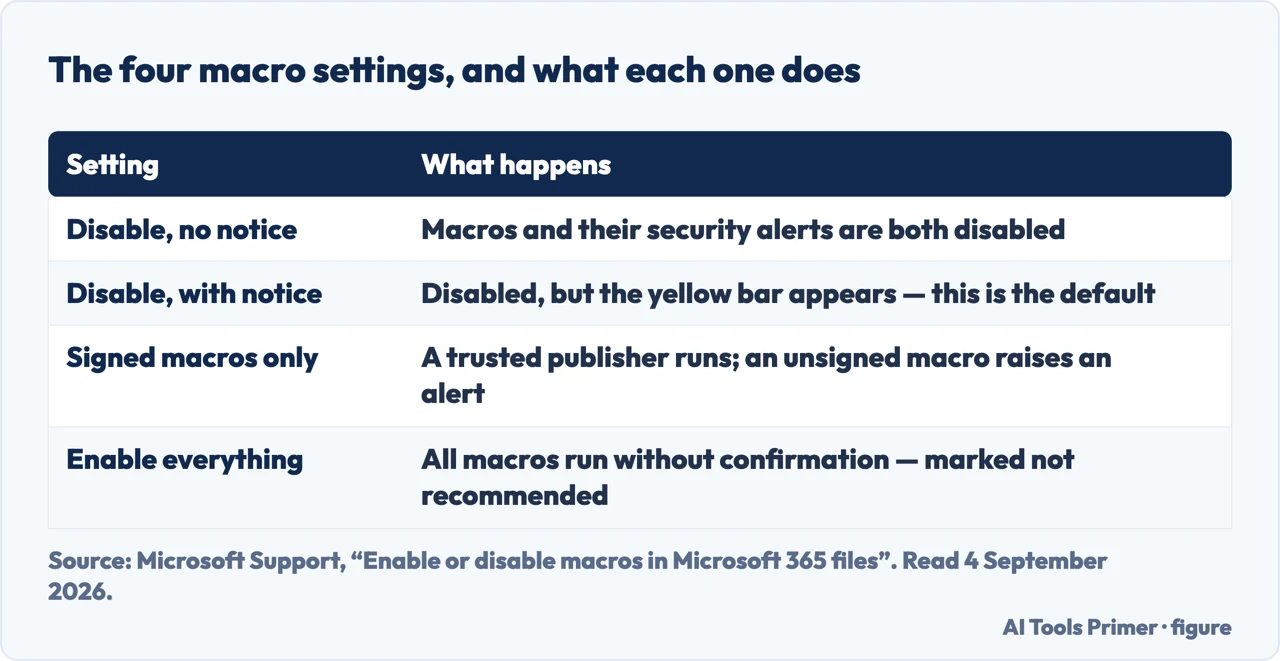
| Setting | What happens | Name in Excel |
|---|---|---|
| Disable all macros without notification | “Macros and security alerts about macros are disabled.” You are not told there was a macro at all | Disable VBA macros without notification |
| Disable all macros with notification | “Macros are disabled, but security alerts appear if there are macros present.” This is the one that produces the yellow bar | Disable VBA macros with notification |
| Disable all except digitally signed | A macro “digitally signed by a trusted publisher… just runs”; an unsigned one raises an alert | Disable VBA macros except digitally signed macros |
| Enable all macros | “All macros run without confirmation. This setting makes your computer vulnerable to malicious code.” Microsoft labels it not recommended | Enable VBA macros (not recommended) |
- Open the file and look for the yellow bar. If Excel says a macro was disabled and offers Enable Content, this is the one-file route and you do not need to change any setting.
- Decide whether you trust it, before you click. Microsoft’s own warning is the whole security model in one line: “Never enable macros in a Microsoft 365 file unless you’re sure you know what those macros do and you want the functionality they provide.”
- Select Enable Content, then Yes. In the Security Warning dialog, choosing Yes makes it a trusted document. It stays trusted afterwards, which is the part worth knowing: to undo it, “you need to clear all trusted documents”, not just this one.
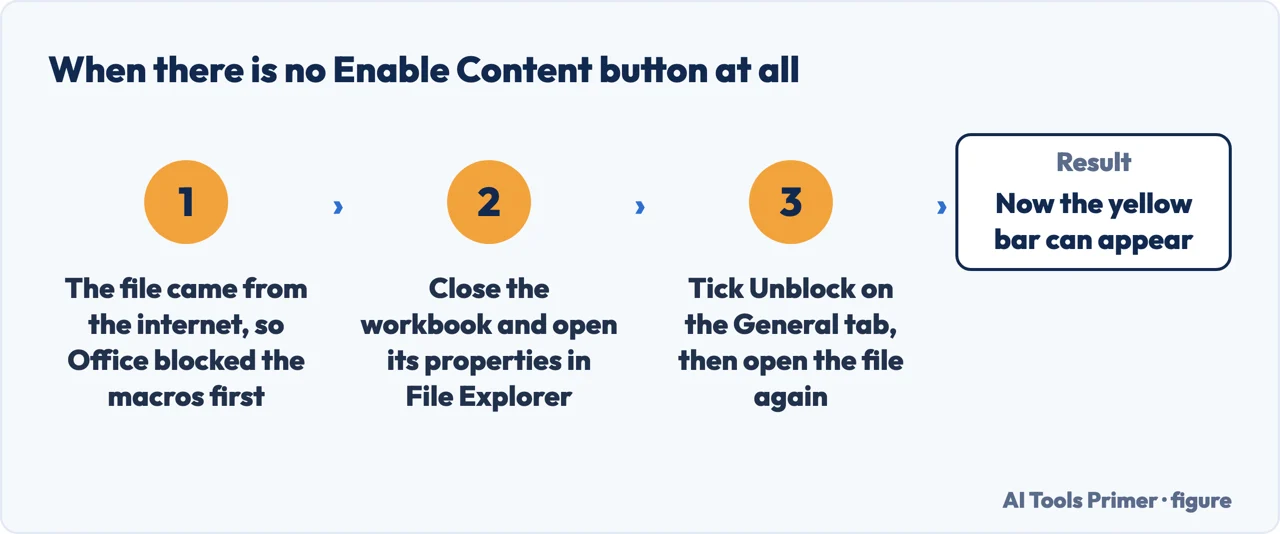
- If there is no yellow bar, the block is a different one. A file that came from the internet is stopped before that, and the fix is in the file’s own properties — see the section below.
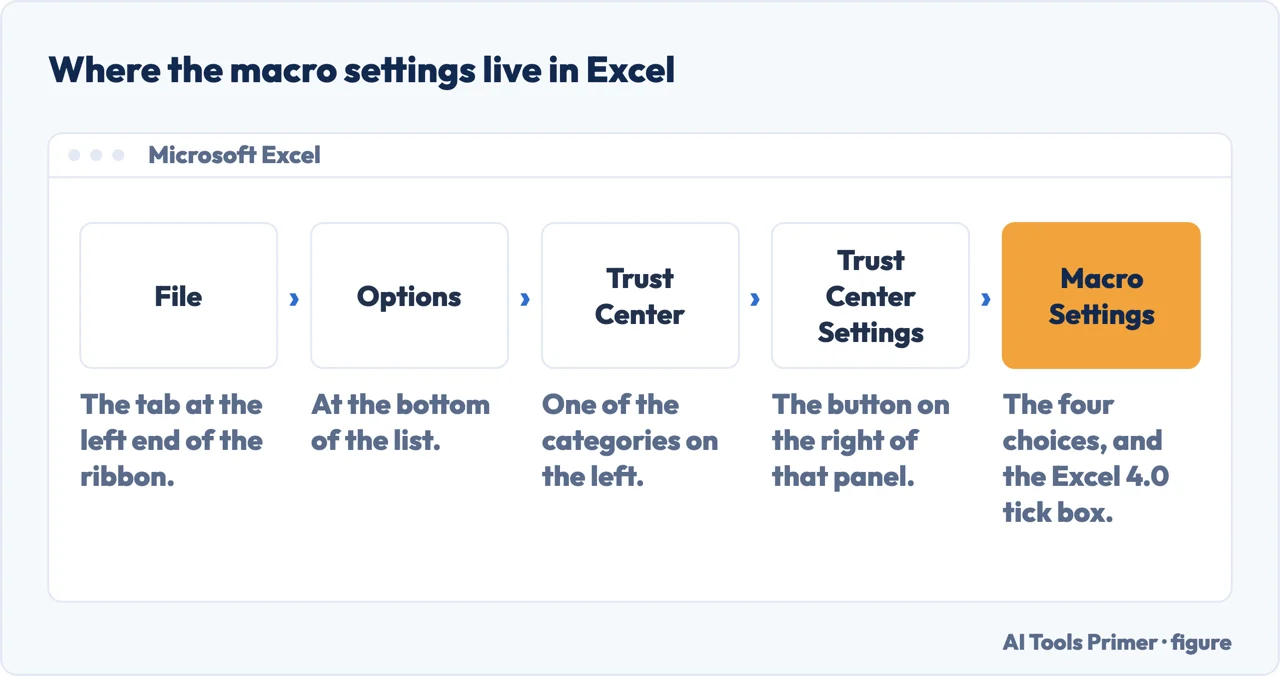
- To change the setting for good: File › Options › Trust Center › Trust Center Settings › Macro Settings. With the Developer tab showing, Macro Security opens the same place in one click.
- Read the note Microsoft puts on that screen. “When you change your macro settings in the Trust Center, they are changed only for the Microsoft 365 app that you are currently using.” Changing it in Excel does nothing for Word.
The block that has no Enable Content button
If the file came from the internet — an email attachment, a download, a link — you may not get the yellow bar at all. Microsoft changed the default in Office: “VBA macros are a common way for malicious actors to gain access to deploy malware and ransomware. Therefore, to help improve security in Office, we’re changing the default behavior of Office applications to block macros in files from the internet.”
The fix is on the file, not in Excel. Microsoft’s own instruction for individual
files is to “select the Unblock checkbox on the General tab”
of the file’s properties: close the workbook, right-click it in File Explorer, choose
Properties, tick Unblock at the bottom, then open it again. No Trust Center setting substitutes for
this, which is why turning macros on and finding nothing changed is such a common half-hour.
It also catches files that never left the building. Microsoft notes that users also see the message “if the file is from a location within your intranet and isn’t identified as being trusted” — and gives the case: “if users are accessing files on a network share by using the share’s IP address”. A departmental workbook on a server reached by number rather than name looks, to Office, exactly like something off the internet.
The safer alternative Microsoft offers instead of a setting
There are two ways to stop clicking Enable Content on every file, and only one of them weakens the check for everything you ever open.
Three things worth knowing before you enable anything
- You do not have to enable macros to read the file. Microsoft says it plainly: “you don’t need to enable macros to view or edit the file.” If you only want to see the numbers, the answer to the security prompt is no.
- A work computer may not let you change it. “If your device is managed by your work or school the system administrator might prevent anyone from changing settings.” A greyed-out Trust Center is policy, not a fault, and the route is a request to IT rather than a workaround.
- Trust is per app, and revoking is all-or-nothing. The setting you change applies only to the app you changed it in, and the trusted-document list is cleared as a whole. Both make “just this once” harder to arrange than it sounds.
Why the default changed, and why it is worth keeping. Microsoft’s reason for blocking macros from the internet is stated in one sentence — that VBA macros are “a common way for malicious actors to gain access to deploy malware and ransomware” — and the shape of that attack has not changed in twenty years. The message arrives with a document, the document asks to run code, the code is the payload. Every step of the block exists because that sequence works.
Excel 4.0 macros are a separate thing, and older than the rest. Excel has an extra tick box, “Enable Excel 4.0 macros when VBA macros are enabled”. Microsoft’s note is that with it ticked, all the VBA settings above also apply to XLM macros; without it, “XLM macros are disabled without notification”. If a very old workbook does nothing at all and reports no error, that box is worth a look before anything else.
The setting that is not about running macros. “Trust access to the VBA project object model” sits on the same screen and controls something different: whether other programs can read and change the macro code itself. Microsoft describes it as denying access by default, “hindering unauthorized programs from building harmful self-replicating code”. Some add-ins genuinely need it; nothing you open from an email does.
The cause Microsoft’s own page does not mention: the file was saved as .xlsx. RealData, whose own software needs its macros enabled in Excel, puts it first among the reasons the yellow bar is absent: “Might you have saved the file in .xlsx format? Check this first. If you did, then you have inadvertently removed the macro code from the file.” A macro workbook has to be .xlsm; saved as .xlsx, Excel drops the code. Nothing is broken and nothing can be enabled, because there is no longer anything there.
What to ask when a colleague sends a macro workbook. Not “is it safe”, which they cannot answer for you, but two narrower questions: who wrote the macro, and what does it change. A macro that formats a report is a different risk from one that writes files or sends email, and the person who uses it every week usually knows which it is.
The Trust Center settings, the warning, the trusted-document behaviour and the internet block are quoted from Microsoft’s own Office documentation, read on 4 September 2026 and listed below. The advice on what to ask a colleague is ours.
Where to start
Four ways in.
- “There is a yellow bar.”
- Steps one to three, then before you enable anything
- “There is no button at all.”
- That is the internet block — the internet block
- “I want it on permanently.”
- Read the four settings, then the safer route
- “My work laptop will not let me.”
- Policy, not a fault — see before you enable anything
The internet block
A file from outside the building is stopped before the yellow bar exists, and the fix is on the file rather than in the program.
The safer route
Trusting a folder you control, or a publisher who signs their code, beats turning the check off for everything you will ever open.
Before you enable anything
Three facts that change the decision: you can read the file without it, a managed device may refuse, and trust is harder to take back than to give.
What a macro is for
Most of what people write macros to do, a modern Excel does on its own. Worth knowing which is which before enabling anything.
Questions people also ask
How do I enable macros in Excel?
For one file, select Enable Content on the yellow bar and then Yes. For every file in an app: File › Options › Trust Center › Trust Center Settings › Macro Settings.
Why is there no Enable Content button?
Because the file came from the internet, and Office blocks those macros before the bar appears. Close the file, right-click it, choose Properties, and tick Unblock on the General tab.
Is it safe to enable macros?
Only for a file you have a reason to trust. Microsoft: “never enable macros in a Microsoft 365 file unless you’re sure you know what those macros do” — and “you don’t need to enable macros to view or edit the file”.
I changed the setting and macros are still blocked. Why?
Two common reasons. The Trust Center setting “changed only for the Microsoft 365 app that you are currently using”, and it does not lift the internet block, which is cleared on the file’s own properties.
How do I un-trust a document I enabled by mistake?
Individually, you cannot. Microsoft: “to revoke a trusted document, you need to clear all trusted documents” — the list is cleared as a whole from the Trust Center.
Not covered here. It will not tell you to select Enable all macros. Microsoft marks that option not recommended, and the reason is on the same screen.
It will not teach you to write a macro, which is a different subject and a longer one.
And it will not pretend a Trust Center setting lifts the internet block. It does not, and believing it does is how the afternoon goes. What holds instead is simple: the four settings and the internet block are quoted from Microsoft’s own Office documentation, which is also where the not recommended label comes from.
Sources
- Microsoft Support — Enable or disable macros in Microsoft 365 files: the warning, the trusted-document behaviour, the four Trust Center settings and the note that they change only for the app you are in — support.microsoft.com, read 4 September 2026.
- Microsoft Learn — Macros from the internet are blocked by default in Office: the reason for the change, the Unblock checkbox on the file’s General tab, and the intranet share reached by IP address — learn.microsoft.com, read 4 September 2026.
- RealData — “The ‘Enable Macros’ or ‘Enable Content’ button is missing. I cannot enable macros.”: three likely scenarios for a missing yellow bar, the first being a workbook saved as .xlsx with the macro code removed. Updated 6 June 2024 — www.realdata.com, read 16 October 2026.
Written by Alberto Gulotta
Founder and editor of AI Tools Primer, writing from Palermo, Italy. Thirty-five years of taking computers apart, starting with a Commodore 64 — the long version is on the about page.
Something wrong on this page? Write to aitoolsprimer@gmail.com and it gets fixed.
Written on 4 September 2026 · last checked 16 October 2026.
Independence and limits
No affiliate links and no paid placements anywhere on this site. Nobody pays to appear here, and no company has seen this page before you did.
This is general information, not professional advice. Where a page touches money, health, safety or the law, it names its source and the date it was read — and your situation may still differ. See the privacy page and the cookie policy.