
Docs · guide
XLOOKUP: the six arguments, the defaults and the versions
By Alberto Gulotta · Updated · 15 min read
XLOOKUP finds a value in one range and returns the item in the same row of another, whichever side it is on. Microsoft’s syntax has three required arguments and three optional ones; the match is exact by default, and a missing value gives #N/A unless the fourth argument says otherwise. Excel 2016 and 2019 do not have it.
| Where | What the page prints | Page read |
|---|---|---|
| Excel for Microsoft 365, and Excel for Microsoft 365 for Mac | Named in Applies To | XLOOKUP function |
| Excel 2021 and 2024, and their editions for Mac | Named in Applies To; 2021 is the version marker in the list of functions | XLOOKUP function; Excel functions (alphabetical) |
| Excel 2016 and Excel 2019 | Not available, by the page’s note, though Applies To names both | XLOOKUP function |
| iPad, iPhone, Android tablets and phones | Named in Applies To | XLOOKUP function |
| Excel for the web | Not named in Applies To | XLOOKUP function |
| Google Sheets | The same six arguments in the same order; the first four have other names | Google Docs Editors Help, XLOOKUP function |
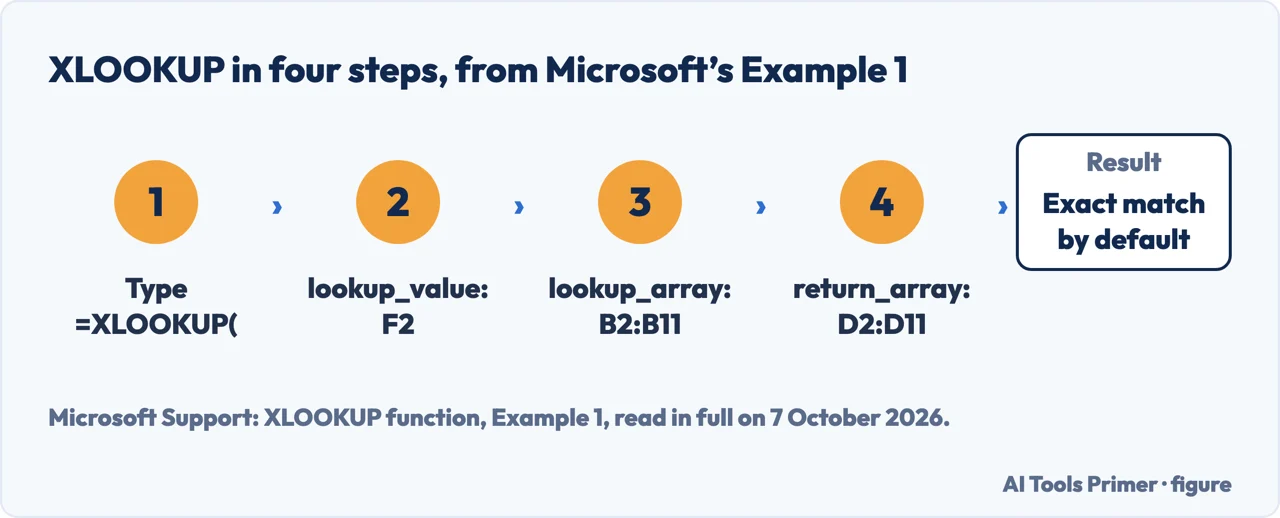
- Select the cell for the answer and type
=XLOOKUP(. In Microsoft’s Example 1 the formula looks up a country name and returns its telephone country code. - Give the value to find. That is
lookup_value, the value to search for: in Example 1, cellF2. - Give the range to search. That is
lookup_array: in Example 1,B2:B11, the column of country names. - Give the range to return from, and close the bracket. That is
return_array: in Example 1,D2:D11. Put together from those three arguments, the formula is=XLOOKUP(F2,B2:B11,D2:D11). Microsoft leaves outmatch_modebecause XLOOKUP gives an exact match by default.
The six arguments
The syntax line. Microsoft prints
=XLOOKUP(lookup_value, lookup_array, return_array, [if_not_found], [match_mode], [search_mode]).
The three in square brackets are optional.
lookup_value, required. The value to search for. Microsoft adds a footnote: if
it is omitted, XLOOKUP returns blank cells it finds in lookup_array.
lookup_array and return_array, required. The array or range to
search, and the array or range to return. Microsoft’s Example 2 returns two columns at once,
name and department from C5:D14, and its page sets this against VLOOKUP.
[if_not_found]. The text to return when no valid match is found. Without it,
the result is #N/A. Microsoft’s Example 4 sets it to 0, so the cell shows zero
when nothing is found.
[match_mode] and [search_mode]. How a match is made and how
the search runs. Their values are in the next section.
match_mode and search_mode
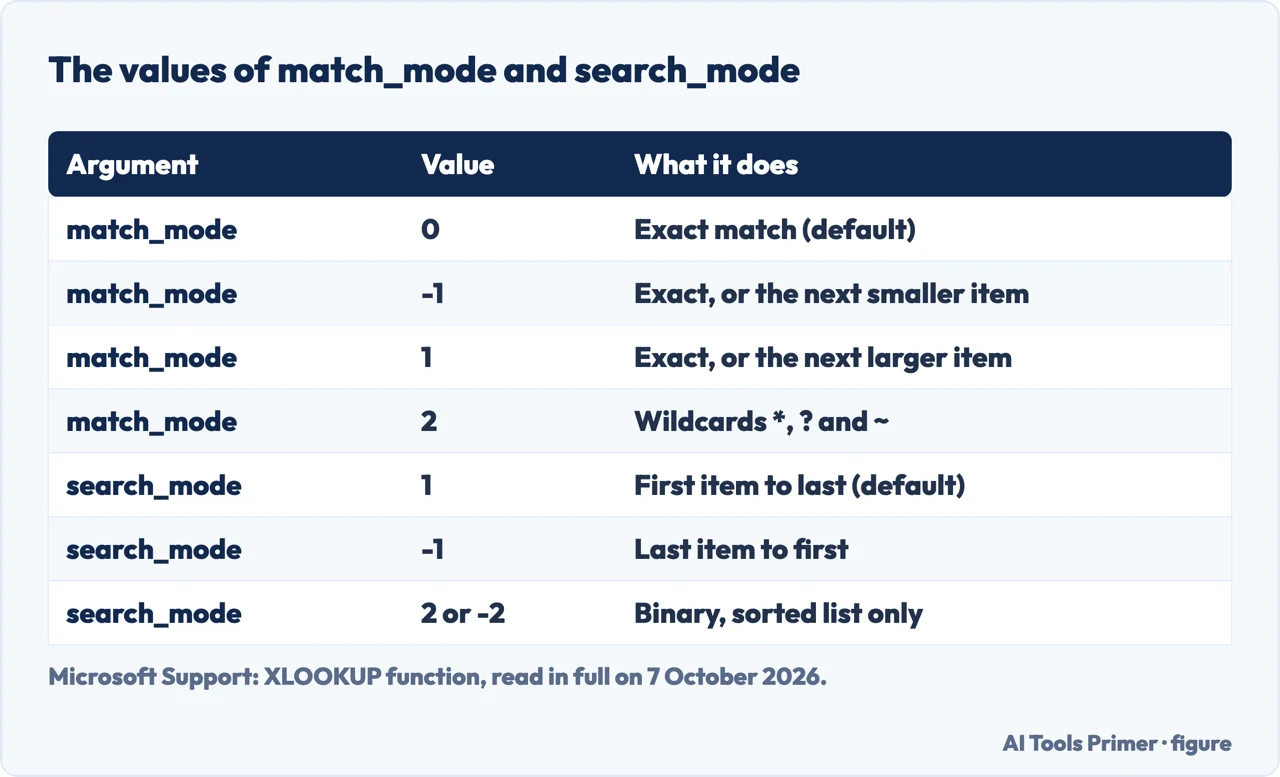
match_mode, four values on Microsoft’s page. 0 is an exact
match, returning #N/A if none is found, and is the default. -1 is an exact
match, or the next smaller item; 1 an exact match, or the next larger item. 2
is a wildcard match, in which *, ? and ~ have special
meaning.
A fifth value, on one page only. Exceljet lists 3, a regex match, and says it
came to Excel 365 in December 2024. Microsoft’s XLOOKUP page, read on 7 October 2026, does not
list it, and Microsoft’s page on REGEXTEST does not mention XLOOKUP in its text. This guide has
not tried it.
search_mode, four values. 1 searches from the first item and is
the default; -1 is a reverse search starting at the last item. Since XLOOKUP returns
the first match it finds, a value that appears twice then gives the row nearer the bottom; that
reading is ours. 2 and -2 are binary searches that
rely on lookup_array being sorted in ascending or descending order, and Microsoft
warns: “If not sorted, invalid results will be returned.”
The closest match is not the default. Microsoft’s page says under Syntax that if no
match exists, XLOOKUP can return the closest (approximate) match, and Google’s opens with a
similar line. On both pages the default match_mode is 0, an exact match; by our reading
the closest match comes from -1 or 1. Microsoft’s Example 4 uses
1 to find the tax rate for the income entered in cell E2.
XLOOKUP and VLOOKUP
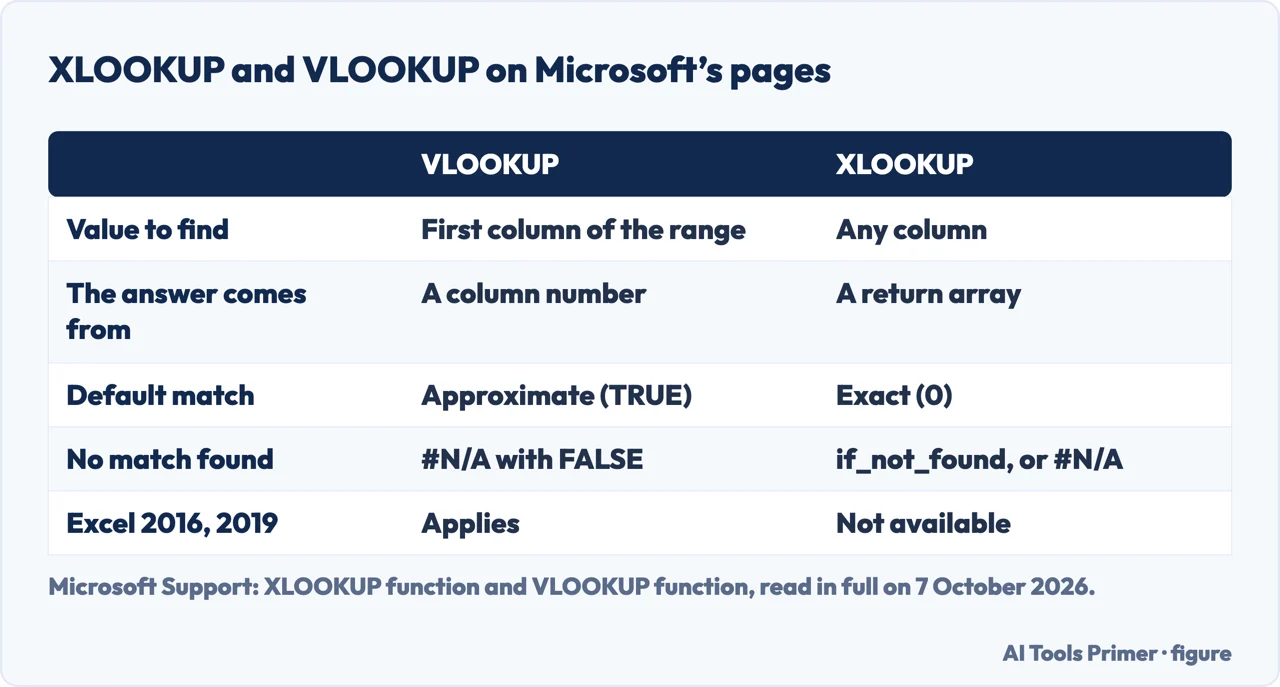
What Microsoft says of the two. Its VLOOKUP page calls XLOOKUP an improved version of VLOOKUP that works in any direction and returns exact matches by default. Its LOOKUP page points Microsoft 365 users to XLOOKUP, as faster and able to search up, down, left and right. The page on INDEX and MATCH calls XLOOKUP and XMATCH improved versions of the functions it describes. The guide to how to use VLOOKUP in Excel has the older function on its own.
The column to search. In VLOOKUP the value you look up must be in the first column of
table_array, and the page on INDEX and MATCH says VLOOKUP can only look up from left to
right. XLOOKUP, by its own page, returns a result from the same row of another column whichever side
the return column is on.
A number against a range. VLOOKUP’s third argument, col_index_num, is the
column number, starting with 1 for the left-most column of table_array. XLOOKUP’s
is a range. Microsoft’s note under Example 1 gives the VLOOKUP formula for the same lookup,
=VLOOKUP(F2,B2:D11,3,FALSE), where XLOOKUP takes B2:B11 and D2:D11. Neither function page says what a typed 3 does
when the sheet is rearranged; by our reading it stays 3, so a column inserted inside the range
moves the answer, and this guide has not tested it. The guide on
how to move columns in Excel has the ways a column
changes place.
The default match. VLOOKUP’s range_lookup is approximate, 1 or TRUE,
when left out: “This is the default method if you don't specify one.” Its Common
Problems table adds that an approximate match on an unsorted first column may return a value you do
not expect. XLOOKUP’s default is the exact match.
No match. VLOOKUP gives #N/A when an exact match set with FALSE finds nothing,
or when an approximate match looks for a value smaller than the smallest in the first column; XLOOKUP
gives #N/A unless if_not_found says otherwise.
Excel 2016, Excel 2019 and the #NAME? error
The note on Microsoft’s page. “XLOOKUP is not available in Excel 2016 and Excel 2019.” It adds that a workbook with XLOOKUP in it, made by someone in a newer version, may still be opened in one of the two. The same page’s Applies To line names Excel 2019 and Excel 2016 all the same. Microsoft’s list of Excel functions gives XLOOKUP the version marker 2021, and its page on what is new in Excel 2021 for Windows lists XLOOKUP with no note that it is missing from Excel LTSC 2021.
What the cell shows. Microsoft’s page on formula compatibility says that functions not
available in an earlier version return a #NAME? error when recalculated there, and
that “In some cases, the prefix _xlfn is added to the formula”. Its example is IFERROR in
Excel 97-2003; that XLOOKUP does the same in Excel 2016 or 2019 is our reading, not tested.
Microsoft’s page on the #NAME? error lists six causes, from a typo in the
function name to an add-in that is not enabled, and a function missing from the version is not
among them.
What Microsoft gives to do. The compatibility page: find the cells with the Compatibility Checker, replace new functions with functions the earlier version has, or replace the formulas with their results. For a lookup to the left, the page on INDEX and MATCH uses those two functions instead of VLOOKUP. Nested IF and IFS have the same kind of boundary, in the guide to multiple IF statements in Excel.
Two lookups in one formula
Row and column at once. Microsoft’s Example 5 nests one XLOOKUP inside another:
=XLOOKUP(D2,$B6:$B17,XLOOKUP($C3,$C5:$G5,$C6:$G17)) finds Gross Profit in column B and
Qtr1 in the top row, and returns the value where the two meet. The page compares it with INDEX and
MATCH together, and adds that XLOOKUP can replace HLOOKUP. Microsoft’s XMATCH page looks up
a row and a column at once with INDEX(C6:E12,XMATCH(B3,B6:B12),XMATCH(C3,C5:E5)).
A range between two matches. Example 6:
=SUM(XLOOKUP(B3,B6:B10,E6:E10):XLOOKUP(C3,B6:B10,E6:E10)). Because XLOOKUP returns a
range, Microsoft says, the formula calculates as =SUM($E$7:$E$9); Formulas ›
Formula Auditing › Evaluate Formula steps through it.
Copying the formula down. Microsoft’s VLOOKUP page advises absolute references for the lookup range, so that a formula filled down keeps looking at the same range; the guide on how to copy a formula in Excel covers what copying does to references. That the advice holds for XLOOKUP’s two ranges is our reading.
Ranges in an Excel table. Microsoft’s page on structured references says the cell
references behind a structured reference adjust when rows or columns are added to or deleted from the table, and that renaming a
column changes it in every structured reference in the workbook. Written that way, by our reading, an XLOOKUP follows the table.
Exceljet adds that the two ranges must be of compatible size or XLOOKUP returns
#VALUE!.
Finding the cell, not the value. When the job is to go to the data rather than return it to a cell, the guide to how to search in Excel covers the Find and Replace window and the SEARCH function.
XLOOKUP in Google Sheets
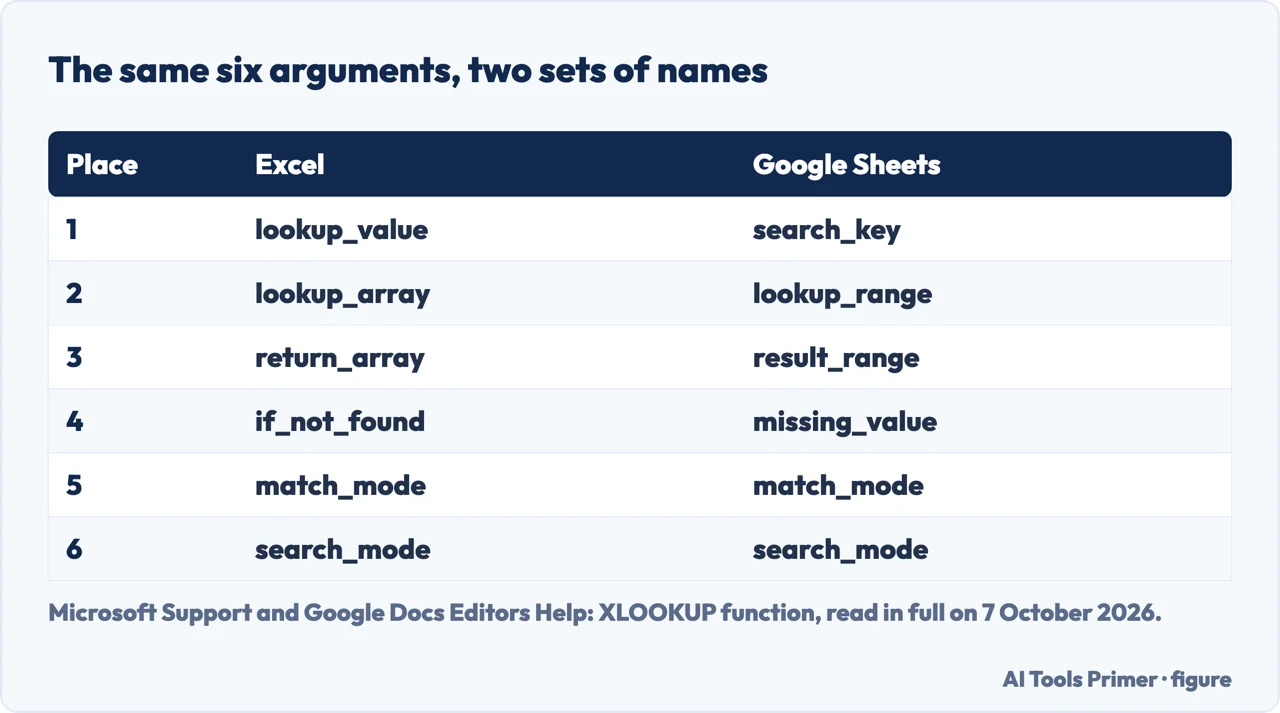
The same order, other names. Google’s page prints
XLOOKUP(search_key, lookup_range, result_range, missing_value, match_mode, search_mode).
missing_value is #N/A by default, match_mode 0 and
search_mode 1. Google lists the same four match modes, 0, 1, -1 and 2, and the same
four search modes.
Two rules Google writes out. lookup_range must be a single row or column, and
result_range should be the same size in that direction. If result_range
is more than one row or column, the result is the whole row or column at the match.
Google’s own VLOOKUP pairs. XLOOKUP("Apple", A2:A, E2:E) to replace
VLOOKUP("Apple", A2:E, 5, FALSE); and with the column to match to the right of the
output, XLOOKUP("Apple", E2:E7, A2:A7) against
VLOOKUP("Apple", {E2:E7, A2:A7}, 2, FALSE). Google’s VLOOKUP page makes TRUE, an
approximate match, the default for is_sorted and recommends FALSE.
XLOOKUP for BigQuery, one argument fewer. The same page has an XLOOKUP for BigQuery with five
arguments and says search_mode is not supported there.
Where to start
Six ways in.
- “Just give me the formula.”
- Four steps — the formula step by step
- “What does each argument do?”
- Six arguments — the six arguments
- “Exact, nearest or wildcard?”
- The two modes — match and search modes
- “Should I keep VLOOKUP?”
- What Microsoft’s pages say — xlookup and vlookup
- “It shows #NAME? or _xlfn.”
- Excel 2016 and 2019 — versions and name errors
- “I am in Google Sheets.”
- Same order, other names — in google sheets
Other lookups and version limits
The older lookup, finding data in a sheet, and another function that some versions of Excel lack.
Columns and references
The ranges in a lookup are references, and moving or copying changes them.
Questions people also ask
How do you use xlookup in Excel?
Type =XLOOKUP( and give the value to find, the range to search and the range to return, then close the bracket. From the arguments of Microsoft’s Example 1: =XLOOKUP(F2,B2:B11,D2:D11). Add a fourth argument for the text to show when nothing matches, and a fifth or sixth to change how the match is made or how the search runs.
What does the XLOOKUP function do in Excel?
It searches a range or an array and returns the item that corresponds to the first match it finds. Microsoft’s page gives the price of a part by its part number, or an employee’s name by ID, as examples, and the return column can be on either side.
Is xlookup better than VLOOKUP?
Microsoft calls XLOOKUP an improved version of VLOOKUP: it works in any direction and gives an exact match by default, where VLOOKUP is approximate unless told otherwise. VLOOKUP’s page lists Excel 2016 and 2019, which do not have XLOOKUP; by our reading, a file for those versions needs a function they have, such as VLOOKUP.
What is the disadvantage of xlookup?
Microsoft says it is not available in Excel 2016 and Excel 2019, and a workbook that uses it can reach someone with one of those. Its binary search modes return invalid results on an unsorted list. Google’s page says search_mode is not supported in XLOOKUP for BigQuery.
Not covered here. It does not cover INDEX and MATCH, or XMATCH, beyond the examples above, and it does not test the regex mode that, among the pages read, only Exceljet lists.
Nor does it test any formula in Excel or in Sheets: the examples are Microsoft’s and Google’s, Example 1 written out from the three arguments Microsoft names, and the readings marked as ours are ours.
Microsoft’s XLOOKUP page does not name Excel for the web in its Applies To line; Nexacu, an Australian training firm, says XLOOKUP is available there. This guide has not checked.
Sources
- Microsoft Support — XLOOKUP function: syntax, the six arguments, Examples 1 to 6, the note on Excel 2016 and Excel 2019, and the Applies To line — support.microsoft.com, read 7 October 2026.
- Microsoft Support — VLOOKUP function: the first-column rule, col_index_num, the approximate-match default and Common Problems — support.microsoft.com, read 7 October 2026.
- Microsoft Support — Look up values with VLOOKUP, INDEX, or MATCH — support.microsoft.com, read 7 October 2026.
- Microsoft Support — LOOKUP function: the tip on XLOOKUP for Microsoft 365 — support.microsoft.com, read 7 October 2026.
- Microsoft Support — XMATCH function — support.microsoft.com, read 7 October 2026.
- Microsoft Support — Excel functions (alphabetical): the version marker 2021 for XLOOKUP — support.microsoft.com, read 7 October 2026.
- Microsoft Support — What’s new in Excel 2021 for Windows — support.microsoft.com, read 7 October 2026.
- Microsoft Support — Formula compatibility issues in Excel: #NAME? and the _xlfn prefix — support.microsoft.com, read 7 October 2026.
- Microsoft Support — How to correct a #NAME? error — support.microsoft.com, read 7 October 2026.
- Microsoft Support — Using structured references with Excel tables — support.microsoft.com, read 7 October 2026.
- Microsoft Support — REGEXTEST function, read for what it does not say about XLOOKUP — support.microsoft.com, read 7 October 2026.
- Google Docs Editors Help — XLOOKUP function: syntax, defaults, the VLOOKUP pairs and XLOOKUP for BigQuery — support.google.com, read 7 October 2026.
- Google Docs Editors Help — VLOOKUP: is_sorted and its default — support.google.com, read 7 October 2026.
- Exceljet — Excel XLOOKUP function: match_mode 3 and the size of the two ranges — exceljet.net, read 7 October 2026.
- Nexacu — What is XLOOKUP and how to use it: the line on Excel for the web — nexacu.com.au, read 7 October 2026.
Written by Alberto Gulotta
Founder and editor of AI Tools Primer, writing from Palermo, Italy. Thirty-five years of taking computers apart, starting with a Commodore 64 — the long version is on the about page.
Something wrong on this page? Write to aitoolsprimer@gmail.com and it gets fixed.
Written on 4 September 2026 · last checked 7 October 2026.
Independence and limits
No affiliate links and no paid placements anywhere on this site. Nobody pays to appear here, and no company has seen this page before you did.
This is general information, not professional advice. Where a page touches money, health, safety or the law, it names its source and the date it was read — and your situation may still differ. See the privacy page and the cookie policy.