
Docs · guide
VLOOKUP Google Sheets: the four arguments and the errors Google lists
By Alberto Gulotta · Updated · 9 min read
VLOOKUP Google Sheets takes four arguments: =VLOOKUP(search_key, range, index, [is_sorted]). Google strongly recommends FALSE for the last one, because TRUE, the default, finds an approximate match and needs a sorted column. This page sets out the syntax, the errors Google lists and where guides differ.
| Question | Answer | Where it comes from |
|---|---|---|
| What is the syntax? | =VLOOKUP(search_key, range, index, [is_sorted]) | Google Docs Editors Help |
| Which column is searched? | The first column of the range | Google Docs Editors Help |
| What does the last argument choose? | FALSE is an exact match and is recommended; TRUE is an approximate match and is the default | Google Docs Editors Help |
| What if nothing matches? | #N/A, which IFNA() can replace with another value | Google Docs Editors Help |
| Can it match on two columns? | Not directly; Google builds a helper column with & | Google Docs Editors Help |
| Can it reach another spreadsheet? | Through IMPORTRANGE, say Coupler.io and Measure School | Coupler.io, Measure School |
The four arguments, in Google’s words
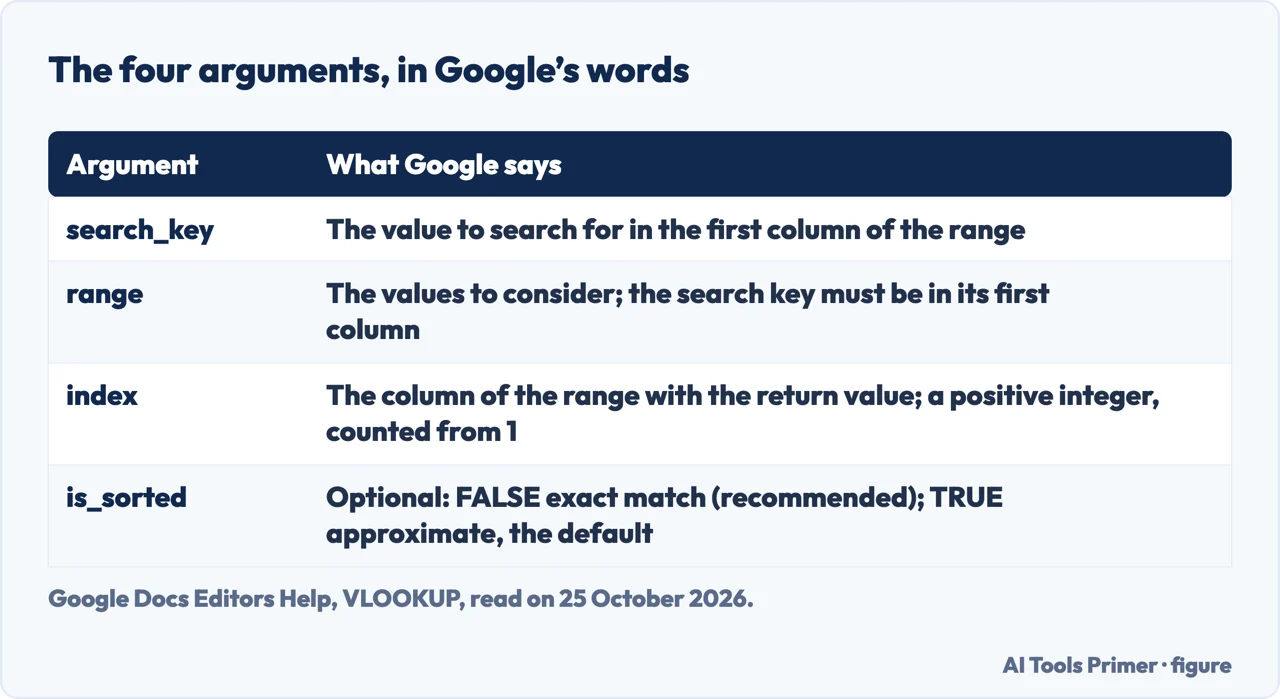
Google Docs Editors Help gives the formula as =VLOOKUP(search_key, range, index, [is_sorted]). The search_key is the value to search for in the first column of the range, and a cell reference is supported. The range is the upper and lower values to consider for the search. The index is the column of the range that holds the return value; it must be a positive integer, the smallest possible index is 1, and the largest is the number of columns in the range. Google says to imagine the columns of the range numbered from left to right starting with 1, and that VLOOKUP only looks to the search key column, when the index is 1, or to columns further right.
The return value is the first matched value from the selected range, and there is only one return value from each VLOOKUP function. Google’s own example is a table of fruit: =VLOOKUP(“Orange”, B4:D8, 3, FALSE) returns $1.01, the value in the third column of the range. The same Google page opens with a version for BigQuery, with other argument names and a tip pointing BigQuery users to XLOOKUP; this page follows the section for Sheets.
Exact or approximate: the fourth argument
The fourth argument is optional. Google says FALSE gives an exact match and is recommended, while TRUE gives an approximate match and is the default if is_sorted is unspecified. Google strongly recommends using FALSE because its behaviour is consistent whether or not the search key column is sorted, and says to always specify is_sorted for readability, even though the input is optional.
An approximate match searches down the search key column until it finds a value larger than the search key, then stops on the row before and returns the value from the return value column on that row. In Google’s example, an ID of 102 that does not exist returns the row for 101, the closest value that is smaller. Before using an approximate match, Google says to sort the search key column in ascending order, otherwise the function may return a wrong value. With FALSE and no exact match, the result is #N/A.
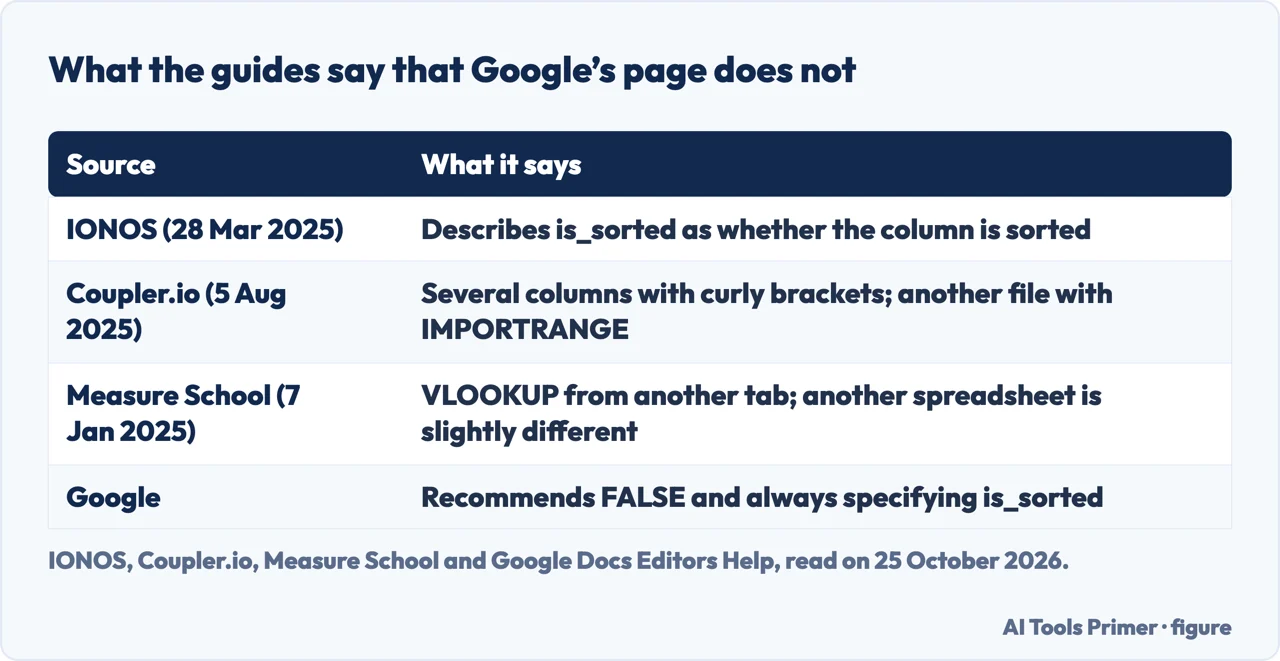
The guides do not all describe the argument this way. IONOS, in a guide dated 28 March 2025, says the optional is_sorted suffix defines whether the column to be searched is sorted: FALSE if it is not, TRUE otherwise. Google’s page ties the same argument to the kind of match instead: FALSE for exact, TRUE for approximate.
Wrong values and errors, as Google lists them
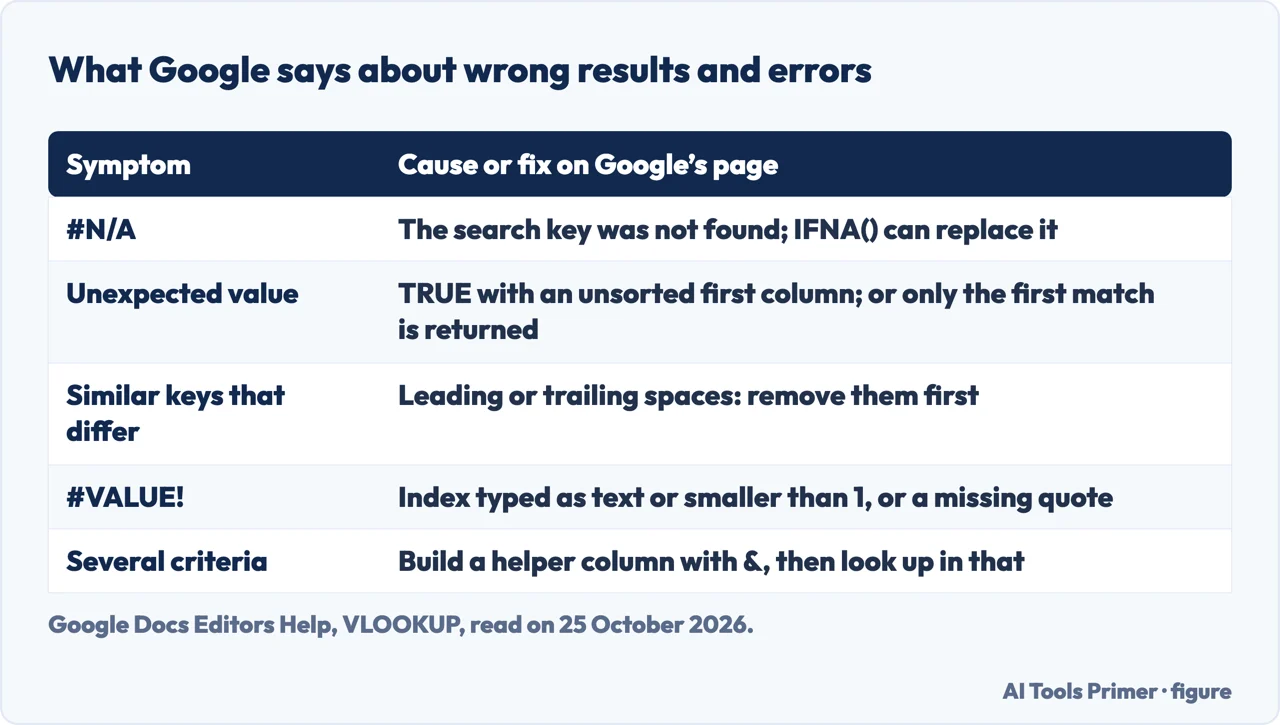
Google’s troubleshooting section names several causes. With is_sorted set to TRUE and a first column that is not sorted in ascending order, change it to FALSE. VLOOKUP gives only the first match, so with several matching search keys the value returned may not be the one expected. Values with leading or trailing spaces look alike but VLOOKUP treats “ Apple”, “Apple ” and “Apple” as different, so Google says to remove the spaces first.
On #N/A, Google says that if exact match is used and the search key is not found in the first column, the result is #N/A, and that IFNA() can replace it, as in =IFNA(VLOOKUP(G3, B4:D8, 3, FALSE),“NOT FOUND”); for other errors such as #REF!, Google points to IFERROR(). A range with an index larger than its number of columns is a mistake to avoid: count the columns from the selected range, not the entire table, and start from 1. For #VALUE!, Google lists an index typed as text or a column name, an index smaller than 1, and a missing quote around a text search key. For the range, Google recommends absolute references, as in VLOOKUP(G3, $B$3:$D$7, 3, FALSE).
Several criteria and wildcards
Google says VLOOKUP cannot be directly applied on multiple criteria. Its method is a helper column that combines the existing columns with &: in its example, =C4&D4 joins a first and a last name, and the search key then points at the joined value. Wildcards work as partial matches: a question mark matches any single character and an asterisk matches any sequence of characters, and Google says that to use them you must use an exact match, FALSE. Its example =VLOOKUP(“St*”, B4:D8, 3, FALSE) matches anything that starts with “St”.
What the guides add
Measure School, in a guide with the last modification dated 7 January 2025, answers how to use VLOOKUP from another tab: modify the range into an array with curly brackets, adding the range of each tab separated by semicolons. For data in different spreadsheets rather than tabs, it uses IMPORTRANGE to import the range and then uses that imported range as the range of the VLOOKUP. Coupler.io, in a guide dated 5 August 2025, says VLOOKUP itself works within one Google Sheets document and nests it with IMPORTRANGE for another spreadsheet, and wraps several VLOOKUP formulas in curly brackets, each with a different column index, to return more than one value. The Google page we read describes neither another tab nor another file.
The questions in Google’s People also ask box are how to use VLOOKUP between two sheets, how to use it step by step, whether a VLOOKUP can be done between Excel and Google Sheets, and what the equivalent of VLOOKUP in Google Sheets is. The answers below follow those pages. For the Excel version of the function see VLOOKUP in Excel; for its successor, XLOOKUP.
Where to start
Four ways in.
- “What goes where?”
- The four arguments — arguments
- “Which match?”
- Exact or approximate — match
- “It shows #N/A.”
- Errors — errors
- “Another sheet.”
- What the guides add — guides
Lookups and Sheets
The function in Excel, its successor, and more Sheets pages.
Questions people also ask
How to use VLOOKUP between two sheets?
Google’s page does not describe it. Measure School uses an array with curly brackets to look across tabs, and IMPORTRANGE to bring in another spreadsheet.
How do I use VLOOKUP step by step?
Google’s example: put the search key in the first column of the range, count the index from 1 to the column that holds the answer, and type FALSE for an exact match, as in =VLOOKUP(“Orange”, B4:D8, 3, FALSE).
Can I do a VLOOKUP between Excel and Google Sheets?
The pages we read do not cover Excel files. Coupler.io says VLOOKUP itself works within one Google Sheets document and uses IMPORTRANGE for another spreadsheet.
What is the equivalent of VLOOKUP in Google Sheets?
The function keeps the name VLOOKUP. The only other function Google’s page names is XLOOKUP, in a tip for the BigQuery version.
Not covered here. We did not run a formula in a spreadsheet. The statements come from Google Docs Editors Help (VLOOKUP, the section for Sheets), read on 25 October 2026, and from guides by IONOS (28 March 2025), Coupler.io (5 August 2025) and Measure School (modified 7 January 2025), used for what they claim. Functions and help pages change.
The Stack Overflow question, the W3Schools tutorial and the Reddit thread were not used; the W3Schools text could not be read apart from its menus. Google’s page is long and this page leaves out its BigQuery version.
The search volume and difficulty behind this page were read in Semrush on 29 August 2026.
Sources
- Google Docs Editors Help — VLOOKUP — support.google.com, read 25 October 2026.
- IONOS — How to use VLOOKUP in Google Sheets (28 March 2025) — www.ionos.com, read 25 October 2026.
- Coupler.io — VLOOKUP Google Sheets Explained (5 August 2025) — blog.coupler.io, read 25 October 2026.
- Measure School — How to Use VLOOKUP in Google Sheets from Another Tab (modified 7 January 2025) — measureschool.com, read 25 October 2026.
Written by Alberto Gulotta
Founder and editor of AI Tools Primer, writing from Palermo, Italy. Thirty-five years of taking computers apart, starting with a Commodore 64 — the long version is on the about page.
Something wrong on this page? Write to aitoolsprimer@gmail.com and it gets fixed.
Written on 25 October 2026.
Independence and limits
No affiliate links and no paid placements anywhere on this site. Nobody pays to appear here, and no company has seen this page before you did.
This is general information, not professional advice. Where a page touches money, health, safety or the law, it names its source and the date it was read — and your situation may still differ. See the privacy page and the cookie policy.