
Docs · guide
How to sort in Google Sheets, and who else sees your filter
By Alberto Gulotta · Updated · 10 min read
There are two answers to how to sort in google sheets and they behave differently. Right-clicking a column letter sorts the entire sheet; Data › Sort range sorts what you highlighted. Choosing the wrong one is how a header row ends up filed under H, and it is the same accident the Excel guide is about — but the thing that prevents it here is not the same thing.
The header row, and the mechanism nobody expects. Sorting a whole sheet in Sheets is a right-click on the column letter, then Sort sheet A to Z. That sorts everything — the title row included, which is how a header ends up alphabetised into the middle of the data.
Google’s instruction for avoiding it is not a tick box. It is: “If your sheet includes a header row, freeze the first row.” Freezing is the thing that tells Sheets the row is not data. In Excel the same protection comes from telling the sort dialog “My data has headers”, which is a statement about this one operation; freezing is a property of the sheet and holds for every sort afterwards.
The dialog exists here too — Data › Sort range › Advanced range sorting options has a Data has header row checkbox — but it applies to a selected range, not to the right-click sort on the column letter.
The difference a shared sheet turns into a problem
One sentence from Google, and it changes what filtering means.
“When you add a filter, anyone with access to your spreadsheet will find the filter too. Anyone with permission to edit your spreadsheet will be able to change the filter.”Google Docs Editors Help, read 28 August 2026
A filter in Excel is something you do to your own view of a workbook. A filter in Google Sheets is a change to the sheet — everybody looking at it sees what you hid, and anybody who can edit can move it while you are reading.
This is why a colleague’s spreadsheet sometimes opens with half the rows missing and nothing obviously wrong. The rows are not deleted and nothing has failed: somebody left a filter on. Google adds that “your filter settings are saved, ensuring consistent filtering even if the data you filter on is removed” — so the filter outlives the reason it was made, and it will still be there next month.
The practical consequence is a habit rather than a setting. On a spreadsheet other people open, filtering to look at something and leaving it on is not a private act — it changes what the next person finds. Before filtering a shared sheet it is worth deciding whether you are answering a question for yourself, in which case a copy is cheaper, or changing the sheet for everybody, in which case say so.
Why “Create a filter” is greyed out
Google lists four causes, and the first one is a formatting choice people make on purpose.
- Merged cells, or hidden rows and columns. Google’s fix: “try to unmerge the cells and unhide the rows or columns.”
- Conditional formatting. Format › Conditional formatting, and make sure no rules are applied.
- Data validation. Data › Data validation, same check.
- No access. If none of the above works, make a copy of the sheet and see whether the option is enabled there — if it is, the copy is the one to use.
The first is worth pausing on, because merging cells is what a spreadsheet built to be read looks like: a title across the top, a merged block grouping three months. Those choices are not mistakes — but in Sheets they cost you the filter, and Google says so plainly rather than leaving the button mysteriously grey.
That list is also the answer to a question this guide did not set out to answer. Merged cells are usually discussed as a formatting preference — the Excel guide on merging argues against them from Microsoft’s documentation, which says the merge deletes what was in the other cells. Google publishes nothing about that, but it does publish this: merge cells and the filter button stops working. Two companies, two different arguments against the same choice, and both of them documented.
One last thing about sorting by colour, because it is the only route with a stated limit. It runs through the filter — Data › Create a filter, then the Filter control at the top of the range — so everything above about filters being shared applies to it as well. And Google draws a line inside it: “You can sort by conditional formatting colors, but not alternating colors.” The banded stripes that make a long table readable are decoration to Sheets, and a colour that came from a rule is data.
Where to start
Five ways in. The third one only comes up on a sheet somebody else can open.
- “I just need this column in order.”
- Start at two sorts not one
- “My header row got sorted into the data.”
- That is the header row
- “Somebody else sees my filter.”
- Yes — a filter is not yours
- “Create a filter is greyed out.”
- Four causes, in why the button is grey
- “I want the coloured rows together.”
- Read the limit in why the button is grey
Two sorts, not one
The whole sheet or a selection, and the two menus that do not do the same thing.
The header row
Freezing is what tells Sheets the first row is not data. It is not the same as a checkbox.
A filter is not yours
Everyone with access finds it, anyone who can edit can change it, and it is saved.
Why the button is grey
Four documented causes, and the first is a formatting choice somebody made on purpose.
Not covered here. It will not tell you a filter is private. Google says the opposite in one sentence, and that sentence is the most useful thing on this page.
It will not repeat the Excel argument against merged cells. The two companies object to them for different documented reasons, and only Google’s belongs here.
And it will not promise sorting by colour covers every colour. Google draws the line at alternating colours, and this guide draws it in the same place. What holds instead is simple: that a filter is shared and saved is Google’s own sentence, quoted with the four causes of an unavailable filter.
The same spreadsheet job, in the other program
Eight guides: sorting, removing duplicates, drop-down lists, locking cells, pivot tables and unhiding columns in Google Sheets, and drop-down lists and alphabetising in Excel.
- The same job, in the other places it comes up
- How to remove duplicates in Google Sheets, and what counts as one
- How to make a drop down list in Google Sheets, and where Excel stops
- How to lock cells in Google Sheets, and what it will not do
- How to create a pivot table in Google Sheets, and what it does alone
- How to unhide columns in Google Sheets, including the first one
- How to make a drop down list in Excel, and make it hold
- How to alphabetize in Excel, without scrambling your rows
Sources
- Google Docs Editors Help — Sort & filter your data (that sorting a range uses Data › Sort range › Advanced range sorting options with a Data has header row option and Add another sort column; that a whole sheet is sorted by right-clicking the column letter and choosing Sort sheet A to Z; the instruction to freeze the first row if the sheet includes a header row; that sorting by colour runs through a filter and works on conditional formatting colours but not alternating colours; that anyone with access to the spreadsheet will find the filter and anyone with permission to edit can change it; that filter settings are saved even if the data filtered on is removed; and the four documented causes of Create a filter being unavailable — merged cells or hidden rows and columns, conditional formatting, data validation, and lack of access, with making a copy as the last check) — support.google.com, read 28 August 2026.
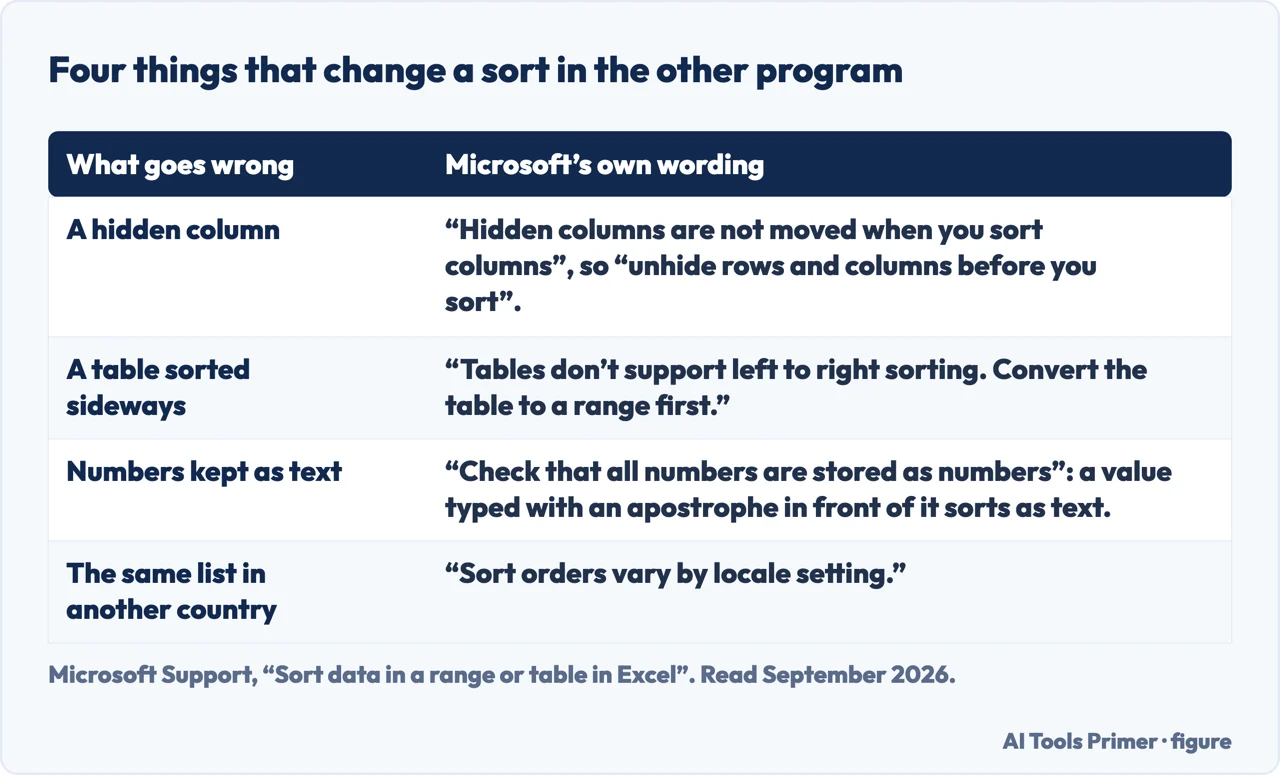
- Microsoft Support — Sort data in a range or table in Excel, quoted here for the comparison: that hidden columns are not moved by a sort, that tables do not support left-to-right sorting, that numbers stored as text sort as text, and that sort orders vary by locale — support.microsoft.com, read 5 September 2026.
Written by Alberto Gulotta
Founder and editor of AI Tools Primer, writing from Palermo, Italy. Thirty-five years of taking computers apart, starting with a Commodore 64 — the long version is on the about page.
Something wrong on this page? Write to aitoolsprimer@gmail.com and it gets fixed.
Written on 28 August 2026 · last checked 23 September 2026.
Independence and limits
No affiliate links and no paid placements anywhere on this site. Nobody pays to appear here, and no company has seen this page before you did.
This is general information, not professional advice. Where a page touches money, health, safety or the law, it names its source and the date it was read — and your situation may still differ. See the privacy page and the cookie policy.