
Docs · guide
How to lock cells in Google Sheets, and what it will not do
By Alberto Gulotta · Updated · 10 min read
The steps for how to lock cells in google sheets are four clicks and you will find them anywhere: Data › Protect sheets and ranges, choose the range, set permissions, save. This guide is about the two things that come before and after — what Google says the feature is for, and the two things it states you cannot do with it.
“This shouldn’t be used as a security measure. People can print, copy, paste, and import and export copies of a protected spreadsheet. Only share spreadsheets with people you trust.”Google Docs Editors Help, read 28 August 2026
That is the first thing Google says about protecting a sheet, and it is worth reading before anything else on this page. Protection stops accidents, not people. A colleague cannot overwrite your formula by tabbing into it; a colleague who wants the numbers has them, because they can already see the file.
Almost nobody quotes that sentence, which is why the feature gets used for the wrong job. If the question is can I send this to somebody I do not trust, the answer is not in this menu — it is in who you shared the file with.
The job is not reversed here
The thing that makes the Excel version confusing does not exist in Sheets.
Every cell is already marked Locked, and ticking the box changes nothing until the sheet is protected. The real job is unlocking the few cells people should be able to type in — which is why the steps seem not to work.
You protect the range you mean. Data › Protect sheets and ranges, pick Range or Sheet, set permissions. For the exceptions there is a box: “Except certain cells.”
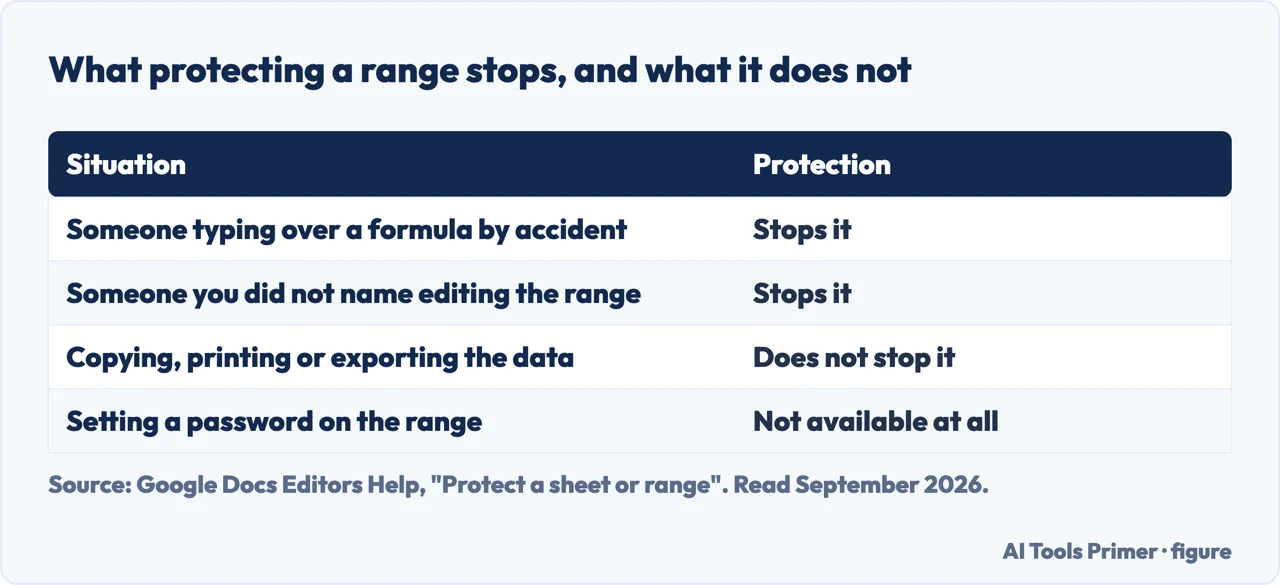
That difference is larger than it looks, because it is the reason the Excel question gets searched so often. There the steps appear not to work: every cell is already Locked, ticking the box changes nothing, and the sheet stays editable until protection is switched on — so the Excel guide is mostly about doing the job the other way round. Here there is no other way round. You protect what you mean and name the exceptions.
Both of those are Google’s own words, listed under an Important note before the instructions. The first changes what the feature can be used for at all, and it is the one to carry across from Excel: a protected Excel sheet asks for a password, and somebody who does not have it stops there. A protected Sheets range asks who you are, and the answer is already known — which is why the sentence at the top of this page is not a disclaimer but a description.
Two models, and only one of them stops anybody. Under Set permissions, Sheets offers a choice Excel does not have.
Show a warning when editing this range — Google is precise that it “doesn’t block people from editing, but they’ll see a message asking them to confirm if they really want to make an edit.” It is a speed bump, and on a sheet where the danger is a stray keystroke it is often the right one: nobody has to come and ask you for access.
Restrict who can edit this range — Only you, Only domain (work or school, and only when everyone in the domain can already edit the file), or Custom. There is also Copy permissions from another range, which is the setting that makes a sheet with a dozen protected blocks maintainable.
Hiding a sheet is not protecting it, and Google says how far that goes. “All spreadsheet editors can unhide and view these sheets for convenience. Spreadsheet viewers can still access content in hidden sheets.”
And the example Google gives is the one that catches people: “if a viewer makes a copy of the spreadsheet, the sheets remain hidden, but they can unhide the sheets.” A hidden sheet travels inside every copy, and the copy is made by somebody who only had permission to look.
It survives leaving the program too: hidden sheets stay hidden when the file is exported as .pdf, .xls or .ods, and when it is imported from .xls, .xlsx or .ods — hidden, which is not the same as absent.
Seeing what is already protected. View › Show › Protected ranges puts a striped background over every protected cell. There is no equivalent single view in the Excel guide’s account of the same job.
It is the check to run on a spreadsheet you inherited, before you spend twenty minutes wondering why one column will not accept anything. And it is the fastest way to audit your own work: protection you set up months ago is invisible until something bumps into it.
Excel draws the same line in the opposite order. In Microsoft’s spreadsheet every cell is locked from the start and the protection is dormant until you turn it on, so the work is unlocking the cells people are meant to fill in and then protecting the sheet. Sheets starts from the other end: nothing is protected until you name a range. Different defaults, same outcome — a document where the inputs are editable and the formulas are not, and in neither program a barrier that survives someone copying the file.
One last thing, and it is the fastest to check. If Protected sheets and ranges is not in the Data menu at all, Google’s answer is that you are probably in Microsoft Office editing — the mode Sheets uses to work on an .xlsx directly — and the protection tools arrive when the file is converted to Google Sheets. It is a two-second diagnosis for a menu item that appears to have gone missing.
Where to start
Five ways in. The second one decides whether this feature is the right tool at all.
- “I just need to stop people typing in this column.”
- Start at protecting a range
- “Can I send this to somebody I do not trust?”
- Read what it is for
- “I want a password on it.”
- There is not one — what it cannot do
- “I hid a sheet, is that enough?”
- No, and Google says why — hiding is not protecting
- “Something here is already locked.”
- Find it in seeing what is protected
What it is for
Google’s first sentence about the feature, and the job it is not able to do.
Protecting a range
The range or the whole sheet, with a box for the cells that must stay editable.
What it cannot do
Two stated impossibilities, and the one that surprises people arriving from Excel.
Hiding is not protecting
A hidden sheet travels inside every copy, and a viewer can make copies.
Seeing what is protected
One menu item makes every protected cell visible at once.
Not covered here. It will not call this security. Google does not, in the first sentence of its own documentation, and repeating the word would be the useful part left out.
It will not offer a password. There is not one, and Google lists its absence rather than leaving you to discover it.
And it will not treat hiding a sheet as an alternative. A viewer can copy the file and unhide everything in it, which Google spells out with an example. What holds instead is simple: the warning that this is not a security measure and the two stated impossibilities are Google’s own, quoted from its Docs Editors help.
The same spreadsheet job, in the other program
Eight guides: sorting, removing duplicates, drop-down lists, locking cells, pivot tables and unhiding columns in Google Sheets, and drop-down lists and alphabetising in Excel.
- The same job, in the other places it comes up
- How to sort in Google Sheets, and who else sees your filter
- How to remove duplicates in Google Sheets, and what counts as one
- How to make a drop down list in Google Sheets, and where Excel stops
- How to create a pivot table in Google Sheets, and what it does alone
- How to unhide columns in Google Sheets, including the first one
- How to make a drop down list in Excel, and make it hold
- How to alphabetize in Excel, without scrambling your rows
Sources
- Google Docs Editors Help — Protect, hide & edit sheets (that protection shouldn’t be used as a security measure because people can print, copy, paste, and import and export copies of a protected spreadsheet; that when you protect a sheet you can’t simultaneously lock formatting and allow input edits, nor protect data with a password; the Data › Protect sheets and ranges route with Range and Sheet and the Except certain cells option; the Show a warning model and its note that it does not block editing, and the Restrict who can edit model with Only you, Only domain, Custom and Copy permissions from another range; that View › Show › Protected ranges shows a striped background; that hiding a sheet is not protecting it, that all editors can unhide and viewers can still access hidden content, with the example of a viewer making a copy; that hidden sheets stay hidden through export to .pdf, .xls or .ods and import from .xls, .xlsx or .ods; and that a missing Protected sheets and ranges option means the file is in Microsoft Office editing and needs converting) — support.google.com, read 28 August 2026.
- Microsoft Support — Lock cells to protect them in Excel: the opposite default, where every cell is already locked and protecting the sheet is what switches it on — support.microsoft.com, read 4 September 2026.
Written by Alberto Gulotta
Founder and editor of AI Tools Primer, writing from Palermo, Italy. Thirty-five years of taking computers apart, starting with a Commodore 64 — the long version is on the about page.
Something wrong on this page? Write to aitoolsprimer@gmail.com and it gets fixed.
Written on 28 August 2026 · last checked 23 September 2026.
Independence and limits
No affiliate links and no paid placements anywhere on this site. Nobody pays to appear here, and no company has seen this page before you did.
This is general information, not professional advice. Where a page touches money, health, safety or the law, it names its source and the date it was read — and your situation may still differ. See the privacy page and the cookie policy.