
Docs · guide
How to make a drop down list in Excel, and make it hold
By Alberto Gulotta · Updated · 12 min read
The steps for how to make a drop down list in excel are documented and short. Two decisions inside them determine whether the list is still working in six months, and both are easy to walk past — one is in a note, the other is on a tab you have no reason to open.
| Box | Tab | What it decides | Source |
|---|---|---|---|
| Allow: List | Settings | Whether the cell is a menu at all | Microsoft |
| In-cell dropdown | Settings | Whether the arrow shows in the cell | Microsoft |
| Ignore blank | Settings | Whether the cell may be left empty | Microsoft |
| Style: Stop | Error Alert | Whether anything outside the list is refused or merely questioned | Microsoft |
“When your data is in a table, then as you add or remove items from the list, any drop-downs you based on that table will automatically update. You don’t need to do anything else.”
Microsoft’s own note, read 22 August 2026. This is the difference between a drop-down you will be maintaining in a year and one that maintains itself. Put the source list on its own sheet, select it, and press Ctrl+T before you do anything else — Microsoft gives that shortcut on the same page.
The steps, from Microsoft
The list of options lives somewhere else in the workbook; the drop-down is a rule applied to a cell that points at it.
- Type the entries on a sheet of their own, then press Ctrl+T. Microsoft: “In a new worksheet, type the entries you want to appear in your drop-down list.” The Ctrl+T turns them into a table, which is the whole difference between a list that grows and one that does not.
- Select the cell that should carry the drop-down. Or the whole column, if every row needs it.
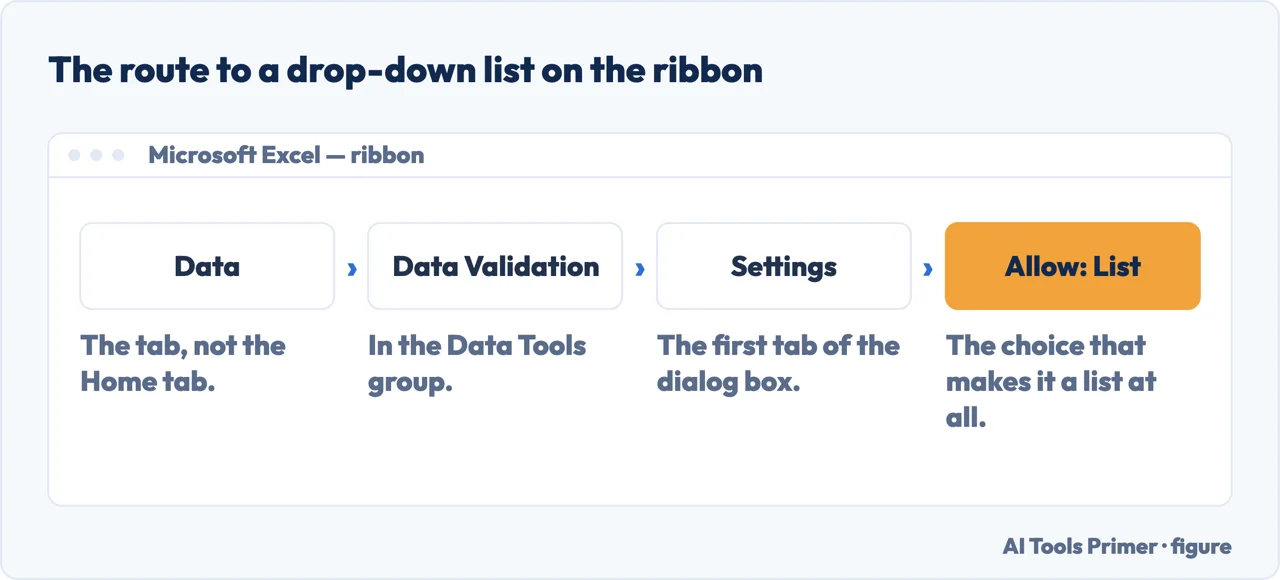
- Go to the Data tab on the Ribbon, and then Data Validation. Not the Home tab, and not a menu with the word dropdown in it — the feature is called Data Validation.
- On the Settings tab, in the Allow box, select List. Everything else in that box makes a rule instead of a menu.
- Select in the Source box, then select your list range. Microsoft’s own example leaves out the header row, “because we don’t want that to be a selection option”. Then check In-cell dropdown, and Ignore blank if the cell may be left empty.
- Open the Error Alert tab and choose the style. This is the step that decides whether the list is a rule or a suggestion, and it sits one click past the end of most recipes.
One diagnostic worth knowing before you start, because Microsoft gives it: “If you can’t select Data Validation, the worksheet might be protected or shared.” A greyed-out command is usually protection rather than a fault.
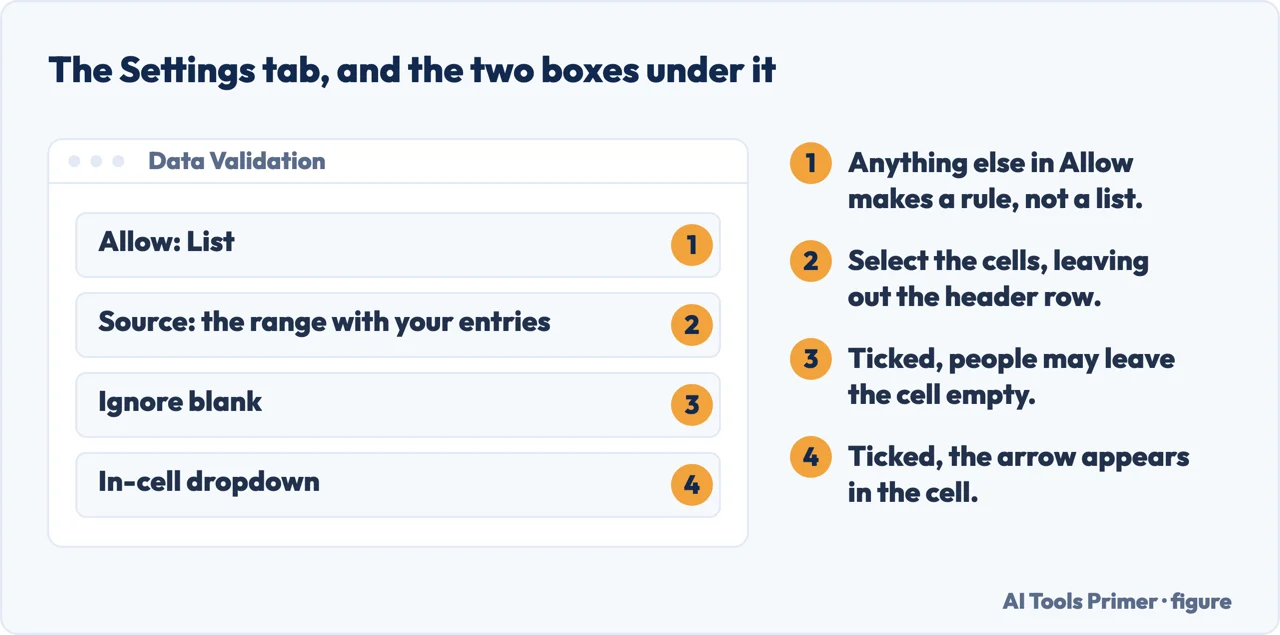
Notice what the fifth step implies. The drop-down does not contain the options — it points at them. The list lives in cells somewhere else in the workbook, and the validation rule is a reference to that range. Which is why a table matters: a plain range is fixed at the size it was when you selected it, and a new item added underneath simply is not in the list.
The setting that decides whether the list is a rule or a suggestion
It lives on the Error Alert tab, which nothing prompts you to open — so a drop-down can be a suggestion without its author realising.
- Information
- Shows a message and lets the entry through. Microsoft: it “doesn’t stop people from entering data that isn’t in the drop-down list”.
- Warning
- The same — a message, and the value is still accepted.
- Stop
- “To stop people from entering data that isn’t in the drop-down list, select Stop.” This is the only one that enforces anything.
- No alert at all
- If the box is cleared, anything can be typed and nothing is said.
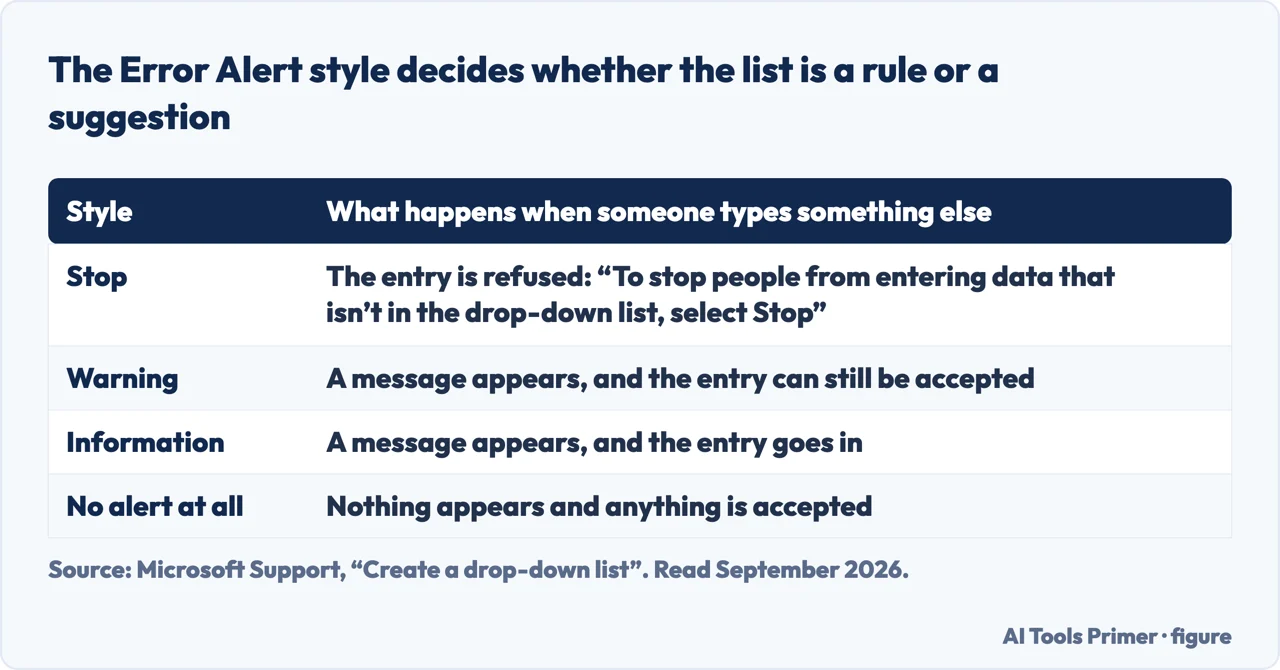
This is the one that surprises people. A drop-down looks like a constraint — a menu, with options, and nothing else available. But unless the style is set to Stop, somebody can ignore the menu entirely and type whatever they want, and the sheet accepts it. If your reason for building the list was consistent data rather than convenience, Stop is the setting you wanted and it is not the default behaviour you get by clicking through.
And a rule that is set can still be walked around. LibreOffice Calc, which opens the same files and implements the same feature, documents the hole in one sentence: “The validity rule is activated when a new value is entered. If an invalid value has already been inserted into the cell, or if you insert a value in the cell either with drag-and-drop or by copying and pasting, the validity rule will not take effect.” Microsoft’s page does not discuss pasting at all. If a form is filled in by other people, assume some of it arrives by paste.
The reverse is also a real choice. If the list is there to save typing rather than to enforce a vocabulary — a list of common suppliers where an unusual one is legitimate — then Warning is right, and Stop would make the sheet obstructive. The point is to choose rather than to discover which one you got.
The feature is not called what you would call it. Excel’s name for it is Data Validation, which is why looking through the menus for the word dropdown finds nothing. That single fact saves more time than any of the steps above.
The input message is worth using. Microsoft allows a title and a message “up to 225 characters”, shown when the cell is selected. One sentence saying what the cell is for prevents most of the wrong entries before the error alert has to catch them, and it is the difference between a form people fill in correctly and one they fill in twice.
If the drop-down stops working. Three causes account for nearly all of it. The source range was a plain range and the list grew past it — fix by converting to a table. The source sheet was deleted or renamed. Or the cells were copied and pasted over, which replaces the validation rule along with the contents, because pasting carries formatting and rules with it. That last one is worth knowing when a form is used by other people: a paste can quietly remove every rule you built.
Every quoted instruction here is from Microsoft’s own Excel documentation, read on 22 August 2026. The point about pasting over validation, and the argument for choosing between Stop and Warning deliberately, are ours.
Where to start
Four ways in.
- “I need the steps.”
- Above — then set the alert style in making it hold
- “People type things that are not on the list.”
- That is the Error Alert tab — making it hold
- “Data Validation is greyed out.”
- Protection — go to protection and sharing
- “The list stopped updating.”
- Make the source a table — see the source list
Making it hold
A drop-down is a rule applied to a cell. Whether it is enforced, and whether it survives being used, are separate settings.
The source list
The options live in cells elsewhere. How that range is defined decides whether the list ages well.
Protection and sharing
A greyed-out command is usually a protected sheet rather than a fault, and Microsoft says so.
Forms people fill in
A drop-down is usually part of something somebody else will complete. What makes that go well is mostly not the drop-down.
Questions people also ask
How do I create a drop-down list in Excel?
Put the entries on a sheet of their own and press Ctrl + T. Select the cell that needs the list, go to Data › Data Validation, and on the Settings tab set Allow to List with the Source pointing at your range. Tick In-cell dropdown, and set the Error Alert style before you close the box.
Why can’t I select Data Validation?
Microsoft answers this one directly: “If you can’t select Data Validation, the worksheet might be protected or shared.” A greyed-out command is almost always protection rather than a fault, and unlocking the sheet brings it back.
How do I make a drop-down list update itself when I add an item?
Base it on a table rather than a plain range. Microsoft: “When your data is in a table, then as you add or remove items from the list, any drop-downs you based on that table will automatically update. You don’t need to do anything else.”
Does a drop-down list stop people typing something else?
Only if you set the Error Alert style to Stop: “To stop people from entering data that isn’t in the drop-down list, select Stop.” Information and Warning both show a message and then let the entry through. And a rule can be bypassed another way — LibreOffice, which reads the same files, states that a validity rule “will not take effect” for a value pasted or dragged in.
Not covered here. It will not stop at the menu path. Two settings inside it decide whether the list still works later, and both are easy to click past.
It will not let you assume a drop-down is enforced. Unless the style is Stop, anybody can type anything and the sheet will accept it.
And it will not recommend an add-in for something that is one dialog on the Data tab. What holds instead is simple: the two settings that decide whether a list still holds are Microsoft’s own, quoted from its Excel documentation.
Step 18 of 21 in half an hour in a spreadsheet
The order the work actually happens in: the data arrives, it gets cleaned, it gets counted, it gets a chart, and then somebody else opens it.
- Before this
- How to unhide all rows in Excel, and why it sometimes fails
- After this
- How to insert a checkbox in Excel, and what it really is
The same spreadsheet job, in the other program
You know how it works in one of them. This is where the other one does it differently — and where the difference is written down by the company that made it.
- The same job, in the other places it comes up
- How to sort in Google Sheets, and who else sees your filter
- How to remove duplicates in Google Sheets, and what counts as one
- How to make a drop down list in Google Sheets, and where Excel stops
- How to lock cells in Google Sheets, and what it will not do
- How to create a pivot table in Google Sheets, and what it does alone
- How to unhide columns in Google Sheets, including the first one
- How to alphabetize in Excel, without scrambling your rows
Sources
- Microsoft Support — Create a drop-down list, including why the source should be a table, the Data Validation steps, the note about protected worksheets, and the Error Alert styles — support.microsoft.com, read 3 September 2026.
- LibreOffice Help — Validity of Cell Contents: the same feature in the program that opens the same files, and the sentence that says when the rule does not apply at all — help.libreoffice.org, read 3 September 2026.
Written by Alberto Gulotta
Founder and editor of AI Tools Primer, writing from Palermo, Italy. Thirty-five years of taking computers apart, starting with a Commodore 64 — the long version is on the about page.
Something wrong on this page? Write to aitoolsprimer@gmail.com and it gets fixed.
Written on 22 August 2026 · last checked 23 September 2026.
Independence and limits
No affiliate links and no paid placements anywhere on this site. Nobody pays to appear here, and no company has seen this page before you did.
This is general information, not professional advice. Where a page touches money, health, safety or the law, it names its source and the date it was read — and your situation may still differ. See the privacy page and the cookie policy.