
Docs · guide
How to create a pivot table in Google Sheets, and what it does alone
By Alberto Gulotta · Updated · 9 min read
Making one is short: select the data, Insert › Pivot table, then add fields to Rows, Columns and Values in the side panel. Google states one requirement above it, marked Important — “Each column needs a header.” That is the whole of the entry price.
It is worth pausing on how short that requirement is. Microsoft publishes five conditions for the same job, and the Excel guide is largely about getting a sheet into their shape before anything else. Google asks for headers. The two programs are not describing different data — they are documenting different amounts of it, and if your sheet came from somewhere else you will still meet every problem the Excel guide lists, just without being warned about them first.
A photograph in Excel, a window in Sheets
The same table, the same data, and two opposite behaviours — both documented.
“add new data to your PivotTable data source, any PivotTables that were built on that data source need to be refreshed.”Microsoft Support, read 22 August 2026
“The pivot table refreshes any time you change the source data cells it’s drawn from.”Google Docs Editors Help, read 28 August 2026
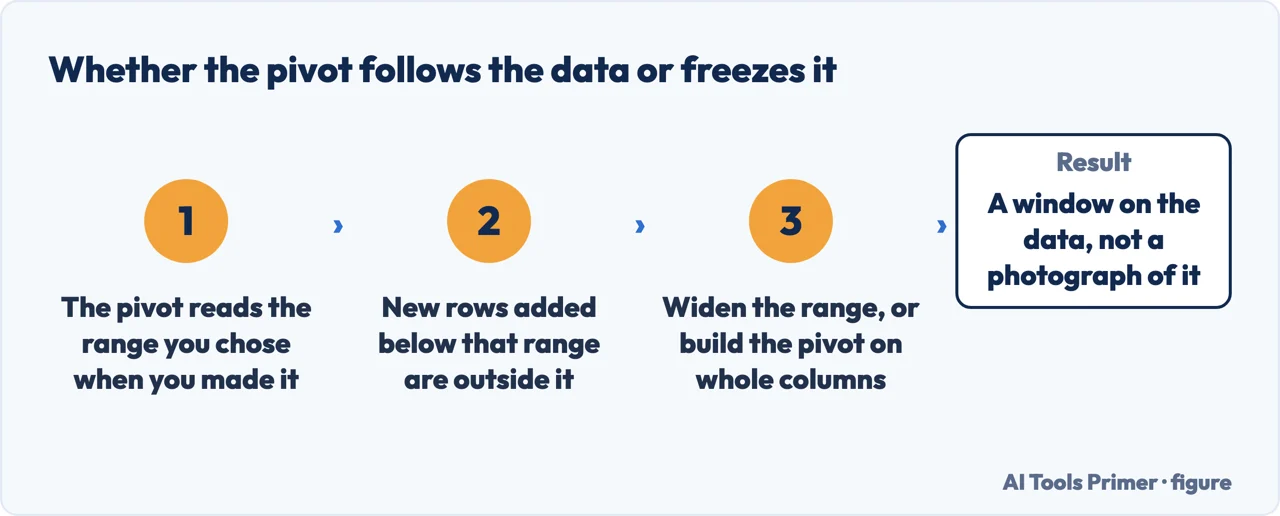
The Excel guide calls a pivot table there a photograph, not a window: rows added underneath do not appear until somebody presses Refresh. In Sheets the same object is a window. Nothing to press, and nothing to forget to press.
This is the difference that changes how the thing is used. In Excel a pivot table is something you build, then maintain: add rows to the source and the summary is quietly out of date until somebody refreshes it, and there is no mark on the page saying so. In Sheets the summary follows the data. A sheet left open on a screen keeps telling the truth, and a stale total is not one of the ways this can go wrong.
Sheets may insert a pivot table it chose itself. Google states it plainly: “High confidence pivot table suggestions will be automatically inserted upon pivot table creation.”
Read that again, because it is not the same as Excel’s recommended tables, where a gallery appears and you pick one. Here, when the suggestion is confident enough, the choice has already been made by the time the sheet opens — rows, columns and values chosen for you from data the program has looked at.
It can be turned off: Tools › Suggestion controls › Enable Pivot table suggestions. On a sheet you are exploring that is a convenience. On a sheet somebody else will read as your analysis, it is worth knowing which decisions were yours.
Calculated fields, and the quoting rule nobody expects
A column that does not exist in the data, worked out from the ones that do.
- Click the pop-up Edit button underneath the pivot table.
- In the side panel, next to “Values,” click Add, then Calculated field.
- Enter a formula, then next to “Summarize by” choose Custom — or SUM if that is all you need.
- Click Add, bottom right, and the column appears.
The formula refers to fields by name, not by cell: Google’s own example is
=sum(Price)/counta(Product), where Price and Product are fields in the table. And
the rule that costs an afternoon the first time: “If you use field values with spaces, make
sure to use quotations around them in your custom formula.” A field called
Unit price has to be written in quotes, or the formula reads it as two things.
Where a number came from. Double-click any cell in the pivot table and Sheets opens a new sheet with that cell’s source data — the actual rows behind the total.
It is the fastest check there is on a summary you are about to send: the number is right if the rows behind it are the rows you expected. Use it before you trust a total, not after somebody questions it.
Changing one afterwards is the same panel: the Edit button under the table reopens it, fields are moved by dragging them between categories, Remove takes one out, Select data range points the whole thing somewhere else, and Clear all empties it without deleting the sheet. Nothing here is destructive to the source, which is the reason a pivot table is the safe way to look at a spreadsheet somebody sent you: it answers questions about the data without touching it.
Where to start
Five ways in. The second is the one that matters if you are used to Excel.
- “I just need the summary.”
- Start at making one
- “I added rows and the total did not move.”
- That is Excel — photograph or window
- “A pivot table appeared that I did not build.”
- Read what it does on its own
- “I need a column that is not in the data.”
- That is calculated fields
- “Where did this number come from?”
- Go to calculated fields
Making one
The entry price is one line, and it is shorter than the Excel one for reasons worth knowing.
Photograph or window
The documented difference, and the one that decides whether a summary can go stale.
What it does on its own
Suggestions that insert themselves, and the switch that stops them.
Calculated fields
A column worked out from the others, and the quoting rule for field names with spaces.
Not covered here. It will not tell you the two programs behave the same. One refreshes itself and the other has to be told to, and both companies say so in writing.
It will not pretend Google’s single requirement means the data can be any shape. It means Google documents less, not that a spreadsheet built to be read will summarise cleanly.
And it will not leave the automatic suggestions unmentioned. A table you did not choose is still a table somebody will read as your analysis. What holds instead is simple: the header requirement and the automatic suggestions come from Google’s own Docs Editors help, with Microsoft quoted for what a PivotTable needs instead.
The same spreadsheet job, in the other program
Eight guides: sorting, removing duplicates, drop-down lists, locking cells, pivot tables and unhiding columns in Google Sheets, and drop-down lists and alphabetising in Excel.
- The same job, in the other places it comes up
- How to sort in Google Sheets, and who else sees your filter
- How to remove duplicates in Google Sheets, and what counts as one
- How to make a drop down list in Google Sheets, and where Excel stops
- How to lock cells in Google Sheets, and what it will not do
- How to unhide columns in Google Sheets, including the first one
- How to make a drop down list in Excel, and make it hold
- How to alphabetize in Excel, without scrambling your rows
Sources
- Google Docs Editors Help — Create & use pivot tables (that each column needs a header; the Insert › Pivot table route and the side panel for Rows, Columns and Values; that recommended pivot tables appear under Suggested and that high confidence suggestions are automatically inserted upon pivot table creation, with the Tools › Suggestion controls switch that disables them; that the pivot table refreshes any time the source data cells change; the Edit panel routes for moving, removing and clearing fields and for reselecting the data range; the double-click route to a new sheet holding a cell’s source data; and the calculated-field procedure with the sum(Price)/counta(Product) example and the rule that field values with spaces need quotation marks) — support.google.com, read 28 August 2026.
- Microsoft Support — Create a PivotTable to analyze worksheet data (that PivotTables built on a data source need to be refreshed when new data is added to that source) — quoted here for the comparison and in full on the Excel guide — support.microsoft.com, read 6 September 2026.
Written by Alberto Gulotta
Founder and editor of AI Tools Primer, writing from Palermo, Italy. Thirty-five years of taking computers apart, starting with a Commodore 64 — the long version is on the about page.
Something wrong on this page? Write to aitoolsprimer@gmail.com and it gets fixed.
Written on 28 August 2026 · last checked 23 September 2026.
Independence and limits
No affiliate links and no paid placements anywhere on this site. Nobody pays to appear here, and no company has seen this page before you did.
This is general information, not professional advice. Where a page touches money, health, safety or the law, it names its source and the date it was read — and your situation may still differ. See the privacy page and the cookie policy.