
Docs · guide
How to wrap text in Google Sheets: Overflow, Wrap or Clip
By Alberto Gulotta · Updated · 9 min read
How to wrap text in Google Sheets starts with selecting the cells and choosing Wrap: Format then Wrapping on a computer, Format on a phone. Google’s help lists three settings, Overflow, Wrap and Clip, and the guides add a keyboard route and fixes. This page sets out each route and where the sources differ.
| Question | Answer | Where it comes from |
|---|---|---|
| Where is the command on a computer? | Format, then Wrapping, then Overflow, Wrap or Clip | Google Workspace Learning Center |
| What does Wrap do? | Automatically expands cells to show all content | Google Workspace Learning Center |
| What does Clip do? | Hides content that does not fit in the existing cells | Google Workspace Learning Center |
| Where is it on a phone? | Tap Format, open the Cell tab and choose Wrap text | Google Docs Editors Help |
| Is there a keyboard shortcut? | One guide gives Alt+O, W, W on Windows and ChromeOS; Google’s shortcut page has no wrap entry | GPT for Work, Google Docs Editors Help |
The three settings, in Google’s words
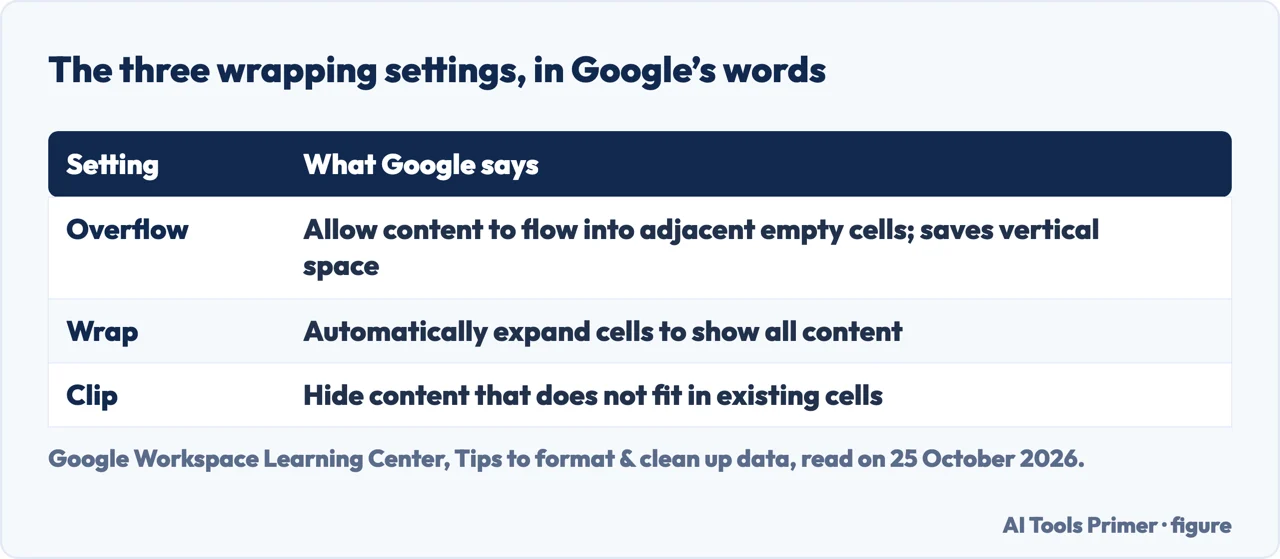
Google Workspace’s Learning Center page on formatting and cleaning up data has a section called Automatically expand cells to show content. It says that in Sheets you can format cells to expand automatically, and that you can also set content to flow into adjacent empty cells without expanding the cell size. The steps are to open a spreadsheet in Google Sheets on your computer, select the cells you want to format, and click Format, then Wrapping, then select an option.
The page defines three options. Overflow allows content to flow into adjacent empty cells, and saves vertical space. Wrap automatically expands cells to show all content. Clip hides content that doesn’t fit in existing cells, and shows only the content that fits in the cell. That is the whole answer to how to wrap text in Google Sheets on a computer: select, then Format, Wrapping, Wrap. The guides repeat the same path; Coursera, in a guide updated on 25 October 2026, adds that Wrap keeps text contained in the cell while Clip hides text that spans beyond the cell size.
Toolbar, menu and phone
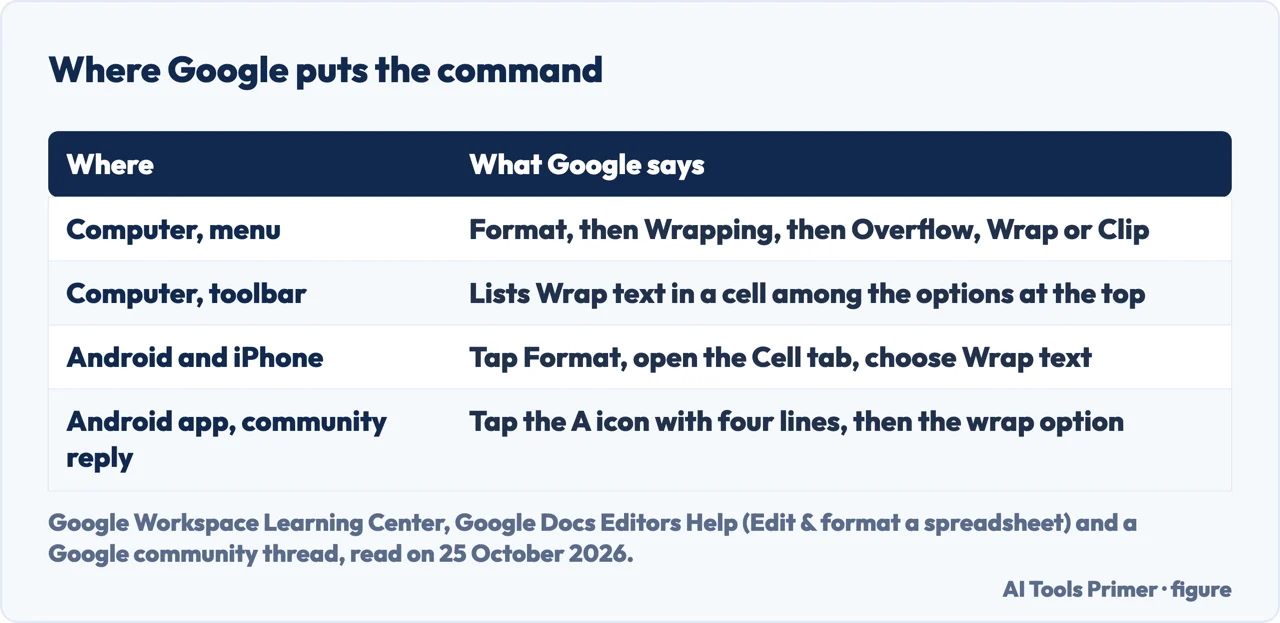
Google Docs Editors Help, in its page on editing and formatting a spreadsheet, says that to format text or numbers in a cell you use the options in the toolbar at the top, and its list of those options includes Wrap text in a cell. Zapier, in a guide dated 30 January 2024, says to select all the cells with Command+A on a Mac or Ctrl+A on Windows, or only the cells you want, then click the Text wrapping icon in the toolbar and select the Wrap icon; if they are not visible, click the More icon, the three dots stacked vertically. GPT for Work, in a guide dated 18 June 2026, gives the same toolbar route and the Format menu route, and adds that clicking a column letter selects the whole column.
On a phone, Google’s help page has a tab for Android and one for iPhone and iPad. Both say to open a spreadsheet in the Sheets app, tap a cell and drag the blue markers across the cells you want, tap Format, and in the Cell tab choose an option, which includes Wrap text. A thread in Google’s community, with replies dated 2 February 2025, describes a Pixel 6a user who could no longer find the wrap function in the Android app. The reply from a Diamond Product Expert says to tap the cell or range, tap the option at the top that is a capital A with four lines, and in the panel that appears at the bottom find the options for how text flows in cells and tap the wrap option, the second to the right. Google’s help page places Wrap text in the Cell tab, which the reply does not mention. GPT for Work says the mobile app has no three-way choice between Overflow, Wrap and Clip, only a single on or off toggle.
The keyboard route
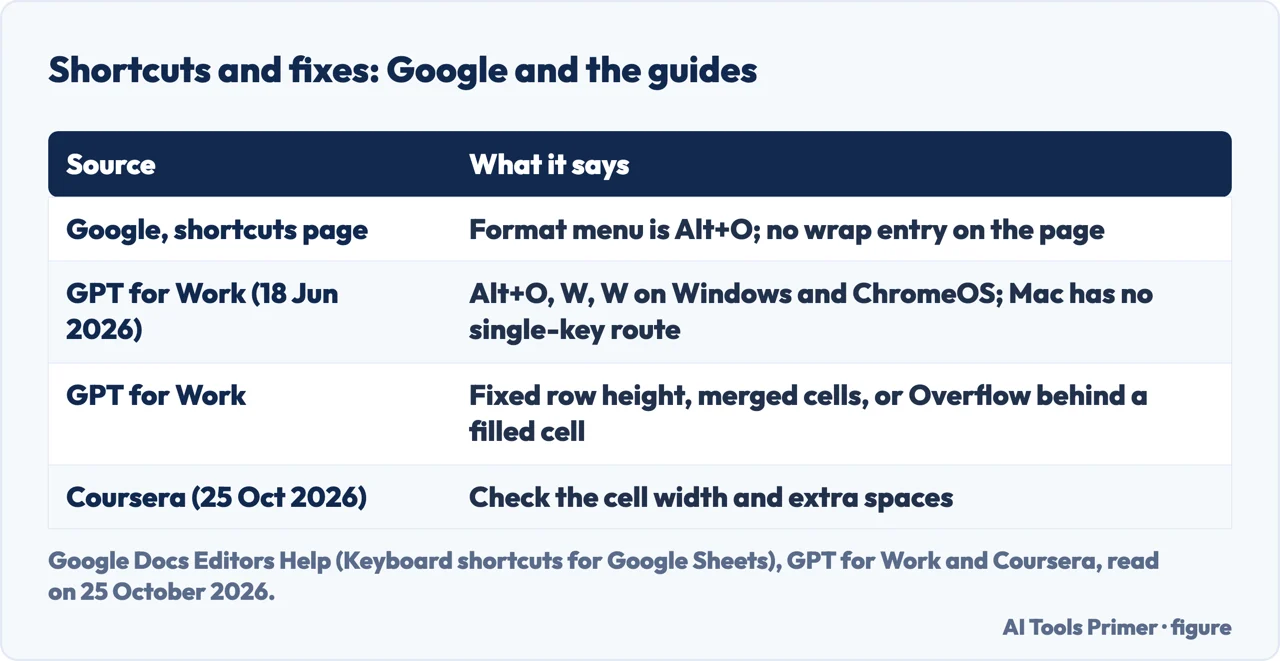
Google’s page of keyboard shortcuts for Sheets on a computer lists the Format menu as Alt+O in Chrome and the Help menu as Alt+H, and Tool finder as Alt+/ on Windows and ChromeOS. We found no entry for wrapping text on that page. GPT for Work fills the gap: on Windows and ChromeOS press Alt+O, then W, then W, which it describes as working on most Windows PCs and Chromebooks without changing any settings, or the shorter Alt+H then W, which works only after Enable compatible spreadsheet shortcuts is turned on under Help, then Keyboard shortcuts. Google’s page names the same setting, at the bottom of the shortcuts window. For the Mac, the guide says there is no native single-key shortcut and suggests recording a macro in Extensions, then Macros.
The guide also covers a manual line break inside a cell, which wrapping does not create: Alt+Enter on Windows and ChromeOS, Control+Option+Enter or Command+Enter on a Mac. Google’s shortcut page lists Alt+Enter as Open hyperlink and has no entry for a line break in a cell, so treat that part as the guide’s claim and not Google’s.
When the text will not wrap
Coursera says that if Google Sheets is not wrapping text, check the cell width and any extra spaces within the cells. Zapier says that if the wrapped text looks squished or breaks at an awkward spot, widen the cell, for example by pointing at the gray bar beside the column letter. GPT for Work lists four causes. If someone resized the row height by hand it stays fixed, so Wrap applies but the row does not grow to fit. Wrap behaves inconsistently inside merged cells, so unmerge them, apply wrap and merge again. Overflow only spills into adjacent cells while those are empty, and once the next cell holds data the overflowing text is hidden behind it, which looks the same as Clip. The fourth is picking Clip instead of Wrap.
One of the pages in the results, a Wordable guide dated 5 June 2024, is mostly about a different feature: wrapping text around an image in Google Docs. That is unrelated to a cell. For the Excel version of the command see wrapping text in Excel.
Where to start
Four ways in.
- “Which setting?”
- Overflow, Wrap or Clip — settings
- “Where is it?”
- Toolbar, menu and phone — where
- “Is there a shortcut?”
- The keyboard route — keys
- “It won’t wrap.”
- When it fails — fixes
Sheets and cell formatting
Wrapping text in Excel and more Sheets pages.
Questions people also ask
Why isn’t Text wrapping in Google Sheets?
GPT for Work names a fixed row height, merged cells, Overflow hidden behind a filled cell, or Clip chosen instead of Wrap. Coursera says to check the cell width and extra spaces.
How do you wrap text in Google?
In Sheets on a computer, select the cells and click Format, then Wrapping, then Wrap, as the Google Workspace Learning Center describes.
How do I turn on Text wrapping?
Zapier says to click the Text wrapping icon in the toolbar and select the Wrap icon, using the More icon first if they are hidden. The Format menu does the same.
How to keep text contained in a cell in Google Sheets?
Choose Wrap to expand the cell so all the content shows, or Clip to hide what does not fit; Google defines both. Overflow lets text run into empty cells instead.
Not covered here. We did not run the commands in a spreadsheet. The statements come from the Google Workspace Learning Center page on formatting and cleaning up data, Google Docs Editors Help (editing and formatting a spreadsheet, on its computer, Android and iPhone tabs, and the keyboard shortcuts for Sheets), a thread in Google’s community, and guides by Coursera (updated 25 October 2026), Zapier (30 January 2024) and GPT for Work (18 June 2026), used for what they claim. Menus and apps change.
The Simular page was not used and the Wordable page is about images in Google Docs. The Learning Center page carries no date that we could read.
The search volume and difficulty behind this page were read in Semrush on 29 August 2026.
Sources
- Google Workspace Learning Center — Tips to format & clean up data — support.google.com, read 25 October 2026.
- Google Docs Editors Help — Edit & format a spreadsheet — support.google.com, read 25 October 2026.
- Google Docs Editors Help — Keyboard shortcuts for Google Sheets — support.google.com, read 25 October 2026.
- Google Docs Community — Wrap text on google sheets app (replies of 2 February 2025) — support.google.com, read 25 October 2026.
- Coursera — How to Wrap Text in Google Sheets (updated 25 October 2026) — www.coursera.org, read 25 October 2026.
- Zapier — How to wrap text in Google Sheets (30 January 2024) — zapier.com, read 25 October 2026.
- GPT for Work — How to Wrap Text in Google Sheets (18 June 2026) — gptforwork.com, read 25 October 2026.
Written by Alberto Gulotta
Founder and editor of AI Tools Primer, writing from Palermo, Italy. Thirty-five years of taking computers apart, starting with a Commodore 64 — the long version is on the about page.
Something wrong on this page? Write to aitoolsprimer@gmail.com and it gets fixed.
Written on 25 October 2026.
Independence and limits
No affiliate links and no paid placements anywhere on this site. Nobody pays to appear here, and no company has seen this page before you did.
This is general information, not professional advice. Where a page touches money, health, safety or the law, it names its source and the date it was read — and your situation may still differ. See the privacy page and the cookie policy.