How to wrap text in Excel: there are two ways to put text on more than one line in a cell, and Microsoft names both in one sentence — “format the cell to wrap the text automatically or enter a manual line break.” The first reflows with the column; the second stays where you put it.
The same four jobs on Windows and on a Mac, from Microsoft’s two pages
What you want
Excel on Windows
Excel for Mac
Source
Wrap the text automatically
Home › Alignment › Wrap Text
Home › Wrap Text
Microsoft
Show the lines that are cut off
Home › Cells › Format › AutoFit Row Height
Format menu › Row › AutoFit
Microsoft
Set the height yourself instead
Home › Cells › Format › Row Height
Drag the bottom border of the row
Microsoft
Break a line where you choose
Double-click or F2, then Alt + Enter
Not documented on Microsoft’s Mac page
Microsoft
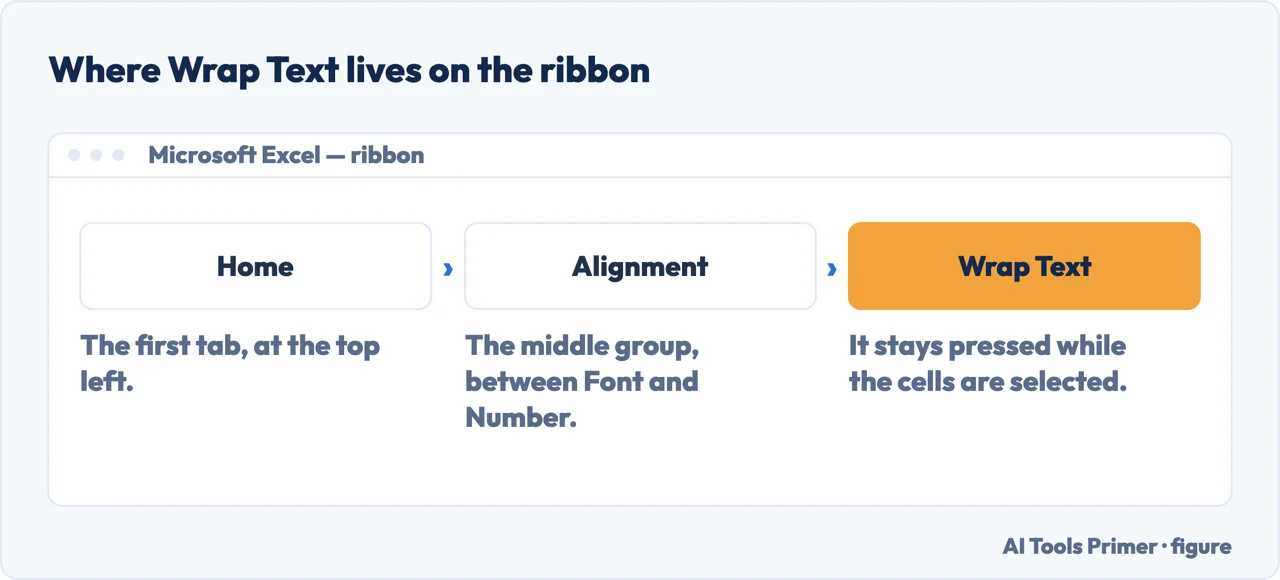
Three steps on the ribbon, and the button stays pressed for the selected cells. Figure drawn by AI Tools Primer.
Select the cells you want to format. A column, a range, or one cell: the command works
the same on all three.
On the Home tab, in the Alignment group, select Wrap Text. That is Microsoft’s own
route, word for word. On a Mac the group label is not shown: it is Home, then Wrap Text.
Widen or narrow the column and watch the text reflow. “Data in the cell wraps to fit
the column width, so if you change the column width, data wrapping adjusts automatically.”
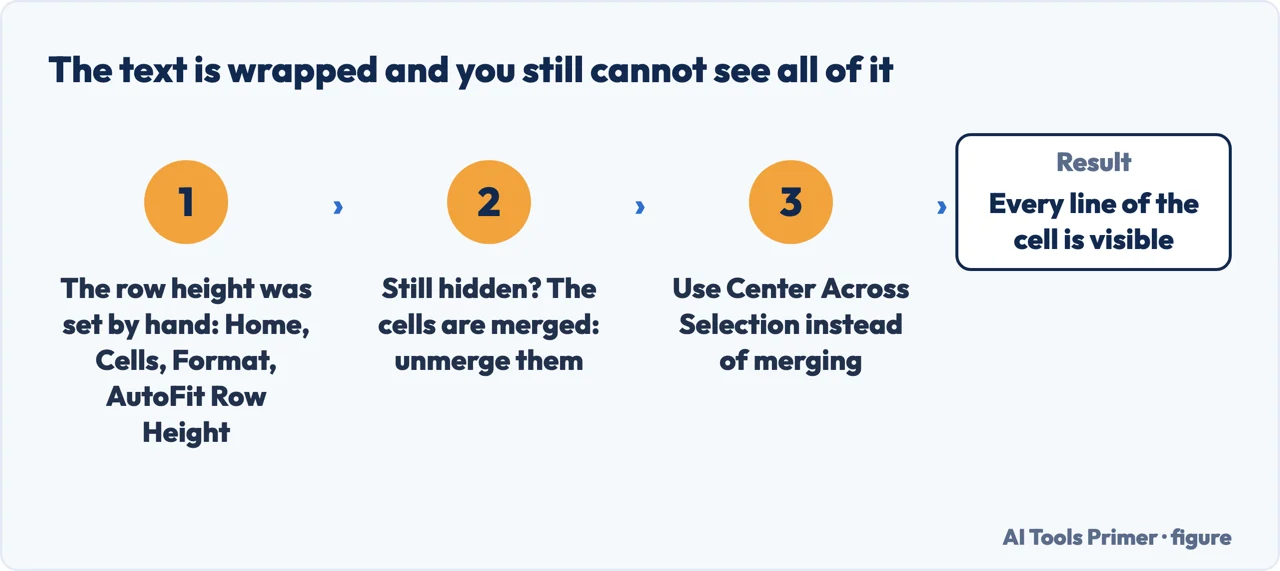
If part of the text is still hidden, fix the row, not the wrapping. Home › Cells ›
Format › AutoFit Row Height. Microsoft names the cause: the row “is set to a specific height”.
If it is still hidden, look for merged cells. That is the second documented cause, and
no amount of wrapping gets round it — the merge has to go.
automatic, and it reflows
Wrap Text
Select the cells, then Home › Alignment › Wrap Text.
Microsoft: “Data in the cell wraps to fit the column width, so if you change the column width,
data wrapping adjusts automatically.” The lines are not yours — they are recalculated every
time the column moves.
Right for a long note or a description, where you want the text to fit whatever width the column
happens to be.
manual, and it stays put
Alt + Enter
Double-click the cell — “you can also select the cell, and then press F2” — put the
cursor where the line should break, and press Alt + Enter.
That break is a character in the cell. It does not move when the column does.
Right for anything with a shape of its own: an address, a two-line heading, a name over a job
title.
The test is whether the line breaks belong to the content or to the column. A description can break anywhere and should reflow — that is Wrap Text. An address has lines that mean something, and they should stay where you put them regardless of how wide the column is — that is Alt + Enter. Using the first where you needed the second is invisible until the day somebody resizes a column and the address comes out as one run of words.
“If all wrapped text is not visible, it may be because the row is set to a specific
height or that the text is in a range of cells that has been merged.”
Microsoft, read 22 August 2026 — and this single sentence answers the complaint behind this question. You pressed Wrap Text, the button lit up, and nothing changed. It did
work. The text is wrapped and you cannot see it, because something is holding the row at a height
that will not grow.
The second cause is the more troublesome one, and it is the reason merged cells cause problems
across the whole of Excel. A merged range does not behave like a cell when the row needs to resize,
so wrapping inside one is unreliable in a way that no setting fixes — the fix is not to merge.
The two causes Microsoft names, in the order worth trying them. Figure drawn by AI Tools Primer.
Making the row grow
AutoFit Row Height
Home › Cells › Format, then under Cell Size choose AutoFit Row Height. This is the setting people are usually missing.
A fixed height
Same menu, Row Height, then type a number — for when you want every row the same regardless of content.
By hand
Microsoft’s own tip: “drag the bottom border of the row to the height that shows all wrapped text”. Fine for one row, and it sets a fixed height, which is what caused the problem in the first place.
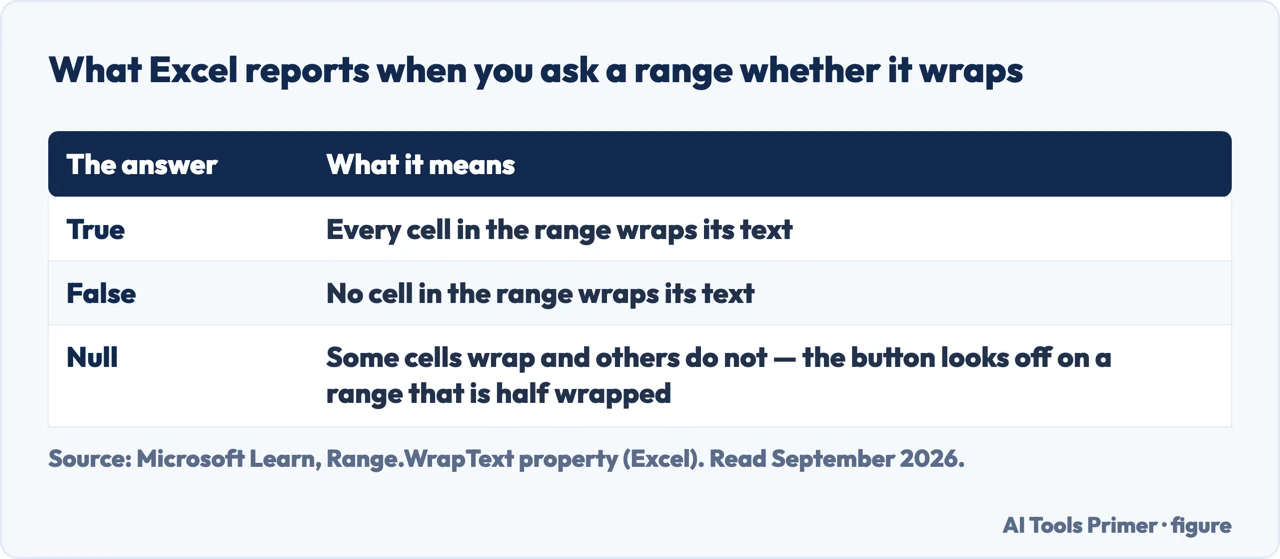
The third answer is the one that explains a button that looks switched off. Figure drawn by AI Tools Primer.
Why merged cells keep appearing in these answers. Merging is the most common thing people do to make a spreadsheet look tidy, and it is the thing that quietly breaks the most: wrapping, sorting, filtering and copying all behave differently across a merged range. If a heading needs to sit across several columns, Center Across Selection in the alignment options gives the same appearance without merging anything, and nothing downstream breaks.
One thing to know before you rely on the manual break. The character Alt + Enter inserts stays in the cell, so it travels with the data — into a CSV, into a mail merge, into whatever reads the file next. That is exactly what you want for an address arriving on a printed letter, and exactly what you do not want in a column somebody will later match, sort or look up, because the value is no longer a single line of text.
The same spreadsheet opened somewhere else keeps the wrapping, and changes the keys. LibreOffice Calc stores the same two things and calls them almost the same: “In Format - Cells - Alignment, mark the Wrap text automatically option”. The manual break is a different shortcut there — “Pressing the Command Ctrl +Enter keys inserts a manual line break” — and its help page ends with a warning that is Microsoft’s second cause in other words: “For automatic wrapping in XLS files, the rows in question should be set to Optimal Height.” Two programs, two vocabularies, the same row height deciding what you see.
And if the column is simply too narrow, the answer may be neither. Widening the column, or using Shrink to Fit in the alignment options, keeps the row one line high — which matters when the sheet has to print, because wrapped rows grow and a table that fitted on one page stops fitting.
The two routes, the note about wrapping following the column width, the two causes of invisible wrapped text and the row height options are quoted from Microsoft’s own Excel documentation, read on 22 August 2026 and listed below. The test for which method suits which content, and the warning about the line break travelling with the data, are ours.
How do I wrap text in Excel without changing the cell size?
You cannot: wrapping and row height are the same mechanism. Microsoft Learn puts it plainly — Excel “will change the row height of the range, if necessary, to accommodate the text”. If the height must not move, use a manual break with Alt + Enter and set the row height yourself, or widen the column.
Why does my text stay hidden after I turn on Wrap Text?
Microsoft documents two causes and no others: “the row is set to a specific height” or “the text is in a range of cells that has been merged”. The first is fixed with AutoFit Row Height. The second is only fixed by unmerging.
How do I put a line break inside a cell?
Double-click the cell — or select it and press F2 — put the cursor where the break belongs, and press Alt + Enter. The break is stored in the cell, so it survives a change of column width, and it also travels into any file you export.
Why is the Wrap Text button showing as off when some cells are wrapped?
Because the range is mixed. Excel answers that question with three values, not two: True when every cell wraps, False when none does, and Null “if the specified range contains some cells that wrap text and other cells that don’t”.
Not covered here. It will not describe only the button. There are two ways to break a line in a cell and they behave differently the moment somebody resizes a column.
It will not leave you thinking Wrap Text failed. Microsoft names both reasons the text stays invisible, and they are quoted here.
And it will not suggest merging cells to tidy the layout, because that is one of the two reasons wrapping breaks. What holds instead is simple: the two causes of invisible wrapped text and the row height options are Microsoft’s own, quoted with the date it was read.
Step 14 of 21 in half an hour in a spreadsheet
The order the work actually happens in: the data arrives, it gets cleaned, it gets counted, it gets a chart, and then somebody else opens it.
Microsoft Support — Wrap text in a cell in Excel, including the Wrap Text button, the note that wrapping follows the column width, the two reasons wrapped text may not be visible, the AutoFit Row Height and Row Height options and the Alt + Enter manual line break — support.microsoft.com, read 3 September 2026.
Microsoft Support — Wrap text in a cell in Excel for Mac: the shorter route on the ribbon and the AutoFit under the Format menu — support.microsoft.com, read 3 September 2026.
Microsoft Learn — Range.WrapText property: the three answers Excel gives about a range, and the note that Excel changes the row height to fit the text — learn.microsoft.com, read 3 September 2026.
LibreOffice Help — Writing multi-line text in Calc: the same two routes under different names, and the note that XLS files need the rows set to Optimal Height — help.libreoffice.org, read 3 September 2026.
AG
Written by Alberto Gulotta
Founder and editor of AI Tools Primer, writing from Palermo, Italy. Thirty-five years of
taking computers apart, starting with a Commodore 64 — the long version is on the
about page.
Written on 22 August 2026 · last checked 23 September 2026.
§
Independence and limits
No affiliate links and no paid placements anywhere on this site. Nobody pays to appear here,
and no company has seen this page before you did.
This is general information, not professional advice. Where a page touches money, health,
safety or the law, it names its source and the date it was read — and your situation may
still differ. See the privacy page and the
cookie policy.