Look at what Google returns for how to unhide all rows in excel: the first result is a Reddit thread titled “Why can I not unhide my rows”, and the fourth is a Microsoft community post beginning “HELP! I can’t unhide my rows”. That is the real question. The three clicks are easy and everybody publishes them; what nobody assembles is the list of reasons they do not work.
All of them at once
Microsoft describes this route on its page about the awkward cases, and it is the direct
answer to the question.
Select the entire worksheet — the corner box above row 1 and left of column A, or Ctrl+A.
Home tab › Cells group › Format.
Under Visibility, choose Hide & Unhide, then Unhide Rows.
Microsoft attaches a warning to it that is worth heeding: doing this “displays all hidden
rows and columns in your worksheet, which you may not want to do”. Somebody may have hidden
working columns on purpose. If you only wanted the ones you can see a gap for, select the rows
either side of the gap and right-click instead.
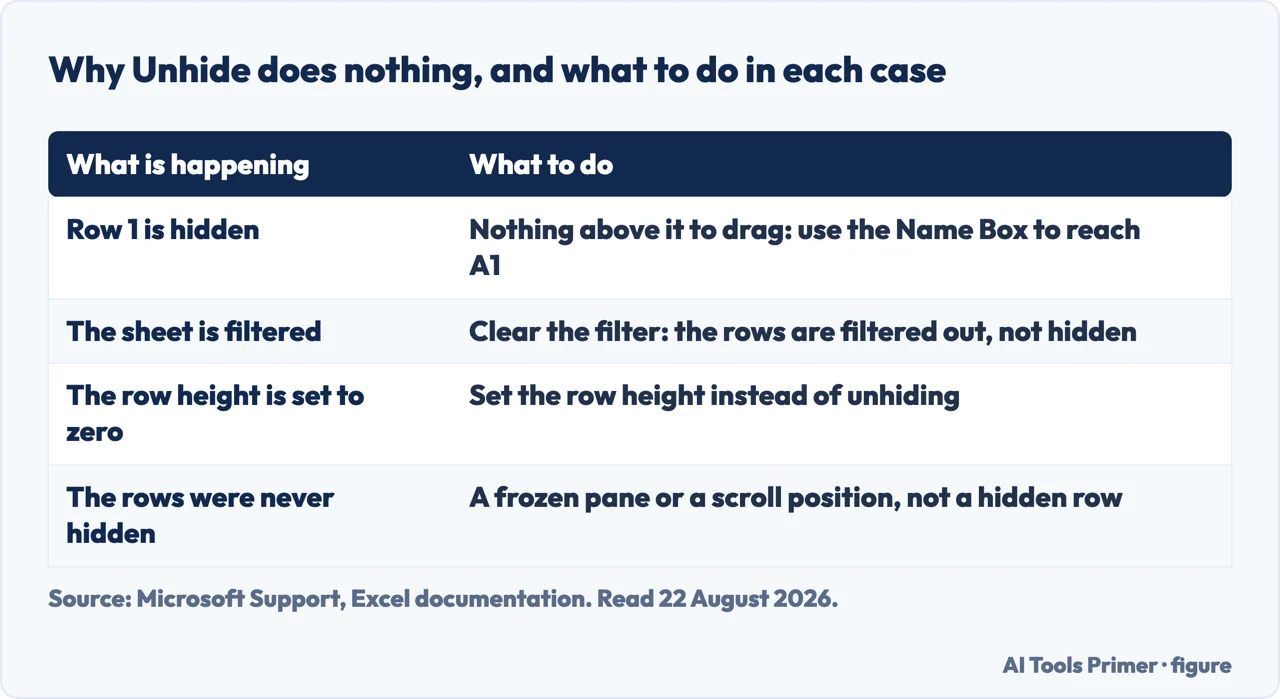
Four causes, and only one of them is a hidden row. Figure drawn by AI Tools Primer.
The ordinary case, for completeness: select the rows on either side of the gap, right-click, Unhide. Microsoft also gives the tell and a shortcut — “the double line between two rows is an indicator that you’ve hidden a row”, and you can simply “double-click the double line between the two rows where hidden rows exist”.
Now the four reasons it fails, which is what this guide is really for. They are distinguishable in seconds once you know what to look at.
the missing row is row 1
There is nothing above it to select
Microsoft states the problem plainly: “it is a little tricky to unhide it because there is
no easy way to select that row”. The ordinary method needs the rows on both sides, and row 1
only has one.
The way in is the Name Box beside the formula bar: type A1 and press Enter. Or
Home › Editing › Find & Select › Go To, and put A1 in the Reference box.
Then Format › Hide & Unhide › Unhide Rows as usual.
Unhide is greyed out or missing
You are right-clicking in the wrong place
Microsoft’s own tip, and it accounts for a great many of the forum posts: “If you don’t see
Unhide Columns or Unhide Rows, make sure you’re right-clicking inside the column
or row label” — the numbered grey strip down the left, not the cells.
Unhide runs and nothing comes back
The rows are filtered, not hidden
These are different things and only one of them Unhide can undo. Microsoft: “Filtered data
displays only the rows that meet criteria that you specify and hides rows that you do not want
displayed” — and the way back is to “clear a filter to redisplay all of the data”.
How to tell in one glance: “The column header arrow changes to a Filter icon. Select this
icon to change or clear the filter.” If you can see that icon on any header, the missing rows are
filtered out and no amount of unhiding will bring them back.
the row is there but flat
The height is set to nothing
A row squeezed to zero height looks hidden and is not. On the same Format menu, under Cell
Size, choose Row Height and type a value — Microsoft lists this beside the unhide
commands for exactly this case.
“When you use the Find dialog box to search filtered data, only the data that is
displayed is searched; data that is not displayed is not searched. To search all the data, clear
all filters.”
Microsoft, read 22 August 2026, and it is the most consequential sentence on this page. Ctrl+F on a filtered sheet quietly does not look at the hidden rows. So it isn’t in the file can mean
it is in the file, behind a filter somebody left on last week. Before concluding that a record is
missing, clear the filters and search again.
The third of those four is worth dwelling on, because it is the one that produces the complaint. Hiding and filtering both make rows disappear, they look identical on screen, and they are undone by different commands. Somebody hands over a spreadsheet, half the rows are absent, Unhide does nothing, and the natural conclusion is that Excel is broken. It is not — the rows were never hidden.
A habit that prevents the whole class of problem. If a sheet is going to somebody else, clear the filters before you send it. A filter is a view you set for yourself, it is saved in the file, and the next person opens the workbook into your view without knowing they are in one. It costs two seconds and removes an entire category of misunderstanding — including the serious one above, where a search comes back empty on data that is sitting right there.
In Google Sheets una riga nascosta si vede, e si riapre da lì. The other spreadsheet solves the same problem visually rather than by command: Google’s instruction is that after hiding, “an arrow will appear over the hidden row or column”, and “to show a row or column again, click the arrow where the row number or column letter used to be”. There is nothing to select and no dialog to find. Worth knowing which program you are in before hunting for Excel’s Unhide — and worth knowing when a colleague says the rows are obviously there.
The routes, the note about the double line, the warning about unhiding everything, the tip about right-clicking the row label, the filter behaviour and the note about Find are quoted from Microsoft’s own Excel documentation, read on 22 August 2026 and listed below. The four-way diagnosis and the habit of clearing filters before sending are ours.
Not covered here. It will not stop at the three clicks. The question people are actually asking is why they did not work, and Google is answering it with forum threads.
It will not treat hiding and filtering as the same thing. They look identical and are undone by different commands.
And it will not let you conclude a record is missing without checking the filters, because Find does not search what a filter has removed. What holds instead is simple: the routes and the filter behaviour are quoted from Microsoft’s own Excel documentation, with the date each page was read.
Step 17 of 21 in half an hour in a spreadsheet
The order the work actually happens in: the data arrives, it gets cleaned, it gets counted, it gets a chart, and then somebody else opens it.
Microsoft Support — Hide or show rows or columns, including the double line indicator and the double-click shortcut for unhiding — support.microsoft.com, read 22 August 2026.
Microsoft Support — Unhide the first column or row in a worksheet, including the note that there is no easy way to select row 1, the Name Box and Go To routes, the whole-worksheet warning, the Row Height option and the tip about right-clicking inside the row label — support.microsoft.com, read 22 August 2026.
Microsoft Support — Filter data in a range or table in Excel, including the statement that filtering hides rows, the Filter icon on the column header, clearing a filter, and the note that Find searches only displayed data — support.microsoft.com, read 6 September 2026.
Google Docs Editors Help — Freeze, group, hide, or merge rows & columns: the arrow that marks a hidden row in Google Sheets and reopens it, read as the same job in the other spreadsheet — support.google.com, read 4 September 2026.
AG
Written by Alberto Gulotta
Founder and editor of AI Tools Primer, writing from Palermo, Italy. Thirty-five years of
taking computers apart, starting with a Commodore 64 — the long version is on the
about page.
Written on 22 August 2026 · last checked 23 September 2026.
§
Independence and limits
No affiliate links and no paid placements anywhere on this site. Nobody pays to appear here,
and no company has seen this page before you did.
This is general information, not professional advice. Where a page touches money, health,
safety or the law, it names its source and the date it was read — and your situation may
still differ. See the privacy page and the
cookie policy.