
Docs · guide
How to lock cells in Excel, and why it seems not to work
By Alberto Gulotta · Updated · 9 min read
The reason how to lock cells in excel gets searched so often is not that the steps are hard. It is that people follow them, tick the box, go back to the sheet — and the cells are still editable. Nothing has gone wrong. The feature simply does not work the way its name suggests, and Microsoft says so in a note that almost nobody quotes.
“If you try these steps on a workbook or worksheet you haven’t protected, you’ll see the cells are already locked. This means that the cells are ready to be locked when you protect the workbook or worksheet.”
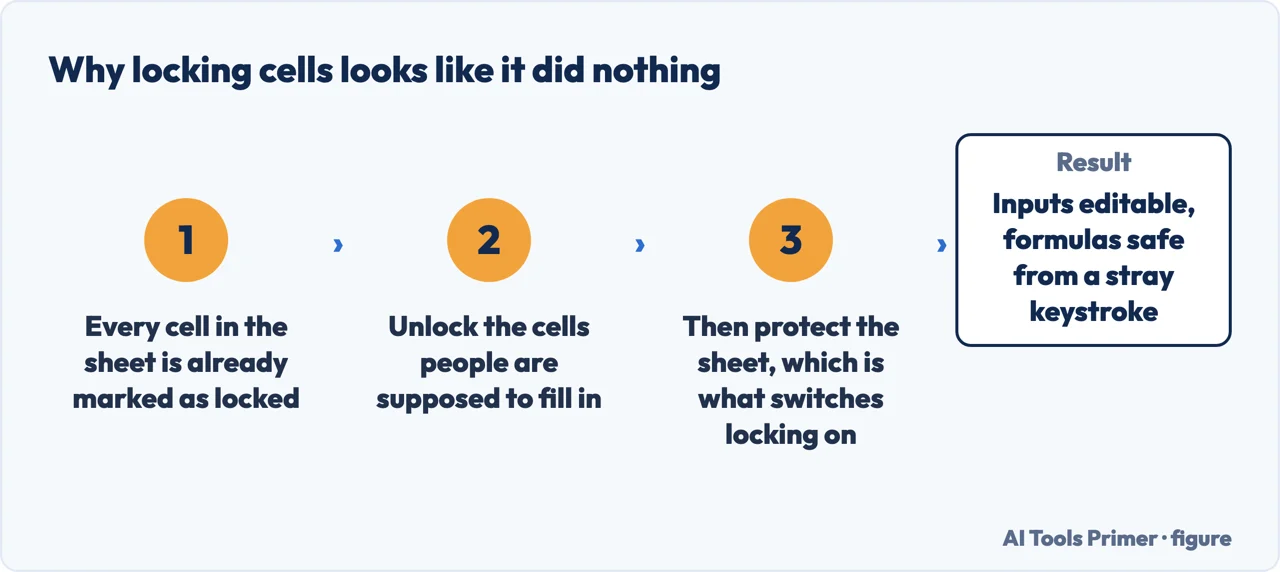
Microsoft’s own note, read 22 August 2026, and it explains the complaint behind this question. Every cell in a new spreadsheet is already marked Locked. Ticking that box changes nothing on its own, and the cells stay editable — because the setting does not take effect until the sheet is protected.
Which means the job is the other way round
You are not locking cells. You are unlocking the few that should stay editable, and then switching protection on. Microsoft says as much: “It’s a best practice to unlock any cells that you may want to change before you protect a worksheet.”
- Select the cells people should be able to type in The input boxes, the blank column, the cells your colleague is meant to fill. Not the ones you want to protect.
- Open Format Cells “On the Home tab, in the Alignment group, select the Alignment Settings arrow to open the Format Cells popup window.”
- On the Protection tab, clear the Locked box You are removing the default from the cells that should remain editable.
- Review tab → Protect group → Protect Sheet This is the step that makes any of it real. Everything still marked Locked becomes read-only; everything you cleared stays editable.
Doing it in the other order — ticking Locked on a few cells and then wondering why nothing changed — is the single most common way this goes wrong, and it happens because the checkbox describes an intention rather than a state.
A quick way to check what you have done. After protecting the sheet, click a cell you meant to lock and try to type. Excel should refuse with a message. Then click one you meant to leave open and type something. If both behave as you expected, you are finished; if neither does, you have almost certainly protected the sheet without clearing the Locked box on the input cells, and everything is read-only.
Protect Sheet and Protect Workbook are different things. Protecting a sheet controls what can be edited inside it. Protecting a workbook controls its structure — whether sheets can be added, deleted, renamed or hidden. People reaching for one when they wanted the other is common, and the two sit next to each other in the same group on the Review tab.
What this protects against, and what it does not
Microsoft describes removing protection in one short sentence: “To remove protection, simply remove the password.” And the feature sits under a heading about restricting changes rather than about security.
That framing is the right one to carry. Sheet protection is designed to stop accidents — a formula overwritten by somebody filling in a form, a header row typed over, a column deleted by mistake. It is very good at that, and it is what the feature is for.
It is not a way to keep information from somebody determined to read or change it, and it is not encryption. If a spreadsheet contains something that genuinely must not be seen or altered by the people who can open the file, protection is the wrong tool and the answer is not to send them the file. That last sentence is our judgement rather than Microsoft’s wording.
The password is worth thinking about before you set one. Protection can be applied without a password at all, which still prevents accidental edits and lets anybody who needs to make a real change simply turn it off. That is often the better arrangement for a shared internal file — it signals intent without creating a thing that can be lost. If you do set a password, the ordinary rule applies: a password you cannot recover is a file you cannot edit.
What to lock in practice. The cells worth protecting are almost always the same three kinds: formulas, which break silently when overwritten; headers, which everything else depends on; and reference data that other cells look up. Everything else can usually stay open, and a sheet where only those three are protected is far more pleasant to use than one where everything is locked because it was easier.
The other spreadsheet says the quiet part in its own documentation. Google’s page on protecting a range carries a warning Microsoft leaves implicit: “this shouldn’t be used as a security measure. People can print, copy, paste, and import and export copies of a protected spreadsheet. Only share spreadsheets with people you trust.” It also lists what protection cannot do, and one entry is the same in both programs: you cannot “protect data with a password” at the range level. Locking cells is a guard rail against accidents. It is not a lock, in either program.
The steps, the note about cells already being locked, and the best-practice tip are quoted from Microsoft’s own Excel documentation, read on 22 August 2026. The check afterwards, the advice on what to lock, and the point about what protection is not are ours, and are marked as such.
Where to start
Four ways in.
- “I ticked Locked and nothing changed.”
- That is the note above — see protecting properly
- “I want colleagues to fill in some cells only.”
- Unlock those, protect the rest — protecting properly
- “I want to stop people seeing something.”
- Wrong tool — go to when it really matters
- “Somebody broke my formulas.”
- See the spreadsheet itself
Protecting properly
The order matters more than the settings, and the check afterwards takes ten seconds.
When it really matters
Protection stops accidents. Keeping information from somebody who has the file is a different problem with different answers.
The spreadsheet itself
Most broken formulas are a structural problem rather than a malicious one, and protection is only half the fix.
Sharing the file
A protected sheet still travels as a file. What happens to it afterwards is a separate question.
Not covered here. It will not describe sheet protection as security. Microsoft frames it as restricting changes, and that is what it is good at.
It will not give the steps in the order that fails. The cells are already locked; the work is unlocking the ones that should not be.
And it will not recommend a password by default. Protection without one prevents accidents and cannot lock you out of your own file. What holds instead is simple: the note that cells are already locked is Microsoft’s own, and so is the best-practice tip that follows from it.
Step 20 of 21 in half an hour in a spreadsheet
The order the work actually happens in: the data arrives, it gets cleaned, it gets counted, it gets a chart, and then somebody else opens it.
- Before this
- How to insert a checkbox in Excel, and what it really is
- After this
- How to recover unsaved Excel file data, and do it now
Handing a spreadsheet to someone else
What to do to a sheet before it leaves your hands, and how to undo what arrived.
- The same job, in the other places it comes up
- How to unhide columns in Excel, including column A
- How to unhide all rows in Excel, and why it sometimes fails
- How to freeze a row in Excel, and the rule behind it
- How to wrap text in Excel, and why it sometimes will not
Sources
- Microsoft Support — Lock cells to protect them in Excel, including the note that cells are already locked before a sheet is protected and the advice to unlock editable cells first — support.microsoft.com, read 22 August 2026.
- Google Docs Editors Help — Protect a sheet or range: the statement that protection is not a security measure and the list of what it cannot do, read as the same limit in the other spreadsheet — support.google.com, read 4 September 2026.
Written by Alberto Gulotta
Founder and editor of AI Tools Primer, writing from Palermo, Italy. Thirty-five years of taking computers apart, starting with a Commodore 64 — the long version is on the about page.
Something wrong on this page? Write to aitoolsprimer@gmail.com and it gets fixed.
Written on 22 August 2026 · last checked 23 September 2026.
Independence and limits
No affiliate links and no paid placements anywhere on this site. Nobody pays to appear here, and no company has seen this page before you did.
This is general information, not professional advice. Where a page touches money, health, safety or the law, it names its source and the date it was read — and your situation may still differ. See the privacy page and the cookie policy.