If the arrow keys are not working in Excel, read the bottom of the window. Scroll Lock there means the sheet scrolls instead of the cell moving, and ScrLk turns it off. Extend Selection means F8 is on; Add to Selection means Shift+F8 is. An empty bar and a cell that will not move means the sheet is protected.
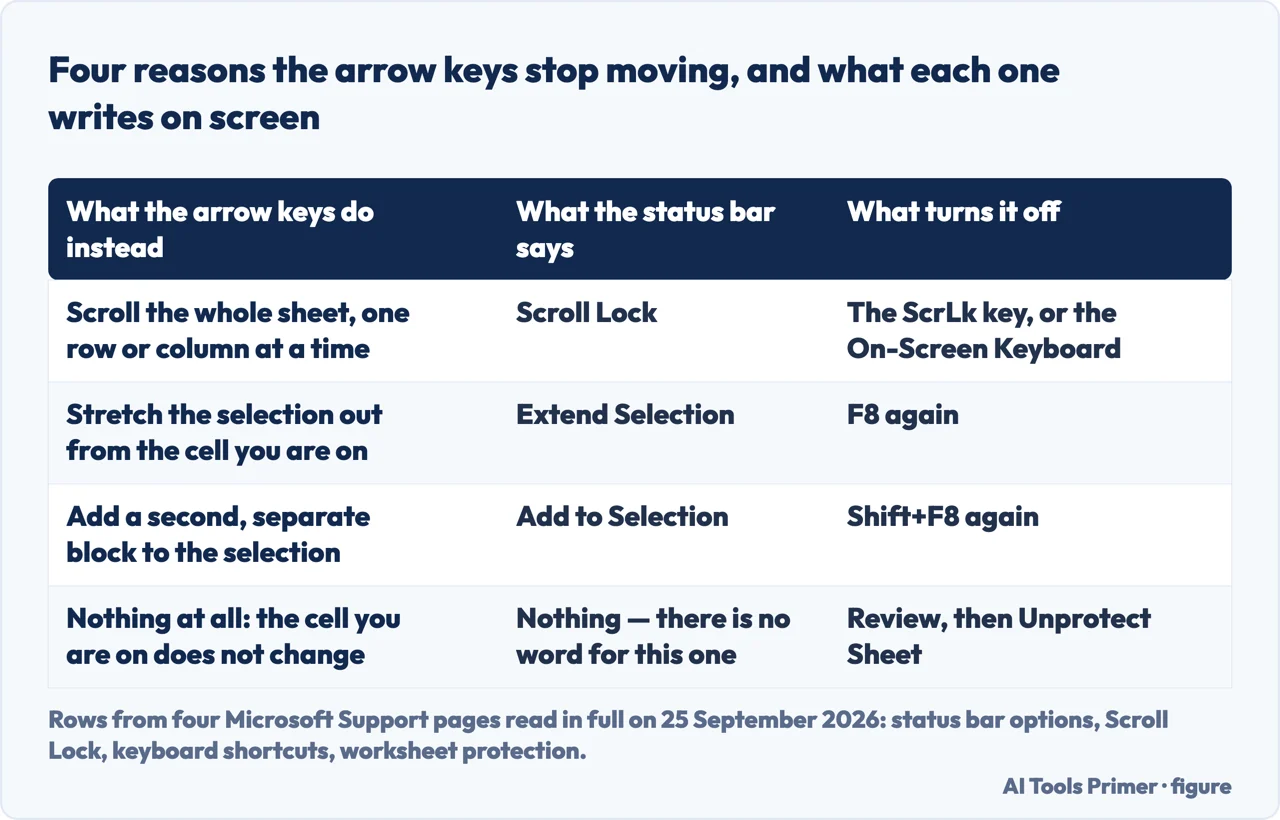
Four ways the arrow keys stop moving the cell, and the one word that tells them apart
What happens when you press an arrow
What the status bar says
What switches it off
The whole sheet scrolls; the selected cell stays where it is
Scroll Lock
The ScrLk key, or the On-Screen Keyboard
The selection stretches out from the cell you were on
Extend Selection
F8 again
A second, separate block joins the selection
Add to Selection
Shift+F8 again
Nothing at all — the cell you are on does not change
Nothing: this one has no word
Review › Unprotect Sheet
Four causes, and the single place on screen that tells them apart. Figure drawn by AI Tools Primer from four Microsoft Support pages, read in full on 25 September 2026.
The quick test is the status bar: if it does not say Scroll Lock, look elsewhere. Microsoft’s own page on turning Scroll Lock off says, further down, that the bar can be told not to show it: “it may be because the status bar is customized to hide the Scroll Lock status”. The test used to rule the cause out is itself a setting, and a Reddit thread that Google showed for this question on 25 September 2026 is titled Arrows keys not working (scroll lock not on).
Look at the bottom of the window before you press anything. Microsoft: “You can
tell if Scroll Lock is turned on, because Scroll Lock appears in the Excel status bar.”
If one of the three words is there, you already know which of the four you have.
If the bar says nothing, right-click it. The menu that opens is the list of things
the bar is allowed to say, and every one of them is a check box. Scroll Lock and Selection
Mode are both “selected by default” — and either can be cleared.
If it says Scroll Lock, press ScrLk. No key marked that way? Microsoft’s own
route on Windows 11: Start › Settings › Accessibility › Keyboard, turn on
the On-Screen keyboard, and click the ScrLk button there.
If it says Extend Selection, press F8. It is a toggle: the same key turns it off.
If it says Add to Selection, press Shift+F8. Same toggle, second form, and it is the
one that makes the selection grow in two places at once.
If the bar stays empty and the cell still will not move, check the sheet is not
protected. On the Review tab, an Unprotect Sheet button where Protect Sheet should
be means it is. Whoever protected it could have cleared “Select locked cells”,
and with that box clear the pointer cannot move to any cell whose Locked box is checked.
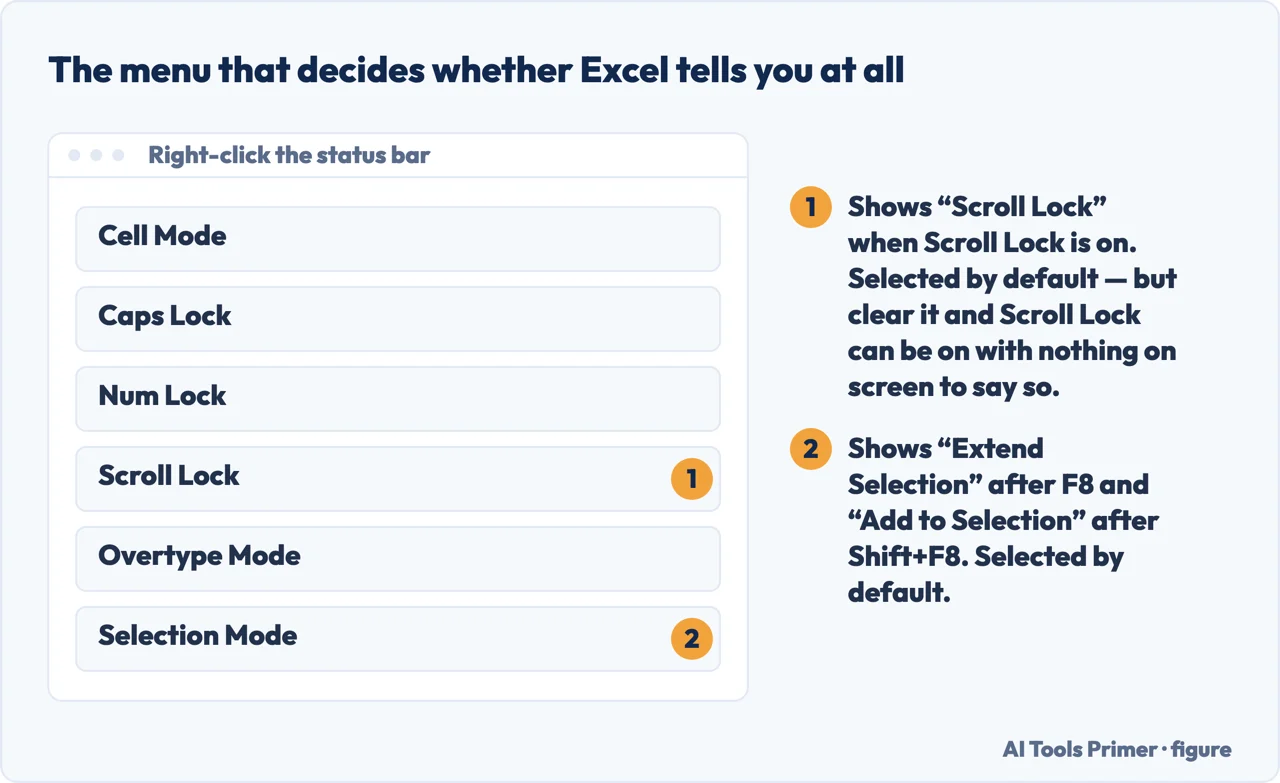
The right-click menu on the status bar: both of the boxes that matter here are ticked by default, and both can be cleared. Figure drawn by AI Tools Primer.
The menu that opens when you right-click the bar is the list of everything Excel is willing to tell you down there, and each line is a check box. Two of them matter here. Scroll Lock is “selected by default” and “displays Scroll Lock to indicate that SCROLL LOCK is turned on to allow scrolling in the worksheet by using the arrow keys”. Selection Mode is also selected by default, and it is the one carrying the other two words. Tick both before you conclude anything from an empty bar.
Scroll Lock: the sheet moves, the cell stays
Microsoft: “Pressing an arrow key while SCROLL LOCK is on will scroll one row up or
down or one column left or right. To use the arrow keys to move between cells, you must
turn SCROLL LOCK off.”
The tell is that the sheet moves. If the sheet is perfectly still, this is not the one
you have.
Extend Selection: the sheet stays, the block grows
“F8 alone: turns extend mode on or off. In extend mode, Extended Selection appears
in the status line, and the arrow keys extend the selection.”
So the cursor does move — it just drags a growing rectangle behind it. Press F8
once more and it stops.
A protected sheet: nothing moves at all
On the protection list, Select locked cells means “move the pointer to cells
for which the Locked box is checked”, and Microsoft adds: “By default, users
are allowed to select locked cells.”
Clear that box and the arrow keys cannot move onto locked cells. This is the only one of the four
that someone else did on purpose.
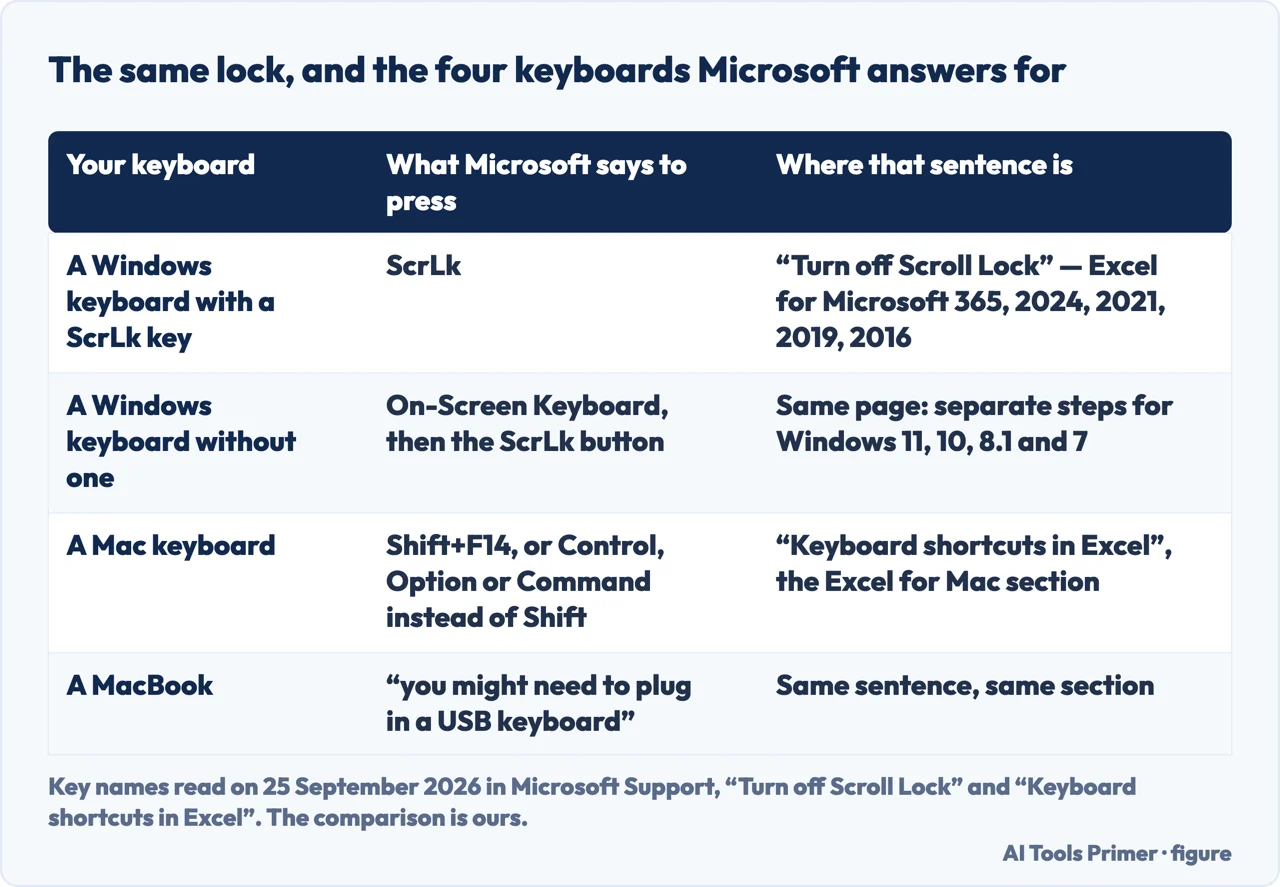
Which Excel, and which keyboard, that page is written for
“Applies To Excel for Microsoft 365 Excel 2024 Excel 2021 Excel 2019 Excel 2016”
That is the scope line on Turn off Scroll Lock, Microsoft’s page on this key. Underneath it are four sets of steps — for Windows 11, Windows 10,
Windows 8.1 and Windows 7 — and not one of them is for a Mac. The page never says so.
Microsoft does answer the Mac, on a different page. In the Excel for Mac section of
“Keyboard shortcuts in Excel”: “To use the arrow keys to move between cells
in Excel for Mac, you must turn Scroll Lock off. To toggle Scroll Lock off or on, press
Shift+F14. Depending on the type of your keyboard, you might need to use the Control, Option,
or the Command key instead of the Shift key. If you are using a MacBook, you might need to
plug in a USB keyboard to use the F14 key combination.”
That last clause is the part worth knowing before you spend an evening on it: Microsoft itself says a MacBook may not give you the key it names. Apple’s own page on the function keys explains the Fn or Globe key for the top row and does not mention F14 at all.
One lock, four keyboards, and the sentence that says a MacBook may need a keyboard plugged into it. Figure drawn by AI Tools Primer.
The fourth cause is not a mode at all, and it is the only one someone did to you on purpose. When a sheet is protected, whoever protected it chose from a list of things people are still allowed to do. The first item on that list is Select locked cells, described as “move the pointer to cells for which the Locked box is checked on the Protection tab of the Format Cells dialog box”, and Microsoft notes that by default it is allowed. Cleared, it does what it says: the pointer cannot go to those cells, and the status bar has nothing to report. The Review tab gives it away, because the button there reads Unprotect Sheet.
Four sentences from Microsoft that decide which of the four you have
All read in full on 25 September 2026, on the four pages listed under Sources.
The bar can be made silent
“If you suspect that Scroll Lock is turned on, but Scroll Lock does not appear in
the Excel status bar, it may be because the status bar is customized to hide the Scroll Lock
status.” Right-click the bar and look for the check box beside it.
Two modes share that bar
“Extend Selection when you press F8 to extend the cell selection by using arrow
keys. Add to Selection when you press SHIFT+F8 to add a nonadjacent cell or range to a
selection of cells by using the arrow keys.” Both are under Selection Mode, one check
box, also on by default.
Scroll Lock is a way of moving, not a fault
“Press SCROLL LOCK, and then use the UP ARROW key or DOWN ARROW key to scroll one
row up or down.” It is documented as a way of scrolling through a sheet, not as a fault.
On a Mac it is a different key
“To toggle Scroll Lock off or on, press Shift+F14.” And on a MacBook,
Microsoft says you may have to plug in a USB keyboard to have an F14 to press.
What the AI answer at the top of the page leaves out. Read on 25 September 2026, it covers Scroll Lock thoroughly — the key, the on-screen keyboard, the hidden indicator — and adds that you may be in the middle of editing a formula. It does not mention F8, Shift+F8 or sheet protection. For the Mac it quotes an Apple Support Community thread, while Microsoft answers that question itself, in the Excel for Mac section of its shortcut list, with a different key and a warning about MacBooks.
Scroll Lock, Extend Selection, Add to Selection and a protected sheet: the status bar names the first three by default, and shows nothing for the fourth.
Press the ScrLk key. If the keyboard has none, Microsoft’s route on Windows 11 is Start › Settings › Accessibility › Keyboard, turn on the On-Screen keyboard, then click ScrLk there.
How to unlock the Scroll Lock?
The same key is the lock and the unlock: it is a toggle. You can tell it worked because the word Scroll Lock leaves the status bar — as long as that box is ticked in the bar’s own right-click menu.
How do I turn my arrow keys back on in Excel?
Read the status bar. Scroll Lock → press ScrLk. Extend Selection → press F8. Add to Selection → press Shift+F8. Nothing there and nothing moving → Review › Unprotect Sheet.
Why do my arrow keys scroll instead of moving the cell?
That is Scroll Lock doing its job. Microsoft documents it as a way of scrolling: “Press SCROLL LOCK, and then use the UP ARROW key or DOWN ARROW key to scroll one row up or down.”
Why does the status bar not say Scroll Lock?
Because it can be told not to. Microsoft: the bar “is customized to hide the Scroll Lock status”. Right-click the bar and tick the box beside Scroll Lock to get the indicator back.
How do I fix this in Excel for Mac?
Microsoft says press Shift+F14, that Control, Option or Command may replace Shift depending on the keyboard, and that on a MacBook “you might need to plug in a USB keyboard to use the F14 key combination”.
Not covered here. It does not cover a keyboard whose arrow keys do nothing in every program, which is a keyboard problem and not an Excel one.
It does not cover Excel on the web, which Microsoft’s Scroll Lock page does not list.
And it does not cover what to do when the cell moves but the wrong way, which is a question about the sheet and not about the keyboard. What holds instead is simple: every key, warning and scope line here is quoted from the Microsoft page that publishes it, and where a page is silent on something the sentence says that instead of filling it in.
Sources
Microsoft Support — Turn off Scroll Lock: the ScrLk key, the On-Screen Keyboard routes for Windows 11, 10, 8.1 and 7, and the note that the status bar can be customised to hide the Scroll Lock status. Applies to Excel for Microsoft 365, 2024, 2021, 2019 and 2016 — support.microsoft.com, read September 2026.
Microsoft Support — Excel status bar options: the list of every indicator the bar can show, including Scroll Lock and Selection Mode with its Extend Selection and Add to Selection wording, and which of them are selected by default. Applies to Excel for Microsoft 365, 2024 and 2021 — support.microsoft.com, read September 2026.
Microsoft Support — Keyboard shortcuts in Excel: what F8 and Shift+F8 do, and the Excel for Mac section with Shift+F14 and the warning that a MacBook may need a USB keyboard plugged in — support.microsoft.com, read September 2026.
Microsoft Support — Move or scroll through a worksheet: what each arrow key does while Scroll Lock is on, and the note that to move between cells you must turn it off. Cited for the behaviour, not the remedy — support.microsoft.com, read September 2026.
Microsoft Support — Protect a worksheet: the permission list, and the Select locked cells entry with its note that by default users are allowed to select locked cells. Applies to Excel for Microsoft 365, 2024, 2021, 2019 and 2016 — support.microsoft.com, read September 2026.
Apple Support — How to use the function keys on your Mac: the Fn or Globe key that makes the top row work as standard function keys, and how to change the default. Cited here for what it covers, which does not include F14 — support.apple.com, read September 2026.
AG
Written by Alberto Gulotta
Founder and editor of AI Tools Primer, writing from Palermo, Italy. Thirty-five years of
taking computers apart, starting with a Commodore 64 — the long version is on the
about page.
No affiliate links and no paid placements anywhere on this site. Nobody pays to appear here,
and no company has seen this page before you did.
This is general information, not professional advice. Where a page touches money, health,
safety or the law, it names its source and the date it was read — and your situation may
still differ. See the privacy page and the
cookie policy.