Command-C, then Command-V
Apple: “Using keyboard shortcuts is the fastest way.” And the third one worth learning in the same breath: Command-Z undoes a paste “if you pasted the selection in the wrong place (or changed your mind).”

Software · guide
By Alberto Gulotta · Updated · 8 min read
Two keys, and then a surprise. How to copy and paste on a mac is Command-C and Command-V, which is the same pair of keys Windows uses with a different modifier. The surprise comes one step later, when the same habit is applied to a file: cut it, and nothing happens. That is not a mistyped shortcut. Apple documents the difference plainly, and it is the part worth reading.
Apple: “Using keyboard shortcuts is the fastest way.” And the third one worth learning in the same breath: Command-Z undoes a paste “if you pasted the selection in the wrong place (or changed your mind).”
The same commands without the keyboard. If you have set up a secondary click on your mouse or trackpad, that opens the same menu.
Slower, and the most useful of the three when something is wrong — because this is the menu that tells you why.
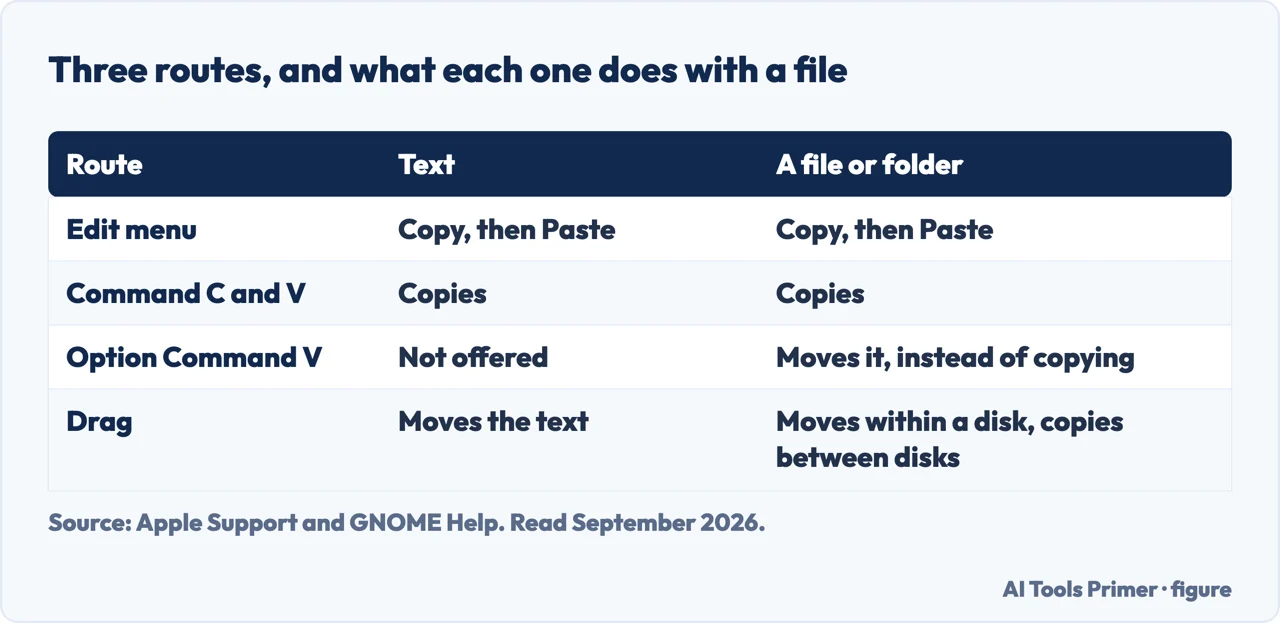
Three routes to the same clipboard, and it is worth having all three because they fail differently. The keyboard is fastest; the shortcut menu needs no menu bar; and the Edit menu is the one that answers a question the other two cannot.
The shortcut worth learning after the first two. Option-Shift-Command-V is
Paste and Match Style, and Apple describes exactly what it does: “the pasted item matches the font,
color, size, or other style of the surrounding content.”
It is the difference between pasting a sentence from a web page into a document and pasting a sentence plus somebody else’s typeface, in blue, two sizes too big. Same clipboard, same text, one extra pair of keys.
Now the part that is not the same as Windows.
“For some items, such as files or folders, you might have the option to delete or move to the Trash, but not the option to cut. To move items, you might be able to drag and drop instead.”
Apple, saying the thing that trips up everybody arriving from Windows. Command-X does not move a file. Copy and paste work on files perfectly well — it is cut that is not offered for them, so the habit of cut-here, paste-there has no equivalent on the desktop.
So how do you move a file. Apple gives two answers and neither of them is a keyboard shortcut. The first is to drag and drop. The second it spells out as a method in its own right: “Use the copy and delete method: select the item, press Command-C to copy, go to the destination folder and press Command-V to paste, then delete the original item.” Three deliberate steps rather than one gesture — and the last of them is yours to make, which means you can check the copy arrived before anything disappears.
Which leaves the question that comes next: how do you tell whether a thing can be pasted at all. Apple’s answer is that the software has already told you, quietly.
If the Paste command is dimmed or unavailable, you can’t paste content in that location.
That sentence appears twice in Apple’s own instructions, and it makes the Edit menu into a diagnostic rather than a slower way to press Command-V. The full statement is worth having: “Each app determines which items it can cut, copy, or paste, and when and where those actions are possible in the app. When cut, copy, or paste isn’t possible, its menu item is dimmed so that you can’t choose it or use its keyboard shortcut.” A shortcut that appears to do nothing and a greyed-out menu item are the same fact, and only one of them is visible.
When a file will not move — Apple’s own list of causes
The first item on that list is the one that turns an afternoon around, because it looks nothing like a formatting problem. Read-only is exactly what it says: the drive will give you everything on it and take nothing back. Apple states the rule without softening it, and the formats it names as workable are APFS, Mac OS Extended and exFAT.
One newer thing worth knowing about, because it changes what the clipboard is. Apple: “Learn how to use Clipboard history in macOS Tahoe or later to browse through text, images, links, and files you recently copied.” A clipboard that holds exactly one thing is the assumption behind the habit of pasting immediately and not getting distracted. On a Mac running that version, that assumption no longer holds.
The same three routes on Linux, with one rule macOS does not have. GNOME documents copy, cut and drag exactly as Apple does, and then states the behaviour that catches people out on every system: dragging a file “will move it if the destination is on the same device, or copy it if the destination is on a different device”. That is why dragging to a USB stick leaves the original where it was, and dragging between two folders on the same disk does not. Worth knowing before you delete the one you thought was a copy.
The guides below take it four ways: the three routes, pasting without the formatting, moving files when Cut is not offered, and the reasons a paste is refused.
Four ways in.
Keyboard, shortcut menu and menu bar reach the same clipboard. Worth knowing all three, because when something goes wrong only one of them explains itself.
Not covered here. It will not tell you Command-X is broken. Apple says cut is not offered for files and folders, and names two replacements for it.
It will not suggest a driver to write to an NTFS drive before saying what the limit is. The rule is Apple’s, it is stated plainly, and knowing it is what stops the afternoon.
And it will not treat a greyed-out menu item as a fault. It is the app answering the question, and the Edit menu is where that answer is visible. What holds instead is simple: the note that files and folders cannot be cut and the NTFS limit are quoted from Apple’s own documentation.
The four operations everything else on a computer is built out of.
Written by Alberto Gulotta
Founder and editor of AI Tools Primer, writing from Palermo, Italy. Thirty-five years of taking computers apart, starting with a Commodore 64 — the long version is on the about page.
Something wrong on this page? Write to aitoolsprimer@gmail.com and it gets fixed.
Written on 22 August 2026 · last checked 23 September 2026.
Independence and limits
No affiliate links and no paid placements anywhere on this site. Nobody pays to appear here, and no company has seen this page before you did.
This is general information, not professional advice. Where a page touches money, health, safety or the law, it names its source and the date it was read — and your situation may still differ. See the privacy page and the cookie policy.