On a Mac, how to unzip a file has a one-line answer and you can stop reading after the next paragraph. On Windows there are two ways, they do different things, and choosing the wrong one is behind a large share of the confusion around this — including files that will not save, installers that fail, and edits that quietly disappear.
On a Macone action
Apple: “Unzip (expand) a compressed item: Double-click the .zip file.” That is the whole
procedure. “The unzipped item appears in the same folder as the .zip file.”
Going the other way, Control-click and choose Compress. One item keeps its name with .zip on
the end; several items at once become “Archive.zip” — which is where that mysteriously
named file on everybody’s desktop comes from.
On Windowstwo actions, and they differ
To take everything out: right-click the zipped folder, Extract All…, follow the
prompts.
To take one thing out: “open the zipped folder, then drag the file or folder from the
zipped folder to a new location.”
The second route is the one that causes trouble, and the reason is in the next paragraph.
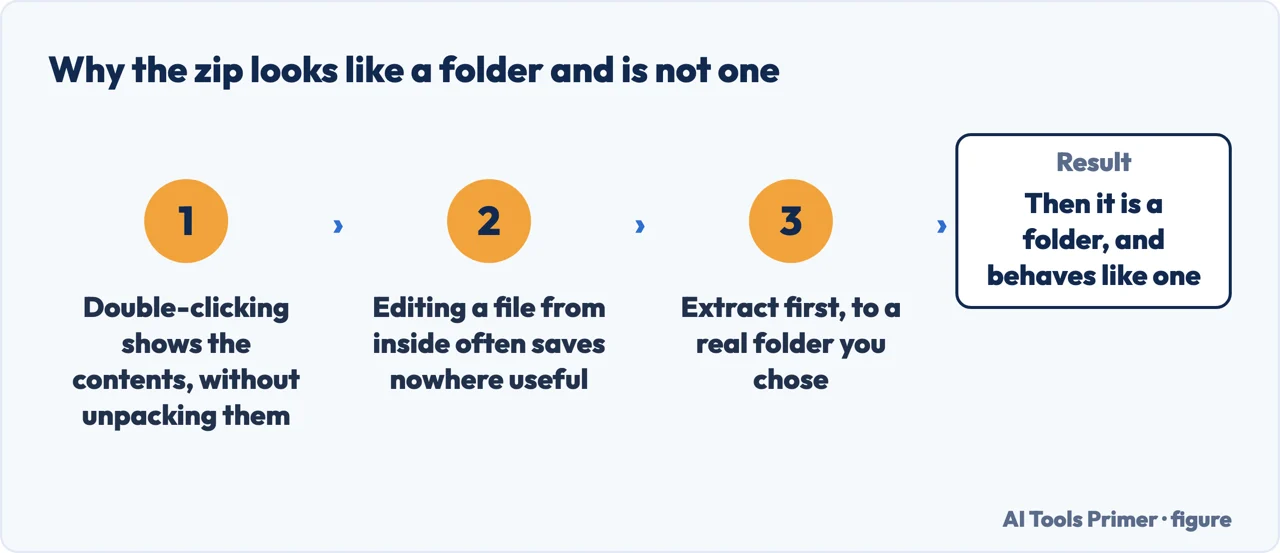
It looks like a folder. It is not one yet. Figure drawn by AI Tools Primer.
The Windows split matters because of a design decision Microsoft states openly.
“In Windows, you work with zipped files and folders in the same way that you work
with uncompressed files and folders.”
Microsoft, describing a convenience that is also the single commonest confusion in this subject.
A zipped folder opens like a folder, looks like a folder, and is not one. You can double-click
it, see the files, and open one — and at that point you are working on a temporary copy inside an
archive rather than on a file that lives somewhere.
Which gives the one habit worth forming: if you are only reading something, opening it inside the
zip is fine. If you are going to edit, install, or keep it, extract first. Extract All, into
a folder you chose.
That is the answer to a specific and frustrating experience: opening a document straight out of a zip, working on it, pressing save, and finding the changes are not where you expected them. Nothing was corrupted. The file you edited was never in the place you thought it was.
It is also the answer to installers that refuse to run properly from inside an archive. A setup program usually expects the files that came with it to be beside it; from inside a zipped folder, they are not there in the way it needs.
Four things Microsoft and Apple document and nobody repeats
You probably do not need WinRAR any more
Microsoft: “Windows 11, version 24H2 supports ZIP, RAR. 7z and TAR archive formats.”
A .rar attachment used to mean downloading something to open it. On current Windows it does not.
Zipping encrypted files un-encrypts them
“If you add encrypted files to a zipped folder, they’ll be unencrypted when they’re
unzipped, which might result in unintentional disclosure of personal or sensitive
information. For that reason, we recommend that you avoid zipping encrypted files.”
Zipping photos saves nothing
“Some types of files, like JPEG images, are already highly compressed. If you zip several JPEG
pictures into a folder, the total size of the folder will be about the same.” If the goal
was a smaller email attachment, this is the wrong tool.
If it will not open on a Mac
Apple names two causes in order: “make sure you have enough space on your Mac for the
unzipped item”, and if it came from somebody else “there might be a problem with the file. Ask
them to zip the file again and resend it.”
The first of those is the one worth acting on today, because it removes a habit rather than adding one. For years a .rar file meant finding and installing a third-party archiver, and that category of software has always been a place where free downloads arrive with extras. On a current Windows the file opens on its own. Check your version before downloading anything.
The second is a genuine security point rather than a technicality. Encryption that survives being zipped and unzipped is not what happens: the protection comes off at the far end, and the person you sent it to gets a plain file. If the reason for encrypting was that the contents were sensitive, zipping is not a way to move them.
On the phrasings, since the two commonest are asking slightly different things. How to unzip a file on windows is the one with two answers, and the paragraph above about Extract All is the whole of it. How to unzip a rar file used to be a different question entirely — and on Windows 11 version 24H2 it stopped being one, because the format is now in the supported list alongside ZIP.
And the third is worth knowing before you try to shrink an email attachment. Zipping is genuinely useful for bundling — many files into one, which is easier to send and impossible to partially lose. It is much less useful for shrinking, and photographs are the case where it does almost nothing at all.
The guides below take it four ways: opening archives, making them, the formats that are not zip, and what to do when the file is broken.
Not covered here. It will not tell you to install an archiver. Current Windows opens ZIP, RAR, 7z and TAR on its own, and Microsoft lists them.
It will not suggest zipping to make photos smaller. Microsoft states plainly that it does almost nothing, and there is a proper tool for that job.
And it will not treat a zipped folder as a folder. Microsoft says they behave the same way, which is the convenience and the trap in one sentence. What holds instead is simple: the supported formats and the encryption warning are quoted from Microsoft and Apple documentation, along with the compression note.
Copying, pasting and opening what arrives
The four operations everything else on a computer is built out of.
Microsoft Support — Zip and unzip files (both extraction routes, that zipped folders are worked with the same way as ordinary ones, the supported formats in Windows 11 version 24H2, the warning that encrypted files are unencrypted when unzipped, and the note that already-compressed files do not shrink) — support.microsoft.com, read 6 September 2026.
Apple — Mac User Guide, Zip and unzip files and folders on Mac (double-click to expand, where the result appears, the Archive.zip naming for multiple items, and the two causes to check when a .zip will not open) — support.apple.com, read 6 September 2026.
AG
Written by Alberto Gulotta
Founder and editor of AI Tools Primer, writing from Palermo, Italy. Thirty-five years of
taking computers apart, starting with a Commodore 64 — the long version is on the
about page.
Written on 22 August 2026 · last checked 23 September 2026.
§
Independence and limits
No affiliate links and no paid placements anywhere on this site. Nobody pays to appear here,
and no company has seen this page before you did.
This is general information, not professional advice. Where a page touches money, health,
safety or the law, it names its source and the date it was read — and your situation may
still differ. See the privacy page and the
cookie policy.