
Software · guide
How to free up space on C drive, in Microsoft’s own order
By Alberto Gulotta · Updated · 10 min read
There is no shortage of advice about how to free up space on C drive, and much of it is offered without a source. Microsoft publishes an ordered list, it is short, and the order itself is the part that is worth reading — and it is not the order the advice usually arrives in.
Microsoft’s own list, in Microsoft’s own order
From Microsoft Support, read 21 August 2026. The instruction attached to it matters as much as the list: “Try them in order—after each step, check to see if you’ve freed up enough space before moving on to the next one.”
- A full Temp folder, if that is the specific errorMicrosoft puts this first because it is a distinct fault with a distinct fix, not a general tidy-up.
- Storage Sense“Can automatically free up drive space for you by getting rid of items that you don’t need, like temporary files and items in your Recycle Bin.” Set once, runs by itself.
- Cleanup recommendationsSettings → System → Storage → Cleanup recommendations. Four categories: “Temporary files, Large or unused files, Files synced to the cloud, and Unused apps” — and Windows will “show the amount of space you’ll save when you remove those items”.
- External storage for a Windows updateWhen the only reason you need space is an update that will not install.
- Delete or move personal filesThe obvious one, deliberately not first, because the automated steps usually find more with less risk.
- Save new files to another driveChanges the problem rather than the symptom.
- OneDrive Files On-DemandKeeps files in the cloud until opened. Real space back, with a real trade-off if you are ever offline.
- Run antivirus softwareOn Microsoft’s list, and almost never on anybody else’s. Some malware consumes disk space, and a drive filling for no visible reason is a symptom worth taking seriously.
- Disk CleanupLast, not first — the opposite of where the tool’s reputation puts it.
Two things about that ordering. Disk Cleanup is at the bottom, not at the top where its name would suggest. And antivirus is on the list at all, which reframes my drive is filling up and I don’t know why as a question rather than a chore.
The reason the order matters is that the steps are not equivalent. The first three cost nothing and risk nothing: they remove files the system already considers disposable, and Windows tells you how much you will gain before you agree. Deleting your own files sits below them precisely because it is irreversible in a way the automated steps are not.
The largest single item, and the ten-day clock on it
If you have recently upgraded Windows, the previous version is still on the disk — and it is usually the biggest thing you can remove in one action. Microsoft notes the condition plainly: “If it’s been fewer than 10 days since you upgraded Windows, your previous version of Windows will be listed” in the cleanup categories.
Which means two things at once. Within that window it is there and removable, and it is also your route back if the upgrade went badly. Removing it is deliberate rather than routine — you are trading several gigabytes for the ability to roll back. After ten days Windows removes it anyway, so if you are not desperate for the space today, waiting costs you nothing and keeps the safety net.
What actually fills a drive, in rough order of how often. A previous Windows version, if you upgraded recently. Downloads, a folder that grows without anybody deciding to keep it and holds some of the largest single files on the disk. Cloud folders synced in full rather than on demand. Games and their updates, which are frequently larger than everything else combined. Old system restore points. And temporary files from installers that never cleaned up after themselves.
None of that requires a tool to find. Cleanup recommendations shows you “Large or unused files” directly, sorted, with sizes — which is the same information a paid cleaner would present to you with more urgency and a price attached.
What we are not going to tell you to install. Search this question and a large industry appears: cleaners, optimisers, one-click space recovery. Every action in Microsoft’s list above is a built-in feature of the operating system, reachable from Settings, and free.
The paid tools are selling convenience over a job that Windows already does — and the category has a long history of overstating what it found, of bundling other software, and in its worse corners of being the thing that filled your disk. If a program is telling you that you have thousands of problems, that number is a sales figure rather than a diagnosis.
Four things a PC maker publishes that Microsoft’s ordered list does not. Dell’s own article on the same job adds them, and each one is either larger or more permanent than anything above. Disk Cleanup has a second pass — “click the Cleanup system files” — and the longer list that appears is where “Previous Windows installations” actually lives. Restore points can be capped rather than cleared: under Disk Space usage there is a Max Usage slider, and “the lower the percentage, the fewer restore points are saved”, which is the difference between clearing space once and not needing to again. Hibernation writes a file sized by your memory — it “requires a considerable amount of space on the hard drive to save the information inside the hiberfil.sys file” — and switching it off is a real trade rather than housekeeping. And Settings › System › Storage offers “Change where new content is saved”, which prevents the problem instead of repairing it. Dell also names the point at which Windows starts complaining: among the symptoms it lists is a “warning that the disk has less than 10% free space available” — the threshold for the alert, not a recommendation for how much headroom to keep.
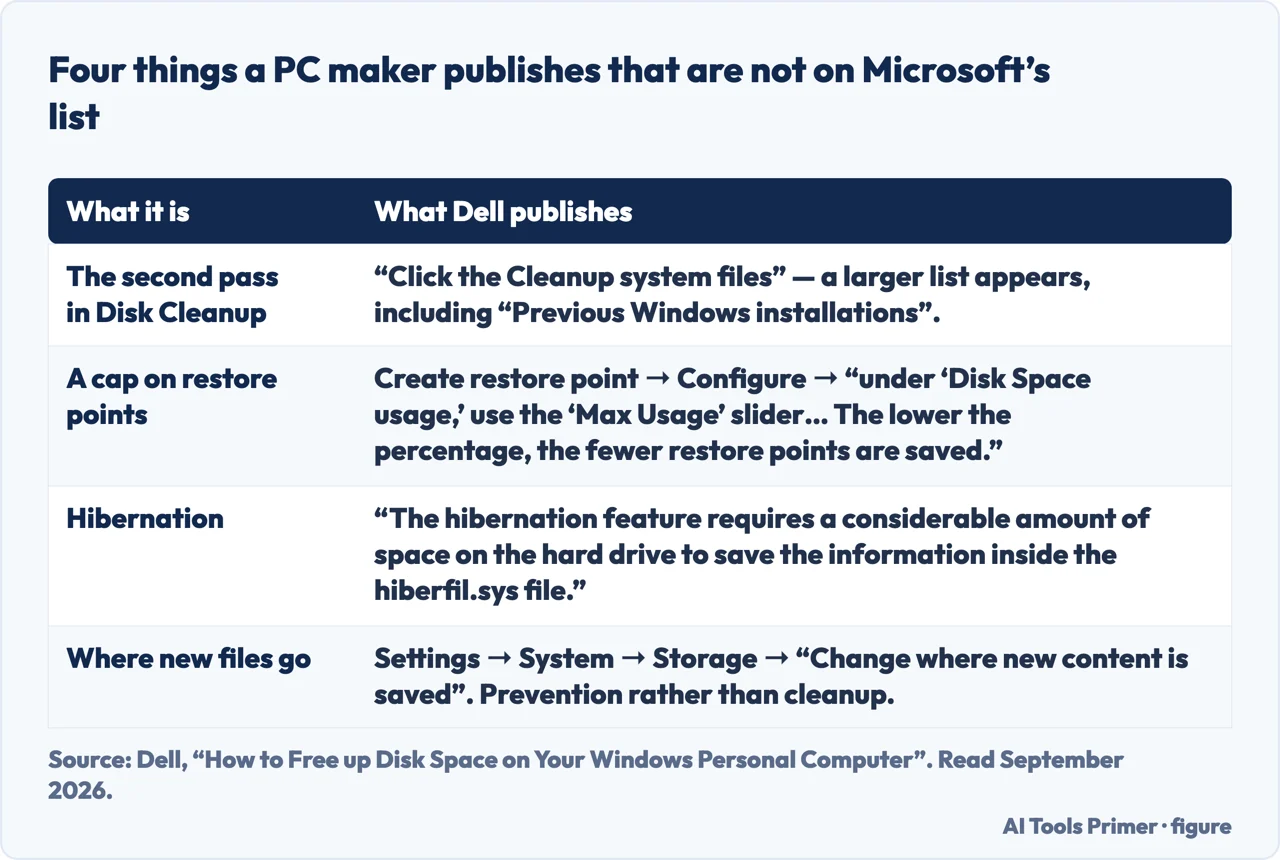
The one thing worth checking that is not on Microsoft’s list. If the drive fills up again within days of clearing it, you do not have a storage problem — you have something writing to disk. Sync software reconciling a large folder, a backup that never completes, a log file growing without limit, or the malware Microsoft mentions at step eight. Clearing space repeatedly without asking why is the pattern that keeps people buying cleaners for years.
How much free space is enough? There is no official number, and any page that gives you a confident percentage is guessing. What is documented is the consequence of running out: Microsoft notes that low storage means “you may notice slower performance or trouble installing Windows updates”. The update problem is the one that matters most, because it is how security fixes arrive — a drive too full to update is a security question rather than a tidiness one.
And if the drive is small enough that this happens constantly, the honest answer is not a better cleaning routine. It is that the machine has less storage than the way you use it requires, and the options are moving files off it permanently or adding storage — neither of which any software can do for you.
Every step and every quotation above is from Microsoft’s own support documentation on the date it was read. The ordering of what typically fills a drive, and the point about repeated refilling, are our observations rather than theirs, and are marked as such here.
Where to start
Four ways in.
- “I need space right now.”
- Steps two and three above, then when it keeps happening
- “It fills up again every week.”
- That is when it keeps happening
- “Should I install a cleaner?”
- Read the box above, then what not to install
- “The machine is also slow.”
- Different problem — see if it is also slow
When it keeps happening
A drive that refills within days is not a storage problem. Something is writing to it, and the useful move is finding out what.
What not to install
Every step on Microsoft’s list is built into Windows. The industry selling you an alternative is selling convenience, and sometimes worse.
If it is also slow
A full drive and a slow machine overlap but are not the same fault, and treating one as the other wastes an afternoon.
Moving things off
Sooner or later the answer is that the files live somewhere else. What that costs and what it commits you to.
Not covered here. It will not recommend a cleaner or an optimiser. Every action above is built into Windows, reachable from Settings, and free.
It will not give you a percentage of free space to maintain. Microsoft does not publish one, and the documented consequence — updates failing — is a better thing to watch than an invented number.
And it will not tell you to delete system files you cannot identify. Where Windows offers to remove something it names it and shows the size first, which is the standard everything else on this subject should be held to. What holds instead is simple: the order of the methods and the ten-day note are Microsoft’s own, read on the date this page names.
Sources
- Microsoft Support — Free up drive space in Windows, including the ordered list of methods, Storage Sense, Cleanup recommendations and the note on a previous Windows version — support.microsoft.com, read 21 August 2026.
- Dell — How to Free up Disk Space on Your Windows Personal Computer (the symptoms of a drive that is low on space, including a warning that the disk has less than 10% free space available; the second pass through Cleanup system files in Disk Cleanup; the More Options tab for deleting all but the most recent system restore point; the Max Usage slider under Disk Space usage, which caps the percentage of the disk reserved for restore points; sorting Apps & features by size; the Change where new content is saved setting; and that the hibernation feature requires a considerable amount of space to save the information inside the hiberfil.sys file) — www.dell.com, read 5 September 2026.
Written by Alberto Gulotta
Founder and editor of AI Tools Primer, writing from Palermo, Italy. Thirty-five years of taking computers apart, starting with a Commodore 64 — the long version is on the about page.
Something wrong on this page? Write to aitoolsprimer@gmail.com and it gets fixed.
Written on 21 August 2026 · last checked 23 September 2026.
Independence and limits
No affiliate links and no paid placements anywhere on this site. Nobody pays to appear here, and no company has seen this page before you did.
This is general information, not professional advice. Where a page touches money, health, safety or the law, it names its source and the date it was read — and your situation may still differ. See the privacy page and the cookie policy.