
Software · guide
Safe mode windows 11: what it is actually for
By Alberto Gulotta · Updated · 9 min read
Safe mode windows 11 is easy to mistake for a repair: something is broken, so boot into safe mode and it will be better. That is not what it is, and believing it is the reason people come out of safe mode no better off than they went in.
“If a problem doesn’t reappear when you start in safe mode, you can eliminate the default settings, basic device drivers, and services as possible causes.”
Microsoft, on what safe mode is for, read 21 August 2026. Read it twice: it describes a test, not a repair. Safe mode does not fix anything. It tells you where the fault is not.
Microsoft’s definition of the mode itself is short: “Safe mode starts Windows in a basic state, using a limited set of files and drivers.” Very little of your machine is running. So if the fault still happens, whatever causes it is in that small set. If it stops happening, the cause is somewhere in everything that did not load — and you have just cut the search down enormously without installing anything or paying anyone.
The screen you are trying to reach
Windows Startup Settings, with Microsoft’s own wording. Choose with the number keys or F1–F9.
- Enable debugging“intended for IT professionals and system administrators”
- Enable boot loggingwrites ntbtlog.txt, listing the drivers loaded at startup
- Enable low-resolution videofor resetting display settings you can no longer see to change
- Enable Safe Mode“starts Windows in a basic state, using a limited set of files and drivers”
- Safe Mode with Networking“adds the network drivers and services you’ll need to access the internet and other computers on your network”
- Safe Mode with Command Prompt“with a command prompt window instead of the usual Windows interface”
Three of the nine options are safe mode. Which one you want is decided by a single question: do you need the internet while you are in there? If the plan involves downloading a driver or running an online scan, it is number five. If the plan is to remove something already on the machine, four is the cleaner test, because it loads less.
Most of the list changes how Windows starts. One of them changes whether you get to read what went wrong. Microsoft: “Disable automatic restart on system failure. Prevents Windows from automatically restarting if an error causes Windows to fail.” And it names the only situation it is for: “choose this option only if Windows is stuck in a loop where Windows fails, attempts to restart, and fails again repeatedly.” A machine that blue-screens and reboots before you can read the stop code is not showing you an error too briefly by accident — it is doing what it was configured to do, and this is the switch that stops it.
The other one is worth understanding before choosing it rather than after. “Early launch anti-malware protection (ELAM) is a security feature in Windows that allows anti-malware software to start before all other third-party components during the boot process. ELAM ensures that the system does not initialize unknown boot drivers that could be malicious.” The startup entry that turns it off is the eighth on the list, Disable early launch anti-malware protection. Choosing it is occasionally the only way to load a driver that ELAM is refusing, and it is also, for that boot, the removal of the guard that stops a hostile driver loading first. Those are the same act, and only the reason for it differs.
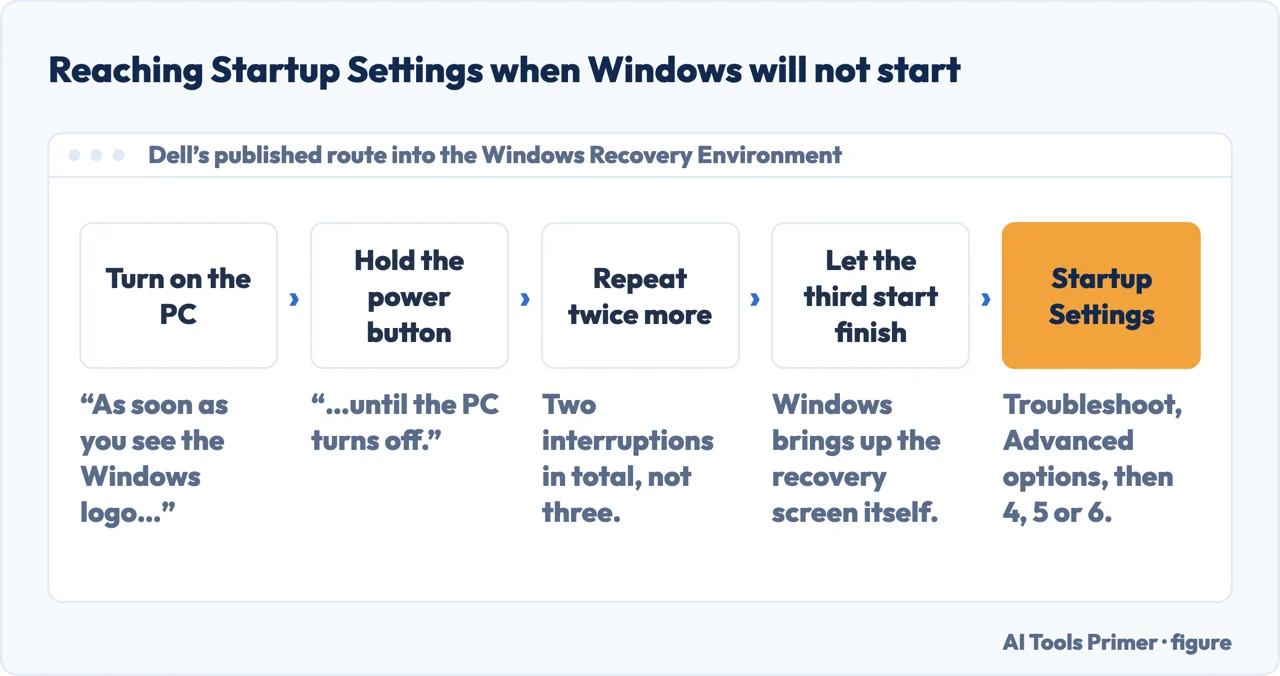
There is one thing that screen cannot tell you, which is how to reach it when Windows will not stay up long enough to offer it. Microsoft documents the destination; the route for a machine that fails is published as plain steps by a manufacturer. Dell: “Turn on your PC. As soon as you see the Windows logo, press and hold the power button until the PC turns off. Repeat this process two more times.” Two interruptions, and the third start is left alone to finish — Windows brings up the recovery screen itself, and Startup Settings is behind Troubleshoot and Advanced options from there.
The same page has the answer to the opposite complaint, the machine that keeps coming back into safe mode on its own. If it was switched on through System Configuration — Windows + R, msconfig, the Boot tab, Safe boot, Minimal — then it stays on until it is switched off, and Dell says how: “To turn Safe Mode off, repeat the steps and clear the Safe boot check box.” A restart does not clear a checkbox.
This is also why safe mode is the right place to remove software that will not uninstall normally, and the right place to undo a driver that broke the display: the thing you are fighting is usually not running.
Getting out is the part nobody explains, and it is the simplest part: “Restarting your device should be sufficient to exit from Safe Mode back into normal mode.” If a machine keeps returning to safe mode anyway, that is a separate and specific fault — a boot setting left switched on — and it has its own guide below.
The searches around this one are the same job worded differently: how to boot into safe mode windows 11, how to start windows 11 in safe mode, boot in safe mode windows 11, windows 11 safe mode. All of them want the route to that one screen. The guides below give the routes, in order of how likely each is to work on a machine that is already misbehaving — because the easy route needs Windows to start first, and quite often it will not.
Where to start
Four ways in.
- “Windows starts, but something is wrong.”
- Start at getting in
- “I am in. Now what?”
- That is what to do in there
- “It keeps starting in safe mode.”
- That is getting out
Getting in
The routes to the Startup Settings screen, from easiest to most stubborn. Which one you use depends on how much of Windows still works.
What to do in there
Safe mode is a diagnostic, so it is worth going in with a question. These are the jobs it is genuinely the right tool for.
Getting out
Normally a restart. When it is not, the cause is a setting that has been left switched on, and it is worth knowing where.
Not covered here. It will not tell you to install a cleaner or an optimiser. Safe mode exists precisely so you can find a cause instead of buying one.
It will not describe safe mode as a fix. Microsoft describes it as a way to eliminate causes, and this guide will keep saying the same thing.
And it will not invent a step. Every route below is the documented one, and where Windows versions differ, the difference is stated rather than smoothed over. What holds instead is simple: the definitions and the startup options on this page are quoted from Microsoft’s own support documentation.
Sources
- Microsoft Support — Windows startup settings (the statement that a problem which does not reappear in safe mode eliminates the default settings, basic device drivers and services as possible causes; the definition that safe mode starts Windows in a basic state using a limited set of files and drivers; the nine startup settings entries with their published descriptions, including that Enable debugging starts an advanced troubleshooting mode intended for IT professionals and system administrators, that Enable boot logging creates a file named ntbtlog.txt, that Safe Mode with Networking adds the network drivers and services needed to access the internet and other computers on the network, the definition of early launch anti-malware protection, and that Disable automatic restart on system failure should be chosen only when Windows is stuck in a loop where it fails, attempts to restart and fails again repeatedly; and the note that restarting the device should be sufficient to exit safe mode) — support.microsoft.com, read 6 September 2026.
- Dell — How to Boot into Safe Mode in Windows (the route for a machine that will not start: turn on the PC, and as soon as the Windows logo appears press and hold the power button until the PC turns off, repeating the process two more times; the System Configuration route through Windows + R, msconfig, the Boot tab, Safe boot and Minimal; and the instruction that to turn safe mode off you repeat those steps and clear the Safe boot check box) — www.dell.com, read 6 September 2026.
Written by Alberto Gulotta
Founder and editor of AI Tools Primer, writing from Palermo, Italy. Thirty-five years of taking computers apart, starting with a Commodore 64 — the long version is on the about page.
Something wrong on this page? Write to aitoolsprimer@gmail.com and it gets fixed.
Written on 21 August 2026 · last checked 6 September 2026.
Independence and limits
No affiliate links and no paid placements anywhere on this site. Nobody pays to appear here, and no company has seen this page before you did.
This is general information, not professional advice. Where a page touches money, health, safety or the law, it names its source and the date it was read — and your situation may still differ. See the privacy page and the cookie policy.