The question how to backup your computer has no single answer, and not because the subject is complicated. It is because “backup” is one word covering at least four different jobs, and a tool that answers one of them may not answer the others.
So the useful first question is not which software. It is which disaster.
Four disasters, and what answers each
Some tools answer more than one of them.
What goes wrong
What actually saves you
The drive dies
A copy on a different physical device. Time Machine or File History to an external
drive; anything cloud-based.A restore point is on the dead drive. It is gone with it.
You deleted or ruined a file
Versioned file backup. File History “allows you to easily restore previous versions of your
files”; Time Machine keeps hourly, daily and weekly backups.OneDrive, where Windows Backup syncs your folders, keeps deleted files for 30 days on a personal account, and Microsoft documents a 30-day version history for files stored there, which its restore page lists for Microsoft 365 subscribers.
An update or driver broke Windows
System Protection. Microsoft: restore points are “snapshots of the system’s state at
a particular moment”, made automatically “before significant system events” if System Protection is on — Microsoft says it is “not enabled by default”.It restores
the system, not your documents.
The laptop is stolen or burnt
A copy that was not in the same room.Both systems can put one elsewhere — Windows Backup syncs folders to OneDrive, File History and Time Machine can use a network location, and iCloud Drive can hold a Mac’s Desktop and Documents — but a drive kept in the same bag cannot.
That table is the whole of this guide, and the fourth row is the one worth sitting with. The limit is not in the software; it is in anything kept next to the machine it protects.
With the disasters separated, the tools become easy to place.
Windows ships three thingsand they are not interchangeable
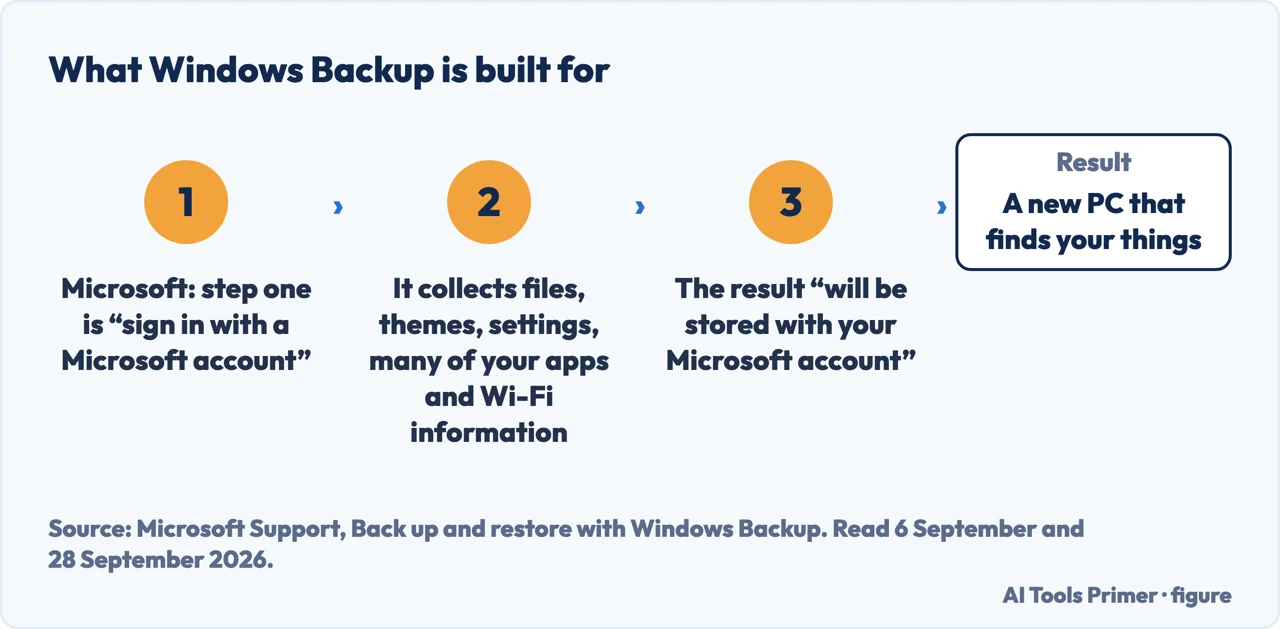
Windows Backup — Microsoft: “a one-stop backup solution… from your files, themes, and
settings to many of your installed apps and Wi-Fi information.” Step one is “sign in with a
Microsoft account”, and the result “will be stored with your Microsoft account”. It is built
for moving to a new PC.
File History — automatic copies of documents, photos and videos “to an external drive
or network location”, with previous versions you can browse.
System Protection — restore points, and not a backup of your files: Microsoft says restoring one reverts the system “without affecting personal data”.
A Mac ships Time Machineand Apple adds two recommendations
Time Machine backs up “apps, music, photos, email, and documents” to an external drive.
System Settings › General › Time Machine › Add Backup Disk (macOS Ventura 13 or later).
Apple’s two recommendations are specific: “Use a storage device with at least
twice the storage capacity of your Mac”, and “Use your Time Machine backup disk only for
Time Machine backups, not for storage of other files.”
The setup may offer to erase the drive. If there is anything on it you want,
move it first.
Windows Backup is built for walking up to a new PC, which is why it starts with an account. Figure drawn by AI Tools Primer.
Microsoft’s help page files all three under “Backup tools”, and only two of them copy your documents. A restore point will not bring back a deleted photograph. Microsoft is clear about what System Protection is for — reverting after “software malfunctions, driver problems, or other system errors” — and that is a real and useful job. It is just not this one.
Windows Backup is worth reading carefully too, because its shape follows from its purpose. It requires a Microsoft account and stores what it collects with that account, which is exactly right for the job it was built for — walking up to a new PC and finding your things there. For my drive died and I need last Tuesday’s spreadsheet, the answer is File History, which restores previous versions of your files; the folders Windows Backup syncs to OneDrive also have the 30 days described in the table above.
On the Mac side, the size recommendation connects to another line on Apple’s page: “The oldest backups are deleted when your backup disk is full.” And keeping other files on the backup drive puts your working copy and your safety copy on one device. Apple’s one exception, for advanced users, is a separate APFS volume for those files — on the same device.
If you turn on Encrypt Backup in Time Machine, you are asked to create a backup password, and Apple states the consequence plainly: “You will need it if you later
attempt to restore files from the backup.”
Write it down somewhere
that is not the computer being backed up. A backup you cannot open is an expensive external drive.
An external drive plugged in once a week, with either built-in tool pointed at it, already answers the first two cases in the table.
Apart from a final list of other guides, the guides below take it three ways: before a drive fails, phones, and the day it all matters — because a backup nobody has ever restored from is a belief rather than a fact.
Not covered here. It will not sell you backup software. Windows and macOS both ship tools for the cases above.
It will not tell you a restore point is a backup of your files. Microsoft describes what it is for, and a deleted file is not on the list.
And it will not pretend an external drive is enough on its own. While it sits next to the machine it is protecting, it answers two of the four cases at most. What holds instead is simple: the description of each Windows tool is Microsoft’s and the Time Machine recommendations are Apple’s, with the dates they were read.
Other guides
More guides from the site, in no particular order.
Microsoft Support — Backup, restore, and recovery in Windows (what File History does and that it can save to an external drive or a network location, what System Protection and restore points are for and that restore points are created before significant system events if it is enabled, that Windows Backup stores its copies in the cloud, and the “Backup tools” heading) — support.microsoft.com, read 6 September and 28 September 2026.
Microsoft Support — Back up and restore with Windows Backup (what it includes, that it requires a Microsoft account, that the result is stored with that account, and that backing up folders syncs them to OneDrive) — support.microsoft.com, read 6 September and 28 September 2026.
Apple Support — Back up your Mac with Time Machine (what it copies, the steps for macOS Ventura 13 or later, the twice-the-capacity recommendation, the instruction not to keep other files on the backup disk and the exception for a separate APFS volume, the erase prompt, the encryption password, the hourly, daily and weekly backups, and that the oldest backups are deleted when the disk is full) — support.apple.com, read 22 August and 28 September 2026.
Microsoft Support — System Protection (that it is not enabled by default, and that restoring reverts the system without affecting personal data) — support.microsoft.com, read 28 September 2026.
Microsoft Support — Restore a previous version of a file stored in OneDrive (that file version history is retained for 30 days) — support.microsoft.com, read 28 September 2026.
Microsoft Support — Restore files deleted from your OneDrive (that a personal account can restore files or folders deleted within the last 30 days, and that Microsoft 365 subscribers can also restore a previous version of a file) — support.microsoft.com, read 28 September 2026.
Apple Support — Backup disks you can use with Time Machine (another Mac on the network, and a network-attached storage device that supports Time Machine over SMB) — support.apple.com, read 29 September 2026.
Apple Support — How to back up your Mac (iCloud Drive for files in the Desktop and Documents folders) — support.apple.com, read 29 September 2026.
AG
Written by Alberto Gulotta
Founder and editor of AI Tools Primer, writing from Palermo, Italy. Thirty-five years of
taking computers apart, starting with a Commodore 64 — the long version is on the
about page.
Written on 22 August 2026 · last checked 30 September 2026.
§
Independence and limits
No affiliate links and no paid placements anywhere on this site. Nobody pays to appear here,
and no company has seen this page before you did.
This is general information, not professional advice. Where a page touches money, health,
safety or the law, it names its source and the date it was read — and your situation may
still differ. See the privacy page and the
cookie policy.