
Software · guide
How to password protect a folder, and what Windows has instead
By Alberto Gulotta · Updated · 8 min read
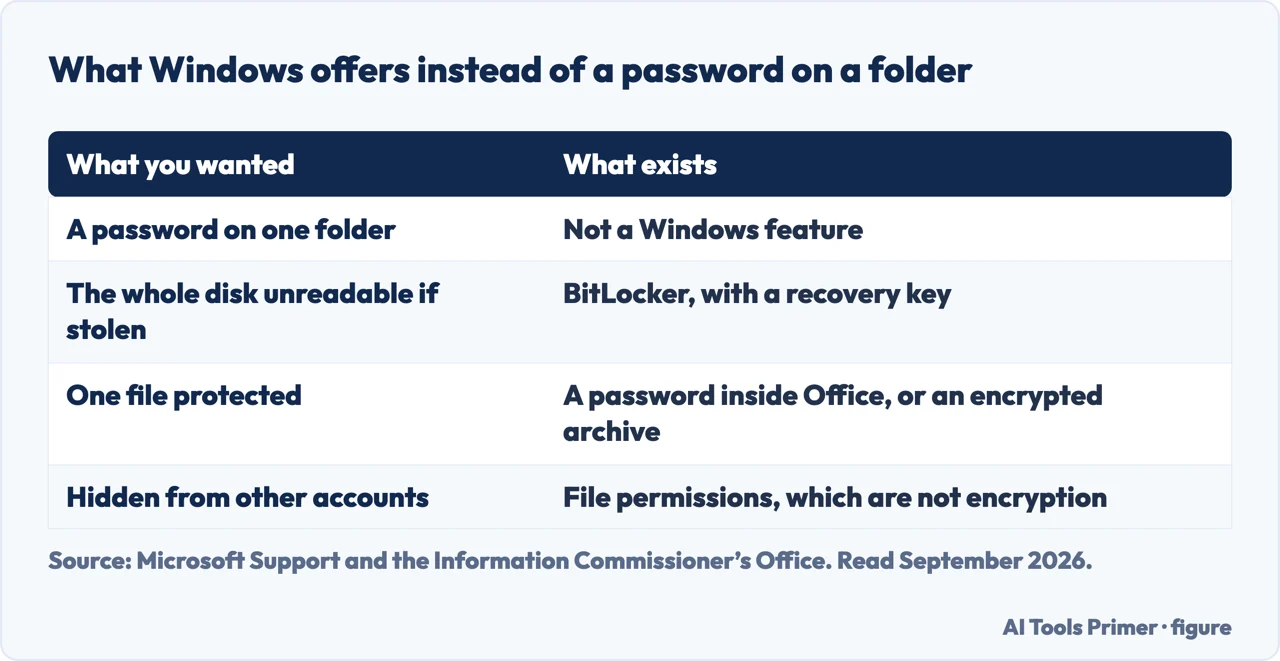
The honest starting point for how to password protect a folder is that the protections Microsoft documents do not work at the level of a folder. They work at the level of a drive, and on a good number of machines one of them is already switched on.
“When you first sign in or set up a device with a Microsoft account, or work or school account, Device Encryption is turned on and a recovery key is attached to that account. If you’re using a local account, Device Encryption isn’t turned on automatically.”
Microsoft, read 22 August 2026. Two things follow from that sentence and both surprise people. A great many Windows machines are already encrypted and their owners have never thought about it. And the key that unlocks them is not written down anywhere in the house — it is attached to the Microsoft account used at setup.
If you signed in with a local account instead, none of it is on, and nothing told you.
So the first useful move is not to install anything. It is to find out what is already true about the machine in front of you, because the answer changes what you should do next — and because a recovery key attached to an account you can no longer sign into is a problem worth discovering today rather than on the morning the disk asks for it.
There are two tiers, and Microsoft is clear about which editions get which.
That distinction resolves a lot of frustrated searching. If you are on Windows Home and following a guide that says to right-click the drive and choose “Turn on BitLocker”, the command is not missing because something is broken — the edition does not have it. What Home has is Device Encryption, which does the same underlying job with fewer controls, and which is switched on automatically only under the account condition quoted above.
Finding out where you actually stand
From Start, type System Information, right-click it, Run as administrator. In System Summary look for Device Encryption Support. Microsoft’s own values:
- Meets prerequisites
- It is available on this device.
- TPM is not usable
- “Your device doesn’t have a Trusted Platform Module (TPM), or the TPM isn’t enabled in the BIOS or in the UEFI”
- WinRE is not configured
- The Windows Recovery Environment is not set up.
- PCR7 binding is not supported
- “Secure Boot is disabled in the BIOS/UEFI, or you have peripherals connected to your device during boot.”
The three failure values are worth reading as a shopping list rather than a verdict. A TPM that is present but disabled in the firmware is a setting; Secure Boot disabled is a setting; a missing recovery environment is fixable. None of the three means the machine cannot be encrypted — they mean something has to be changed first, and the message names which thing.
Now the part where the original question deserves a direct answer rather than a redirection. If what you want is that one folder be unreadable to somebody else using this computer, the documented tools sit either side of it: whole-drive encryption protects everything against somebody who has the machine but not your sign-in, and file-level passwords — the kind Office documents and PDFs support — protect one file against everyone. There is no documented middle setting that puts a password on a folder in Windows.
Which is worth knowing before adopting one of the methods that circulate for this. A folder that is hidden is not a folder that is encrypted: hiding changes what a file browser displays, and the contents remain exactly as readable to anybody who looks properly. That is not an argument about any particular trick — it is what the two words mean, and it is the question to put to any method before trusting it with something that matters.
One last thing that applies whichever route you take, and that this site has already documented elsewhere: compressing encrypted files removes the encryption. Microsoft’s own advice on zipped folders is to avoid it, “which might result in unintentional disclosure of personal or sensitive information”. Protection and transport interact, and not helpfully.
Why the answer is encryption and not a password on a folder. The UK’s data protection regulator puts the purpose plainly: encrypting information you store “provides effective protection against unauthorised or unlawful processing”, and “is especially effective in protecting the information from unauthorised access if the device you use to store the encrypted data is lost or stolen”. That is the threat a folder password never addressed. A password asks the operating system to refuse; encryption makes the bytes unreadable to anyone who takes the disk out and reads it somewhere else.
The guides below take it four ways: what is already on, turning it on properly, protecting a single file instead, and the recovery key that decides whether any of this is survivable.
Where to start
Four ways in.
- “There is no BitLocker option.”
- That is the edition — turning it on
- “I only need one file protected.”
- Go to one file instead
- “Where is my recovery key?”
- That is the recovery key
Turning it on
Two tiers, two editions, and three named reasons the option may be greyed out. None of them is the computer being broken.
One file instead
When the goal is one document rather than a disk. These protections are older, narrower and travel with the file.
The recovery key
The single most consequential detail on this guide. Encryption without a retrievable key is a very effective way to lose everything.
Not covered here. It will not give you a folder password. Microsoft documents drive-level encryption and file-level passwords; there is no documented setting between them.
It will not treat hiding as protecting. A hidden folder is displayed differently and read identically.
And it will not skip the recovery key. Encryption you cannot unlock is not protection, it is deletion with extra steps. What holds instead is simple: the two encryption tiers and the edition limits are quoted from Microsoft’s own documentation, with the four support values.
Other guides
More guides from the site, in no particular order.
- The same job, in the other places it comes up
- Gemini CLI not working: who lost access, and who did not
- Who owns ChatGPT: three shares and one set of votes
- How to backup your computer, and against what exactly
Sources
- Microsoft Support — Device Encryption in Windows (that Device Encryption enables BitLocker automatically, the Microsoft-account condition and the recovery key attached to it, the availability on Windows Home against BitLocker Drive Encryption on Pro, Enterprise and Education, the Settings route, and the four Device Encryption Support values) — support.microsoft.com, read 6 September 2026.
- Microsoft Support — Zip and unzip files (the warning that encrypted files are unencrypted when they are unzipped) — support.microsoft.com, read 6 September 2026.
- Information Commissioner’s Office — Encryption and data storage: what encrypting stored information protects against, and why a lost or stolen device is the case it is for — ico.org.uk, read 4 September 2026.
Written by Alberto Gulotta
Founder and editor of AI Tools Primer, writing from Palermo, Italy. Thirty-five years of taking computers apart, starting with a Commodore 64 — the long version is on the about page.
Something wrong on this page? Write to aitoolsprimer@gmail.com and it gets fixed.
Written on 22 August 2026 · last checked 23 September 2026.
Independence and limits
No affiliate links and no paid placements anywhere on this site. Nobody pays to appear here, and no company has seen this page before you did.
This is general information, not professional advice. Where a page touches money, health, safety or the law, it names its source and the date it was read — and your situation may still differ. See the privacy page and the cookie policy.