The route is short: Settings › System › Recovery, then under Recovery options select Reset PC. What takes longer, and what this guide is for, is the set of choices that appears next — because how to factory reset windows 11 is really four questions, and one of them matters a great deal if you are about to hand the machine to somebody else.
Two things to do before you start
Back up. Microsoft’s own first line under this heading: “Resetting your PC reinstalls
Windows. Depending on the option you choose, apps, settings, and personal files may be
removed.” Even the gentlest option removes every application.
Find your BitLocker recovery key if the machine is encrypted. Microsoft repeats this twice on
the same page, which is unusual and worth heeding: “If your device is encrypted, make sure you have
your BitLocker recovery key.” Without it, a reset from the recovery environment can leave you locked
out of your own disk.
Four options, and they combine
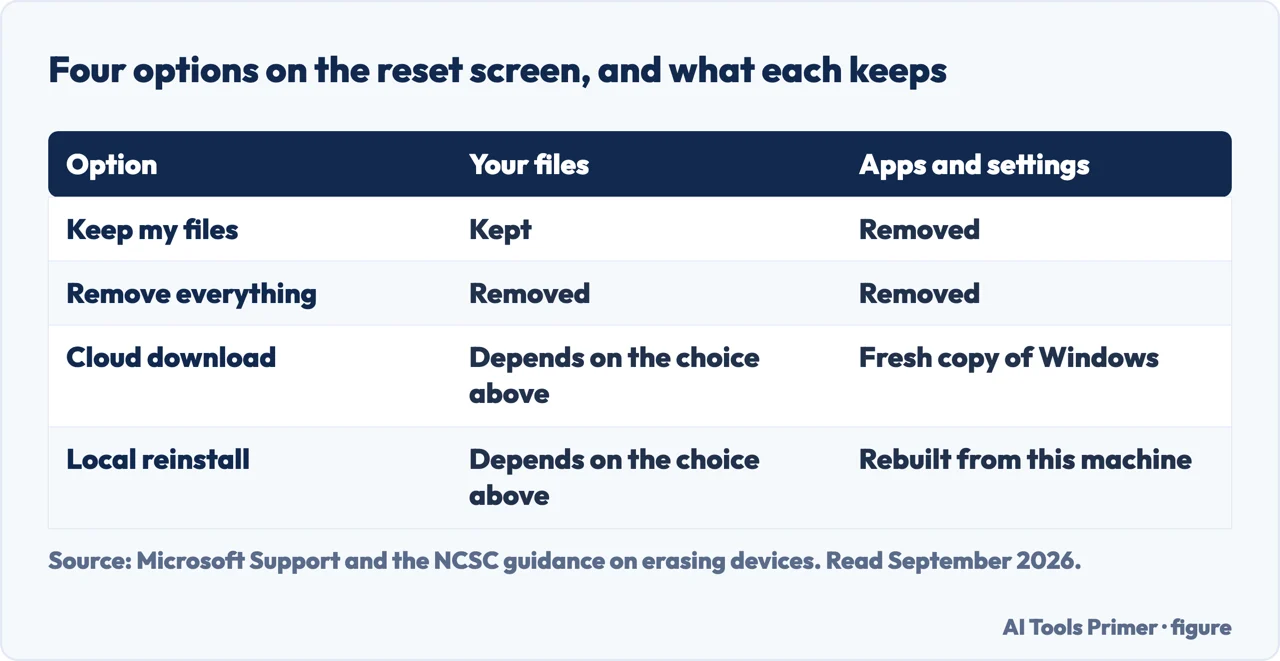
Two decide what survives. Two decide where the fresh copy of Windows comes from. All
four are quoted from Microsoft’s own table.
Keep my files
“Also known as Refresh, this option reinstalls Windows while keeping your personal files
intact. It removes apps and settings but preserves your documents, photos, and other
personal data.”
There is a sub-option: Restore preinstalled apps — “when enabled, any customizations from
the PC manufacturer are applied”. In plain terms, that brings back whatever the manufacturer put on
the machine when it was new.
Remove everything
“Also known as Reset, this option reinstalls Windows and removes all your personal files,
apps, and settings. It’s ideal for a fresh start or when you are giving away or selling your
PC.” Its sub-option is the important one, and it has a section of its own below.
Cloud download
“Downloads a fresh copy of Windows from the cloud, ensuring you get the latest version with all
updates. It’s useful if your local files are corrupted or missing.” Which is often exactly
why somebody is resetting in the first place.
Local reinstall
“Uses the files already on your PC … faster if you have a slow internet connection but may
not include the latest updates.” It also relies on those local files being intact.
“The data erasure functionality is targeted at consumers and does not meet government
and industry data erasure standards.”
Microsoft, read 22 August 2026, and this note sits quietly under the options table where almost
nobody quotes it. It is about Clean data, the sub-option of Remove everything, which Microsoft
describes as removing files and cleaning the drive: “If you’re planning to donate, recycle, or sell
your PC, use this option. This might take some time, but it makes it harder for other people
to recover files you’ve removed.”
Harder, not impossible — and explicitly not to any standard. For a family laptop being passed
to a relative that is ample. For a machine that held client records, patient information, financial
files or anything you are legally responsible for, Microsoft has just told you that this feature is
not the right instrument, and the honest answer is either to keep the drive or to have it erased to a
standard that certifies what it did.
Four options, and two of them are separate questions. Figure drawn by AI Tools Primer.
One more warning from the same page, and it prevents a genuine disaster. Microsoft marks it Important: “During the resetting process, it’s possible that your screen might go black for a long period of time (occasionally upwards of 15 minutes) and that your device might attempt to restart itself. Manually attempting to restart the device yourself during this process could cause the reset to fail.” A black screen is not a hung machine. Leave it alone.
Which combination to pick, briefly. If the computer is misbehaving and you want to keep your documents, Keep my files with Cloud download is usually right — you lose the applications, which you were going to reinstall anyway, and the cloud copy avoids reinstalling from the same possibly damaged local files. If you are keeping the machine and starting fresh, Remove everything without Clean data is quicker. If it is leaving your hands, Remove everything with Clean data, and read the section above before deciding whether that is sufficient for what was on it.
And the thing to check afterwards rather than before. A reset returns Windows, not your licences, your browser bookmarks, or the two-factor codes in an authenticator app that lived only on that machine. The last of those is the one that strands people. If an authenticator app is installed on the computer you are resetting, move those accounts to another device first — afterwards is too late, because getting back into them requires the very codes you just erased. If the app is still there and simply refuses to produce a working code, the cause is usually the clock rather than the app — when an authenticator stops working explains why a minute of drift is enough.
What a reset is for, and the one thing to do before it. The UK’s National Cyber Security Centre frames the built-in reset as sufficient for almost every case — “in nearly all cases, this kind of factory reset is all you’ll need to do” — and attaches the warning that matters more than any option on the screen: these features “will erase all content from your device… so you’ll want to make sure you have a backup of all your important data first”. It also names the case where the reset is not enough: if the machine will not start correctly afterwards, reinstalling the operating system is “an advanced task and should only be tried if you know what you are doing”.
The reset options, the sub-options, the note about data erasure standards, the BitLocker warning and the note about the black screen are quoted from Microsoft’s own Windows documentation, read on 22 August 2026 and listed below. The recommendations about which combination to choose, and the warning about authenticator apps, are ours.
Not covered here. It will not present Clean data as a secure wipe. Microsoft says in its own note that it does not meet erasure standards, and that sentence is quoted here.
It will not let you restart the machine during a black screen. Microsoft warns that doing so can make the reset fail.
And it will not skip the BitLocker key. Without it a reset can lock you out of your own disk. What holds instead is simple: the reset options and the note about data erasure standards are quoted from Microsoft’s own Windows documentation, read on the date this page names.
Sources
Microsoft Support — Reset your PC, including the Keep my files and Remove everything options, Restore preinstalled apps, Clean data, Cloud download and Local reinstall, the BitLocker recovery key requirement, the note that the data erasure functionality does not meet government and industry standards, and the warning about the screen going black — support.microsoft.com, read 22 August 2026.
National Cyber Security Centre — Erasing devices: when a built-in factory reset is enough, the backup that has to come first, and what to do when the device will not start afterwards — www.ncsc.gov.uk, read 4 September 2026.
AG
Written by Alberto Gulotta
Founder and editor of AI Tools Primer, writing from Palermo, Italy. Thirty-five years of
taking computers apart, starting with a Commodore 64 — the long version is on the
about page.
Written on 22 August 2026 · last checked 23 September 2026.
§
Independence and limits
No affiliate links and no paid placements anywhere on this site. Nobody pays to appear here,
and no company has seen this page before you did.
This is general information, not professional advice. Where a page touches money, health,
safety or the law, it names its source and the date it was read — and your situation may
still differ. See the privacy page and the
cookie policy.