
Software · guide
How to update drivers on Windows, and the optional ones
By Alberto Gulotta · Updated · 10 min read
Anybody asking how to update drivers is really asking two questions at once: what the machine is already doing on its own, and what is left over for them to do. Microsoft answers both, and the answers are shorter than the question deserves.
“Tip: The best way to get driver updates in Windows is automatically using Windows Update.”
“Driver updates for most hardware devices in Windows are automatically downloaded and installed through Windows Update… Drivers updated through Windows Update are normally recent and up to date.”
Both sentences are Microsoft’s, and the second is the load-bearing one. Hunting for driver updates only makes sense if the ones on the machine are stale; Microsoft says they normally are recent. That is not a promise about every device, and it is not a claim about performance — it is a statement about currency, from the company that ships them.
What a driver is, in one line. Microsoft: “A driver is software that allows a Windows device to communicate with hardware devices.” The examples it gives are deliberately ordinary — mice, keyboards, printers, scanners, external drives, video cards — and that list is useful because it sets the scope. A driver is not a performance tuning file. It is the piece that makes a thing work at all — a description of function, not of speed, which is worth holding on to when deciding whether there is a problem to solve.
Worth noticing that Microsoft gives two different lists. The examples of things that need drivers are mice, keyboards, printers, scanners, external drives and video cards. The list of what Windows Update handles automatically is shorter — network adapters, printers, scanners and video cards. Printers, scanners and video cards appear on both; a mouse, a keyboard and an external drive appear only on the first. Microsoft does not say what that means, and this guide is not going to fill it in.
So the first move is not to update anything. It is to establish whether the driver you are thinking about is one Windows already looks after. For the four categories Microsoft names, the answer is yes, automatically, and the version you have is — in Microsoft’s own words — normally recent.
Which leaves the part worth knowing, because Windows does not do it for you — and says so in a short note.
The updates Windows has and does not install
Microsoft’s note is four words long and explains a whole category of missing update: “Optional drivers aren’t installed automatically.”
- Start → Settings → Windows Update → Advanced options.
- Make sure Receive updates for other Microsoft products is turned On.
- Under Additional options, select Optional updates.
- “If driver updates are listed, select the drivers you want to install, then select Download and install.”
The second step is the one to check first. Receive updates for other Microsoft products has to be on, and Microsoft puts it inside the procedure rather than assuming it — a separate switch from the main update setting, three levels below the button the procedure starts from.
“Restart the Windows device even if none of the updates required a restart.”
Microsoft’s instruction, at the end of its own optional-driver procedure, and it is worth following precisely because it contradicts what the screen tells you. Windows will not always ask for a restart after a driver update. Microsoft says restart anyway. When a manufacturer’s documentation goes out of its way to override its own prompt, that is the sentence to obey.
If Windows Update has nothing and the optional list has nothing, Microsoft’s next route is Device Manager, where a driver can be updated “either automatically or manually”, and where it can also be reinstalled. Its instruction before starting a reinstall is worth repeating because it is easy to skip: “Save all work and close all apps”, then right-click the Start menu and open Device Manager. Reinstalling the driver for a device you are currently using is not a background operation.
And after that, Microsoft points outwards rather than pretending it has an answer for everything: if Windows does not find a new driver, look on the device manufacturer’s website and follow their instructions. That is the last documented step, and it is a reason to be careful about what a search engine returns for a driver name — the manufacturer’s own site is a specific destination, not a category of result.
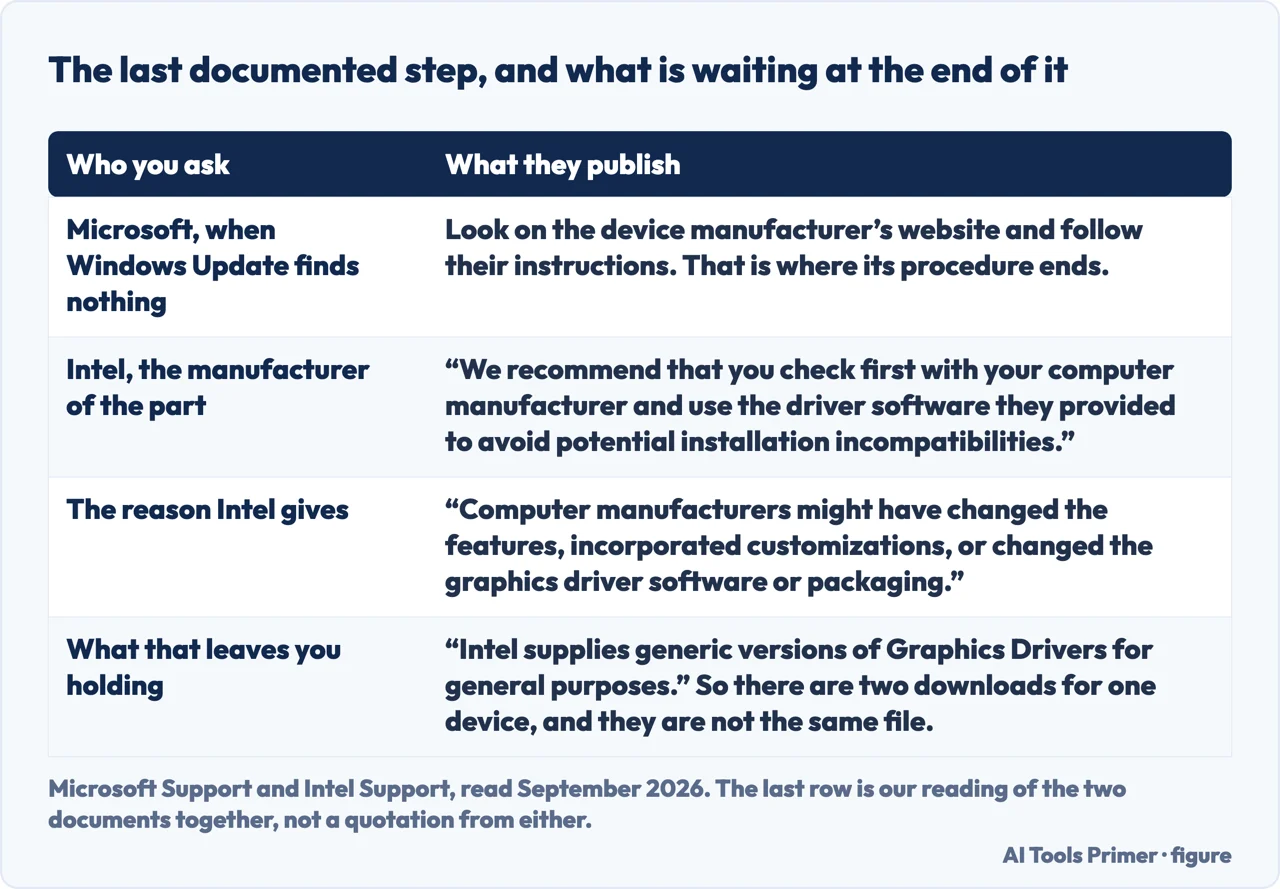
It is worth following that last step to the end, because the trail does not stop where it looks like stopping. Microsoft sends you to the manufacturer of the device. Intel, which makes the graphics in a great many of them, sends you somewhere else again: “We recommend that you check first with your computer manufacturer and use the driver software they provided to avoid potential installation incompatibilities.” The reason it gives is specific rather than defensive — “Computer manufacturers might have changed the features, incorporated customizations, or changed the graphics driver software or packaging” — and it says plainly what its own download is: “Intel supplies generic versions of Graphics Drivers for general purposes.” So there are two different downloads for one device, and the component maker is the one telling you to prefer the other.
One dated fact that changes the advice. Microsoft states on the same page: “Support for Windows 10 has ended on October 14, 2025”, and “After October 14, 2025, Microsoft will no longer provide free software updates from Windows Update, technical assistance, or security fixes for Windows 10.” Everything on this guide assumes Windows Update is delivering drivers. On a machine that is no longer receiving updates from it, the whole premise changes — and the question stops being which drivers to update and becomes what to do about the operating system.
The guides below take it three ways: what Windows already does for you, the optional updates and where they hide, and the neighbouring problems people are usually trying to solve when they arrive at drivers.
Where to start
Three ways in.
- “Should I be updating these at all?”
- Start at what windows already does
- “Windows says everything is up to date.”
- Go to the optional updates
- “Something has stopped working.”
- That is when a driver is the suspect
What Windows already does
Network adapters, printers, scanners and video cards are handled automatically, and Microsoft says the versions delivered that way are normally recent. Which changes what is left to do.
The optional updates
Four words from Microsoft — optional drivers aren’t installed automatically — and a menu three levels down that most machines never have opened.
When a driver is the suspect
Usually something has stopped working rather than slowed down. These are the guides for the specific device, which is often a faster route than the driver itself.
Not covered here. It will not tell you your drivers are out of date. Microsoft says the ones Windows Update delivers are normally recent, and that sentence is quoted here rather than talked around.
It will not name a driver updater program. Microsoft states which route it considers best, and judging the products against that would need testing this guide has not done.
And it will not send you to a search engine for a driver. The last documented step is the device manufacturer’s own website, which is a specific place rather than a search result. What holds instead is simple: the statement that Windows Update is the best route and the note that optional drivers are not installed automatically are Microsoft’s own wording.
Sources
- Microsoft Support — Automatically get recommended and updated hardware drivers (that Windows can automatically download recommended drivers using Windows Update; the definition of a driver as software that allows a Windows device to communicate with hardware devices, with examples including mice, keyboards, printers, scanners, external drives and video cards; that Windows 11 installs recommended drivers automatically and lets you manually install optional driver updates; the note that optional drivers aren’t installed automatically; the path Start → Settings → Windows Update → Advanced options, the requirement that Receive updates for other Microsoft products be on, and Additional options → Optional updates → Download and install; the instruction to restart the device even if none of the updates required a restart; and the statement that support for Windows 10 ended on 14 October 2025, after which Microsoft no longer provides free software updates, technical assistance or security fixes for it) — support.microsoft.com, read 22 August 2026.
- Microsoft Support — Update drivers through Device Manager in Windows (the tip that the best way to get driver updates in Windows is automatically using Windows Update; that driver updates for most hardware devices are downloaded and installed through Windows Update, covering network adapters, printers, scanners and video cards, and that drivers updated that way are normally recent and up to date; that drivers can also be updated through Device Manager either automatically or manually and reinstalled there; and the instruction to save all work and close all apps before reinstalling a device driver) — support.microsoft.com, read 22 August 2026.
- Intel — How do I Upgrade My Graphics Driver from Legacy to a Windows* DCH Driver? (the recommendation to check first with your computer manufacturer and use the driver software they provided in order to avoid potential installation incompatibilities; the statement that Intel supplies generic versions of graphics drivers for general purposes; and the reason given, that computer manufacturers might have changed the features, incorporated customizations, or changed the graphics driver software or packaging) — www.intel.com, read 6 September 2026.
Written by Alberto Gulotta
Founder and editor of AI Tools Primer, writing from Palermo, Italy. Thirty-five years of taking computers apart, starting with a Commodore 64 — the long version is on the about page.
Something wrong on this page? Write to aitoolsprimer@gmail.com and it gets fixed.
Written on 22 August 2026 · last checked 23 September 2026.
Independence and limits
No affiliate links and no paid placements anywhere on this site. Nobody pays to appear here, and no company has seen this page before you did.
This is general information, not professional advice. Where a page touches money, health, safety or the law, it names its source and the date it was read — and your situation may still differ. See the privacy page and the cookie policy.