There are two completely different answers to how to connect airpods to laptop, and which one is yours depends on a single question: is the laptop signed in to the same Apple Account as the phone you set the AirPods up with? If it is, there may be nothing to do at all. If it is not — a Windows laptop, a work machine, somebody else’s Mac — then the AirPods are ordinary Bluetooth headphones and have to be paired like any others.
A MacBook on your Apple AccountOften nothing to do
Apple: “If you set up your AirPods with your iPhone, and your Mac is signed in to iCloud with
the same Apple Account, your AirPods should connect automatically.”
Put them in, then Control Center › Bluetooth and choose them from the list. No pairing,
because the pairing already happened on the phone.
Any other laptopA Bluetooth headset
Apple is direct about what you are getting: “You can use AirPods as a Bluetooth headset
with a non-Apple device. You can’t use Siri, but you can listen and talk.”
Turn Bluetooth on, open the case lid, make the case ask to be found, and select the AirPods in
the laptop’s Bluetooth list. The middle step is the one that is not written on the case.
The second card is the one with the work in it, and the work is a single step that is not obvious from looking at the case. AirPods do not offer themselves to a new device just because the lid is open. You have to put them into pairing, and Apple’s instruction for that has recently split in two.
“For AirPods Pro 3, AirPods 4 (both models), and AirPods 5 (both models),
double-tap the front of the case until the status light flashes white.”
“For all other models, press and hold the setup button on the back of the case
until the status light flashes white.”
Two gestures, and which one you need depends on how new the AirPods are. This is the whole answer
to the question — with the lid open and the AirPods inside, you have to make the case announce
itself, and on the newest models there is no button to hold. An instruction that says to
press and hold the button on the back is not wrong; it is written for a different case.
Worth reading twice if your AirPods are new. Apple lists the button on the back for all other models — that is its phrase, and it covers everything except the three it names. On AirPods Pro 3, AirPods 4 and AirPods 5 the gesture is on the front of the case and it is a double-tap. Both instructions are current, both are Apple’s, and they apply to different boxes.
The confirmation is the same either way, and it is the thing to watch for rather than the thing to count: the status light flashes white. Until it does, the laptop has nothing to find. Once it does, the AirPods appear in the Bluetooth list like any other headset and you select them there.
Connected, and the sound is still coming out of the laptop. Apple gives this its own step
rather than leaving it to troubleshooting: “If sound still plays from your Mac speakers, click Control
Center in the menu bar. Click Sound, and make sure that your AirPods are selected as
the output device.”
Pairing and listening are two separate settings. A device can be connected and not chosen, which
is why the Bluetooth list saying “Connected” is not the end of the job — the output picker is.
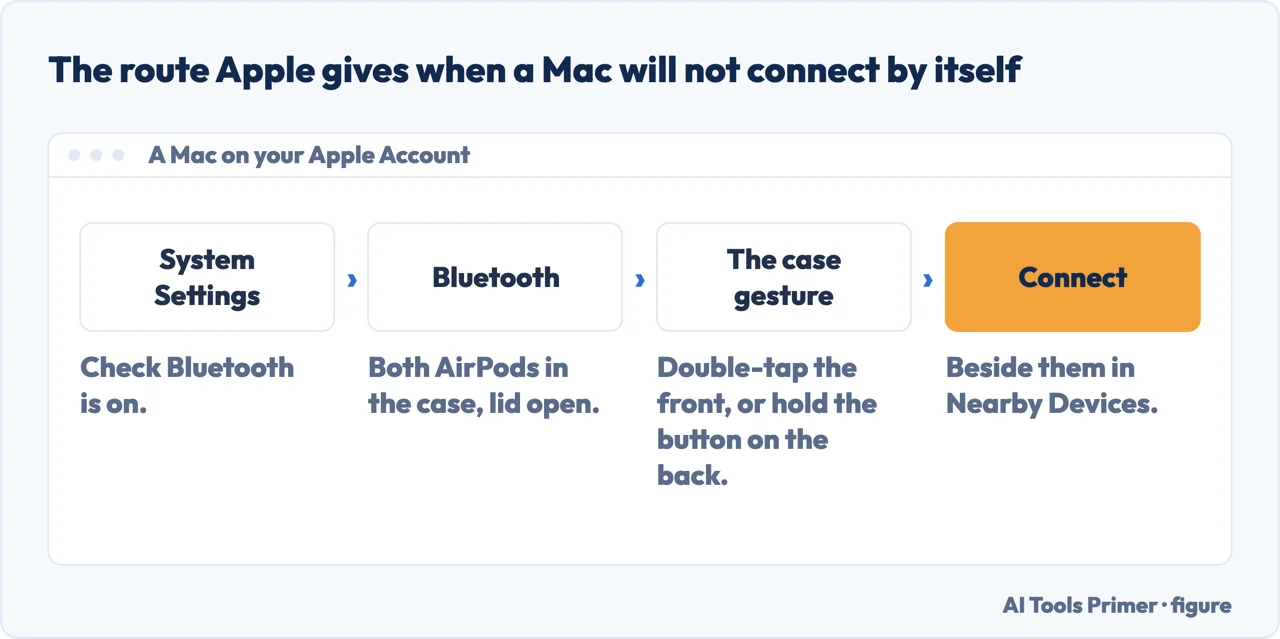
On a Mac that is on your account and still does not connect by itself, Apple gives the manual route as a fallback rather than a repair: System Settings › Bluetooth, check Bluetooth is on, put both AirPods in the case and open the lid, do the case gesture, then click Connect beside them in the Nearby Devices list. Notice that this is the same procedure Apple gives for a non-Apple laptop, down to the case gesture — so a Mac that will not connect by itself is not a special case to be diagnosed, it is a laptop to be paired.
A Mac that will not connect by itself is not a special case to be diagnosed. It is a laptop to be paired. Figure drawn by AI Tools Primer.
On the Windows side the other vendor documents its half, and stops at exactly the same place. Microsoft’s pairing instructions cover turning Bluetooth on and picking the device up under New devices, and then hand the rest back: “the way to make the Bluetooth device discoverable depends on the device. To learn how… check the device’s documentation or visit the manufacturer’s website.” That returned half is the case gesture above. Two of its notes are worth having before deciding something is broken. The list is filtered by default — “if the Bluetooth device isn’t displayed in the list, the Bluetooth devices discovery setting might need to be set to Advanced” — and once a pairing exists there is nothing left to do by hand: “when Bluetooth is turned on, the Bluetooth device and the Windows device automatically connect anytime the two devices are in range of each other.”
What each model needs from macOS, in Apple’s footnote
AirPods 2macOS Mojave 10.14.4 or later
AirPods 3macOS Monterey or later
AirPods 4 (both models)macOS Sequoia or later
AirPods 5 (both models)macOS Golden Gate or later
AirPods Pro 1macOS Catalina 10.15.1 or later
AirPods Pro 2 (Lightning)macOS Ventura or later
AirPods Pro 2 (USB-C)macOS Sonoma or later
AirPods Pro 3macOS Tahoe or later
That footnote answers a question that does not occur to anybody until it is the problem. AirPods that pair with a phone perfectly well can decline to work with an older Mac, and it is not a fault in either — Apple sets a minimum macOS version per model, and for the three newest it simply says the latest version. If the MacBook is a few years behind on updates, that is the first thing to check rather than the last.
One more thing the same page documents, because it explains behaviour that looks like a fault in the other direction. AirPods 2 and later and the AirPods Pro switch automatically between a Mac on macOS Big Sur or later, an iPhone on iOS 14 or later and an iPad on iPadOS 14 or later — Apple’s example is answering a call on the phone while music is playing on the Mac. The condition: “Your devices need to be signed in with the same Apple Account using two-factor authentication.” Sound that jumps to another device mid-sentence is that feature working.
The guides below take it four ways: the laptop that needs nothing, the case gesture, sound that goes to the wrong place, and the versions and accounts underneath all of it.
Not covered here. It will not tell you to hold a button that is not there. On AirPods Pro 3, AirPods 4 and AirPods 5 the gesture is a double-tap on the front, and Apple documents both.
It will not treat a Windows laptop as a broken Mac. Apple says plainly what you get — a Bluetooth headset without Siri — and that is a complete answer rather than a consolation.
And it will not stop at the word Connected. Apple gives selecting the output device its own step, and it is the one that produces sound. What holds instead is simple: the two case gestures and the per-model macOS requirements are quoted from Apple’s own documentation.
Being seen and heard on a call
The four things that are wrong when they say they cannot see or hear you.
Apple Support — Set up AirPods with your Mac and other Bluetooth devices (the automatic connection when the Mac is signed in to the same Apple Account, the manual pairing route through System Settings and Nearby Devices, both case gestures with the white status light, the instruction to select the AirPods as the output device, the automatic switching feature with its two-factor authentication condition, the non-Apple device steps, and the footnote of minimum macOS versions per model) — support.apple.com, read 22 August 2026.
Apple — AirPods User Guide, Pair AirPods with a non-Apple device (the statement that AirPods work as a Bluetooth headset without Siri, and the instruction to turn on Bluetooth on the other device first) — support.apple.com, read 22 August 2026.
Microsoft Support — Pair a Bluetooth device in Windows (ON WINDOWS: that Bluetooth is turned on in Settings under Bluetooth and devices or from the quick settings tile; that the way to make a Bluetooth device discoverable depends on the device, and that Microsoft directs the reader to the device documentation or the manufacturer website for it; that a device is then selected under New devices; that if a device is not displayed the Bluetooth devices discovery setting might need to be set to Advanced; and that once Bluetooth is on, the Bluetooth device and the Windows device automatically connect anytime the two are in range of each other) — support.microsoft.com, read 6 September 2026.
AG
Written by Alberto Gulotta
Founder and editor of AI Tools Primer, writing from Palermo, Italy. Thirty-five years of
taking computers apart, starting with a Commodore 64 — the long version is on the
about page.
Written on 22 August 2026 · last checked 23 September 2026.
§
Independence and limits
No affiliate links and no paid placements anywhere on this site. Nobody pays to appear here,
and no company has seen this page before you did.
This is general information, not professional advice. Where a page touches money, health,
safety or the law, it names its source and the date it was read — and your situation may
still differ. See the privacy page and the
cookie policy.