HP
light on = camera offFrom HP’s table headed “Webcam shutter LED · Webcam status”:
“Light on: The webcam is off.”
“Light off: The webcam is
on.”
The light belongs to the shutter key, not to the camera.

Software · guide
By Alberto Gulotta · Updated · 11 min read
Laptop camera not working usually gets answered with “check the permissions”, and that is a real answer that is missing two thirds of the problem. Before the permissions there is a light, and the manufacturers do not agree on what a lit light means.
HP
light on = camera offFrom HP’s table headed “Webcam shutter LED · Webcam status”:
“Light on: The webcam is off.”
“Light off: The webcam is
on.”
The light belongs to the shutter key, not to the camera.
Apple
light on = camera on“a camera indicator light that glows green when the camera is active. So you will always know when the camera is on.”
And a guarantee about the hardware: “The camera is engineered so that it can’t activate without the camera indicator light also turning on.”
Lenovo
a key, not a lightLenovo does not describe the light. It describes a key: on ideapads, “Simultaneously press the Fn + F8 or F8 keys on the keyboard”.
A camera switched off from the keyboard appears in no Windows setting at all.
Two of the three published indicators mean the camera is live when lit. One means the camera is dead when lit — and it is the light sitting on the key you just pressed.
These are not really the same object, which is exactly why the confusion survives. Apple and Lenovo are describing a camera activity light, next to the lens. HP is describing a shutter key light, on the keyboard: it reports the state of the switch, and the switch being on means the camera is switched off. Both conventions are internally logical. Neither page says the other exists, and a reader who has used one machine and moved to another carries the wrong reading across.
So the practical rule, and it is the only one that survives all three documents: find out what your own manufacturer says that light means before you conclude anything from it. A lit lamp is not evidence of a working camera, and an unlit one is not evidence of a broken one.
Dell puts the hardware check before any of the software: “Many laptops and USB webcams come equipped with a privacy shutter that physically blocks the camera lens. Locate the shutter or privacy cover on your webcam. If you find one, make sure it’s in the open position.” It costs a glance, and it is free.
With the light read correctly and the shutter open, the software side has its own trap, and it is not a single switch.
Settings → Privacy & security → Camera, in Microsoft’s own order:
- “Make sure Camera access is turned on.” — with a note that matters on a work machine: “If camera access for the device is turned off and greyed out, you’ll need an administrator on the device to turn on camera access for you.”
- “Make sure Let apps access your camera is turned on.”
- “Only apps that were installed from the Microsoft Store will appear in this list. If you’re having problems with an app that you did not install from Microsoft Store, make sure that Let desktop apps access your camera is turned on.”
That third switch is the one that decides whether your browser and your meeting software can see the camera, and Microsoft names them: “Internet browsers, like Microsoft Edge, and many video conferencing apps, like Microsoft Teams, are desktop apps that require this setting.” It also states a limit worth knowing before you go hunting for a switch that is not there: “You can’t turn off camera access for individual desktop apps.” It is all of them or none.
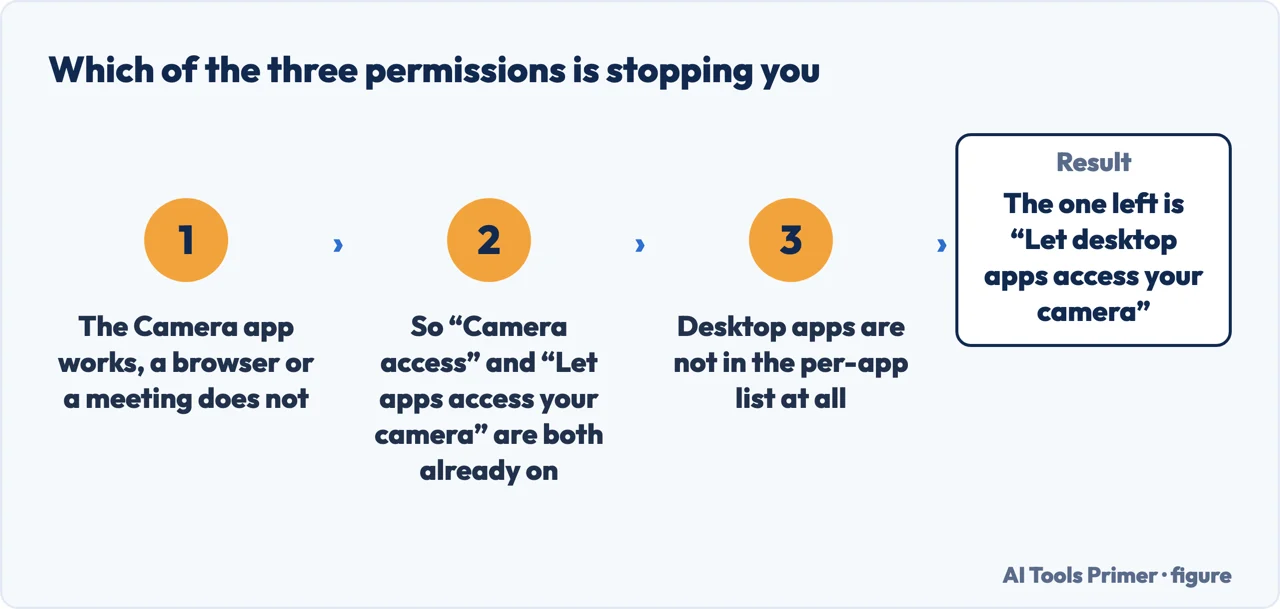
Notice what follows from the third level. If your camera works in the Camera app and fails in a browser or in a meeting, the first two switches are irrelevant — they are on, which is why the Camera app works. The one that matters is the desktop-apps switch, and it does not appear in the per-app list because desktop apps are not in that list at all.
Two manufacturers name a keyboard control for the camera, and they name different keys, each restricted to particular models: Lenovo’s ideapad page says “Simultaneously press the Fn + F8 or F8 keys on the keyboard”, while HP describes something else again: “select HP notebook models come with a webcam privacy switch or a webcam shutter key that turns the webcam off and on”, and on top of that “a webcam privacy cover” to slide. Microsoft names no key at all, which is consistent — the key belongs to the machine, not to Windows — and is also why a Windows-only article can never tell you the camera was switched off in hardware.
Which brings up the physical shutter, and the one warning on the subject that carries a consequence rather than a preference.
Apple, on the sticker or slider that half the internet recommends: the article is titled “Don’t close your MacBook, MacBook Air, or MacBook Pro with a cover over the camera”, and the reason is in its first line: “If you close your Mac laptop with a camera cover installed, you might damage your display because the clearance between the display and keyboard is designed to very tight tolerances.”
There is a second consequence on the same page that has nothing to do with breakage: “Covering the built-in camera might also interfere with the ambient light sensor and prevent features like automatic brightness and True Tone from working.” Apple’s stated alternative is the indicator light itself — the one it guarantees cannot be bypassed. On a machine with a factory shutter or shutter key, use that; on a MacBook, Apple asks you not to improvise one.
A note on where this question gets answered. On the first page of results for it, read on 23 August 2026, the manufacturer documents that carry the three lights above are not gathered in one place — they cannot be, because each manufacturer documents only its own convention. That is the honest reason this comparison is missing from other guides rather than an accusation: nobody who publishes one of these tables has a reason to mention the other two.
What this page will not do is tell you what your light means. It gives three published conventions and the fact that they conflict; the authority for yours is the support page for your own model, and this page names where each of the three came from.
It will not tell you the camera is broken. Every cause above — a shutter, a key, three permission levels, another application holding the device — produces exactly the same symptom as a failed camera, and each of them is free to rule out.
And it will not recommend a webcam cover. One manufacturer publishes a specific warning against adding one to its own laptops, and this page is not going to sell against that.
Three ways in. If a light is on and you do not know what it means, take the first.
Apple and Lenovo publish an activity light: lit means the camera is live. HP publishes a shutter-key light: lit means the camera is off. Neither page mentions the other.
Device access, app access, and a separate switch for desktop apps — which is the one browsers and meeting software need, and the one that cannot be set per app.
Apple publishes a damage warning about closing a MacBook with a camera cover fitted, and a second effect on the ambient light sensor. Its stated alternative is the indicator light.
Not covered here. It will not tell you what the light on your laptop means. Three manufacturers publish two opposite conventions, and only your own model’s documentation settles it.
It will not recommend a webcam cover or sticker. Apple publishes a damage warning against fitting one to its laptops, and selling against a manufacturer’s written warning is not something this site will do.
It will not tell you to update or reinstall the driver first. Every free check above — a shutter, a key, three permission levels — comes before touching drivers.
And it carries no affiliate links, including for external webcams, the products a guide on this subject is usually built to sell. What holds instead is simple: the three indicator conventions come from three manufacturers, and the HP and Lenovo addresses could not be read again because both sites refuse an automated reader.
Four guides: a laptop camera that is not working, sound that is not working, connecting AirPods to a laptop and slow internet.
Written by Alberto Gulotta
Founder and editor of AI Tools Primer, writing from Palermo, Italy. Thirty-five years of taking computers apart, starting with a Commodore 64 — the long version is on the about page.
Something wrong on this page? Write to aitoolsprimer@gmail.com and it gets fixed.
Written on 23 August 2026 · last checked 23 September 2026.
Independence and limits
No affiliate links and no paid placements anywhere on this site. Nobody pays to appear here, and no company has seen this page before you did.
This is general information, not professional advice. Where a page touches money, health, safety or the law, it names its source and the date it was read — and your situation may still differ. See the privacy page and the cookie policy.