
iPhone · guide
App permissions iPhone sorts by information, not by app
By Alberto Gulotta · Updated · 10 min read
Looking up what app permissions iPhone holds for a particular app is harder than it sounds, and the reason is a design choice rather than a fault. Apple’s own description of the screen states it in the first line.
“Tap a category of information, such as Calendars, Reminders, or Motion & Fitness. A list appears showing the apps that requested access.”
That is Apple describing the screen, and it explains why looking up one app’s permissions is harder than it should be. The list is sorted by what is being asked for, not by who is asking. To answer “what does this app have access to?” you have to open every category and look for the app in each one. To answer “which apps can read my calendar?” — one tap. The screen is built for the second question. The first one it answers only by repetition.
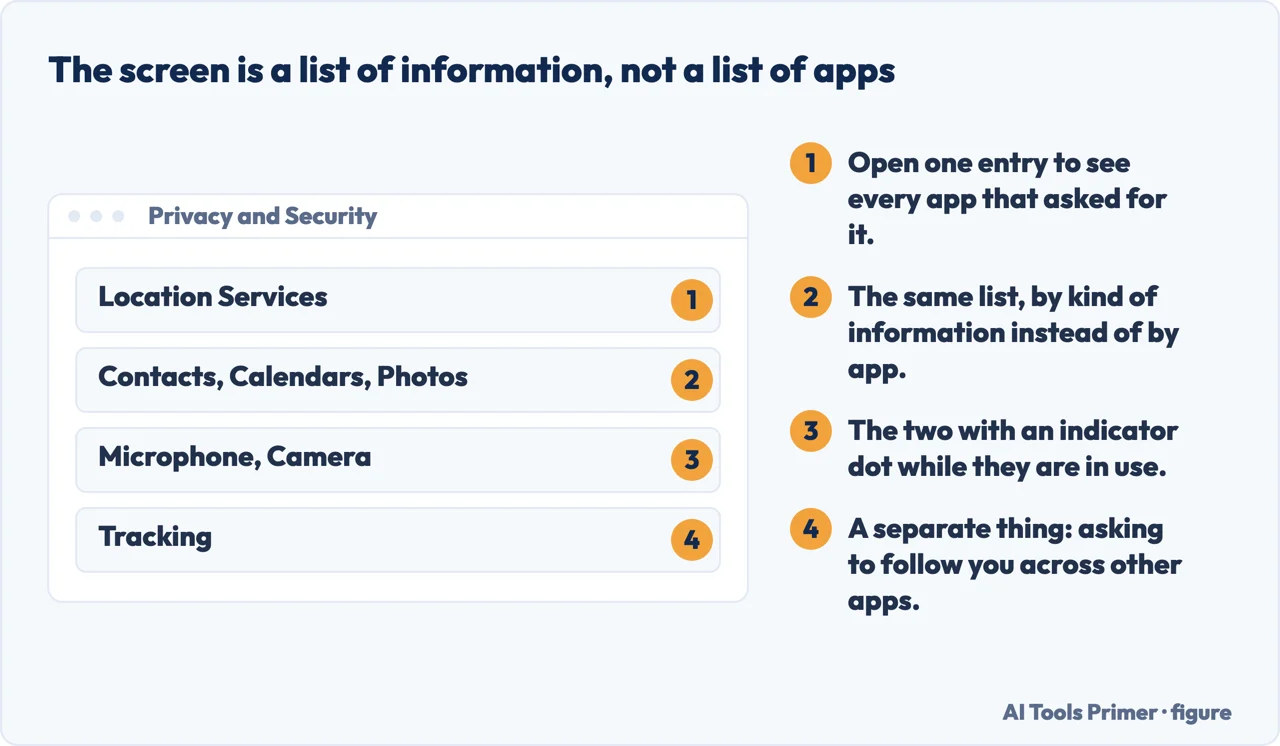
Knowing that turns a frustrating screen into a fast one, as long as you ask it the question it was built for. Going category by category — Contacts, Photos, Calendars, Microphone — and reading the list under each covers every app on the phone in one pass. Chasing a single suspicious app through the same screens is the same work done the hard way.
Four separate things Apple groups under Privacy & Security
All four are reached the same way — Settings → Privacy & Security — and each behaves differently.
- Information in other apps
- Contacts, Photos, Calendar and the rest. Apple: “You can turn access on or off for any individual app.”
- Location
- Its own screen with its own set of states, rather than a simple on and off. Covered on the Location Services guide.
- Camera and microphone
- Granted per app like the rest — and, along with location, one of the two that show an indicator while they are in use.
- Tracking across other companies’ apps and sites
- Not access to anything on the phone. A separate permission with a separate switch, and the only one where you can refuse the question as well as the answer.
The fourth sits in the same screen as the others and is a different kind of thing. Access permissions are about something on your phone — a photo library, a microphone. Tracking is about what happens elsewhere: your activity being followed across other companies’ apps and websites. An app can hold no permissions at all and still ask to track you.
“All apps are required to ask your permission before tracking you or your iPhone across websites or apps owned by other companies (for example, for advertising or to share your information with data brokers)… You can also stop all apps from requesting permission.”
Two things in one paragraph, and the second is the one worth acting on. Granting or refusing tracking app by app is a decision you have to keep making. The other switch removes the question entirely — and Apple’s own description of what tracking is for names the two outcomes plainly: advertising, and sharing your information with data brokers.
Two of the four have something the others do not, and it is the most practical part of this whole subject: an indicator that appears while the thing is happening.
Apple: “Whenever an app uses the camera (including when the camera and microphone are used together), a green indicator appears.” Not a setting and not a summary: it reports, at the moment it happens, something a permissions list cannot.
Apple: “When an app is using Location Services,” the arrow “appears in the status bar.” Same idea, different sense. Both are evidence about now, rather than a record of a decision made months ago.
Both matter because a permission screen is a record of intentions. It says what you agreed to at some point, possibly years ago, possibly while trying to get past a dialogue box. The indicators say what is happening now — and noticing one at a moment you did not expect it is a better prompt to open Settings than any periodic review.
The screen that checks the others. Settings → Privacy & Security → App Privacy Report. Apple: it “shows you how apps are using the permissions you granted them and shows you their network activity.” Permissions tell you what an app may do; this tells you what it has been doing — including where it has been connecting, which no permission screen mentions.
It is off until you turn it on, and Apple documents the way back out: “To turn off the report and delete its data, go to Settings → Privacy & Security → App Privacy Report, then tap Turn Off App Privacy Report.” The record is kept on the phone and is yours to end.
One habit worth having, since none of this needs to be done often. Open Privacy & Security once, work down the categories rather than through the apps, and turn off anything you cannot explain. Apple’s first-request model means every permission on that list was granted by somebody answering a prompt — “after you grant or deny access, you can change access later” — and the ones worth removing are usually the ones granted in a hurry.
The principle underneath the screen, stated by a security agency rather than a phone maker. The UK’s National Cyber Security Centre frames third-party apps as a question of reach rather than trust, and its advice to organisations translates directly to a personal phone: do not let an app reach data unless it is doing the job you installed it for, and prefer software from a curated store to “arbitrary software from outside”. Read that way, the permission screen is not a list of features to switch on. It is a list of reaches to keep short.
The guides below take it three ways: the screen and how it is sorted, the two live indicators and the report behind them, and the neighbouring settings on the same screen.
Where to start
Three ways in.
- “What can this app see?”
- Start at how the screen is sorted
- “Something used my camera.”
- Go to the indicators
- “I want the ads to stop following me.”
- That is tracking
How the screen is sorted
By category of information, not by app. Which makes one question quick and the other slow — and it is usually the slow one people arrive with.
The indicators
A green dot for the camera, an arrow for location. Neither is a setting, and both report at the moment it happens rather than recording a decision.
Tracking
Not a permission to reach something on your phone, but a permission to follow you off it. The only one of the four where you can also switch off the question.
Not covered here. It will not tell you to audit permissions monthly. Apple provides two live indicators, and noticing one is a better prompt than a diary reminder.
It will not recommend a privacy app. Every control here is one Apple documents, on a screen the phone already has.
And it will not treat tracking as another permission. Apple describes it as following you across other companies’ apps and sites, which is a different thing from reading something on the phone. What holds instead is simple: the App Privacy Report and the green camera indicator are quoted from Apple’s iPhone User Guide, along with the requirement that apps ask before tracking.
Sources
- Apple, iPhone User Guide — Control access to information in apps on iPhone (that the first time an app wants information from another app you receive a request with an explanation and can change access later; the route Settings → Privacy & Security, tapping a category of information such as Calendars, Reminders or Motion & Fitness to see a list of the apps that requested access, with access switchable per app; that the App Privacy Report shows how apps are using granted permissions and their network activity; and the route to turn the report off and delete its data) — support.apple.com, read 22 August 2026.
- Apple, iPhone User Guide — Control what you share on iPhone (that apps ask permission the first time they want to use something on the iPhone and that data, location, camera and microphone access are controlled from Settings → Privacy & Security; that when an app is using Location Services an icon appears in the status bar; that whenever an app uses the camera, including with the microphone, a green indicator appears; and that all apps are required to ask permission before tracking you across websites or apps owned by other companies, for example for advertising or to share your information with data brokers, with the option to stop all apps from requesting permission) — support.apple.com, read 22 August 2026.
- National Cyber Security Centre — Using third-party applications on devices: permissions framed as the reach an application is granted, and the case for curated stores — www.ncsc.gov.uk, read 4 September 2026.
Written by Alberto Gulotta
Founder and editor of AI Tools Primer, writing from Palermo, Italy. Thirty-five years of taking computers apart, starting with a Commodore 64 — the long version is on the about page.
Something wrong on this page? Write to aitoolsprimer@gmail.com and it gets fixed.
Written on 22 August 2026 · last checked 23 September 2026.
Independence and limits
No affiliate links and no paid placements anywhere on this site. Nobody pays to appear here, and no company has seen this page before you did.
This is general information, not professional advice. Where a page touches money, health, safety or the law, it names its source and the date it was read — and your situation may still differ. See the privacy page and the cookie policy.