
Images · guide
How to remove metadata from photos — and what stays behind
By Alberto Gulotta · Updated · 9 min read
Asking how to remove metadata from photos can mean one of three things, and the three have different answers. They share a name, they live in three different menus, and only one of them changes what a file carries when it leaves your device — so it is possible to do one of them carefully and still hand over a photograph that says where you were.
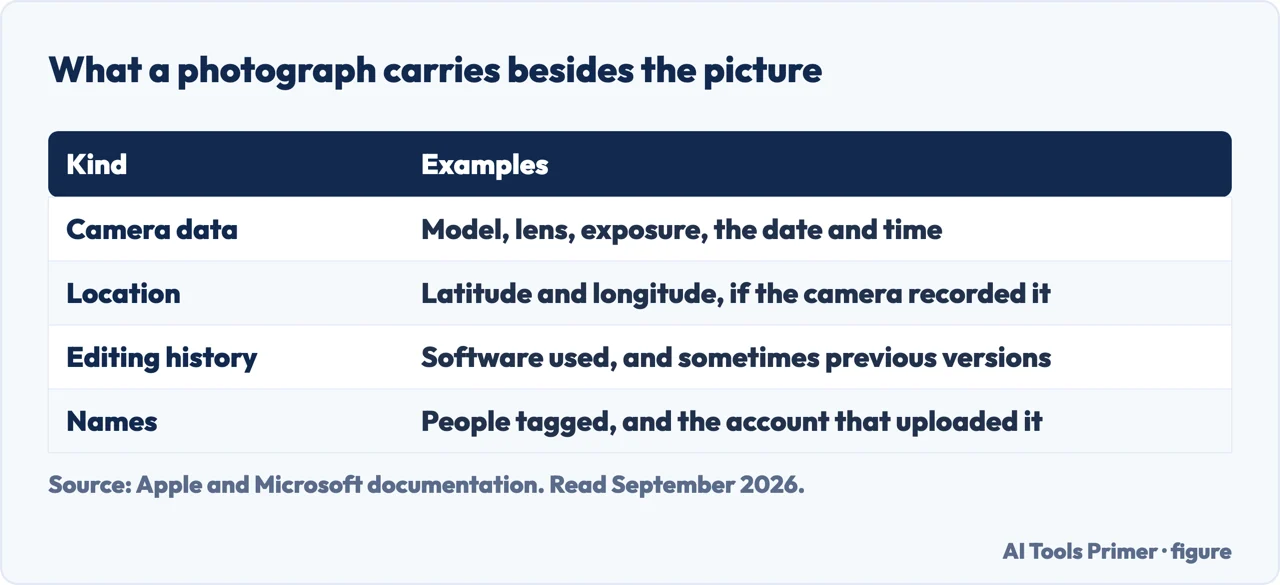
Start with what is in there and how it got there. Apple: when Location Services is on for the Camera, it uses information “gathered from cellular, Wi-Fi, GPS networks, and Bluetooth to determine the location coordinates where the photo or video is taken”, and “these coordinates are embedded into each photo and video”. Embedded, not attached — the coordinates travel with the picture, which is the whole problem and also the whole feature.
“When photos and videos that include location metadata are shared, the people you share them with may be able to access the location metadata and learn where it was taken.”
That is Apple, and the guide it comes from is worth naming: not the iPhone manual and not the Photos manual, but the Personal Safety User Guide. Apple chose to answer this question in a safety document rather than a photo-editing one, and that choice says more about the stakes than anything this guide could add.
It is worth being precise about what the coordinates are good for, because the risk is not abstract. A photograph taken at home carries the address of the home. A photograph of something for sale carries the place it is stored. A set of photographs taken over months carries a pattern. None of that is visible in the picture, and all of it is readable by anybody who receives the file.
Three different jobs that all get called “removing metadata”
They produce different results, and choosing the wrong one is how a photo looks stripped when it is not.
- Take the location off a photo you already have
- iPhone: Photos → Albums → open the photo → the info button → Adjust Location → No Location. Mac: select the photos → Image > Location → Hide Location. Note the Mac menu’s other item, and what it implies — below.
- Send a photo without sending the location, and keep the original intact
- Select the photos, tap the share button, then Options, then turn off Location, then share. Apple documents this separately from removal: a different control, in a different place, doing a different thing.
- Stop the coordinates being written in the first place
- Settings → Privacy & Security → Location Services → Camera → Never. Apple: location metadata “can be collected only if your Camera app has access to Location Services.”
The order of those three is deliberate. The third one is the only one that solves the problem going forward, and it is the only one that costs you something: with Camera set to Never, the Photos app can no longer put your pictures on a map or group them by place. That is a real feature to give up, and whether it is worth giving up depends on who you are worried about — which is a question the setting screen cannot answer for you.
The item next to the one you clicked. On the Mac the menu offers Hide Location — and, beside it, Revert to Original Location. A photo library that can put the location back has not thrown the location away. Apple does not spell out what is kept or for how long, and this guide will not invent it, but the presence of that menu item is a fact about the app rather than an inference: hiding is not the same act as erasing.
Which is exactly why the sharing switch matters more than it looks. If your concern is what the person on the other end receives, the Options → Location toggle addresses that directly and leaves your own copy alone. If your concern is what is inside a file you are about to hand over permanently — a listing, a forum post, a marketplace — check the file that actually leaves, rather than the photo as your library displays it.
On Windows, and a caveat about the source. Microsoft publishes the route: select the files in Explorer, right-click, Properties, the Details tab, Remove Properties and Personal Information. Its description of the dialog contains the part worth knowing: the default option “creates a copy of your file … and removes all properties it can change”, while the second option removes selected properties from the file itself. So the default hands you a new file and leaves the original as it was. The caveat: that article is archived under Microsoft’s previous-versions library and was written for Windows 7. The dialog is still there; its current behaviour is worth confirming on your own screen rather than taken from a page of that age, and this guide is not going to present a Windows 7 tip as a Windows 11 guarantee.
One thing this guide deliberately does not do is send you to a website that strips metadata for you. Whether any particular one of them works is not something this guide has tested, and there is a more basic point to make first: to remove the location data from your photograph, you would be uploading the photograph, with its location data, to somebody else. On a job that both Apple and Microsoft document as a few clicks on the device you are already holding, that is a strange trade to make in the name of privacy.
The guides below take it in three directions: what is actually inside an image file, the routes for taking it out on each system, and the neighbouring settings — because location in a photograph is one instance of a larger question about what your devices record and share.
Where to start
Three ways in.
- “I am about to send a photo to a stranger.”
- Start at what is in the file
- “I want it off the pictures I already have.”
- Go to taking it out
- “I never want it recorded again.”
- That is the settings around it
What is in the file
Coordinates embedded in the picture, gathered from four sources, and readable by whoever receives it. What Apple documents, and what it files the question under.
Taking it out
Three separate jobs with three separate menus. The one people find is not usually the one they wanted, and the difference shows up on somebody else’s screen.
The settings around it
Location in a photograph is one instance of a larger question. These are the switches that decide what gets recorded before there is anything to remove.
Not covered here. It will not send your photograph to a website to have its privacy improved. Both systems document the job locally, and the upload is the opposite of the thing being asked for.
It will not tell you that hiding a location has erased it. The Mac menu offers to put it back, and a guide that ignored that would be telling you something the app contradicts.
And it will not pass off a Windows 7 article as current Windows guidance. The route is Microsoft’s and it still works; the age of the page is stated so you can weigh it. What holds instead is simple: the warning about sharing and each menu path come from Apple’s Personal Safety User Guide, with the Windows route from a Microsoft article whose age this page states.
More on photographs
Other guides on photographs and their formats, in no particular order.
- The same job, in the other places it comes up
- WebP to JPG: why you keep meeting it
- PNG to JPG: what the conversion costs you
- How to convert HEIC to JPG, and how to stop needing to
- How to resize a photo on iPhone, without an app
- How to recover deleted photos from iPhone, and the clock
Sources
- Apple, Personal Safety User Guide — Manage location metadata in Photos (that Location Services gathers coordinates from cellular, Wi-Fi, GPS and Bluetooth and embeds them in each photo and video; that people you share with may be able to access that metadata and learn where it was taken; the Adjust Location → No Location route on iPhone; the Image > Location → Hide Location and Revert to Original Location items on Mac; the Share Sheet Options → Location toggle; and the Settings → Privacy & Security → Location Services → Camera → Never route) — support.apple.com, read 22 August 2026.
- Microsoft Learn, previous-versions library — “Remove Personal metadata from Files to Protect Your Privacy”, a Windows 7 tip drawn from Windows 7 Inside Out (the Explorer → Properties → Details → Remove Properties and Personal Information route, and the two options in the resulting dialog, the default of which creates a copy of the file rather than changing the original) — learn.microsoft.com, read 22 August 2026.
Written by Alberto Gulotta
Founder and editor of AI Tools Primer, writing from Palermo, Italy. Thirty-five years of taking computers apart, starting with a Commodore 64 — the long version is on the about page.
Something wrong on this page? Write to aitoolsprimer@gmail.com and it gets fixed.
Written on 22 August 2026 · last checked 23 September 2026.
Independence and limits
No affiliate links and no paid placements anywhere on this site. Nobody pays to appear here, and no company has seen this page before you did.
This is general information, not professional advice. Where a page touches money, health, safety or the law, it names its source and the date it was read — and your situation may still differ. See the privacy page and the cookie policy.