Every page on this question answers how to share location on iphone with a route, and they are not wrong. They are answering a narrower question than the one being asked, because Apple does not offer one kind of location sharing. It offers three, they live in different apps, and the person at the other end can do quite different things with each.
Share onceMessages · Maps
A pin. Apple: “The person who you share with sees only that location, and they won’t be able
to follow you as you move.”
In Messages: the Plus button, then Location, then the Map Pin button and Send Pin. On iOS 16 or
earlier it was somewhere else entirely — tap the person’s name at the top, then “Send My Current
Location”.
Share on the wayMaps ETA · Check In
Two different things. In Maps you share an estimated arrival time, including your
turn-by-turn directions. In Messages, Check In shares your location only
“if you don’t arrive at your destination as expected”.
Check In is the interesting one and the least known: it is conditional. Nothing is shared while
the journey goes normally.
Share ongoingFind My · Messages
Live Location — the one people mean, and the one with a duration attached. This is the setting
that keeps running after the reason for it has ended.
Set up in Find My: tap Me, turn on Share My Location. Then People, the add
button, Share My Location, name, Send.
Sorted that way, the choice becomes straightforward. Meeting somebody at a station wants a pin. Driving to a friend’s house wants the ETA. Walking home late at night wants Check In, which is the only one of the three designed around something going wrong. And keeping a family in touch wants Live Location — the only one that keeps running after you have put the phone away.
That last one asks a second question, and this is where the real decision is buried.
Then it asks for how long — and this is the whole decision
For one hour
Until the end of the day
Indefinitely
Two of those expire on their own. The third does not, and it is the one people tap because they are
in the middle of something and the question is in the way. An hour covers meeting someone in a
town centre. End of day covers a day out. Indefinitely is not a longer version of those — it is a
different decision, made once, for a relationship, and it stays true through every change in
that relationship until somebody remembers to turn it off.
None of this is an argument against sharing. Families do it, couples do it, friends walking home do it, and it is genuinely useful. It is an argument for choosing the duration on purpose, and for knowing that the third option is a standing arrangement rather than a long one.
Stopping, which is two separate controls
Stop sharing with one person
Find My › People › their name › Stop Sharing My Location › Stop Sharing Location
Hide your location from everyone at once
Find My › Me › Hide My Location
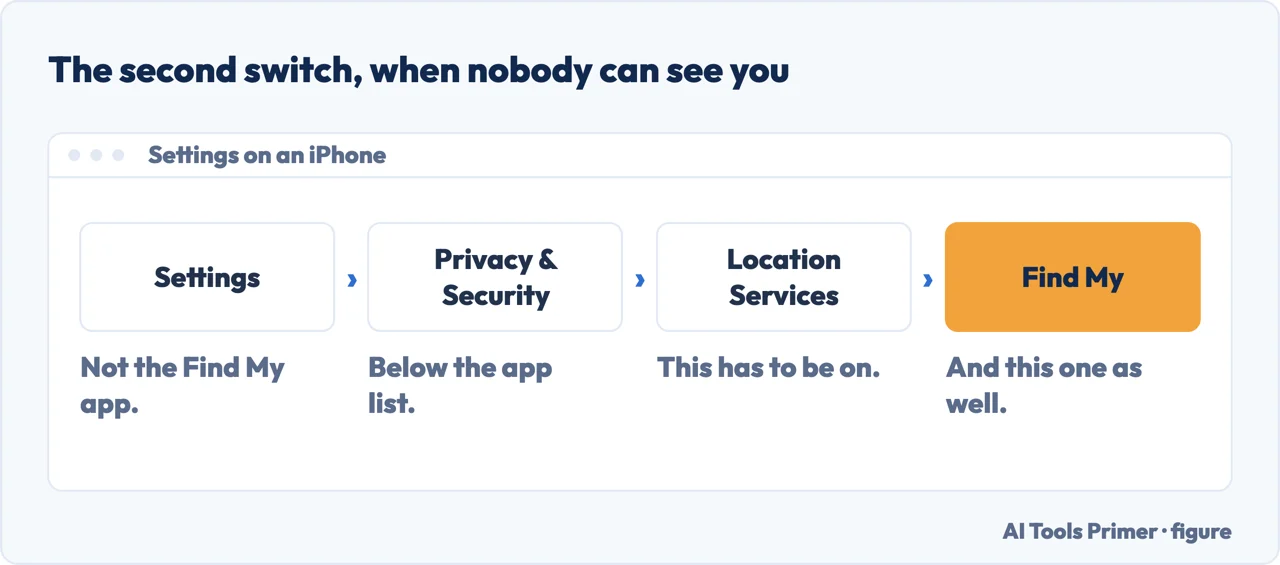
Two switches in two places. Sharing arranged in Find My does nothing while this one is off. Figure drawn by AI Tools Primer.
Notice that those two are not the same and it matters which you use. Stopping with one person is visible in the sense that your name leaves their list. Hiding from everyone is a single switch that covers all of them at once. If the situation is one where you would rather not have a conversation about it, the second is the blunter and quieter instrument.
Then there is the failure that comes up sooner or later: sharing is on, the other person still cannot see you. Apple documents the cause in a short note: “If you set up location sharing and others still can’t see your location, make sure Location Services is on in Settings › Privacy & Security › Location Services › Find My.” Two separate switches, in two separate places, and turning on the first does nothing while the second is off.
A related detail that surprises people and explains some odd readings: if your iPhone is paired with an Apple Watch on a GPS and cellular model, then “your location is shared from your Apple Watch when you’re out of range of your iPhone and Apple Watch is on your wrist.” The dot on somebody else’s map is not always coming from the phone.
Two phrasings of this question deserve separating, because they want different answers. To share my location on iphone is the ongoing arrangement above, set up once in Find My. To share location on iphone through text is the pin: it happens inside a single conversation, it goes to one person, and it stops being useful the moment you walk away from the spot. Sending a pin does not switch anything on.
You can also give the place a name. In Find My, tap Me, then Location Label, and choose or write one — Home, Work, or anything else. It is cosmetic, and it makes a shared map considerably easier to read at a glance.
One last practical note: some of these options need iOS 17. Apple says so directly — “If you don’t see an option, update your iPhone to the latest software version” — which is worth checking before concluding that a feature has been removed or that you are looking in the wrong place.
Apple is not the only way to share a location from an iPhone, and the alternative draws the duration line somewhere else. Google documents Location Sharing in Google Maps for iPhone and iPad, and most of what it offers runs out on its own. A location sent as a link expires without anybody remembering it: “your real-time location can be shared with people who have this link for up to 24 hours”. Inside iMessage the offer is “share your real time location for 1 hour”, which “you can extend… up to 3 days”. A shared journey ends by itself: “when you reach your destination or stop navigation, you stop sharing your location.” Google does have an Until you turn this off setting as well, so the standing arrangement exists on both sides — what differs is that around it, on this one, almost everything has an expiry written in.
The guides below take it four ways: the three kinds in detail, the duration and how to think about it, stopping and hiding, and what to do when sharing simply does not work.
Location on this phone is not only about sharing deliberately. These guides cover the settings around it, and the case where somebody is being tracked rather than sharing.
Not covered here. It will not tell you to turn location sharing off. It is useful, families rely on it, and the honest advice is about which kind and for how long.
It will not recommend a tracking app. Apple ships three ways to do this and none of them require giving a third party a permanent view of where you are.
And it will not help anybody track somebody without their knowledge. Every route on this guide is one the other person can see and switch off, which is the design and the point. What holds instead is simple: the three kinds of sharing and the stopping controls are Apple’s own wording, with the duration options.
When the phone is not where you left it
What can be done afterwards depends entirely on what was switched on before.
Apple Support — Share your location with iPhone (the three kinds of sharing, what a one-time pin does and does not allow, Check In, the ETA share and the iOS 17 requirement) — support.apple.com, read 22 August 2026.
Apple — iPhone User Guide, Share your location in Find My on iPhone (the setup route, the duration choice, both ways of stopping, the Location Services note and the Apple Watch behaviour) — support.apple.com, read 22 August 2026.
Google Maps Help — Share your real-time location with others in Google Maps, iPhone and iPad (that a location sent as a link can be seen by people who have it for up to 24 hours; that the iMessage route offers to share a real-time location for 1 hour and that it can be extended up to 3 days; that sharing trip progress ends when you reach your destination or stop navigation; and that Until you turn this off is one of the durations offered) — support.google.com, read 5 September 2026.
AG
Written by Alberto Gulotta
Founder and editor of AI Tools Primer, writing from Palermo, Italy. Thirty-five years of
taking computers apart, starting with a Commodore 64 — the long version is on the
about page.
Written on 22 August 2026 · last checked 23 September 2026.
§
Independence and limits
No affiliate links and no paid placements anywhere on this site. Nobody pays to appear here,
and no company has seen this page before you did.
This is general information, not professional advice. Where a page touches money, health,
safety or the law, it names its source and the date it was read — and your situation may
still differ. See the privacy page and the
cookie policy.