Block
Settings › Privacy & Security › Blocked Contacts
One number at a time, chosen by you, kept until you remove it. Good against a person. Useless against spam, which never calls twice from the same number.

Software · guide
By Alberto Gulotta · Updated · 10 min read
To block a number on iphone takes four taps, and every page on the first results screen will give you those four taps. Almost none of them will tell you what happens afterwards, which is the part that decides whether blocking was the right move at all.
The taps first, because you came for them. Open Phone, tap Recents, tap the number or the Info button beside it, scroll down, tap Block Caller. The same last step exists in FaceTime and in Messages — open the conversation, tap the contact at the top, scroll, Block Caller. Mail is the one that is worded differently: open the email, tap the contact at the top, tap View Contact Card, then Block this Contact.
There is also a route that does not need the person to have contacted you yet. In iOS 26 it is Settings › Privacy & Security › Blocked Contacts › Add Blocked Contact. That location is worth noting, because for years the list lived inside the Phone settings, so anything written before the move sends you to the wrong screen. Unblocking is the same screen: Edit, the delete button next to the name, then Unblock.
What blocking actually does
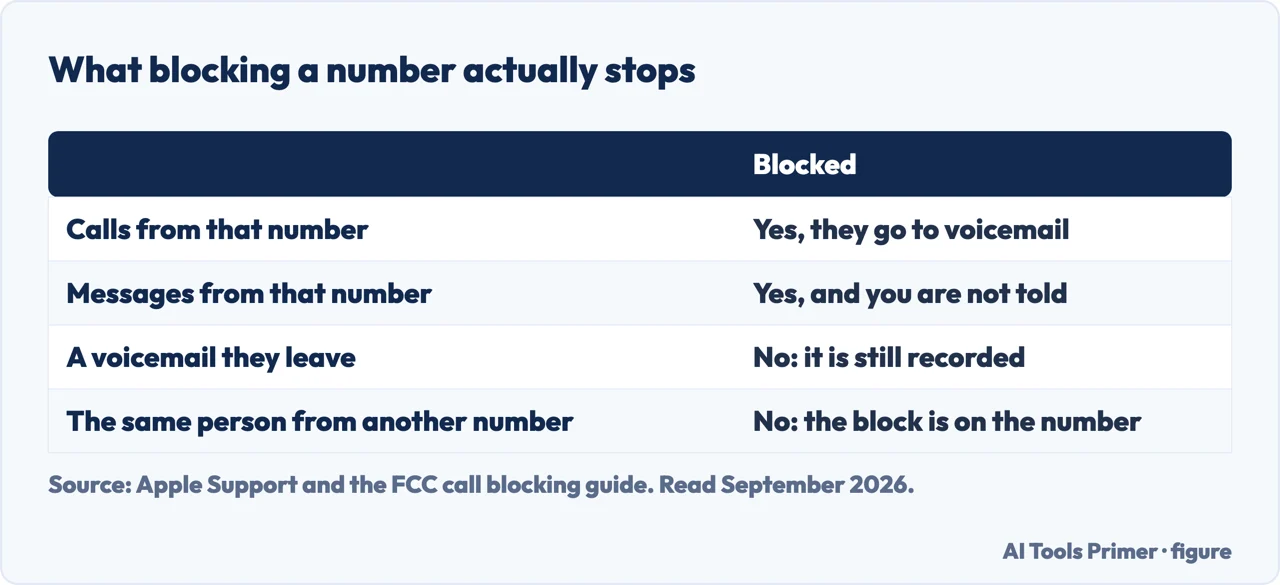
Apple's own description of the consequences, in the order they surprise people.
Two of those four are not what the word “block” suggests. Blocking hides things from you; it does not stop them arriving. If the point was to stop a specific person contacting you at all, that is a different job, and the last wing below is about it.
It is worth being precise about what you are blocking, because Apple’s own title lists three different things: phone numbers, contacts, and email addresses. Blocking also decides nothing about what somebody can do with your number, which is a shorter list than it sounds and has four free settings against it. They are not equivalent. To block a phone number on iphone is to block that one number; blocking a contact covers every number and address on their card. Somebody with a second SIM or a work handset is still getting through, and that is the ordinary reason a person who tried to block a number from calling finds the calls have not stopped.
That voicemail line is the one that matters. A number you have blocked can still fill your voicemail box, silently, indefinitely — which is a reason to know how voicemail is set up and how the greeting is changed. If the reason for blocking was that somebody would not stop ringing, they have not stopped — you have simply stopped being told.
The second thing worth knowing is that blocking is one of three separate mechanisms, kept in three different places in Settings, and nothing on any of the three screens mentions the other two.
Block
Settings › Privacy & Security › Blocked Contacts
One number at a time, chosen by you, kept until you remove it. Good against a person. Useless against spam, which never calls twice from the same number.
Screen
Settings › Apps › Phone › Screen Unknown Callers
Applies to every number not in your contacts. Three settings: Never, Silence, or Ask Reason for Calling — where the caller is asked why they are ringing before your phone rings at all.
Filter
Settings › Apps › Phone › Call Filtering
Sorting, not stopping. Unknown Callers and Spam each get their own list, reached with the Filter button. Spam here is whatever your carrier flagged, not what Apple decided.
Which of the three you want comes down to a single question: do you know who is calling? If it is one person, blocking is the right tool and it works. If it is a stream of numbers you have never seen, blocking is the wrong tool by design — each block covers exactly one number, and the supply of numbers is effectively infinite. That is the case for screening, which ignores the number entirely and asks only whether the caller is in your contacts.
Of the three screening settings, Ask Reason for Calling is the interesting one and the newest. Rather than silencing the call, it makes the caller state their business before your phone rings, and you see what they said. A courier gets through. What an automated dialler makes of the question, Apple does not say — only that the caller is asked before your phone rings at all.
Two limits Apple states and almost nobody repeats. “If you’re roaming, phone calls are not screened, regardless of settings.” The setting is still on; it simply is not working, and the first you know of it is a holiday full of calls you thought you had silenced.
And: “If you call emergency services, call screening turns off for 24 hours.” That one is deliberate and worth understanding rather than switching off — after an emergency call, the people ringing you back are strangers to your contacts list.
One last piece of housekeeping, because it changes what these settings are called on your screen. The Phone app now has two layouts, Classic and Unified, and the Filter button that shows your Unknown Callers and Spam lists sits in the Recents tab in Classic and in the Calls tab in Unified. On software older than iOS 17, screening also needs Live Voicemail switched on first.
What blocking cannot reach, from the regulator. The FCC’s consumer guidance is about the layer above the handset: “call blocking is a tool used by phone companies to stop illegal and unwanted calls from reaching your phone”, and “billions of unwanted calls to American consumers are being blocked each year” before they arrive, with phone companies that “may proactively block calls connected to suspicious calling patterns”. The practical consequence for a block list on a phone: it stops one number, and the calls that bother people most are not made from one number. That is a limit of the tool, not a fault in how you used it.
The guides below take the four situations separately: blocking one person, drowning in strangers, unwanted text messages rather than calls, and the case where blocking is not enough and the question stops being technical.
Four ways in.
The case blocking was designed for: a number you recognise, that you want gone, permanently. These guides cover the routes, the list itself, and the questions people ask afterwards.
When there is no number to block because there is a new one every day. This is the screening and filtering half of the section, and it is the half that addresses a number you cannot block.
Different apps, different wording, and different consequences. Blocking an email address in particular does something the word does not suggest.
The wing that exists because the technical answer runs out. If contact continues through new numbers, other apps, or other people, the problem has stopped being a settings problem.
Not covered here. It will not tell you blocking is a solution to spam. Each block covers one number, spam has an unlimited supply of numbers, and Apple built two other mechanisms precisely because of that.
It will not recommend a third-party call blocker. That is an app given permission to see who is calling you, and the ones worth having are not the ones that advertise.
And it will not invent a menu. Every path on this guide is quoted from Apple’s current support pages, with the iOS version stated where the location has moved. What holds instead is simple: every setting path and every consequence on this page is taken from Apple’s own support documentation, with the publication dates below.
Written by Alberto Gulotta
Founder and editor of AI Tools Primer, writing from Palermo, Italy. Thirty-five years of taking computers apart, starting with a Commodore 64 — the long version is on the about page.
Something wrong on this page? Write to aitoolsprimer@gmail.com and it gets fixed.
Written on 22 August 2026 · last checked 17 September 2026.
Independence and limits
No affiliate links and no paid placements anywhere on this site. Nobody pays to appear here, and no company has seen this page before you did.
This is general information, not professional advice. Where a page touches money, health, safety or the law, it names its source and the date it was read — and your situation may still differ. See the privacy page and the cookie policy.