
Software · guide
How to stop spam calls on iPhone, and what each setting costs
By Alberto Gulotta · Updated · 12 min read
There is no single switch for how to stop spam calls on iPhone. Apple documents four different mechanisms, they sit on the same settings screen, and they are easy to mistake for four versions of one feature. They are not. One of them labels calls, one answers them, one sorts them, and one blocks a person — and only one of the four is actually aimed at spam.
Four separate mechanisms, all in Settings → Apps → Phone
Apple documents them as different features doing different jobs. Turning one on does not turn on the others.
- Identification
- Call Blocking & Identification. iPhone “can help identify incoming calls using information from Apple Business Connect, supported carriers, and supported call identification apps.” This labels a call. It does not stop one.
- Screening
- Three states — Never, Ask Reason for Calling, or Silence. They are not degrees of the same thing: the middle one answers, the last one does not.
- Filtering
- Two switches. Unknown Callers: calls from unknown numbers “are removed from your Recents list and sent to the Unknown Callers list.” Spam: calls “identified by your carrier as potential spam or fraud are silenced, sent to voicemail, and moved to the Spam list.”
- Blocking
- One contact at a time, from the Phone app or the Blocked Contacts screen. The narrowest of the four: a rule about one person rather than about a category.
Take screening first, because it is the only one of the four that does something on your behalf rather than sorting what has already happened. Apple describes Call Screening as something that “automatically answers calls from unknown numbers without interrupting you. After the caller shares their name and reason for their call, your iPhone rings and shares their response so you can decide if you want to pick up.” The phone opens the conversation and hands it to you already started.
The middle option is the only one on this page that separates callers by what they say rather than by whether you have saved them. A delivery driver gives a reason. A recorded sales call has nothing useful to offer. Neither is in your contacts, so under every other setting here the two are treated identically.
“Silence: Calls from unsaved numbers will be silenced, sent to voicemail, and appear in the Recents list.”
Read the middle two words carefully, because they are the whole trade. The setting does not silence spam — it silences anything not in your contacts. The pharmacy calling about a prescription, a delivery driver outside your door, a school, a hospital, a job interview, a number you have not saved yet: all of it goes the same way as the fraud. Apple describes the behaviour precisely and leaves the judgement to you, which is the right division of labour. This guide’s only addition is to say the quiet part: this is the strongest setting on the list and it is strong because it is indiscriminate.
That is the honest cost of the strongest setting, and it is worth weighing rather than skipping. Note what Apple says survives it: the calls are “sent to voicemail” and still “appear in the Recents list”. Silence is not deletion. What you lose is the interruption — which is exactly what you want to lose from a fraudster and exactly what you do not want to lose from a hospital.
The one that catches spam specifically, and where it gets its opinion. Apple’s Spam filter acts on calls “identified by your carrier as potential spam or fraud”. The judgement is not made on the phone. Your handset is applying a verdict reached elsewhere, which has one practical consequence: the quality of this filter is a property of your network rather than of your device, and Apple documents no setting on the handset that adjusts it.
The identification features have the same shape. Apple names three sources — Apple Business Connect, supported carriers, and supported call identification apps — and the word doing the work in two of those is supported. Where none of the three has an opinion about an incoming number, the phone has nothing to display and nothing to filter on.
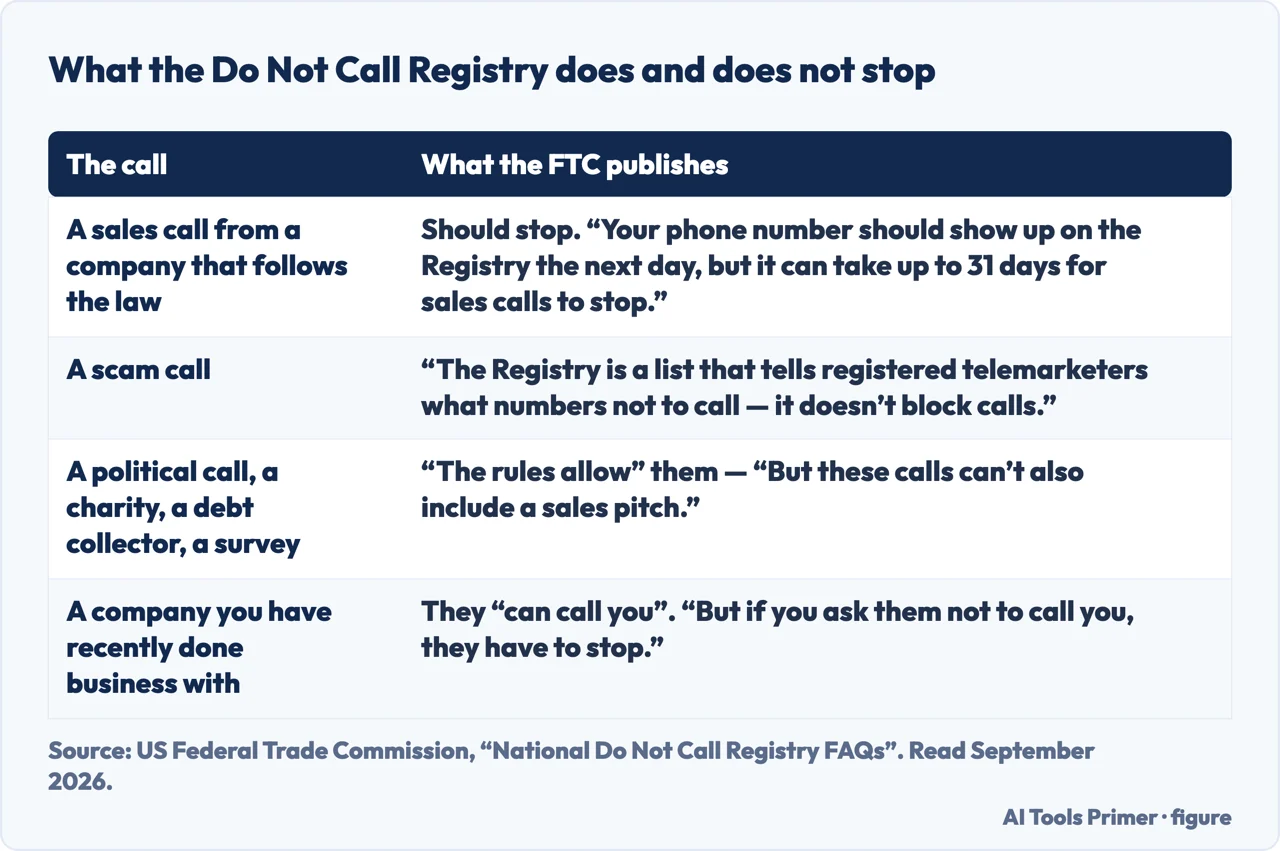
And the list that is not on the phone at all. The four settings above act on calls that have already arrived; the other half of this subject is a register kept by a regulator, and the US Federal Trade Commission is careful about what it is. “The Registry is a list that tells registered telemarketers what numbers not to call — it doesn’t block calls.” It stops the companies that follow the law, not the ones that do not: “being on the Registry won’t stop calls from scammers making illegal calls.” The timing is published too — a number “should show up on the Registry the next day, but it can take up to 31 days for sales calls to stop” — and so is the list of what is still allowed: under the heading “The rules allow”, the FTC lists political calls, charitable calls, debt collection calls, purely informational calls and surveys, one per line — on the condition that “these calls can’t also include a sales pitch”. Registering is free and “will never expire”, which makes it worth doing. It is also worth knowing what it will not do, rather than waiting for a silence that is not coming.
The filtering pair is the part that most repays understanding, because the two switches do different things and only one is about spam. Unknown Callers is a rule about your contacts: not in them, moved out of Recents and into a separate list. Spam is a rule about your carrier’s judgement: flagged as potential spam or fraud, silenced, sent to voicemail, moved to the Spam list. The first will catch every unfamiliar number including the useful ones. The second catches only what somebody upstream has already decided is bad. Either way the call ends up in the voicemail box, which is worth setting up with a greeting of your own.
Apple also documents a correction mechanism, which matters because any of this can be wrong. An unknown caller can be marked as known — Phone app, the Unknown Callers list, Mark as Known — “to prevent future calls from being sent to the Unknown Callers list”. And the reverse exists too: tap Contacts twice, then Other Known, then the number, then Mark as Unknown. So the phone keeps a third category alongside your contacts and everybody else, and you can move numbers between them without saving anybody to your address book.
Blocking sits at the other end of the scale and is the narrowest tool here — one contact, one rule — which is why it belongs at the end of this list rather than the beginning. It is the right answer for a specific person and the wrong answer for a category of call.
What this guide covers. Everything here is quoted from Apple’s iPhone User Guide, which describes iOS as it currently ships. Call Screening with the three states, and the separate Unknown Callers and Spam filters, are recent additions — on an older iPhone the Phone settings screen will be shorter, and some of these controls will not be there. The wording Apple uses is reproduced rather than paraphrased so you can match it against what is actually on your screen.
The guides below take it three ways: the settings and what each is aimed at, the trade in the strongest of them, and the neighbouring problems — messages rather than calls, and the calls that are after something rather than merely unwanted.
Where to start
Three ways in.
- “Which setting do I actually want?”
- Start at the four settings
- “I turned it on and missed a real call.”
- Go to the cost of silence
- “The calls are trying to scam me.”
- That is when it is not just spam
The four settings
Identification, screening, filtering and blocking. One labels, one answers, one sorts, one blocks a person — and only the Spam filter is aimed at spam as such.
The cost of silence
Apple’s wording is “unsaved numbers”, not spam. The strongest setting on the screen is strong because it does not discriminate, and the calls it silences include the ones you wanted.
When it is not just spam
A call that wants money or information is a different problem from a call that wants your attention. These guides are about the second kind.
Not covered here. It will not tell you Silence stops spam. Apple’s own wording is “unsaved numbers”, and the difference between those two things is the most important sentence on this guide.
It will not recommend a call-blocking app. Apple supports them as an identification source, but judging which ones work needs testing this guide has not done.
And it will not promise the Spam filter improves. That judgement is made by your carrier, not by your phone, and there is nothing on the handset to tune. What holds instead is simple: the four mechanisms are Apple’s own, and so is the wording of the three Call Screening states, quoted from the iPhone User Guide.
Sources
- Apple, iPhone User Guide — Screen and block calls on iPhone (that iPhone can identify incoming calls using information from Apple Business Connect, supported carriers and supported call identification apps, via Settings → Apps → Phone → Call Blocking & Identification; that Call Screening automatically answers calls from unknown numbers and reports the caller’s name and reason before the iPhone rings; the three states Never, Ask Reason for Calling and Silence, with Silence sending calls from unsaved numbers to voicemail while leaving them in the Recents list; the two filtering switches, where Unknown Callers removes calls from Recents into a separate list and Spam acts on calls identified by your carrier as potential spam or fraud; the Mark as Known and Mark as Unknown routes; and the route to block and unblock a specific contact) — support.apple.com, read 16 September 2026.
- Apple, Block phone numbers, contacts, and emails on your iPhone or iPad (the routes to block a caller from Phone, FaceTime, Messages and Mail, the Settings → Privacy & Security → Blocked Contacts screen, and that a blocked contact can still leave a voicemail without notifying you and receives no notification that the call was blocked) — support.apple.com, read 22 August 2026.
- US Federal Trade Commission — National Do Not Call Registry FAQs (that the Registry is a list that tells registered telemarketers what numbers not to call rather than something that blocks calls, so being on it will not stop calls from scammers making illegal calls; that a number should show up on the Registry the next day but it can take up to 31 days for sales calls to stop; that registration will never expire; that the rules still allow political calls, charitable calls, debt collection calls, purely informational calls and surveys, provided they do not also include a sales pitch; and that a company you have recently done business with may call but must stop if you ask it to) — consumer.ftc.gov, read 16 September 2026.
Written by Alberto Gulotta
Founder and editor of AI Tools Primer, writing from Palermo, Italy. Thirty-five years of taking computers apart, starting with a Commodore 64 — the long version is on the about page.
Something wrong on this page? Write to aitoolsprimer@gmail.com and it gets fixed.
Written on 22 August 2026 · last checked 23 September 2026.
Independence and limits
No affiliate links and no paid placements anywhere on this site. Nobody pays to appear here, and no company has seen this page before you did.
This is general information, not professional advice. Where a page touches money, health, safety or the law, it names its source and the date it was read — and your situation may still differ. See the privacy page and the cookie policy.