
Per app: Show Previews → Always, When Unlocked, or Never. The alert still arrives; what it says does not appear on a locked screen.
Software · guide
How to turn off notifications on iPhone without losing them
By Alberto Gulotta · Updated · 8 min read
The switch exists and it is easy to find. But how to turn off notifications on iphone and “stop being interrupted by this app” are two different requests, and only the first is what the switch does. Apple documents three lighter settings for the second, and they are worth seeing before you reach for the blunt one.
The switch itself, by two doors
Settings › Apps › the app › Notifications › Allow Notifications Settings › Notifications › the app › Allow NotificationsApple documents both routes and they reach the same switch. The first is where you go if you are thinking about an app; the second if you are thinking about the noise.
And one line worth knowing before you go looking: “If Notifications doesn’t appear, the app might not be able to send notifications.” An app with no such screen is not hiding it.
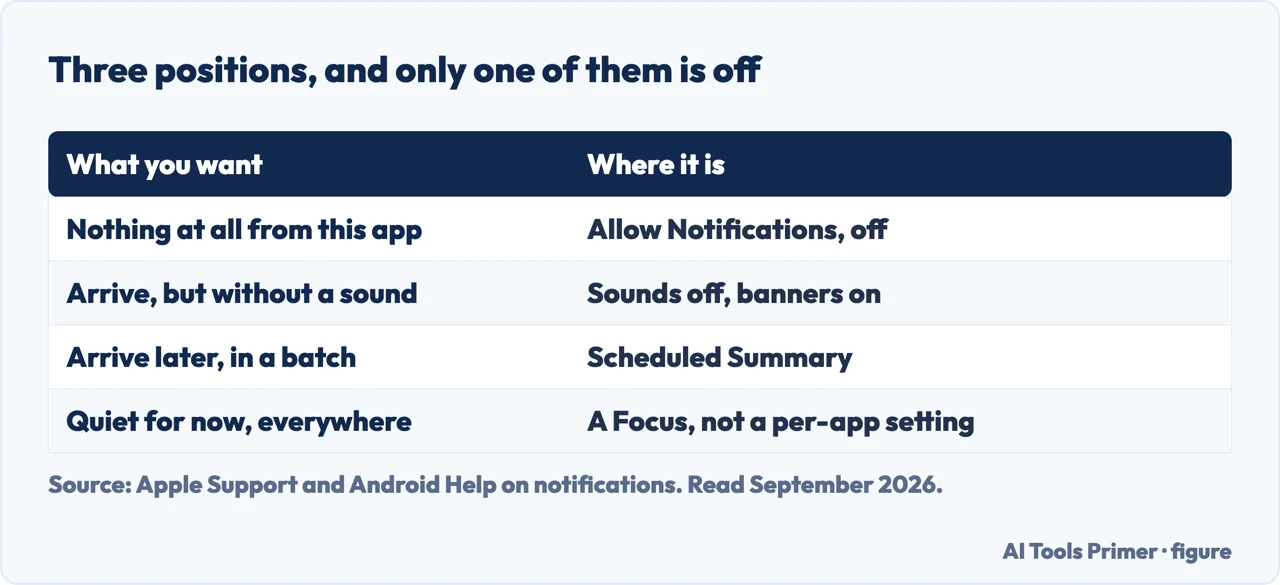
That is the blunt end, and for a game that has started sending you offers it is the right answer. For a messaging app you actually use, it is not — turning it off means finding out later, on your own initiative, that somebody needed you. The three settings below keep the message and remove the thing you did not want.
Scheduled Summary: choose times of day, choose which apps, and they arrive together instead of one at a time — Apple’s stated purpose is “to minimize interruptions from notifications throughout the day”.
A Focus. And the important detail: Apple says it “delays the delivery of notifications”, and you can schedule a summary of the ones you missed. Delayed, not discarded.
Show Previews: Always · When Unlocked · Never
Three options, per app, and the middle one answers a version of this problem the switch cannot. The banner still appears; the message inside it does not, until the phone recognises you. Apple notes what previews can contain — “text (from Messages and Mail) and invitation details (from Calendar)” — which is precisely the material you would rather not have on a screen lying face-up on a table.
The second of the three is the one that changes a day rather than a screen. A Scheduled Summary collects notifications from the apps you choose and delivers them at times you choose, which turns a stream into an edition. Apple’s setup is deliberately granular: you schedule the times, then go through the app list — sorted A to Z — and pick which apps join the summary and which keep arriving immediately. The point is that it is not all or nothing: the two people who must reach you can stay in the stream while everything else waits for six o’clock.
The third deserves one clarification, because it is the difference between a feature and a risk. Apple’s wording is that a Focus “delays the delivery of notifications” — and that you can “schedule a time to receive a summary of the notifications you missed”. Delayed, then delivered. That is not the same as switching an app off, and knowing it is what makes a Focus usable during work rather than something to be nervous about.
Every switch above is per app, which means none of them touches the category sitting at the bottom of the same Notifications screen. Apple: “in some countries or regions, you can turn on alerts in the Government Alerts list. For example, on iPhone in the United States, you can receive National Alerts, and you can turn AMBER, Public Safety, and Emergency Alerts (which include both Severe and Extreme Imminent Threat Alerts) on or off (they’re on by default).” Elsewhere the list differs: “on iPhone in Japan, you can receive Emergency Earthquake Alerts from the Japan Meteorological Agency.”
The route is the one nobody scrolls to: “go to the Settings app on your iPhone. Tap Notifications, scroll down to the Government Alerts section, then turn on the alerts you want to receive.” It is below every app in the list, which is why a phone that has been silenced app by app can still sound at three in the morning.
Worth deciding rather than defaulting, in both directions. These are the alerts that are meant to override a silenced phone — which is exactly the argument for leaving the imminent-threat ones on, and exactly the argument for knowing where the AMBER switch is if that is the one waking you.
And a gesture that is not written anywhere on the screen it applies to. The Lock Screen can show notifications three ways — Count, Stack or List — chosen in Settings › Notifications. But Apple also gives a shortcut: “When notifications arrive, you can change the layout by pinching the notifications on the Lock Screen.”
Count is the quietest of the three: a number rather than a pile. For a phone that feels busy without any app being at fault, it is a smaller change than turning anything off, and it is two fingers away.
One practical order for anybody who has arrived here at the end of a noisy day. Start with Show Previews → When Unlocked, because it costs nothing and fixes the version of this problem that is really about privacy. Then set a Scheduled Summary for the apps you read but never urgently. Then, and only then, turn off the ones that are left. In that order the apps you finally silence are the ones that survived two gentler questions, rather than whichever ones happened to buzz last.
The other phone offers the same middle ground, under different names. Android separates turning notifications off from turning them quiet, and lets a notification be silent, delayed to a daily summary, or blocked entirely — the same three positions this page describes. Worth knowing if you move between the two: the setting you want is almost never “off”. It is “not now”, and both systems have it under a name that does not include the word.
The guides below take it four ways: the switch itself, hiding what a notification says, batching them, and the difference between silenced and delayed.
Where to start
Four ways in.
- “Will I lose what arrives?”
- That is silenced or delayed
Silenced or delayed
The distinction that decides whether a Focus is a tool or a risk. Apple says delivery is delayed, and that the missed ones can be summarised.
Not covered here. It will not treat turning an app off as the default answer. Apple documents three lighter settings, and one of them is usually what was wanted.
It will not describe a Focus as switching notifications off. Apple’s word is delayed, and the missed ones can be summarised.
And it will not suggest a third-party app for this. Everything on this guide is one screen deep in Settings, and one of the useful parts is a gesture rather than a setting. What holds instead is simple: the Show Previews options and the note that a Focus delays delivery are Apple’s own wording.
How the phone tells you something happened
Four settings that decide whether it rings, buzzes, waits or says nothing at all.
- The same job, in the other places it comes up
- How to change ringtone on iPhone, including for one person
- How to turn off do not disturb on iPhone when it keeps coming back
- How to silence unknown callers on iPhone, and how to undo it
Sources
- Apple Support — Turn notifications on or off for a specific app on your iPhone (the Settings › Apps route to Allow Notifications, and the note that if Notifications does not appear the app might not be able to send them). Published date given on the page: 7 April 2026 — support.apple.com, read 22 August 2026.
- Apple — iPhone User Guide, Change notification settings on iPhone (the Count, Stack and List layouts and the pinch gesture, the Settings › Notifications route to Allow Notifications, the Show Previews options Always, When Unlocked and Never with what a preview can contain, the Scheduled Summary setup with its stated purpose and its A to Z app list, and the statement that a Focus delays the delivery of notifications with a summary of missed ones) — support.apple.com, read 22 August 2026.
- Android Help — Control notifications on Android: silent, delayed and blocked as three separate positions on the other phone, rather than one switch — support.google.com, read 4 September 2026.
Written by Alberto Gulotta
Founder and editor of AI Tools Primer, writing from Palermo, Italy. Thirty-five years of taking computers apart, starting with a Commodore 64 — the long version is on the about page.
Something wrong on this page? Write to aitoolsprimer@gmail.com and it gets fixed.
Written on 22 August 2026 · last checked 23 September 2026.
Independence and limits
No affiliate links and no paid placements anywhere on this site. Nobody pays to appear here, and no company has seen this page before you did.
This is general information, not professional advice. Where a page touches money, health, safety or the law, it names its source and the date it was read — and your situation may still differ. See the privacy page and the cookie policy.