
Software · guide
How to turn off read receipts, and the setting that overrides it
By Alberto Gulotta · Updated · 11 min read
The question how to turn off read receipts sounds like it has a one-line answer, and on the surface it does: one switch in Messages, off. What complicates it is that Apple documents two levels of the setting — one for everybody, one per conversation — and attaches a note to each saying which of the two wins. Those notes sit below the instructions, and they are the part worth reading twice.
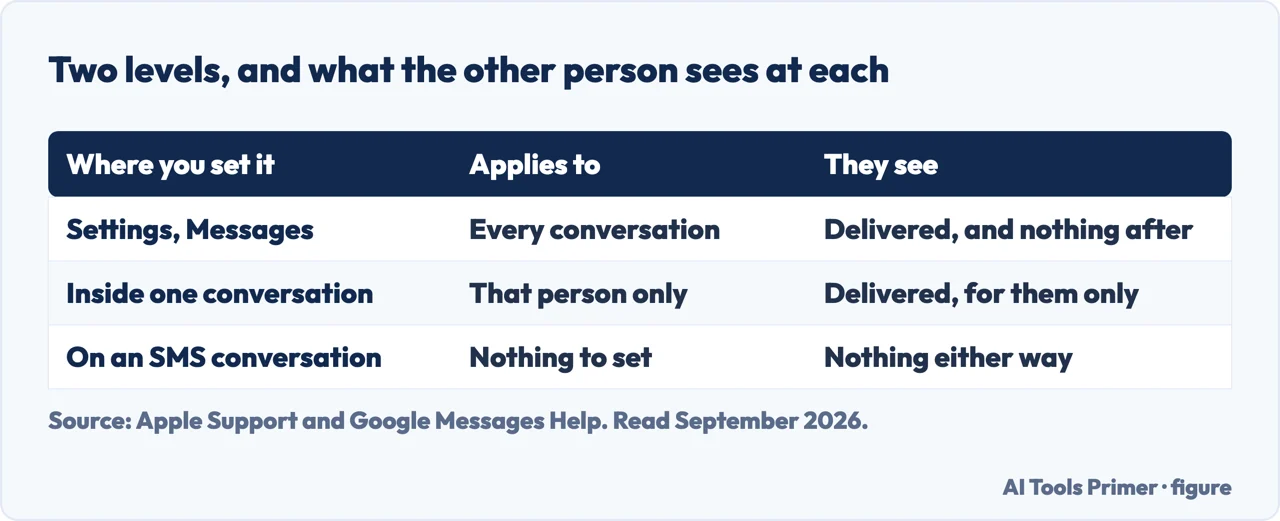
Start with what the setting actually sends, because it is narrower than it feels.
What the sender sees, in Apple’s words, “if you haven’t read their message”. It is also what they keep seeing after you turn read receipts off — the message still reports that it arrived. Turning the setting off hides one word, not the other.
What the sender sees “below messages they’ve sent to you, indicating that you’ve read their message”. This is the only word the setting controls, and it is sent by your device about your reading — never about theirs.
That distinction matters before you change anything. Turning read receipts off does not make you invisible; it removes one word. By Apple’s own description the sender still sees “Delivered”, so the message goes on reporting that it reached your device. What disappears is the confirmation that you opened it.
The same setting, described twice by Apple — and the two notes do not agree about who wins
“Note: This action affects only those conversations with contacts whose read receipts you never turned on individually.”
“Note: If you turned off read receipts for a particular contact, you have to turn the setting back on for that one contact individually.”
The first note is attached to turning the main switch off; the second to turning it on. Read together they say the same thing in both directions: anything you set for one person outranks the setting for everybody. So the main switch is not a master switch at all. It is the default for conversations you have never touched individually — and it leaves every conversation you did touch exactly as you left it.
This is the whole reason the setting appears not to work. Someone turns Send Read Receipts off for everybody, checks with the one person they were worried about, and finds that person still seeing “Read”. Nothing is broken. At some earlier point read receipts were turned on inside that one conversation, and an individual setting is precisely the thing the general switch is documented not to touch.
So the honest instruction is two instructions. Turn the main setting off, then open the conversations you actually care about and check each one. Apple gives no screen that lists the contacts you have set individually, which means there is no way to audit them except one at a time.
The four places the setting lives
Two devices, two levels each. The paths are Apple’s, from the iPhone and Messages user guides.
- iPhone · everybody
- Settings → Apps → Messages → turn off Send Read Receipts. Messages sits inside Apps, not at the top level of Settings.
- iPhone · one person
- Messages → tap a conversation → tap the contact icon at the top → turn off Send Read Receipts. The same screen turns it on for one person while everybody else is off.
- Mac · everybody
- Messages → Messages > Settings → iMessage → Settings → deselect “Send read receipts”.
- Mac · one person
- The Mac guide documents the same per-conversation control, with the same note about individual settings surviving the general one.
The word to look for on the iPhone path is Apps. In Apple’s instructions Messages is not at the top level of Settings: every iPhone path on this guide runs Settings, then Apps, then Messages. If Messages is not where you expect to find it, that is the step to add.
Two Apple pages, and a question left open between them. The read-receipt instructions no longer carry the iMessage condition they carried when this page was written: reread on 16 September 2026 they open on text messages in general — “You can use read receipts to automatically let someone know when you’ve seen their text messages.” Apple’s page on RCS messaging — the system behind many green bubbles — says this about the format itself: “RCS also supports delivery receipts, read receipts and typing indicators.”
What Apple does not say is how the two meet. The RCS settings screen Apple documents contains RCS Messaging, RCS Business Messages and an End-to-End Encryption option — and no read-receipt control of its own. Whether Send Read Receipts governs RCS conversations too is not stated on either page, and this guide is not going to guess at it. If your reason for turning this off is a specific green-bubble conversation, the setting to check first is whether RCS Messaging is on at all: Settings → Apps → Messages → RCS Messaging.
One sentence that settles the commonest confusion. Apple: “You can’t turn on read receipts for anyone but yourself. To receive read receipts when your messages are opened, ask the recipient to turn them on.” Your setting decides what you send. It has no effect on what you see — turning yours off does not cost you theirs, and turning yours on does not earn you theirs.
One more consequence follows from that sentence, and it is worth stating plainly. Read receipts are not a mutual arrangement. Each person’s setting governs only what that person sends, so the two ends of a conversation can be set differently, and there is no screen on which either end can see how the other is set. Apple’s route to getting read receipts from somebody is not a setting at all: ask them. That is the only one the guide offers, and it is a fair description of what the feature is — a courtesy you extend rather than a permission you hold.
On the other side of the green bubble the switch belongs to somebody else. Google documents read receipts as a feature of RCS rather than of the phone: RCS chats “offer read receipts, which show when someone has read or received your message”, and “read receipts also show your contact when you read their message” — a two-way arrangement, not a setting you hold alone. It adds the condition that decides whether any of it applies: “RCS chats will be turned on only when all the participants in a conversation have RCS.” So a conversation can lose read receipts because of the other person’s carrier, with nothing changed on your phone at all.
The guides below take it in four directions: what the two words mean and what stays visible either way, the two levels of the setting and the conflict between them, the green-bubble question, and the neighbouring settings people are usually looking for when they arrive here.
Where to start
Four ways in.
- “I turned it off and they still see Read.”
- That is the two levels
- “What can they still see?”
- Start at what is actually sent
- “The conversation is a green bubble.”
- Go to green bubbles
- “I want the phone quieter in general.”
- That is the neighbouring settings
What is actually sent
The setting controls one word. Delivery is reported separately and goes on being reported, which is why this is a smaller change than it sounds.
The two levels
The main switch and the per-conversation one, and Apple’s own note that the second outranks the first. This is the wing that explains a setting that appears not to have worked.
Green bubbles
Apple says RCS supports read receipts, and Apple’s read-receipt instructions are written for iMessage. Where the two meet is not documented, and this wing says so rather than filling the gap.
The neighbouring settings
People arrive at this setting on the way to something larger — a phone that reveals less, or interrupts less. These are the guides next door.
Not covered here. It will not tell you the main switch turns read receipts off everywhere. Apple’s own note says it does not, and that note is the most useful sentence on the subject.
It will not tell you whether the setting reaches RCS conversations. Apple documents that RCS supports read receipts and documents the setting under iMessage, and does not join the two. Where a source stops, this guide stops.
And it will not suggest a third-party app for reading messages without triggering a receipt. That is a category built on working around the setting rather than using it, and nothing on this site is going to recommend it. What holds instead is simple: the wording of Read and Delivered is Apple’s own, quoted with the sentence that you cannot turn read receipts on for anybody but yourself.
How the message actually gets sent
Which system carried it decides what it costs, who can read it and what you can undo.
- The same job, in the other places it comes up
- What is SMS, RCS and iMessage, and which one is private
- How to enable iMessage, and the three things it needs
- How to unsend a message on iPhone, and what they see
- How to stop spam texts: three filters and three reports
Sources
- Apple, iPhone User Guide — Turn read receipts on or off in Messages on iPhone (what the sender sees, the “Read” and “Delivered” wording, the requirement that both people have iMessage turned on, the Settings → Apps → Messages → Send Read Receipts path, the per-conversation control reached through the contact icon, both notes about individual settings overriding the general one, and the statement that you cannot turn on read receipts for anyone but yourself) — support.apple.com, read 16 September 2026.
- Apple, Messages User Guide — Turn read receipts on or off in Messages on Mac (the Messages → Settings → iMessage path, the “Send read receipts” checkbox, and the same notes about individual contacts) — support.apple.com, read 22 August 2026.
- Apple, Turn on RCS messaging on your iPhone (that RCS supports delivery receipts, read receipts and typing indicators; that RCS messages appear in green bubbles; the Settings → Apps → Messages → RCS Messaging path and the options listed on that screen) — support.apple.com, read 22 August 2026.
- Apple, Why are my iPhone messages green? (that a green bubble means the message was sent using RCS or MMS/SMS instead of iMessage, and the reasons why) — support.apple.com, read 22 August 2026.
- Google Messages Help — RCS chats by Google FAQ: read receipts as a two-way feature of the protocol, and the condition that every participant must have RCS — support.google.com, read 4 September 2026.
Written by Alberto Gulotta
Founder and editor of AI Tools Primer, writing from Palermo, Italy. Thirty-five years of taking computers apart, starting with a Commodore 64 — the long version is on the about page.
Something wrong on this page? Write to aitoolsprimer@gmail.com and it gets fixed.
Written on 22 August 2026 · last checked 23 September 2026.
Independence and limits
No affiliate links and no paid placements anywhere on this site. Nobody pays to appear here, and no company has seen this page before you did.
This is general information, not professional advice. Where a page touches money, health, safety or the law, it names its source and the date it was read — and your situation may still differ. See the privacy page and the cookie policy.