
Software · guide
How to turn off Find My iPhone, and when you should not
By Alberto Gulotta · Updated · 10 min read
How to turn off find my iphone is three taps and a password, and every page answering it gives you the three taps. Rather fewer explain what the password step is protecting, which matters because there is exactly one good reason to do this and several bad ones.
The three steps
- Go to Settings › [your name] › Find My.
- “Tap Find My iPhone, then tap to turn it off.”
- “Enter your Apple Account password, then tap Turn Off.”
“Find My includes Activation Lock — a feature that’s designed to prevent anyone else from using your iPhone or iPad if it’s ever lost or stolen. Activation Lock turns on automatically when you turn on Find My.”
Apple, read 22 August 2026. That third step above — the password — is not a formality. Turning off Find My is turning off the thing that makes a stolen iPhone worthless to whoever took it. Apple is explicit about the chain: “Your Apple Account password is required before anyone can turn off Find My, erase your device, or reactivate and use your device.”
Which is also the reassurance, if you have lost the phone rather than sold it: “Even if you erase your device remotely, Activation Lock can continue to deter anyone from reactivating your device without your permission. All you need to do is keep Find My turned on.”
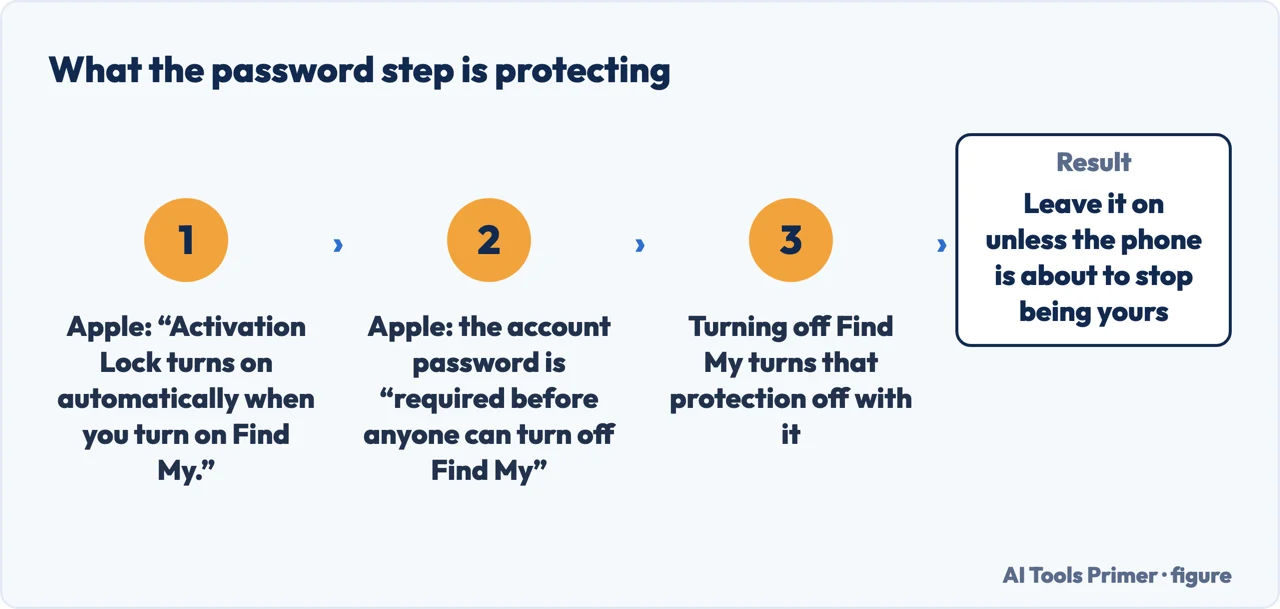
So the honest summary is short. If the phone is staying yours, leave Find My on. It costs nothing, it is the difference between a lost phone that might come back and a lost phone that is somebody else’s, and Apple’s own advice is simply to keep it turned on. The reason to turn it off is that the phone is about to stop being yours.
If you are selling, trading in or giving it away
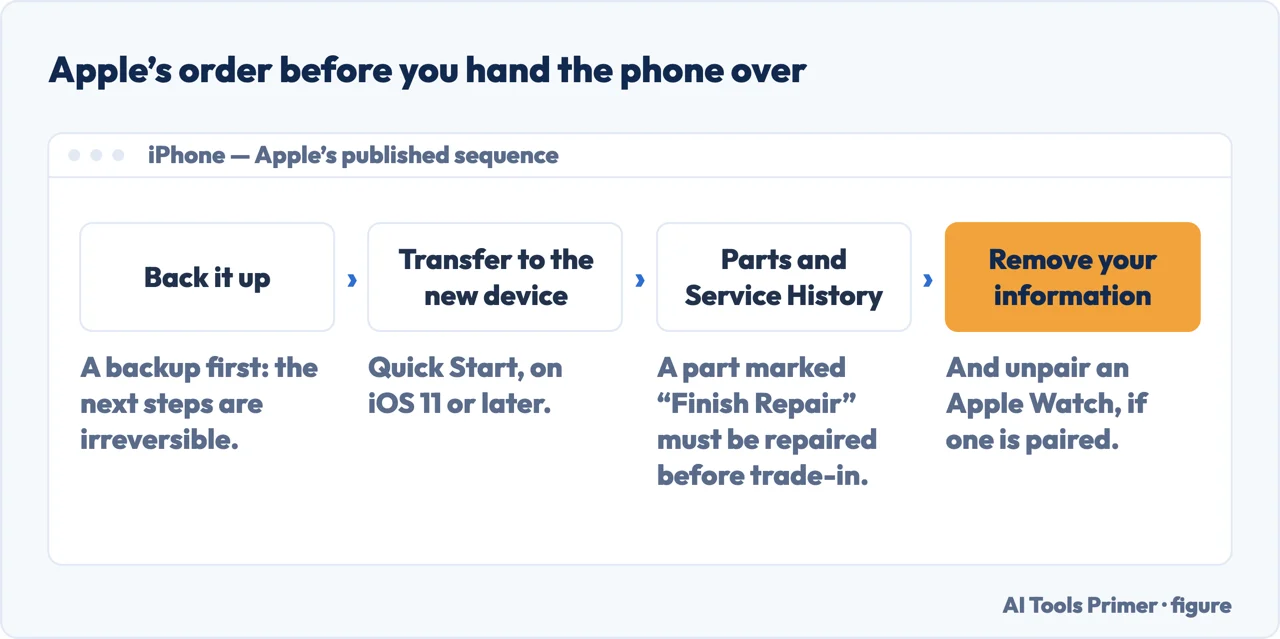
This is the legitimate reason to turn it off, and Apple publishes the order. One step in it is not obvious.
- Create a backup.
- Transfer the information to your new device — Quick Start on iOS 11 or later.
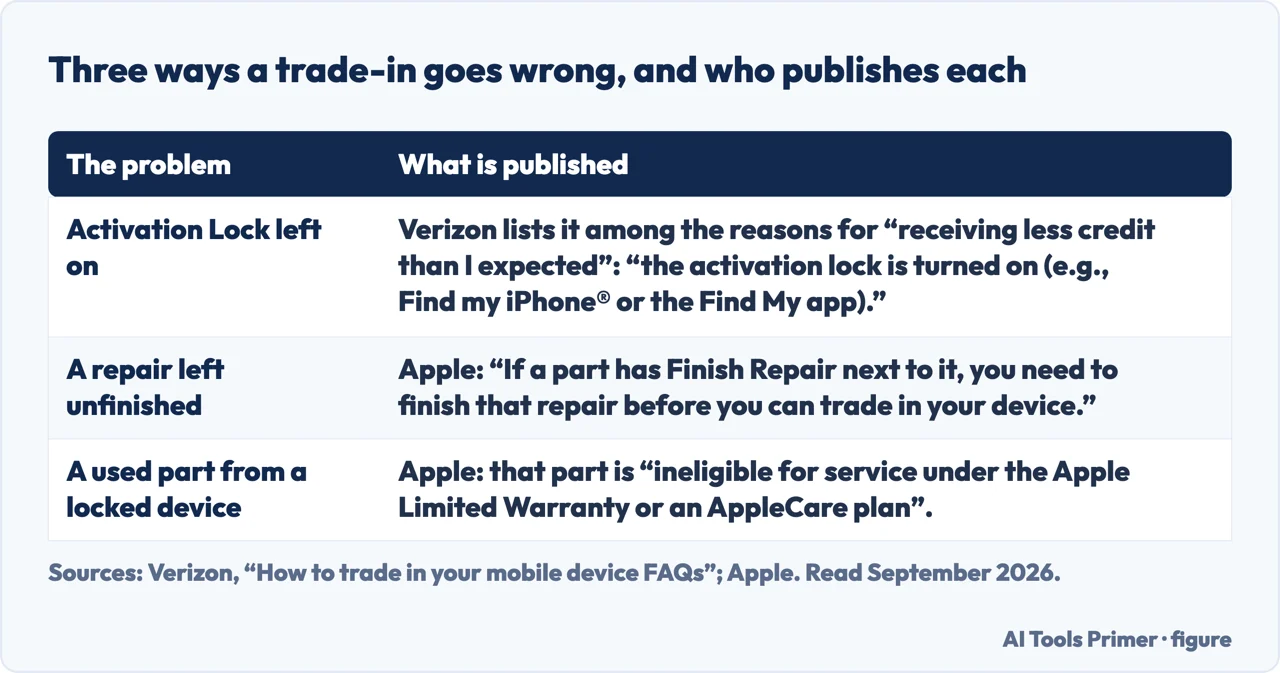
- Check Parts and Service History. Apple: “If a part has Finish Repair next to it, you need to finish that repair before you can trade in your device.” Almost nobody knows to look.
- Unpair an Apple Watch, if one is paired with the phone.
- Remove your personal information from the old device.
Skipping the first of those has a price, and it is published by the people who pay it out. Verizon, listing why a trade-in comes back worth less than the quote, gives four reasons: that “the condition of the device was different than originally stated in the submission”, that “we received a different device than expected”, that it was “submitted after 30 days” — or that “the activation lock is turned on (e.g., Find my iPhone® or the Find My app)”. That is a carrier rather than Apple, and it settles a practical question a support page cannot: a phone posted off with Find My still on is not merely awkward for whoever receives it, it is worth less money to you. Other carriers and trade-in services set their own terms; the one quoted here is Verizon’s.
And the same facts read from the other side, if you are buying. A used iPhone whose previous owner did not do this is not a bargain — it is a device that will ask for somebody else’s Apple Account password when it is set up, and Apple will not remove that for you on request. Before money changes hands, the phone should be sitting on the setup screen, not on the seller’s home screen. A phone that is still signed in has not been released, whatever the seller intends.
The parts fact, which is genuinely obscure and can cost money. Apple: “When Activation Lock is on for a device, it can also protect individual parts… If your device has a previously used part from a different device that was protected by Activation Lock when the part was removed, that part is ineligible for service under the Apple Limited Warranty or an AppleCare plan.” A cheap screen or battery from an unknown source can therefore make a repair unserviceable later, and the Parts and Service History screen in the sequence above is where that shows up.
One case that is not covered here. If you cannot turn Find My off because you do not have the Apple Account password, that is not a step this page can give you — it is the feature working exactly as designed. The route back is account recovery with Apple, using proof that the account is yours. Anything offering to remove an activation lock without that is selling either a scam or a stolen phone, and there is no third option.
The steps, the description of Activation Lock, the note about parts and the trade-in sequence are quoted from Apple’s own documentation, read on 22 August 2026 and listed below. The advice to buyers, and the framing of when this should and should not be done, are ours.
Where to start
Four ways in.
- “I am selling the phone.”
- The order matters — selling or trading in
- “I just want it off.”
- Read what goes with it — what it switches off
- “I am buying a used one.”
- It must already be off — if you are buying
- “I have lost the phone.”
- Leave it on — what it switches off
What it switches off
Find My and Activation Lock are one thing. Apple says the lock turns on automatically with the feature, and the password protects both.
Selling or trading in
Apple publishes the order, and one step in it — the parts check — is the one people skip and regret.
If you are buying
A phone still signed in has not been released. The setup screen is the only proof, and it costs nothing to ask for.
When it will not turn off
Not being able to is the feature working. The route back is account recovery, and nothing else is legitimate.
Not covered here. It will not give you three taps without saying what the third one protects. Turning off Find My turns off Activation Lock, and Apple says so.
It will not help remove an activation lock without the account password. That is the feature working, and everything offered in that space is a scam or a stolen phone.
And it will not let a buyer take a phone that is still signed in. The setup screen is the only proof that it has been released. What holds instead is simple: the description of Activation Lock and the trade-in sequence are Apple’s own, read on the dates this page names.
When the phone is not where you left it
What can be done afterwards depends entirely on what was switched on before.
- The same job, in the other places it comes up
- How to find lost iPhone, and the three warnings
- How to share location on iphone: three kinds, not one
- How to turn off location on iPhone, and what it does not cover
Sources
- Apple — iPhone User Guide, Turn off Find My on iPhone, including the three steps and the Apple Account password requirement — support.apple.com, read 22 August 2026.
- Apple Support — Activation Lock for iPhone and iPad, including that Activation Lock turns on automatically with Find My, that the account password is required to turn it off, erase or reactivate the device, that it continues to deter reactivation after a remote erase, and that it can protect individual parts — support.apple.com, read 22 August 2026.
- Apple Support — What to do before you sell, give away, or trade in your iPhone or iPad, including the order of steps and the Parts and Service History check for a Finish Repair message — support.apple.com, read 22 August 2026.
- Verizon — How to trade in your mobile device FAQs (that a trade-in can be credited with less value than expected because the condition of the device was different than originally stated in the submission, because a different device than expected was received, because it was submitted after 30 days, or because the activation lock is turned on, for example Find my iPhone or the Find My app). Verizon’s own terms; other trade-in programmes set their own — www.verizon.com, read 5 September 2026.
Written by Alberto Gulotta
Founder and editor of AI Tools Primer, writing from Palermo, Italy. Thirty-five years of taking computers apart, starting with a Commodore 64 — the long version is on the about page.
Something wrong on this page? Write to aitoolsprimer@gmail.com and it gets fixed.
Written on 22 August 2026 · last checked 23 September 2026.
Independence and limits
No affiliate links and no paid placements anywhere on this site. Nobody pays to appear here, and no company has seen this page before you did.
This is general information, not professional advice. Where a page touches money, health, safety or the law, it names its source and the date it was read — and your situation may still differ. See the privacy page and the cookie policy.