
Software · guide
How to free up space on iPhone, without losing anything
By Alberto Gulotta · Updated · 9 min read
The first result Google gives for how to free up space on iphone is a Reddit thread, and the third is a post on Microsoft’s community forum. Apple’s own instructions are second, and they contain two facts that change what you should do — one that saves you from throwing away work, and one about what the popular fix actually costs.
Start by looking, not deleting. Settings › General › iPhone Storage shows the space left at the top and what is occupying the rest underneath, largest first. Almost everybody who starts deleting before opening that screen deletes the wrong things — a few small apps, some messages — while the actual occupant sits untouched further down the list.
“When storage is low, iPhone can automatically remove unused apps while keeping your data. The app icon stays on your Home Screen with a cloud symbol — tap it to reinstall the app.”
Apple, read 22 August 2026, describing Offload Unused Apps. This is the distinction that matters most on this page, and the one people get wrong under pressure: deleting an app throws away what is inside it; offloading removes only the app. The notes, the saved games, the half-finished work all stay, and tapping the icon with the little cloud brings the app back with them intact.
To turn it on: Settings › Apps › App Store › Offload Unused Apps. After that the phone does it by itself, only when space runs short, and only to apps you are not using.
Photos are almost always the reason — and the fix has a price
Apple states the cause plainly: “By default, your photos and videos are stored on your device in their original, high-resolution version. This means that they use a lot of space.”
The setting is Settings › [your name] › iCloud › Photos, turn on Sync this iPhone, then choose Optimize iPhone Storage. Apple: “full-resolution photos and videos are stored in iCloud, and, when needed, space-saving copies are stored on your device.”
If you would rather not: Apple’s alternative in the same paragraph is to “transfer the photos and videos that you don’t want to store in iCloud to your computer”.
The other large photo service publishes the same trade with different arithmetic, and it is worth seeing because it shows what is actually being bought. Google gives “up to 15 GB of storage” per account rather than 5 GB — though shared with Gmail and Drive rather than reserved for photographs — and then offers a lever Apple does not: shrinking the pictures themselves. Its Storage saver setting keeps them “at a slightly reduced quality”, resizing anything over 16 MP “to 16 MP”; its Express setting goes further, “resized to 3 MP”, with video above 480p brought down to 480p. Original quality changes nothing and counts every byte against the allowance.
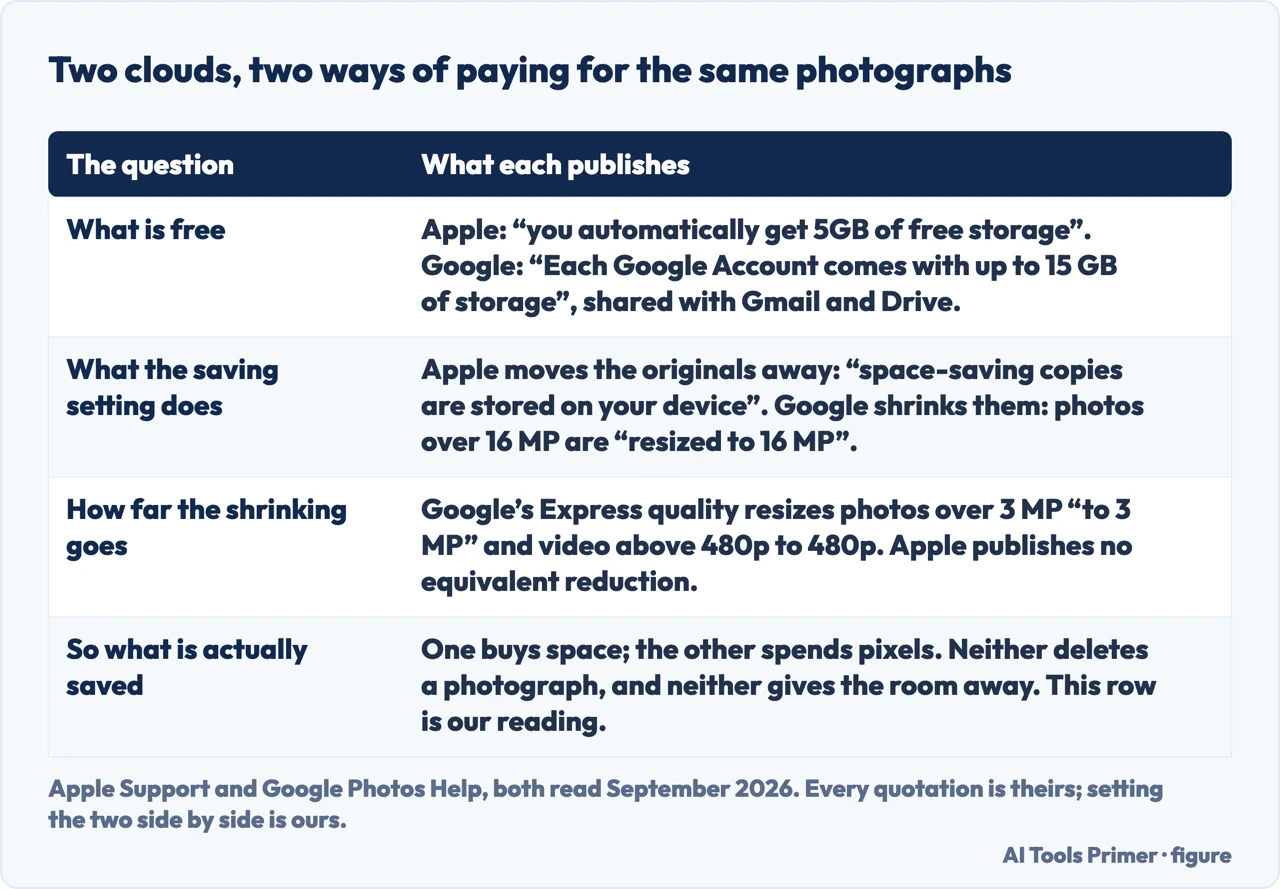
So neither company gives the room away, and the choice is which currency you would rather spend. One sells space; the other spends pixels. That framing is ours rather than either company’s — but it is the question underneath the setting, and it is easier to answer before the phone is full than during.
Four more places to look, all of them free
- Where you start
- Settings › General › iPhone Storage. Available space at the top, and beneath it what is using the rest, biggest first. Look before deleting anything.
- Recommended for You
- On iOS 17 or later, Apple says this checks “if there are photos, large files, or backups that you might not need anymore and can delete”.
- Duplicate photos
- From the same page: “You can also merge duplicate photos and videos to free up space on your device.” Costs nothing and removes nothing you wanted.
- Downloads you forgot
- Apple points at two: files in the Files app, and downloaded videos: “review videos you’ve downloaded for offline viewing in the TV app and other streaming apps, and remove ones you’ve already watched”. A single downloaded film is often larger than every photo taken that month.
What not to do, and it is the thing most often recommended. Deleting apps to make room is the blunt version of offloading, and it destroys whatever the app was holding. An app you delete and reinstall comes back empty unless it stored everything on somebody’s server. Before deleting one, the question is whether anything inside it exists anywhere else — and if the answer is no, offload it instead.
And a note about the mysterious categories. The iPhone Storage screen sometimes shows a large block that is not any app you recognise. It grows and shrinks on its own, and it is largely caches — material the phone can regenerate. Chasing it is unrewarding: it is not a file you can find and delete, and the routes above free real space that stays freed. If the phone is genuinely full, the photographs and the downloads are where the space is.
The Offload Unused Apps behaviour, the photo storage settings, the 5 GB figure and the suggestions about duplicates and downloads are quoted from Apple’s own documentation, read on 22 August 2026 and listed below, the photo page published 6 March 2026. The argument that the photo fix is a trade rather than a saving is ours.
Where to start
Four ways in.
- “The phone says it is full.”
- Look before deleting — four more places
- “I need to keep the app’s data.”
- Offload rather than delete — offloading versus deleting
- “It is all photographs.”
- It usually is, and the fix has a price — photos and the price
- “I do not want to pay for iCloud.”
- There is another route — photos and the price
Offloading versus deleting
One removes the app and keeps what was in it. The other removes both. Apple documents the difference and the cloud symbol that marks it.
Photos and the price
Optimise Storage does not delete anything — it moves the originals to iCloud, where the free allowance is 5 GB.
Four more places
Recommendations, duplicates, files and downloaded films. All free, and one of them is usually bigger than everything else.
Before you delete anything
The question is always whether what is inside exists anywhere else. If not, offloading is the move.
Not covered here. It will not tell you to delete apps. Offloading keeps what was inside them, and Apple documents the difference in one sentence.
It will not present the photo setting as free. It moves your originals into a 5 GB allowance, and that is a trade rather than a saving.
And it will not recommend a cleaner app. Every route on this page is already in Settings. What holds instead is simple: the offloading behaviour and the photo storage settings are Apple’s own wording, read on the dates this page names.
Sources
- Apple — iPhone User Guide, Manage storage on iPhone, including the iPhone Storage screen, Offload Unused Apps and what it keeps, the cloud symbol, and the Files and TV app suggestions — support.apple.com, read 22 August 2026.
- Apple Support — Manage your photo and video storage, including the note that photos are stored at full resolution by default, the Optimize iPhone Storage setting and what it does, the 5 GB free iCloud allowance, Recommended for You and merging duplicates (published 6 March 2026) — support.apple.com, read 22 August 2026.
- Google Photos Help — Choose the backup quality of your photos and videos (that each Google Account comes with up to 15 GB of storage; that Original quality stores photos and videos in the same resolution they were taken in with no change to their quality; that Storage saver stores them at a slightly reduced quality, resizing photos larger than 16 MP to 16 MP and video higher than 1080p; that Express resizes photos over 3 MP to 3 MP and video above 480p to standard definition 480p; and that all three count towards Google Account storage) — support.google.com, read 6 September 2026.
Written by Alberto Gulotta
Founder and editor of AI Tools Primer, writing from Palermo, Italy. Thirty-five years of taking computers apart, starting with a Commodore 64 — the long version is on the about page.
Something wrong on this page? Write to aitoolsprimer@gmail.com and it gets fixed.
Written on 22 August 2026 · last checked 23 September 2026.
Independence and limits
No affiliate links and no paid placements anywhere on this site. Nobody pays to appear here, and no company has seen this page before you did.
This is general information, not professional advice. Where a page touches money, health, safety or the law, it names its source and the date it was read — and your situation may still differ. See the privacy page and the cookie policy.