
Docs · guide
How to recover unsaved Word document text after a crash
By Alberto Gulotta · Updated · 11 min read
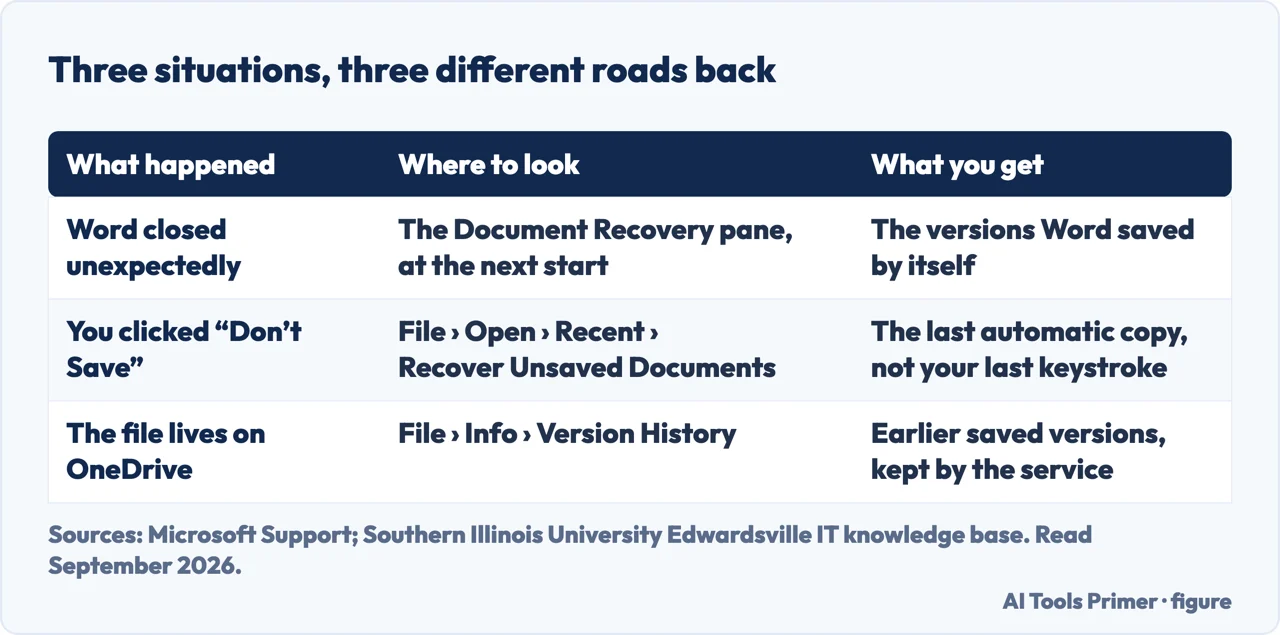
First, reopen Word. That is genuinely the first step for how to recover unsaved word document work, and it is easy to walk past because the instinctive move is to go looking for the file. Word shows you what it rescued the moment the application starts again.
| What happened | Where to look | What you get back | Source |
|---|---|---|---|
| Word closed unexpectedly | The Document Recovery pane, the next time Word opens | “Document Recovery automatically opens the next time you open the Office app” | Microsoft |
| You clicked Don’t Save | File › Open › Recent, then Recover Unsaved Documents at the bottom | The last automatic copy — not your last keystroke | SIUE |
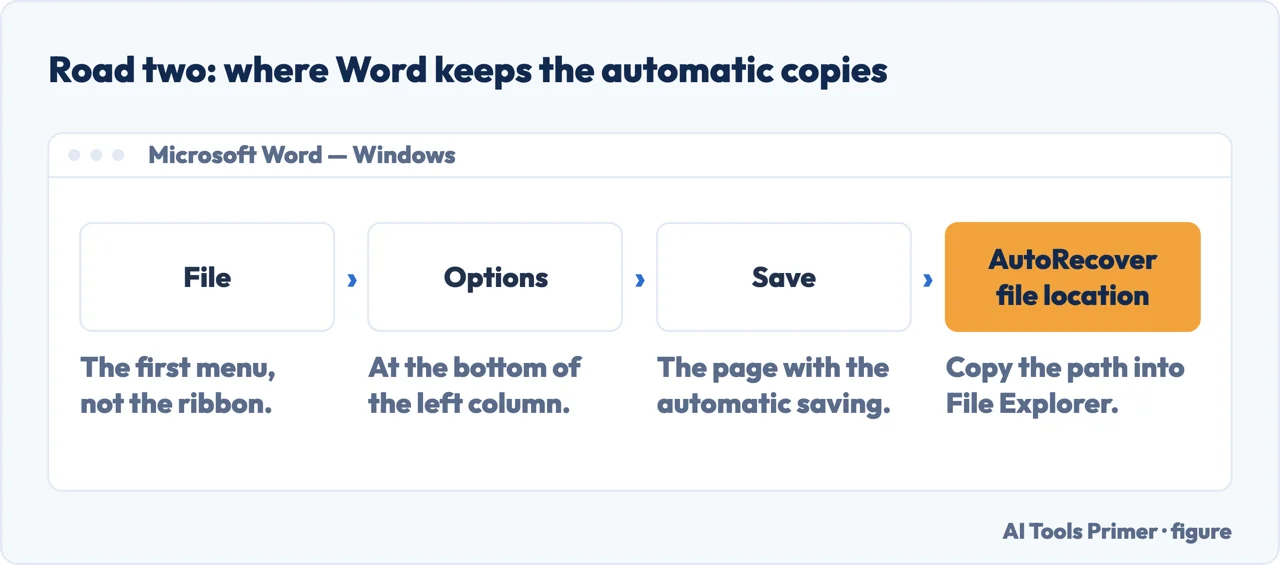
| Nothing appears anywhere | File › Options › Save, and read the AutoRecover file location | The folder itself, openable in File Explorer | SIUE |
| The file is on OneDrive or SharePoint | Version history on the file | Earlier saved versions. Microsoft calls this “the safest way to work” | Microsoft |
The pane that opens by itself
Microsoft: “When Office app closes unexpectedly before you save your most recent changes, Document Recovery automatically opens the next time you open the Office app.” So the first step is simply to reopen Word.
- Several files listed
- “The date and creation time of any automatically saved document appears under the document name and may give you a clue about which file you want to recover.”
- Several versions of one file
- “You’ll probably want to open the one with the most recent time because it will have the most recent changes.” You can open each in turn and look.
- Once you have opened one
- “If you want to keep the recovered file, you should immediately save it before closing or editing it.” Recovered is not saved.
- Tidying up
- To remove one you do not want: the arrow next to the file name in the pane, then Delete.
Do not close the pane until you have finished. It is not a notification, it is the only list of what survived.
- Reopen Word before you look for the file. If the application closed unexpectedly, “Document Recovery automatically opens the next time you open the Office app”, and the pane is where the rescued versions are.
- Read the times under the file names. Microsoft’s own advice for choosing: “the date and creation time of any automatically saved document appears under the document name and may give you a clue about which file you want to recover.”
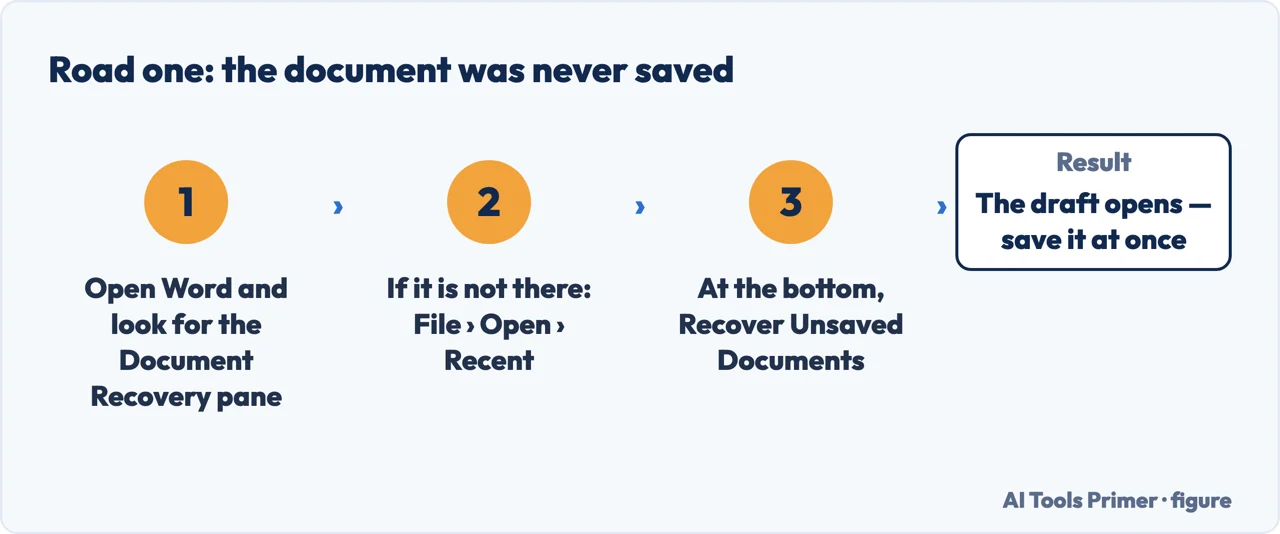
- If no pane appears, go File › Open › Recent, and click Recover Unsaved Documents at the bottom. That is the road for a document that was never saved at all.
- If that list is empty, open the folder itself. File › Options › Save shows the AutoRecover file location; paste that path into File Explorer.
- Save what you find immediately, then set the interval. AutoRecover’s interval is how much work you are agreeing to lose next time.
“Yes, I want to view these files later (safest option)” — or — “No, remove the files. I have saved the files I need.”
These are the two buttons Word offers if you close the recovery pane without going through everything, and Microsoft marks one of them as the safest option in the button itself. Somebody who has just lost an afternoon’s work is not in a state to read carefully, and the second button sounds like the tidy, decisive one.
Microsoft’s own guidance is plain: choose the first “if you are not sure whether you need the data in the recovered versions”, and the second only “if you are sure you don’t need” it. When in doubt, the recovered files cost you nothing by existing for another day.
On a Mac, two things are different and both matter
The first is a warning, and it is the most consequential sentence on Microsoft’s page: “If you close a file and click Don’t Save, the AutoRecover file will be deleted because Office assumes that everything is ok and the AutoRecover file isn’t needed.” So the commonest accident of all — closing and clicking the wrong button — is also the one that removes the safety net on the way out.
The second is where to look. Microsoft gives the folder for recent versions:
And the reason you have never seen it: “The AutoRecovery folder is a hidden folder, so you probably won’t see it if you just try to navigate to it in Finder. Use the Go to Folder tool” — Finder, then Go › Go to Folder, or Shift+Command+G — “and enter the full path to get around this.”
A university IT desk writes the same three roads in the order it hands them to students. Southern Illinois University Edwardsville lists the Document Recovery pane first; then the File tab, Open, Recent, and — its own words — “click Recover Unsaved Documents” at the bottom of the recent list; and then the folder itself, found by opening File and Options and Save and taking “the path shown” there. Three roads, tried in that order, because each one covers a case the one before it does not. It is the same order this page uses, arrived at independently.
If the pane does not appear at all, the setting was off before the crash and there is nothing to open. That is worth checking now rather than next time: File › Options › Save, where the box for saving AutoRecover information every so many minutes lives, along with the one that keeps the last autorecovered version if you close without saving. The second is the one that covers the button-press accident rather than the power cut.
The same accident in Excel takes a different road. A workbook that was never saved is reached from File, Open, Recent and Recover Unsaved Workbooks — a separate list from Word’s, in a separate application, with its own automatic copies.
And the honest ceiling on all of it. AutoRecover writes at an interval, so what comes back is the state of the document at the last write, not the state it was in when you lost it. Microsoft is blunt about the arithmetic elsewhere in its documentation: at a fifteen-minute interval you lose up to fourteen minutes. Setting it to five costs nothing and changes what a bad afternoon looks like.
The arrangement that removes the whole question is the one Microsoft puts in a tip at the top of the page: “If you are a Microsoft 365 subscriber the safest way to work is to store your files on OneDrive or SharePoint and use AutoSave.” A document saved as you type cannot be an unsaved document, and it keeps a version history besides.
The Document Recovery behaviour, the guidance on choosing between versions, the two closing options, the note about Don’t Save on a Mac and the AutoRecovery folder path are quoted from Microsoft’s own Word documentation, read on 22 August 2026 and listed below. The observation about what Google returns for this question is ours.
Where to start
Four ways in.
- “Word crashed a minute ago.”
- Reopen it — the pane that opens by itself
- “Which of these versions do I want?”
- The times are shown — the pane that opens by itself
- “I clicked Don’t Save.”
- Read this before anything else — on a mac
- “Nothing appeared.”
- The setting was off — making sure next time
The pane that opens by itself
Word shows what it rescued as soon as you reopen it. The list is the only place that information exists.
On a Mac
Clicking Don’t Save removes the recovery file, and the folder that holds the rest is hidden. Both are documented and neither is well known.
Making sure next time
Two checkboxes, one interval and one location. Five minutes now against an afternoon later.
The document itself
Once it is back, the ordinary Word questions return — and most of them have a documented answer.
Questions people also ask
Can I retrieve a Word document that was not saved?
Often yes. Reopen Word first: if it closed unexpectedly, the Document Recovery pane appears by itself. If it does not, go File › Open › Recent and click Recover Unsaved Documents at the bottom of the list.
Where does Word keep the automatic copies?
In a folder whose path is written in the application itself: File › Options › Save, in the AutoRecover file location box. Copy that path into File Explorer and the copies are there even when no list in Word shows them.
Which of the recovered versions should I open?
The most recent, unless you have a reason otherwise. Microsoft: “if you see multiple versions of the same file, you’ll probably want to open the one with the most recent time because it will have the most recent changes.”
How do I stop this happening again?
Shorten the AutoRecover interval, which is simply how much work you are prepared to lose, and if you have a Microsoft 365 subscription put the file where versions are kept for you — Microsoft calls storing on OneDrive or SharePoint with AutoSave “the safest way to work”.
Not covered here. It will not send you hunting through folders first. Reopening Word is the documented first step.
It will not skip the button that throws the recovery away. Microsoft labels the safe one in the button itself, and people under stress click the other.
And it will not sell you recovery software for something Word does on its own. What holds instead is simple: the Document Recovery behaviour and the note about Don’t Save on a Mac are quoted from Microsoft’s own Word documentation.
Sources
- Microsoft Support — Recover your Word files and documents, including the Document Recovery pane, how to choose between recovered versions, the two options when closing the pane, the note that clicking Don’t Save deletes the AutoRecover file on a Mac and the hidden AutoRecovery folder path — support.microsoft.com, read 3 September 2026.
- Southern Illinois University Edwardsville, IT knowledge base — Microsoft Word: recovering unsaved documents, with the three methods in the order a help desk hands them out — kb.siue.edu, read 3 September 2026.
- Microsoft Support — Help protect your files in case of a crash, including the AutoRecover checkboxes and how much work an interval costs — support.microsoft.com, read 22 August 2026.
Written by Alberto Gulotta
Founder and editor of AI Tools Primer, writing from Palermo, Italy. Thirty-five years of taking computers apart, starting with a Commodore 64 — the long version is on the about page.
Something wrong on this page? Write to aitoolsprimer@gmail.com and it gets fixed.
Written on 22 August 2026 · last checked 23 September 2026.
Independence and limits
No affiliate links and no paid placements anywhere on this site. Nobody pays to appear here, and no company has seen this page before you did.
This is general information, not professional advice. Where a page touches money, health, safety or the law, it names its source and the date it was read — and your situation may still differ. See the privacy page and the cookie policy.