Almost everybody who searches how to add table of contents in word has already tried the obvious thing: typing the section names down the page, adding dots, and putting the page numbers on the right. It works until a paragraph is added on page four and every number after it is wrong.
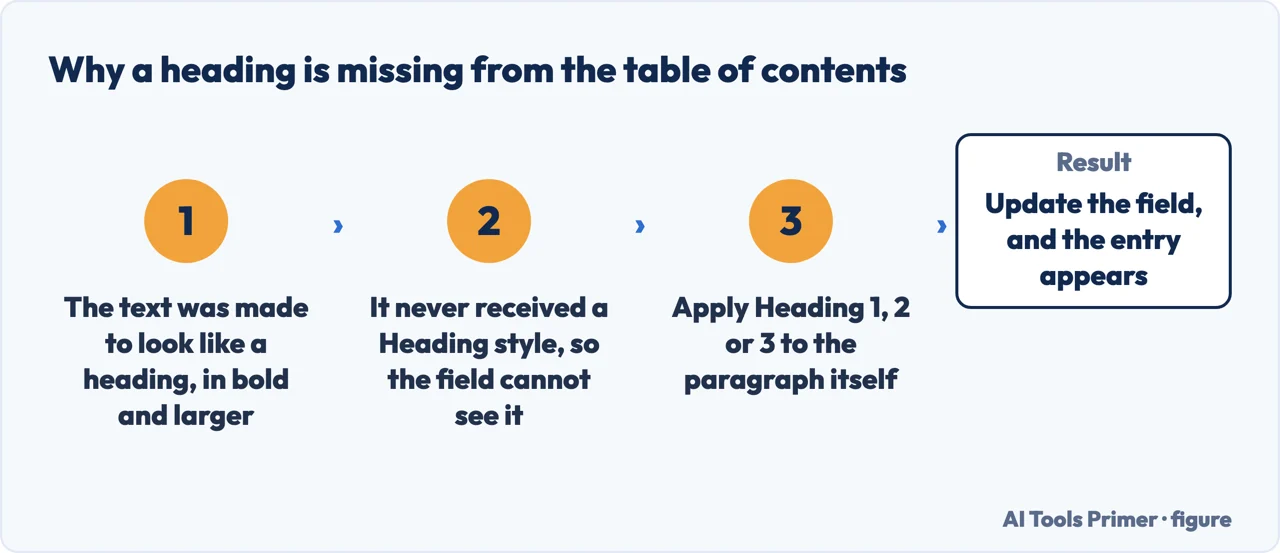
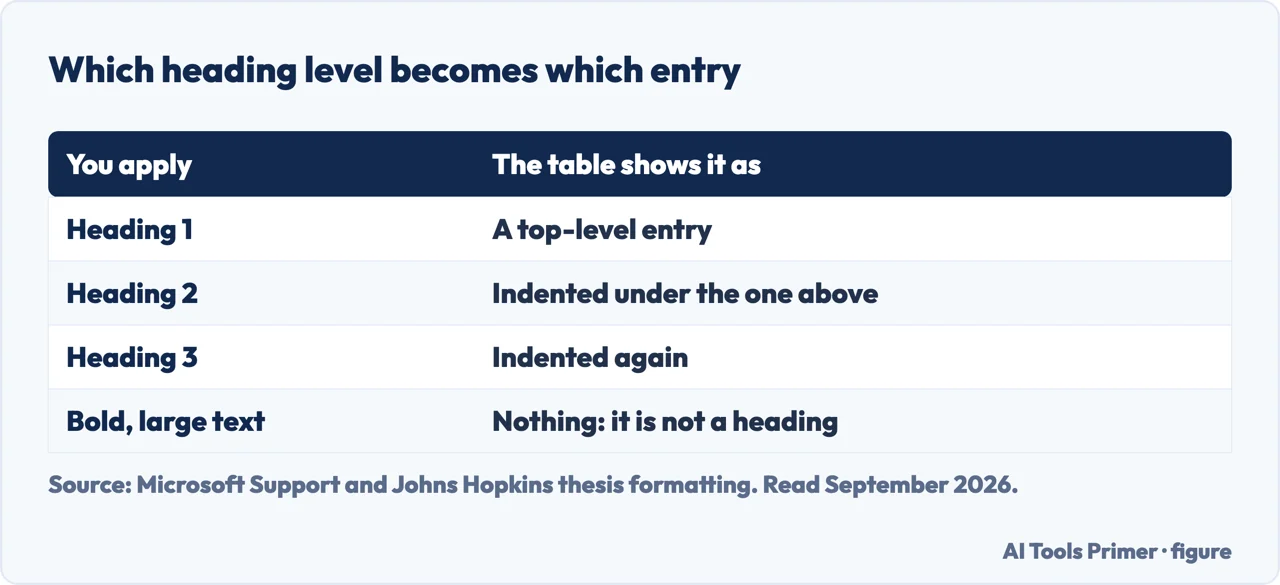
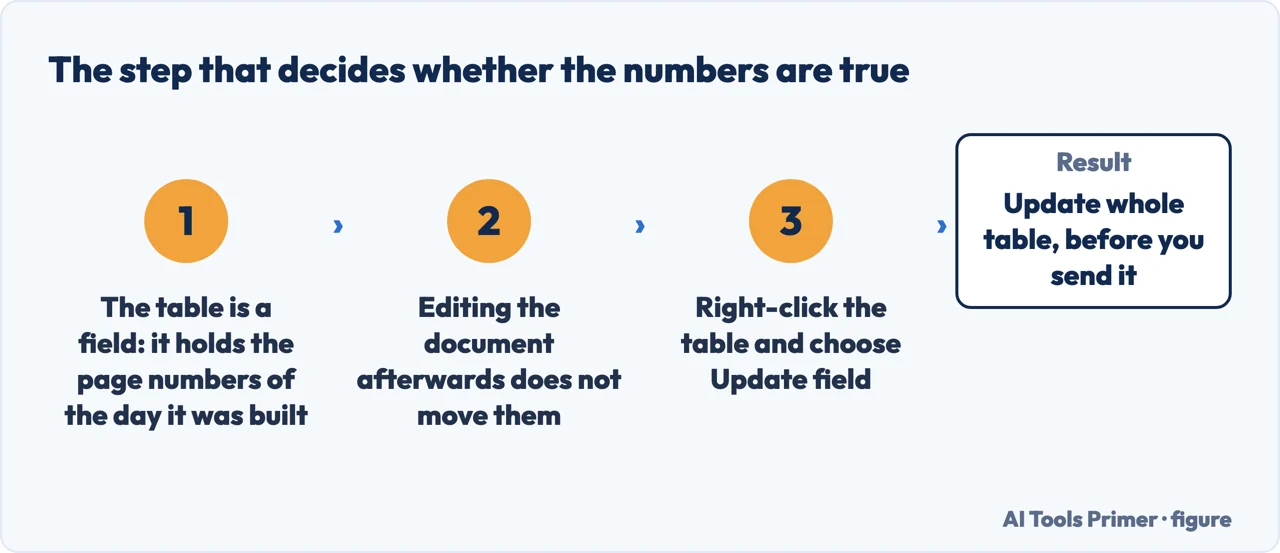
The field can only see what a Heading style marked. Figure drawn by AI Tools Primer.Bold and large is not a heading, whatever it looks like. Figure drawn by AI Tools Primer.The numbers are from the day it was built. Figure drawn by AI Tools Primer.
The verb makes no difference to the answer and a large difference to the search: people look for how to insert table of contents in word, how to make a table of contents in word, how to create one, how to add one. The two steps below are the same whichever word brought you here — and neither of those verbs is where Word puts the command, which is the next surprise.
Word already knows your headings — or it does not, and that is the whole problem
Microsoft states the mechanism in one line: “Word uses the headings in your document to build
an automatic table of contents that can be updated when you change the heading text, sequence, or
level.”
Which means the table of contents is not something you write. It is something Word assembles from
information it already has — provided you gave it that information by marking your
headings as headings.
And it explains the single commonest complaint, in Microsoft’s own words: “Missing entries
often happen because headings aren’t formatted as headings.” A line in bold 16-point type
looks like a heading to you and is ordinary text to Word.
First, once per heading
Mark the headings
Home›Styles›Heading 1
Microsoft: “Go to Home > Styles, and then choose Heading 1.” Sections
inside a section take Heading 2, and so on. This is the step people skip, and it is the only
one that matters.
Then, once per document
Insert the table
References›Table of Contents
Microsoft: “Go to References > Table of Contents. and choose an automatic
style.” It appears complete, with page numbers, in one click. When the document changes:
right-click it and choose Update Field.
So the honest version of this task is two steps in that order, and the first one takes longer than the second. If your document already uses heading styles, the contents page is one click away. If it does not, no amount of clicking will produce one, and the fix is not a different menu — it is going back through the document marking the headings.
What marking headings gives you besides the table
This is the part that makes the five minutes worth spending even on a document that
needs no contents page.
A navigation pane that worksJump between sections instead of scrolling
through forty pages looking for one.
Bookmarks in the exported PDFThe side panel a reader uses to move around a
long document — built from the same headings.
A document a screen reader can navigateHeadings are how somebody using
assistive technology moves through a document at all. Bold text is not a heading to
them.
Consistent formatting for freeChange the Heading 1 style once and every
section title in the document follows.
That last list is why this guide exists in a section about documents rather than as a two-line tip. The table of contents is the visible reward for something that pays four other ways, and the four other ways matter more in a long document than the contents page does. A forty-page report with marked headings is navigable, exportable and readable by assistive technology. The same report with bold text instead is a wall.
The phrasings barely differ — how to create a table of contents in word, how to insert a table of contents in word, word insert table of contents — and the answer is the same two steps for all of them. The one variation worth naming is how to make a clickable table of contents in word, because it sounds like an extra feature and is not: an automatic table is already clickable, and stays clickable in the exported PDF. If yours is not, it was typed rather than generated.
Two ways to get it wrong that never announce themselves
Both sit inside menus you have to pass through anyway, and both survive all the way to print.
The wrong item in the same dropdown
References › Table of Contents offers Manual Table next to Automatic Table. Microsoft
is blunt about what the manual one does: “Word won’t use your headings to create a table of contents
and won’t be able to update it automatically. Instead, Word will use placeholder text.” It looks
identical on the page. It is a picture of a contents page that you must retype by hand for the rest
of the document’s life — and Microsoft repeats the point on the update page: manually created tables
“can’t be updated by Word”.
The wrong half of the update
References › Update Table asks a question worth reading before answering. Microsoft’s
own definitions: Update page numbers only — “This only updates the pages that the headings are on, and ignores any changes to the heading text.” Against Update entire table — “This will reflect any updates to the heading text, as well as any page changes.” So if you renamed a
section and chose the first one, the contents page still carries the old title, with a page number
that is now correct. Nothing looks broken. Choose Update entire table unless you have a reason
not to.
What a table of contents is actually required to contain. Microsoft documents the button; the requirement comes from whoever receives the document. Johns Hopkins’ formatting rules for theses show the shape those requirements take: the contents must “include chapter titles and page numbers” and “start with Abstract”, with the lists of tables and figures each on their own page and never combined. Whatever the institution, the pattern is the same — the entries and their order are specified, and a table built from the wrong heading levels fails that specification while looking perfectly tidy.
One habit closes the loop. Update the field before you send anything. The table does not refresh itself as you write; it refreshes when you tell it to, and a contents page listing page numbers from two drafts ago is worse than none at all — it is the one part of a document a reader trusts without checking.
Not covered here. It will not tell you to type a contents page by hand. Word builds one from information it already has, and a typed one is wrong the moment the document changes.
It will not skip the styles step to give a faster-looking answer. Without marked headings there is nothing to build from, and every guide that omits this leaves the reader clicking a menu that produces nothing.
And it will not treat headings as decoration. They are what makes a long document navigable, exportable and readable by assistive technology, and the contents page is the smallest of the four things they buy you. What holds instead is simple: the explanation for missing entries and both update options are Microsoft’s own wording.
Sources
Microsoft Support — Insert a table of contents, including how Word builds it from headings and why entries go missing — support.microsoft.com, read 6 September 2026.
Microsoft Support — Update a table of contents, including the difference between updating page numbers only and updating the entire table, and the note that manually created tables cannot be updated by Word — support.microsoft.com, read 6 September 2026.
Johns Hopkins Sheridan Libraries — Formatting requirements for electronic theses and dissertations: what a table of contents must contain and where it starts, from the institution that receives the document — www.library.jhu.edu, read 4 September 2026.
AG
Written by Alberto Gulotta
Founder and editor of AI Tools Primer, writing from Palermo, Italy. Thirty-five years of
taking computers apart, starting with a Commodore 64 — the long version is on the
about page.
Written on 21 August 2026 · last checked 23 September 2026.
§
Independence and limits
No affiliate links and no paid placements anywhere on this site. Nobody pays to appear here,
and no company has seen this page before you did.
This is general information, not professional advice. Where a page touches money, health,
safety or the law, it names its source and the date it was read — and your situation may
still differ. See the privacy page and the
cookie policy.