
Docs · guide
Find and replace in Word: the steps, the keys and the wildcards
By Alberto Gulotta · Updated · 20 min read
Find and replace in Word starts, on the Windows tab of Microsoft’s page, at Home > Editing > Replace: type the old text in Find what and the new text in Replace with, then choose Replace All, or Find Next and Replace. Microsoft’s shortcuts page prints Ctrl+H on its Windows and Web tabs and Control+H on its macOS tab.
| Tab | Key printed | Path printed | Page |
|---|---|---|---|
| Windows | Ctrl+H | Home > Editing > Replace | Key: Keyboard shortcuts in Word (the shortcuts page), Windows tab, and Use a screen reader to insert and change text in Word (the screen-reader page), Newer Windows versions tab. Path: Find and replace text in Word, Windows tab |
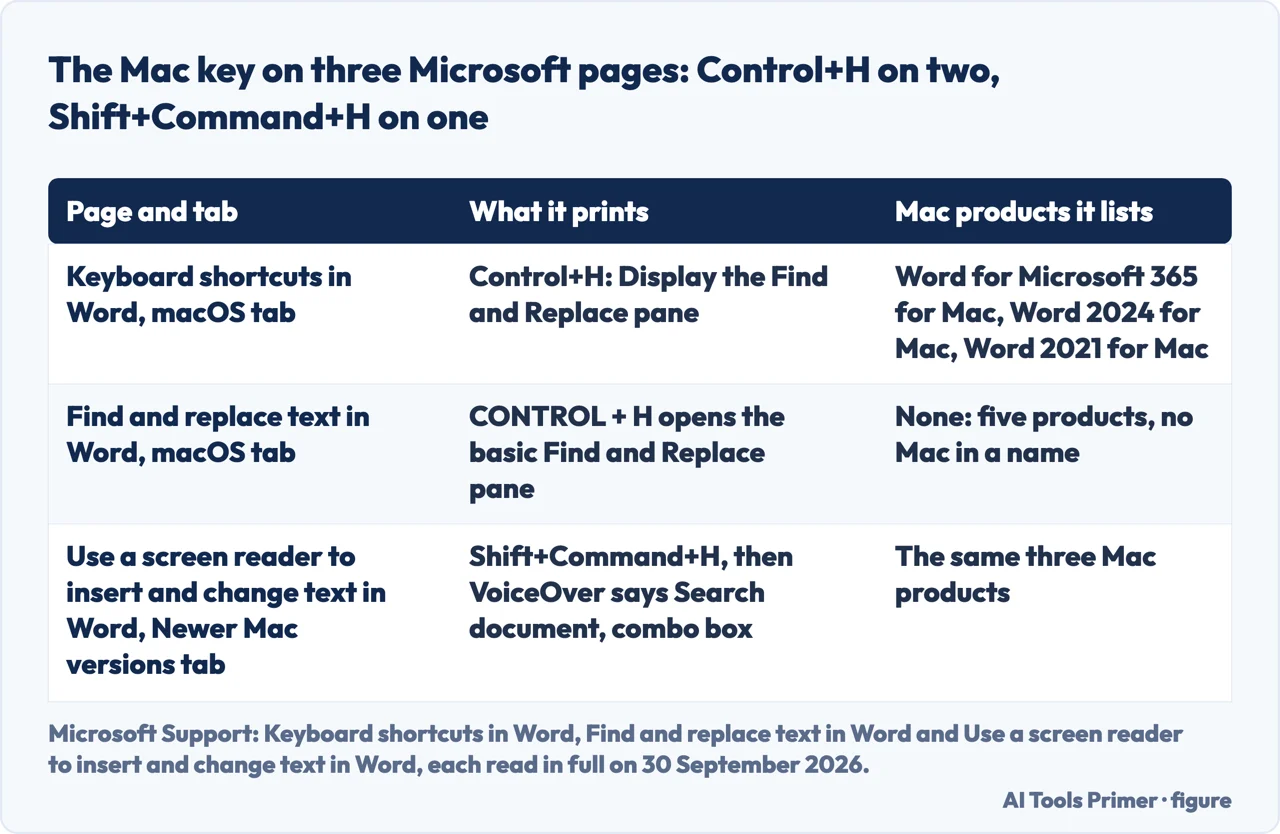
| macOS | Control+H on two pages, Shift+Command+H on a third | The magnifying glass, then Find and replace | Control+H: the shortcuts page and Find and replace text in Word, macOS tabs. Shift+Command+H: the screen-reader page, Newer Mac versions tab. Path: Find and replace text in Word, macOS tab |
| Web | Ctrl+H, in the Editing view | Ctrl+F or Home > Find opens the Navigation pane; with a screen reader, Ctrl+F, the More actions menu, then Replace | Key: the shortcuts page, Web tab. Path: Find text in a document; the screen-reader page, Web tab |
| Office for iOS | Control+H | Search, then Find; Options lists Find and Replace and Find and Replace All | Key: the shortcuts page, Office for iOS tab. Path: Find text in an Office file on a mobile device (the mobile page), section for iPhone and iPad |
| Office for Android | None for replacing; Ctrl+F for finding text | ⋮ More Options, then Find; the More Options icon lists Replace | Key: the shortcuts page, Office for Android tab. Path: the mobile page, section on Word for Android |
Which Word each page is about. Find and replace text in Word and Replace Text carry the same Applies To line: Word for Microsoft 365, Word 2024, Word 2021, Word 2019 and Word 2016, five products with neither Mac nor web in a name, although the first page has macOS and Web tabs. The shortcuts page lists thirteen products and the screen-reader page eleven, Mac versions and phone apps included; the mobile page lists fifteen, five of them Word. None of those five lines contains the word web. Find text in a document, which is about Word for the web, and the Microsoft Learn page on the VBA method Find.Execute carry no product line.
- Open Replace: Home > Editing > Replace. The first step on the Windows tab of Find and replace text in Word. The Windows tab of the shortcuts page gives Ctrl+H, in the row “Display the Replace dialog box, to find and replace text, specific formatting, or special items.” Ctrl+F, on the same tab, displays the Navigation task pane, to search within the document.
- Type the word or phrase to replace in Find what. After Ctrl+H the focus is already on that field, according to the Newer Windows versions tab of the screen-reader page.
- Type the new text in Replace with. The same page moves there with the Tab key.
- Choose Replace All, or Find Next and then Replace. The Windows tab: “Choose Replace All to change all occurrences of the word or phrase.” Or select Find Next until you reach the one to update, then Replace. The screen-reader page gives the keys on its Newer Windows versions tab: Alt+R replaces one instance, Alt+F skips to the next, Alt+A replaces all, and then “You hear an alert indicating the number of replacements.”
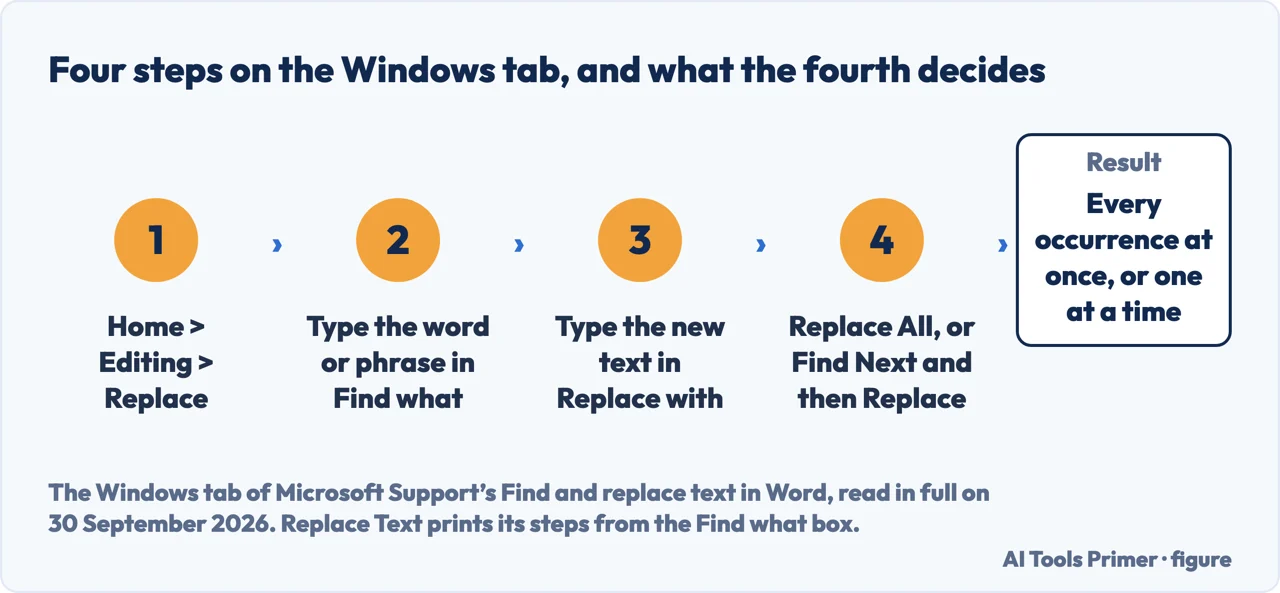
Replace, or Replace All? The Windows tab offers both and recommends neither. The macOS tab of the same page prints its preference twice: “it’s a good idea to select Replace instead of Replace All”, so that each item is reviewed, or each replacement confirmed, first. Replace Text calls Replace All the way to “update all instances without stopping at each one”. The shortcuts page prints an Undo key on each of its five tabs, Ctrl+Z on the Windows, Office for Android and Web tabs; none of the seven Microsoft documentation pages in the Sources says whether one Undo takes back a whole Replace All.
The search options, as Replace Text lists them
From Replace Text, which lists the same five products; another page is named where it adds something.
- Match case
- Only words that match a specific capitalisation. The Windows tab of Find and replace text in Word reaches it through More > Match case.
- Find whole words only
- Avoids partial matches: in the page’s example, changing One to Two does not turn Someone into Sometwo.
- Use wildcards
- Gets partial matches: the pattern
the*finds theater and thespian. The table of characters is further down. - Sounds like, Find all word forms
- Both carry (English) in their names. The first finds words that sound like others, such as there and their; the second all verb tenses, as in find, finds, finding and found.
- The rest of the list
- Match prefix, Match suffix, Ignore punctuation characters, Ignore white-space characters, No Formatting, and Search, which takes the whole document or runs from the cursor upwards or downwards.
- Format, Special
- The Format button finds and replaces formatting such as font types or colours. The Special button is there to “Find and replace page and character elements such as Em dashes, tabs, or Section Breaks.” Stripping formatting rather than swapping it is on the page on removing formatting in Word.
What the replacement keeps. Among the seven Microsoft documentation pages in the Sources, only Microsoft Learn’s reference for Find.Execute says what happens to the formatting and case of the new text. It documents a VBA method, and says of several of its arguments that they correspond to check boxes in the Find and Replace dialog box. Unless otherwise specified, “replacement text inherits the formatting of the text it replaces in the document”. And when MatchCase is False, “occurrences of the search text that are uppercase will be replaced with an uppercase version of the replacement text”. That the dialog box behaves the same way is this guide’s inference; no support page read says so.
On a Mac: Control+H on two Microsoft pages, Shift+Command+H on a third
“While editing a Word for Mac document, press Shift+Command+H.”
That is the Newer Mac versions tab of the screen-reader page, written for VoiceOver. The macOS tab of the shortcuts page prints a different key, Control+H, in the row “Display the Find and Replace pane.” The macOS tab of Find and replace text in Word agrees with it, in capitals: the basic Find and Replace pane opens with CONTROL + H.
Two keys, three pages, all reported as printed. None of the three says whether the two keys open the same pane, and this guide has not tried either on a Mac. No page read for this guide prints Command+H on its own.
The steps on the macOS tab. Type the word in the search box in the upper-right corner of the document, and Word highlights all instances. To replace: select the magnifying glass, then Find and replace; type the replacement in the Replace With box; select Replace All or Replace.
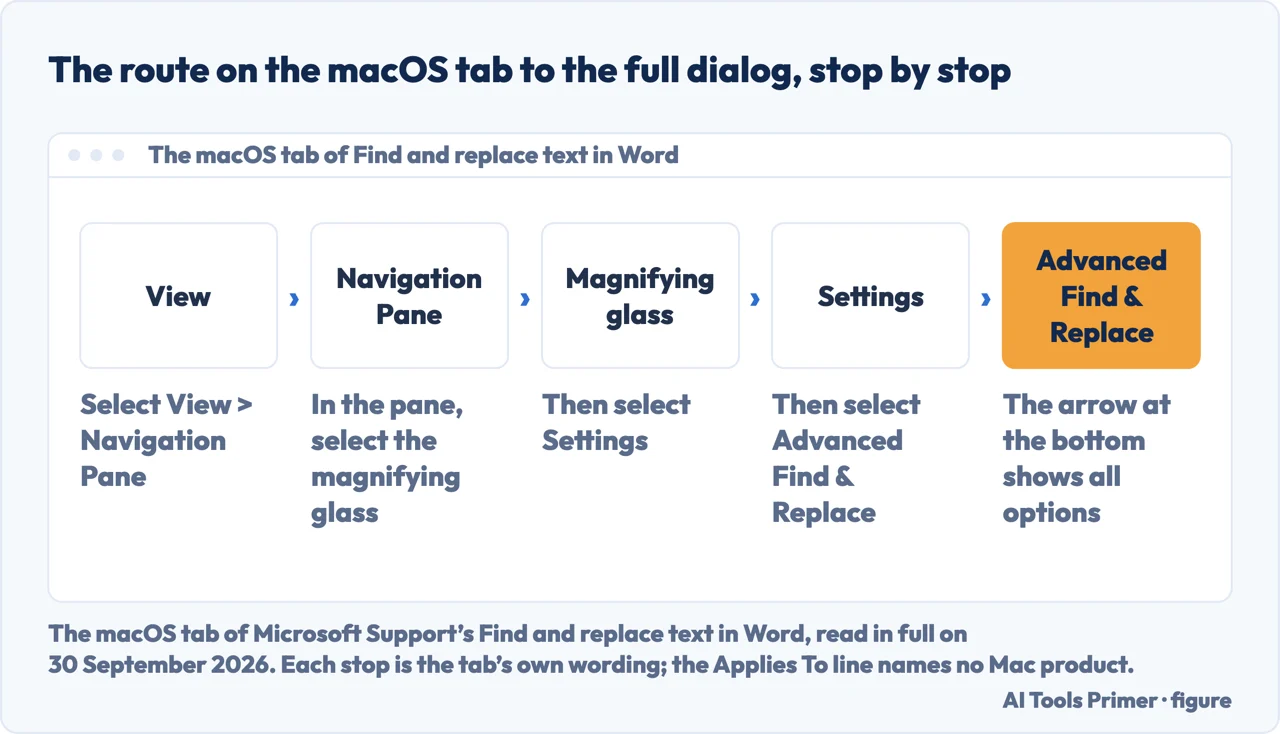
Wildcards, formatting and special characters: printed under the macOS tab, and listed on Replace Text. The word wildcard appears eleven times under the macOS tab of Find and replace text in Word and not once under its Windows or Web tab. The macOS route is View > Navigation Pane, the magnifying glass, Settings, Advanced Find & Replace, with a note to select the arrow at the bottom of the dialog box to show all options. From there the tab uses the Format menu for formatting such as bold or highlight, the Special menu for paragraph marks, page breaks and other special characters, and the Use wildcards check box.
| Character | What it finds | Microsoft’s example |
|---|---|---|
? | Any single character | s?t finds sat and set |
* | Any string of characters | s*d finds sad and started |
[ ] | One of the characters listed | w[io]n finds win and won |
[-] | One character in a range, written in ascending order | [r-t]ight finds right, sight and tight |
[!] | One character that is not among those listed | m[!a]st finds mist and most, not mast |
[!x-z] | One character outside the range | t[!a-m]ck finds tock and tuck, not tack or tick |
{n} | Exactly n occurrences of a character or expression | fe{2}d finds feed, not fed |
{n,} | At least n occurrences | fe{1,}d finds fed and feed |
{n,n} | A range of occurrences | 10{1,3} finds 10, 100 and 1000 |
@ | One or more occurrences | lo@t finds lot and loot |
< | The beginning of a word | <(inter) finds interesting and intercept, not splintered |
> | The end of a word | (in)> finds in and within, not interesting |
Three rules printed with the table. A backslash before a wildcard character searches
for the character itself: \? finds a question mark. Parentheses group characters
and set the order of evaluation. And \n in Replace with rearranges the groups:
with (Newman) (Belinda) in Find what and \2 \1 in Replace with, Word
replaces Newman Belinda with Belinda Newman.
The clicks in the dialog box, from a forum answer. The Windows tab of Microsoft’s page names More only for Match case. A Super User answer of 31 January 2023, to a question tagged microsoft-word-2010, says that Word does not support regex and that wildcards are what to use, and gives the clicks inside the Find and Replace dialog: More >>, Use wildcards, then Find Next to check the pattern before Replace All. It is a forum answer, reported as one.
The codes with a caret. ^p for a paragraph mark and ^t for a tab are printed on one Microsoft page in the Sources, the Find.Execute reference, with ^0151 for an em dash and ^c for a replacement taken from the Clipboard. None of the six support pages prints a caret code: for paragraph marks, page breaks and other special characters, the macOS tab sends you to the Special menu. So this guide has no Microsoft source for a page-break code; taking out one break at a time is on the page on removing a page break in Word.
In a browser and on a phone
- What the web version does
- The Web tab of Find and replace text in Word is one paragraph: “Word for the web lets you find and replace basic text. You can match case or find whole words only.” For more it sends you to Word for the desktop. Find text in a document opens the Navigation pane with Ctrl+F or Home > Find, from the Editing view, and adds: “If you want, you can also replace it with different text.”
- The key in a browser
- The shortcuts page, Web tab: Ctrl+H, against “Find and replace text in the Editing view.” The screen-reader page, Web tab: Ctrl+F, the More actions menu, then Replace, and a line of its own: “In older JAWS versions, to find and replace text, press Ctrl+H.”
- iPhone and iPad
- The mobile page: tap Search in the upper-right corner and select Find. Options, to the left of the search box, lists Find, Find and Replace, Find and Replace All, Match Case, Whole Words and Sounds like; “Find and Replace All finds all instances of a word or phrase and replaces them all with a different word or phrase.” The shortcuts page, Office for iOS tab: Control+H.
- Android
- The mobile page, section on Word for Android: tap ⋮ More Options and select Find; the More Options icon to the left of the search box lists Replace, Match Case, Whole Word and Sounds like (English). The shortcuts page, Office for Android tab: Ctrl+F for finding text, no key for replacing.
An empty Find what, an empty Replace with, and the count after Replace All
- Find what, left empty
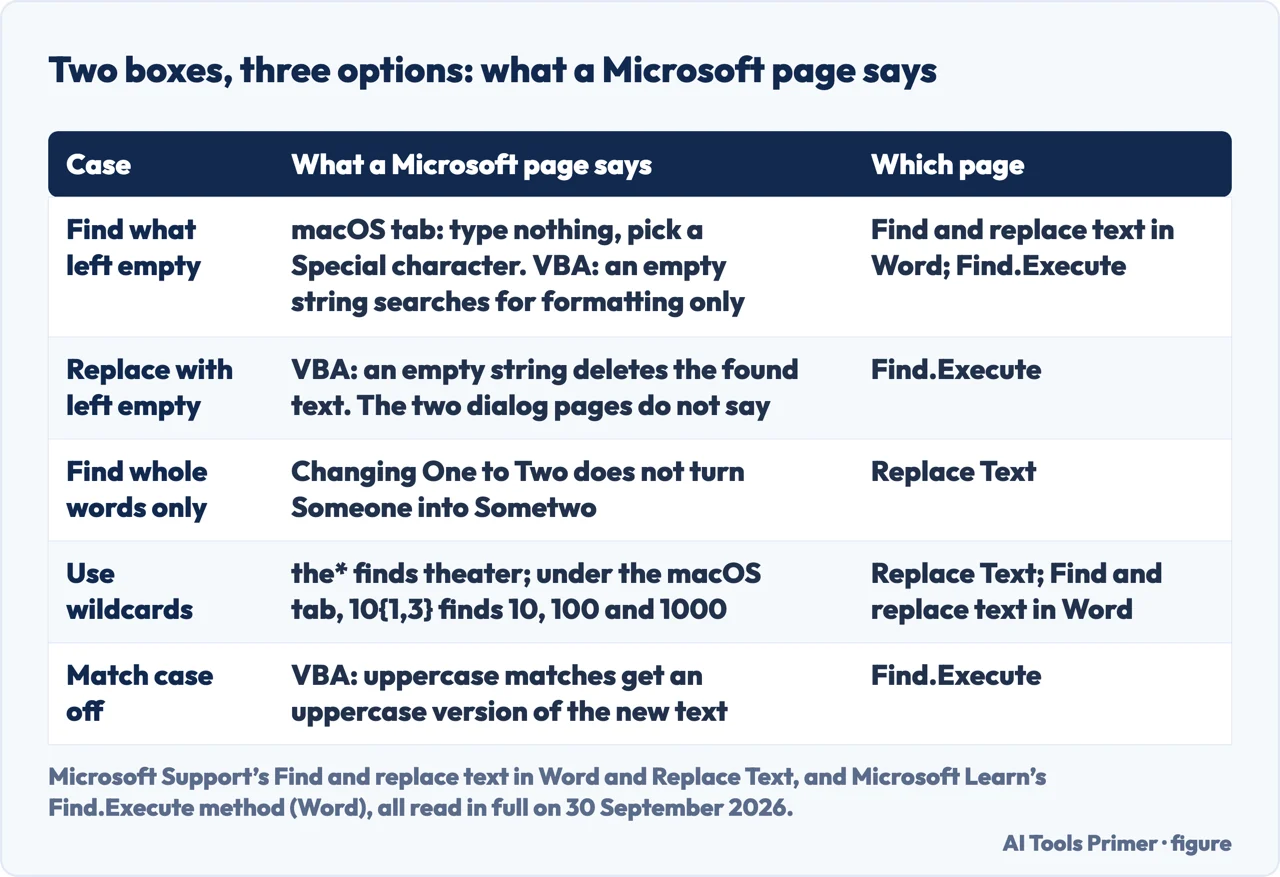
- The macOS tab’s instruction when the thing to find is a special character: select the Find What box, type nothing, and choose from the Special menu, which puts the character’s code in the box. The Find.Execute reference says an empty string as the text to find searches for formatting only.
- Replace with, left empty
- The sentence that covers it is about the VBA method, not the dialog box, and is on the Find.Execute reference: “To delete the text specified by the Find argument, use an empty string”. Neither Find and replace text in Word nor Replace Text says what the dialog box does with an empty Replace with box. That it deletes each match, as the VBA sentence suggests, is this guide’s inference.
- After Replace All
- The screen-reader page says an alert gives the number of replacements, on its Newer Windows versions and Newer Mac versions tabs; on its Office for Android tab TalkBack announces the number. No page read for this guide says what appears when nothing matches.
When the key opens something else. None of the seven Microsoft documentation pages in the Sources says what to do when Replace does not open. In a Microsoft Q&A thread of 5 July 2021, filed under Word for home on Windows, Ctrl+H or F5 sometimes opened Save As instead. The forum moderator replied “This problem normally occurs due to change on Word shortcuts” and asked for the Office version. The thread is locked, with no fix confirmed in it.
Where to start
Six ways in.
- “I only need the steps.”
- Four of them, from the Windows tab — the four steps and the last choice
- “Replace, or Replace All?”
- What the Windows and macOS tabs say — replace or replace all
- “I am on a Mac.”
- Three pages, and what each prints — two keys on three pages
- “I need a pattern, not a word.”
- Twelve characters, and the tab they sit under — wildcards and where they are printed
- “I am in a browser, or on a phone.”
- Page by page — in a browser and on a phone
- “I want to delete the word, not swap it.”
- What Microsoft prints, and what is inference — what an empty box does
Breaks and formatting in Word
The Special button on Microsoft’s Replace Text page names section breaks among the elements it finds. These pages take breaks and formatting one job at a time.
Searching and tidying in a spreadsheet
The mobile page read for this guide lists find and replace options for Excel workbooks beside those for Word documents. These pages are about Excel.
Questions people also ask
What is the shortcut key of find and replace?
In Word, Microsoft’s shortcuts page prints Ctrl+H on its Windows and Web tabs and Control+H on its macOS and Office for iOS tabs; its Office for Android tab prints no key for replacing. For the Mac, Microsoft’s screen-reader page prints a different key, Shift+Command+H.
Where is the find and replace tab in word?
The Windows tab of Microsoft’s page gives the path Home > Editing > Replace. Its macOS tab starts from the search box in the upper-right corner of the document: select the magnifying glass, then Find and replace. In the dialog box, the macOS tab says to select Replace at the top.
What is find and replace?
Microsoft’s page on finding text on a mobile device puts it in one line: Find and Replace finds a word or phrase and replaces it with a different one. Microsoft’s Replace Text page for Word has two boxes, Find what and Replace with; Replace updates one instance, and Replace All updates all instances without stopping at each one.
Why isn't the Find and Replace feature working in word?
No Microsoft Support page read here gives a cause for Replace failing. One limit is printed: Microsoft describes Word for the web as finding and replacing basic text, with more varied options in Word for the desktop. A Microsoft Q&A thread from 2021, about Ctrl+H opening Save As, points to changed Word shortcuts and ends without a confirmed fix.
Not covered here. It does not cover macros: the Microsoft Learn page on Find.Execute is read here only for what it says about empty strings, caret codes, formatting and case.
It does not cover what Replace All does in headers, footnotes or text boxes, or while changes are tracked: none of the seven Microsoft documentation pages in the Sources says.
And it does not cover find and replace in Google Docs, Excel or PowerPoint. Of PowerPoint for iPhone, iPad and Android, the mobile page says that it does not currently support Find and Replace. Each key and path in this guide’s sections is printed with the tab or the page it comes from; where the pages read say nothing, or the guide is inferring, the line says so.
Sources
- Microsoft Support — Find and replace text in Word: on its Windows tab, the path Home > Editing > Replace, the four steps and More > Match case; on its macOS tab, the search box, the magnifying glass and Find and replace, the tip with CONTROL + H, the advice to select Replace instead of Replace All, printed twice, the route to Advanced Find & Replace, the Format and Special menus, the Use wildcards check box, the table of twelve wildcard characters and the rules on the backslash, parentheses and rearranged groups; on its Web tab, the paragraph on basic text. Applies to Word for Microsoft 365, Word 2024, Word 2021, Word 2019 and Word 2016 — five products, with neither Mac nor web in a name — support.microsoft.com, read 30 September 2026.
- Microsoft Support — Replace Text: the four steps from the Find what box and the list of search options. It has no tabs. Applies to the same five products: Word for Microsoft 365, Word 2024, Word 2021, Word 2019 and Word 2016 — support.microsoft.com, read 30 September 2026.
- Microsoft Support — Keyboard shortcuts in Word, the shortcuts page: Ctrl+H on its Windows tab and on its Web tab, Ctrl+F for the Navigation task pane on its Windows tab, Control+H on its macOS tab and on its Office for iOS tab, Ctrl+F alone on its Office for Android tab, and the Undo row on all five tabs. Applies to thirteen products: Word for Microsoft 365 and its Mac version, Word 2024 and its Mac version, Word 2021 and its Mac version, Word 2019, Word 2016, Word for iPad, Word for iPhone, Word for Android tablets, Word for Android phones and Word Mobile — support.microsoft.com, read 30 September 2026.
- Microsoft Support — Use a screen reader to insert and change text in Word, the screen-reader page: on its Newer Windows versions tab, Ctrl+H, the focus on Find what, the Tab key, Alt+R, Alt+F, Alt+A and the alert with the number of replacements; on its Newer Mac versions tab, Shift+Command+H and the alert; on its Office for Android tab, the announced number; on its Web tab, Ctrl+F, the More actions menu and the line on older JAWS versions. Applies to eleven products: Word for Microsoft 365 and its Mac version, Word 2024 and its Mac version, Word 2021 and its Mac version, Word 2019, Word 2016, Word for iPhone, Word for Android phones and Word Mobile — support.microsoft.com, read 30 September 2026.
- Microsoft Support — Find text in a document: Ctrl+F or Home > Find for the Navigation pane in the Editing view, and the sentence on replacing. It carries no Applies To line; its text is about Word for the web — support.microsoft.com, read 30 September 2026.
- Microsoft Support — Find text in an Office file on a mobile device, the mobile page: the Find route and the Options list in its section on Word or Excel for iPhone or iPad, the route and the list in its section on Word for Android, the Excel lists, and the note on PowerPoint. Applies to fifteen products, five of them Word: Word for iPad, Word for iPhone, Word for Android tablets, Word for Android phones and Word Mobile — support.microsoft.com, read 30 September 2026.
- Microsoft Learn — Find.Execute method (Word), in the Office VBA reference: the empty string for the text to find and for the replacement, the caret codes, and the two remarks on formatting and on case. It carries no product line; last updated on 13 September 2021 — learn.microsoft.com, read 30 September 2026.
- Super User — How to use Find/Replace Wildcard on Word?, a forum thread asked on 31 January 2023 and tagged microsoft-word-2010: the one answer, of the same day, with More >>, Use wildcards, Find Next and Replace All. An independent forum, reported as a user’s answer; it was read with Chrome, and the copy read carries a loading placeholder — superuser.com, read 30 September 2026.
- Microsoft Q&A — Find and Replace dialogue box issues, a forum thread asked on 5 July 2021 and filed under Word for home on Windows: the question about Ctrl+H or F5 opening Save As, and the moderator’s reply. A locked thread, reported as a forum exchange and not as Microsoft documentation — learn.microsoft.com, read 30 September 2026.
Written by Alberto Gulotta
Founder and editor of AI Tools Primer, writing from Palermo, Italy. Thirty-five years of taking computers apart, starting with a Commodore 64 — the long version is on the about page.
Something wrong on this page? Write to aitoolsprimer@gmail.com and it gets fixed.
Written on 1 October 2026.
Independence and limits
No affiliate links and no paid placements anywhere on this site. Nobody pays to appear here, and no company has seen this page before you did.
This is general information, not professional advice. Where a page touches money, health, safety or the law, it names its source and the date it was read — and your situation may still differ. See the privacy page and the cookie policy.