
Docs · guide
How do I remove a page break in Word, and when you cannot
By Alberto Gulotta · Updated · 12 min read
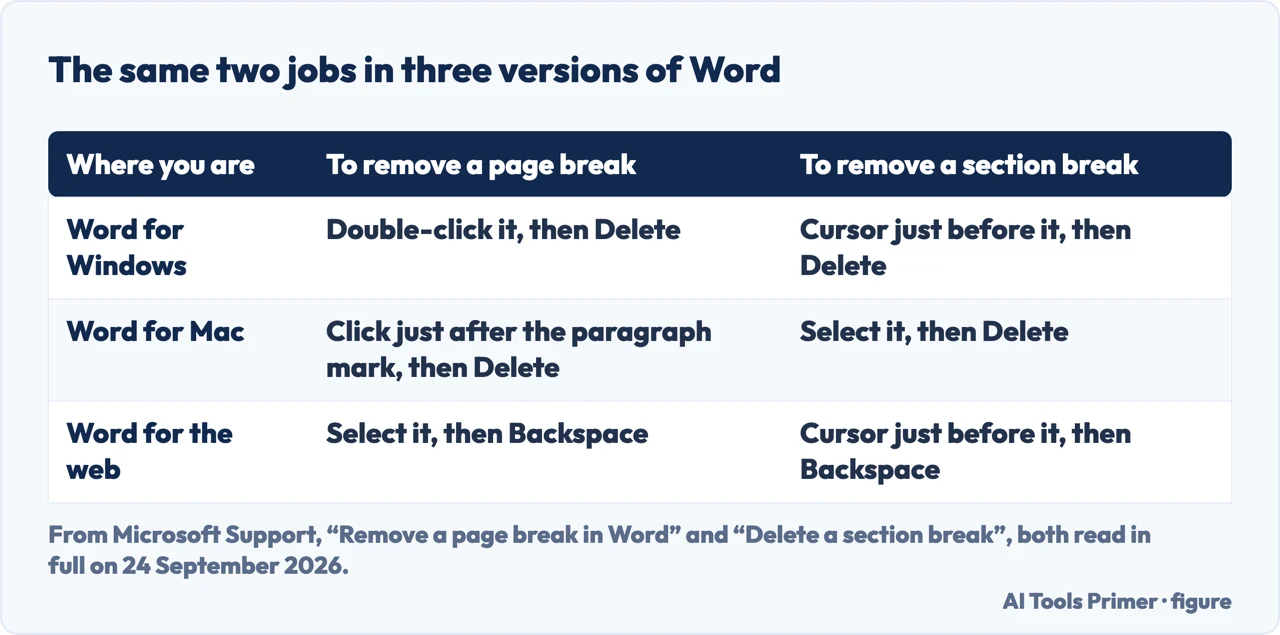
To remove a page break in Word, turn on Home and Show/Hide ¶ so the break is visible, then delete it: double-click it on Windows, click just after the paragraph mark in it on a Mac, select it and press Backspace in the browser. Only breaks somebody added can go.
| Where you are | To see the breaks | To remove a page break | To remove a section break |
|---|---|---|---|
| Word for Windows | Home › Show/Hide ¶ | Double-click it, then Delete | Cursor just before it, then Delete |
| Word for Mac | Home › Show/Hide ¶ | Click just after the paragraph mark in it, then Delete | Select it, then Delete |
| Word for the web | Home › Paragraph › Show/Hide ¶ | Select it, then Backspace | Cursor just before it, then Backspace |
| An automatic page break | It has no mark to turn on | Cannot be removed — only moved | — |
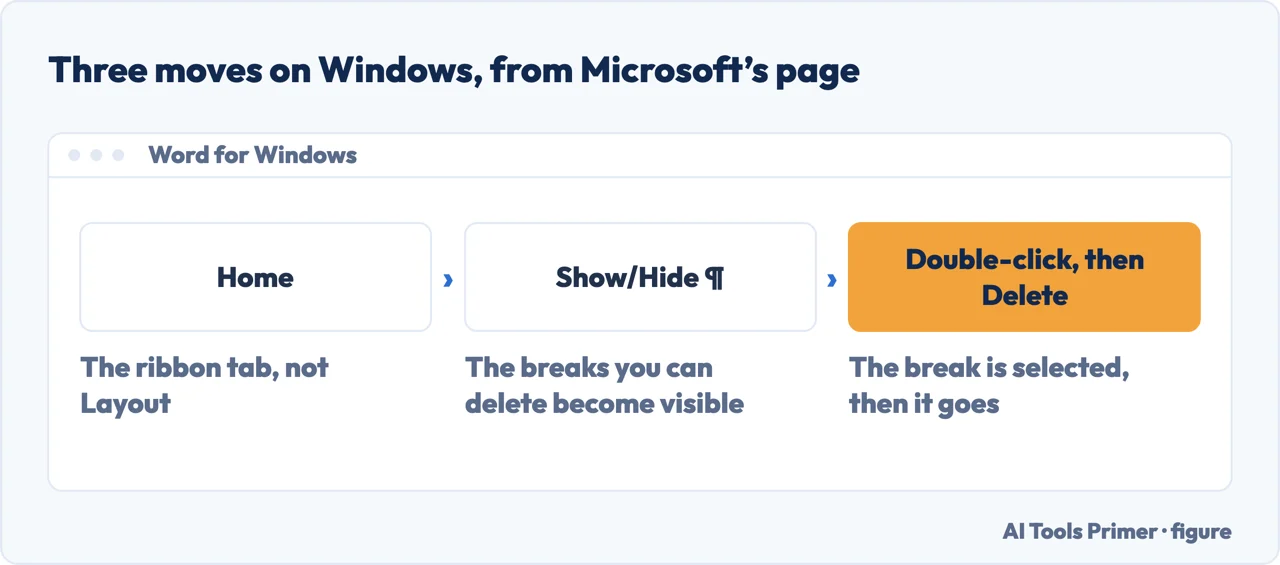
- Turn the formatting marks on first. Home and then Show/Hide ¶. Microsoft attaches the same instruction to both of its pages, and the reason is that until the marks are visible you are deleting something you cannot see.
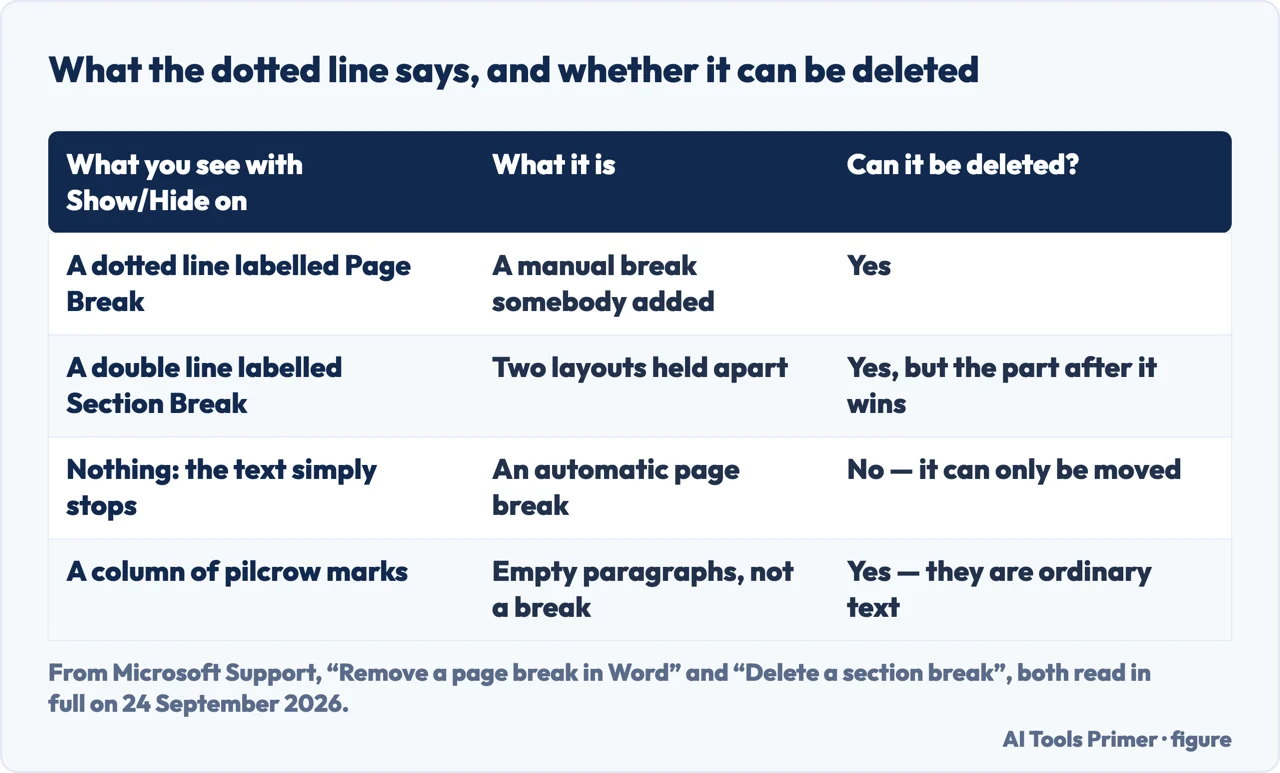
- Read the label on the dotted line. A manual page break says Page Break. A section break says Section Break and then, in brackets, which kind it is. They are removed differently and they cost differently, so this is the step to slow down on.
- On Windows, double-click the break to select it, then press Delete. Microsoft’s wording is exactly that: “Double-click the page break to select it and then press Delete”.
- On a Mac, click just after the paragraph mark in the break, then press Delete. Not on the break, and not before it. It is a different gesture from the Windows one, and Microsoft publishes the two one tab apart on the same page.
- In the browser, select the break and press Backspace. Microsoft adds one condition first: you have to be in Editing View. In Reading View the break is not shown at all, so the page looks as though it has no break in it.
- Turn Show/Hide off again. The marks are a working view, not a setting anybody else sees, and a document is easier to read without them.
Why some breaks refuse to go
Microsoft’s page opens with the sentence that answers the question people actually arrive with. “There are two types of page breaks in Word: breaks that Word automatically adds to mark the end of each page, and manual page breaks that you can add. You can delete manual page breaks. You can’t remove automatic page breaks, but you can adjust where they occur.”
An automatic break is not an object in the document. It is where the text ran out of page, and it moves every time anything above it changes. There is nothing to select, so pressing Delete on it does nothing at all — the same misunderstanding that makes deleting a page in Word feel impossible.
Which means the honest answer to “this break will not delete” is usually: it is not a break. It is the end of a page. What can be changed is where it falls, and that is a paragraph setting rather than a deletion.
Moving an automatic break instead of deleting it
Windows: Layout or Page Layout, then the Paragraph dialog box launcher, then the Line and Page Breaks tab. On a Mac: the Format menu, then Paragraph, then the same tab. Four settings, in Microsoft’s own words.
- Widow/Orphan control
- “Places at least two lines of a paragraph at the top or bottom of a page.” This is the one that is usually already on.
- Keep with next
- “Prevents breaks between paragraphs you want to stay together.” The setting that keeps a heading attached to the text under it.
- Keep lines together
- “Prevents page breaks in the middle of paragraphs.”
- Page break before
- “Adds a page break before a specific paragraph.” Worth knowing because the text starts on a new page and there is no dotted line labelled Page Break to find.
The second question is which kind of break you are looking at, because a document can show three things that all push text onto a new page and only two of them are breaks. A page break moves the text. A section break makes everything after it a separate part of the document, with its own layout. And a run of empty paragraphs does the same job badly, which is why it is worth turning the marks on before deleting anything: the pilcrows give it away at once. La Trobe University’s guide puts the difference between the two real breaks in a line — a page break, “unlike a section break”, “does not allow for different formatting to be applied”.
What a section break costs to remove
“When you delete a section break, Word combines the text before and after the break into one section. The new combined section uses the formatting from the section that followed the section break.”
That is Microsoft’s warning, and it is the sentence to read before pressing Delete on a section break. A section break is not holding the pages apart: it is holding two layouts apart — headers and footers, page orientation, page numbering. Delete it and one of those sets wins — and it is the one that came after the break, not the one you were looking at when you pressed Delete.
La Trobe University’s guide for research students shows what that costs in a real document: page numbering that “is displayed as Roman numerals until the first chapter when Arabic numerals are subsequently used”, with each numbering style applied “to a different section of the document”. Remove the break between them and the front matter inherits the chapter numbering.
Microsoft gives the way round it. If what you wanted was for the section to keep the formatting, headers or footers from before the break, “use Link to previous instead of removing the section break”. The break stays; the difference between the two sections goes.
If what you want is the break somewhere else, take it out here and put it back where it belongs. Inserting a page break is the opposite gesture and Microsoft documents it separately, including a keyboard shortcut that does not appear on the page teaching the menu route. The two jobs use the same Show/Hide switch, so the marks you turned on here are the ones you need there.
Removing the break and removing the page are different problems. A blank page at the end of a document may have no break in it at all: Word keeps a final paragraph mark that cannot be deleted, and it can be pushed onto a page of its own. Getting rid of a page in Word is worked through separately, and starts from the same two minutes with the formatting marks turned on.
The breaks that were holding the layout together. If deleting a break changed something you did not expect — the headers, the orientation, the numbering — it was a section break, and what changed is now inherited from the part of the document that followed it. Page numbering is worked through on its own page, and so are margins. Undo, look at the label on the break, and decide again.
Neither Microsoft page read for this article gives a way to remove the page breaks of a whole document in one go. The page on removing a break covers one break at a time, and the recipe going round for doing it in bulk with Find and Replace is not on either of them. That is not the same as saying it does not work; it means it is not Microsoft’s instruction, and this page does not present it as one.
The routes, the keys, the two types of break and the warning about section formatting are quoted from Microsoft’s own Word pages, read in full on 24 September 2026 and listed below. The reading of why an automatic break cannot be deleted, and the advice to read the label before pressing anything, are ours.
Where to start
Four ways in.
- “I can see the break and I want it gone.”
- Six moves — taking one out
- “It will not delete, whatever I press.”
- It may not be one — the break that is not there
- “Deleting it changed the whole document.”
- That was a section — what a section break was holding
- “I wanted the break. I want it somewhere else.”
- Move it instead — putting one back
Taking one out
The same deletion in three versions of Word, with three different gestures and one switch that has to be on first.
The break that is not there
Word adds a break at the end of every page by itself, and that one has no mark, no label and nothing to select.
What a section break was holding
Headers, footers, orientation and numbering. Remove the break and the part after it decides for both.
Putting one back
The opposite gesture, with a keyboard shortcut Microsoft keeps on a different page from the menu route.
Questions people also ask
Why can’t I remove a page break in Word?
Because it is probably not a manual break. Microsoft: “You can delete manual page breaks. You can’t remove automatic page breaks, but you can adjust where they occur.” An automatic break is simply where the text ran out of page, so there is nothing to select.
How do I remove a page in Word that won’t go away?
It may be a different problem from a break. Word keeps a final paragraph mark that cannot be deleted, and when that mark is pushed onto a page of its own, the page does not go the way a break does.
Why do I have a random page break in Word?
Two causes to check first. Either it is an automatic break and the text simply reached the bottom of the page, or a paragraph has Page break before switched on in Line and Page Breaks, which starts a new page without leaving a dotted line to find.
What happens when I delete a section break?
Microsoft: the text before and after it are combined into one section, and “the new combined section uses the formatting from the section that followed the section break”. Margins, headers and page numbering come from the part after the break, not before it.
How do I see page breaks in Word?
Home and then Show/Hide ¶. Each manual break appears as a dotted line with its name on it, and section breaks say which kind they are. In Word for the web the switch is under Home › Paragraph, and page breaks show only in Editing View.
Not covered here. It does not cover Google Docs, where the menu and the marks are both somewhere else.
It does not cover removing a whole page: that is a different problem, and it has its own page.
And it does not recommend anything to install. Every route here is a menu or one key in the program the document is already open in. What holds instead is simple: the gestures and the warning about section formatting are quoted from Microsoft’s own Word pages, with the date each was read.
Sources
- Microsoft Support — Remove a page break in Word: the two types of break, and the three gestures, one per platform. Applies to Word for Windows from 2016 and to Word for Mac from 2021, with Microsoft 365 on both — support.microsoft.com, read September 2026.
- Microsoft Support — Delete a section break: the three gestures, and the warning that the combined section takes its formatting from the section that followed the break — support.microsoft.com, read September 2026.
- La Trobe University Library — Section and page breaks, from a guide written for graduate researchers using a PC — latrobe.libguides.com, read September 2026.
Written by Alberto Gulotta
Founder and editor of AI Tools Primer, writing from Palermo, Italy. Thirty-five years of taking computers apart, starting with a Commodore 64 — the long version is on the about page.
Something wrong on this page? Write to aitoolsprimer@gmail.com and it gets fixed.
Written on 24 September 2026.
Independence and limits
No affiliate links and no paid placements anywhere on this site. Nobody pays to appear here, and no company has seen this page before you did.
This is general information, not professional advice. Where a page touches money, health, safety or the law, it names its source and the date it was read — and your situation may still differ. See the privacy page and the cookie policy.