
Docs · guide
How to delete a page in Word, including the blank one
By Alberto Gulotta · Updated · 8 min read
How to delete a page in word is searched thirty thousand times a month in the United States alone, and the reason it keeps being searched is not that the answer is complicated. It is that the question contains a false assumption, and every attempt built on that assumption fails.
You cannot delete a page, and that is why nothing works
A page in Word is not an object. It is the space that some content happens to occupy — and when the content moves, the page moves with it. There is no page to select and no page to delete, which is exactly why clicking on a blank page and pressing Delete does nothing at all.
What you delete is the content. Microsoft’s instruction for an ordinary page is as plain as that: “select the content to delete, and press Delete.” Simple, and it works — for a page with something visible on it.
The maddening case is the other one: a page that appears blank. It is not blank. It contains something you cannot see, and until you make it visible you are deleting nothing.
The keystroke that solves most of these
Microsoft: “Press Ctrl+Shift+8 (⌘+8 on a Mac)” to show paragraph marks. The invisible becomes visible — every empty paragraph, every manual page break, every stray return that has been pushing your document onto an extra page. Nine times out of ten the cause is now on screen and can be selected and deleted like anything else.
The three things usually hiding there
Each with a different fix, and the last one has a trick to it.
Microsoft names which breaks make pages: “Next Page, Odd Page, and Even Page section breaks may create a blank page in your document.” A section break is not a stray return — it is carrying the page setup for everything after it, which is why the obvious fix misfires: “in the middle of a document, deleting section breaks can cause formatting problems.” Remove it and the margins, orientation or columns of the section before it swallow the section after.
The published move is to change the break rather than remove it: “try changing the section break to one that doesn’t generate a new page. Here’s how: double select the section break. On the Layout tab, select the Breaks drop down and select Continuous.” The division survives, the formatting on both sides survives, and the blank page goes — because Continuous is the one type that starts a section without starting a page.
The end of the document is the exception where deleting is right: “if the blank page occurs at the end of your document and you have a section break there, place your cursor directly before the section break and press Delete.” There is nothing after it to reformat. And for finding these things at all, Microsoft offers a view rather than a keystroke: “to more easily find section breaks, try switching to Draft on the View tab.”
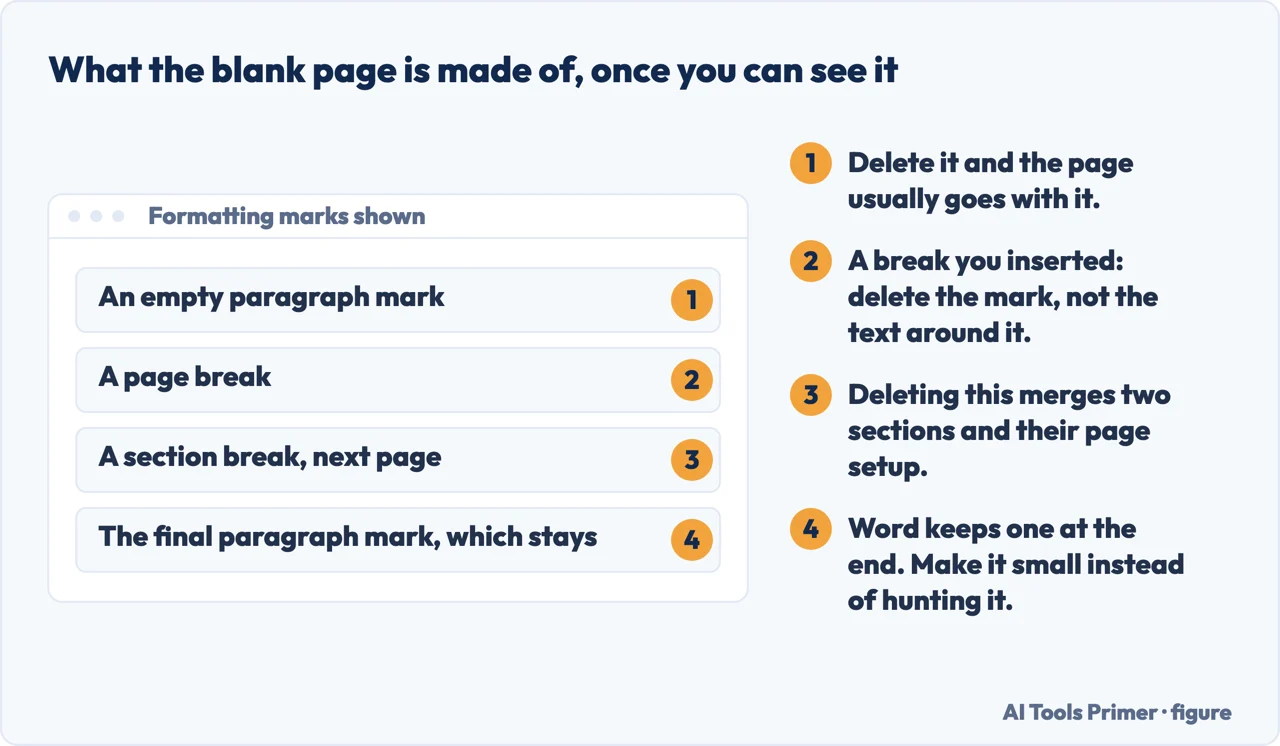
Then there is the case that defeats everybody, because the thing causing it genuinely cannot be removed. A blank page at the very end of a document is often Word’s own required final paragraph, pushed onto a page of its own. Microsoft states that this end paragraph “can’t be deleted” — so the fix is not to delete it but to make it small enough to fit on the previous page. Their instruction, once paragraph marks are showing: “Select inside the Font size box, type 01, and then press Enter.” A one-point paragraph mark takes almost no room, the page it was occupying disappears, and nothing visible in your document changes.
That trick is worth remembering because it looks like a hack and is Microsoft’s own documented answer. The blank last page that will not go away, in a document you have to submit in ten minutes, has a two-second fix.
The phrasings show how long people have been stuck when they search. How to delete a blank page in word and how to delete an extra page in word are the specific version. Can’t delete blank page in word is somebody who has already tried the obvious thing several times. How to delete a page break in word is somebody who has worked out the cause and wants the remedy. And how to delete a page in word mac is the same problem with one different key — ⌘ and 8 rather than Ctrl and Shift and 8.
The invisible paragraph is not a Word quirk. LibreOffice documents the same mark and the same command — View and Formatting Marks, which “shows hidden formatting symbols in your text, such as paragraph marks, line breaks, tab stops, and spaces” — and adds the sentence that explains half the mysteries on this page: “when you delete a paragraph mark, the paragraph that is merged takes on the formatting of the paragraph that the cursor is in.” That is why deleting a stray empty line sometimes changes the spacing of the text above it, in every word processor there is.
One habit prevents nearly all of this from happening again. Never make space with the return key. Rows of empty paragraphs are what produce phantom pages, shift when text is added above them, and reappear on somebody else’s screen with different margins. A page break where you want a new page, and paragraph spacing where you want room, both survive editing — and neither leaves you hunting for something invisible the night before a deadline.
Where to start
Four ways in.
- “It is the last page and nothing works.”
- Read the end paragraph
- “I want to stop this happening.”
- Go to writing so it does not
The end paragraph
The one that cannot be deleted, and the documented way round it. This wing exists because the obvious approach is impossible.
Writing so it does not
The habits that stop phantom pages existing. Each takes seconds and saves the same problem happening in every document you write.
Not covered here. It will not tell you to click on the page and press Delete. A page is not an object, which is why that does nothing and why the question keeps being asked.
It will not skip the end-paragraph case. It is the version that defeats people entirely, and Microsoft publishes an answer that looks like a trick and is not.
And it will not recommend software for this. Every fix here is a keystroke or a setting in the application the document is already open in. What holds instead is simple: the shortcuts and the end-paragraph fix are quoted from Microsoft’s own documentation.
Sources
- Microsoft Support — Delete a blank page, including the paragraph marks shortcut, the end paragraph that cannot be deleted and the one-point fix — support.microsoft.com, read 6 September 2026.
- Microsoft Support — Delete a page in Word — support.microsoft.com, read 21 August 2026.
- LibreOffice Help — Formatting Marks: the same command in another word processor, and what happens to formatting when a paragraph mark is deleted — help.libreoffice.org, read 4 September 2026.
Written by Alberto Gulotta
Founder and editor of AI Tools Primer, writing from Palermo, Italy. Thirty-five years of taking computers apart, starting with a Commodore 64 — the long version is on the about page.
Something wrong on this page? Write to aitoolsprimer@gmail.com and it gets fixed.
Written on 21 August 2026 · last checked 4 September 2026.
Independence and limits
No affiliate links and no paid placements anywhere on this site. Nobody pays to appear here, and no company has seen this page before you did.
This is general information, not professional advice. Where a page touches money, health, safety or the law, it names its source and the date it was read — and your situation may still differ. See the privacy page and the cookie policy.