
Docs · guide
How to change margins in Google Docs, and why they vanish
By Alberto Gulotta · Updated · 8 min read
How to change margins in google docs has a short answer — File › Page setup — except when the setting is not there. That is not a bug and it is not you.
If the margin settings are missing, this is why
Google Docs has two modes, and one of them does not offer the settings you are looking for. In pageless format the document “continuously scrolls without page breaks” — and Google states the consequence plainly: “On a document that’s in pageless format, you won’t be able to add certain features, such as columns, page numbers, headers and footers, and more.”
Google’s page on page settings covers “page size and margins” and says it outright: “These features aren't available in documents that are in pageless format.” Nothing is broken: the document is in a mode that does not have pages, and a margin is a property of a page.
The fix is the route above. Google: “Go to File → Page setup. At the top of the dialog window, select Pages or Pageless. Click OK to confirm.” There is a shorter way on the same page: “click Format and select Switch to Pageless format or Switch to Pages format.”
What else pageless changes
Every item here comes from Google’s pages; which of them your brief needs is for the brief to say.
- Page numbers
- Headers and footers
- Margins and page size
- Columns
- Footnotes at the foot of the page
- Watermarks
The footnote one is worth its own sentence, because it does not announce itself. Google: “If your document is in pageless format, footnotes will all appear together at the end of your document.” They are still there — and no longer where a marker expecting notes on the page will look for them.
Reassuringly, Google describes the switch as hiding rather than deleting: “If your document has certain elements, such as headers and footers, or watermarks, and you switch it to pageless, you won’t be able to see those elements. If you switch the document back to pages, you’ll see those elements again.” Its page on printing adds that they “will still print, even if you can't see them in your pageless doc.”
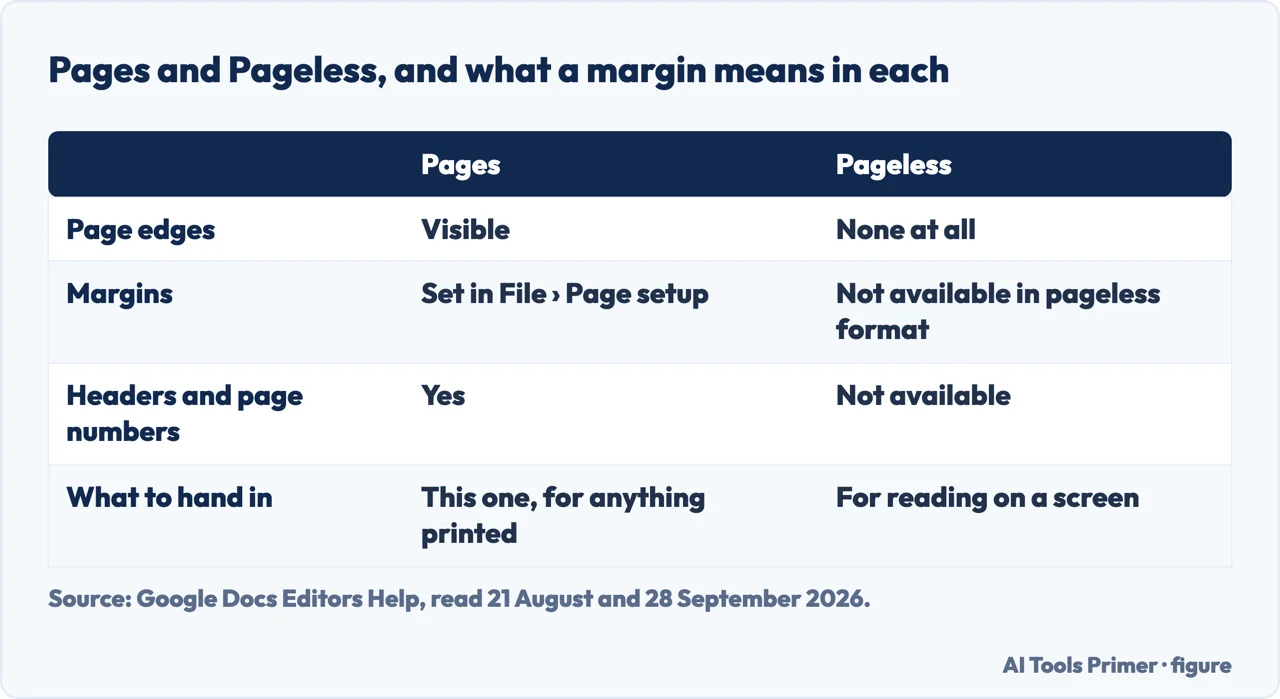
Pageless is a reasonable mode for a working document — notes, a draft, something with wide tables meant to be read on a screen. It is the wrong mode for anything that will be submitted, printed or marked, and the trouble is that a document can be in it because of a template, a shared copy or a setting changed months ago. If any of the six things above are missing, check the mode before you check anything else.
The rest of the essay checklist, in the menus
Two of those rows are worth a second look. Line spacing, because a document can look fine on screen at 1.15 and still not be what the brief asked for. And the hanging indent, because it can be faked with the space bar or the tab key — which holds until the text reflows on somebody else’s screen, and then the list can come out ragged.
Some phrasings overlap. How to adjust margins in google docs and how to change margins on google docs are the same request; how to do hanging indent on google docs and how to strikethrough on Google Docs are the neighbouring formatting jobs.
And the number itself comes from your brief, not from the program. APA’s rule is one line — “Use 1-inch margins on every side of the page for an APA Style paper.” — with an exception worth remembering before you set anything: “if you are writing a dissertation or thesis, your advisor or institution may specify different margins (e.g., a 1.5-inch left margin to accommodate binding)”.
One more thing that belongs on a page about page layout, because it shows up at submission rather than while writing. The word count in the corner does not count everything. Google states that “Unless you select a section of the document, word count applies to everything except headers, footers, and footnotes” — so a document with substantial notes is longer than the counter says, in the direction that matters.
Where to start
Four ways in.
- “The margin setting is missing.”
- Check the mode first — pages or pageless
- “I need the essay formatted properly.”
- Go to the essay checklist
- “My references list looks wrong.”
- That is the indents entry
- “The word count seems off.”
- Read the word count note
The two modes
Pages and pageless decide which settings Docs shows; the guide below covers another formatting job in Google Docs.
Essay formatting
What a style asks for on the page, from the style’s own rules.
Lists and indents
The references page, where formatting stops being cosmetic and starts being part of the citation style.
Counting and limits
The number in the corner, what it leaves out, and why that matters more than it looks.
Not covered here. It will not tell you to install an add-on for formatting a document. The settings on this page are all in Google Docs’ own menus.
It will not treat a missing setting as a mystery. Where a feature is unavailable in pageless format, Google says so, and this guide quotes it.
And it will not guess your department’s formatting rules. What the software does is documented; what you are marked against is not, and it takes one line to ask. What holds instead is simple: the settings and limitations on this page are quoted from Google’s own help pages, and the one-inch figure from APA Style.
Sources
- Google Docs Editors Help — Change a document’s page setup: pages or pageless — support.google.com, read 21 August and 28 September 2026.
- Google Docs Editors Help — Change page settings on Google Docs — support.google.com, read 28 September 2026.
- Google Docs Editors Help — Change how paragraphs and fonts look, including line spacing and the Format menu shortcut — support.google.com, read 21 August 2026.
- Google Docs Editors Help — Use headers, footers, page numbers and footnotes — support.google.com, read 21 August 2026.
- Google Docs Editors Help — Count the words in a document — support.google.com, read 21 August and 28 September 2026.
- Google Docs Editors Help — Print a file — support.google.com, read 28 September 2026.
- Google Docs Editors Help — Add a numbered list, bulleted list, or checklist, section “Add a hanging indent” — support.google.com, read 28 September 2026.
- APA Style — Margins: the one-inch rule for a student paper and the binding exception for a thesis, from the body that sets the requirement rather than the program that applies it — apastyle.apa.org, read 28 September 2026.
Written by Alberto Gulotta
Founder and editor of AI Tools Primer, writing from Palermo, Italy. Thirty-five years of taking computers apart, starting with a Commodore 64 — the long version is on the about page.
Something wrong on this page? Write to aitoolsprimer@gmail.com and it gets fixed.
Written on 21 August 2026 · last checked 30 September 2026.
Independence and limits
No affiliate links and no paid placements anywhere on this site. Nobody pays to appear here, and no company has seen this page before you did.
This is general information, not professional advice. Where a page touches money, health, safety or the law, it names its source and the date it was read — and your situation may still differ. See the privacy page and the cookie policy.