
Detect · guide
How to check word count on Google Docs, and what it leaves out
By Alberto Gulotta · Updated · 11 min read
A word counter for Google Docs is already in the menu: Tools, then Word count, and a tick box that keeps the number on the page while you type. The harder question is what the number means. Two reputable counters can read the same paragraph and return figures that differ by half, and both are right.
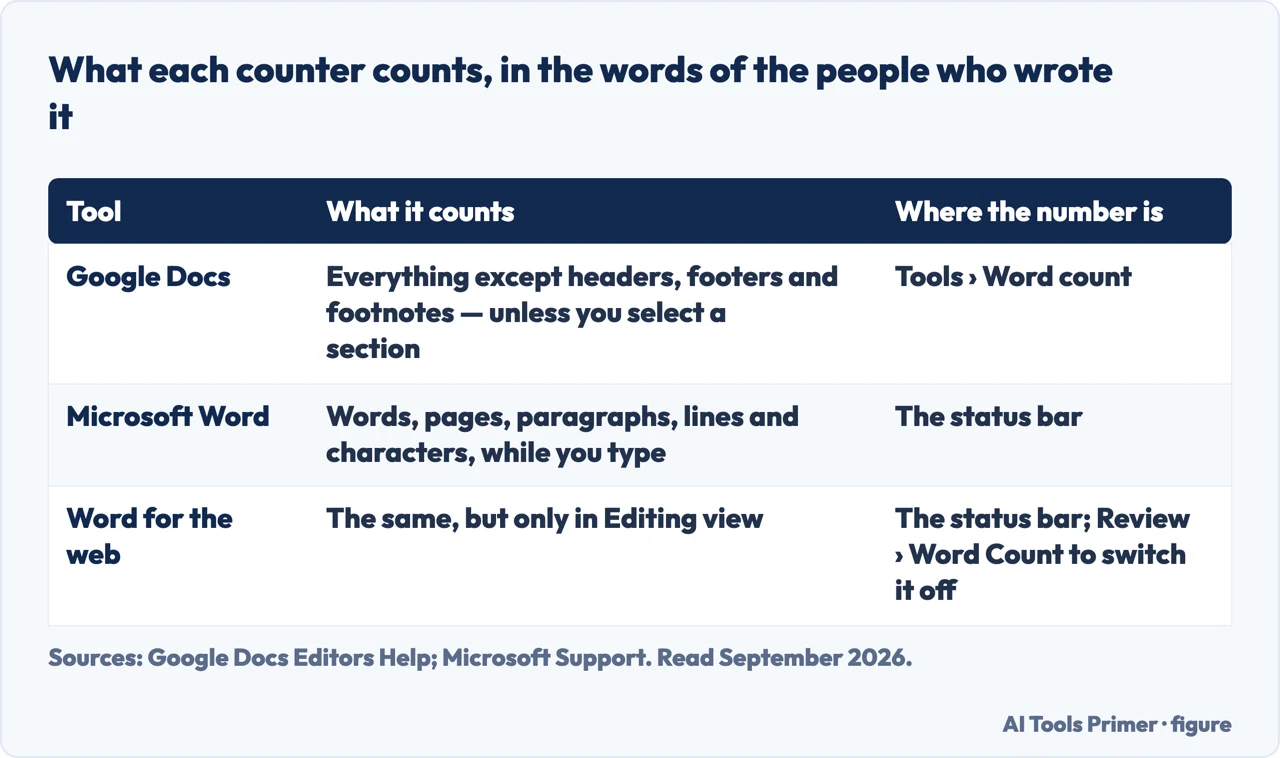
| Tool | Where the number is | What it counts | Source |
|---|---|---|---|
| Google Docs | Tools › Word count | “Everything except headers, footers, and footnotes”, unless you select a section | |
| Google Docs, while you write | A corner of the page, once “Display word count while typing” is ticked | The same | |
| Microsoft Word | The status bar | Words, pages, paragraphs, lines and characters, while you type | Microsoft |
| Word for the web | The status bar, in Editing view | The same; Review › Word Count switches the display off | Microsoft |
Where the question comes from
Word count in Google Docs, and the part that catches students
And the sentence worth reading twice, because it is where a carefully written essay — one with footnote citations — goes wrong: “Unless you select a section of the document, word count applies to everything except headers, footers, and footnotes.”
Footnotes are not counted. For most writing that is a detail. For a student with a strict limit and a referencing style that puts citations in footnotes, it is the difference between a submission that fits and one that does not — in either direction. If your department counts footnotes and Google Docs does not, the number in the corner is not the number being marked.
- Open the document in Google Docs. The feature is not in Sheets or Slides: Google’s own first line is that “Word count is only available for Google Docs”.
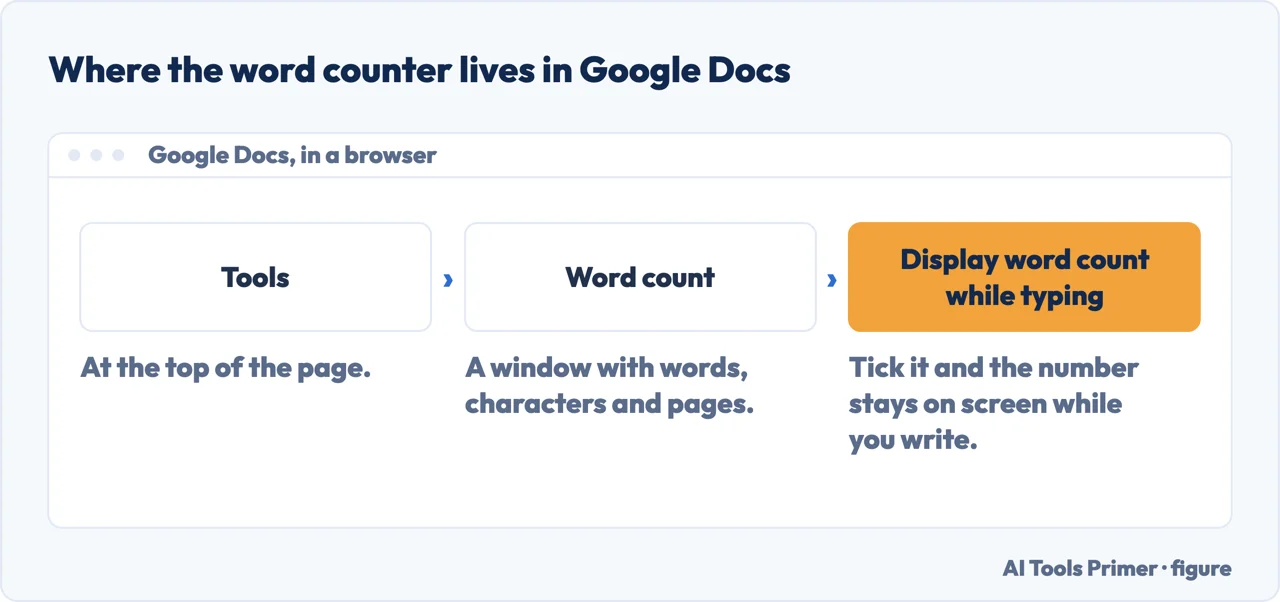
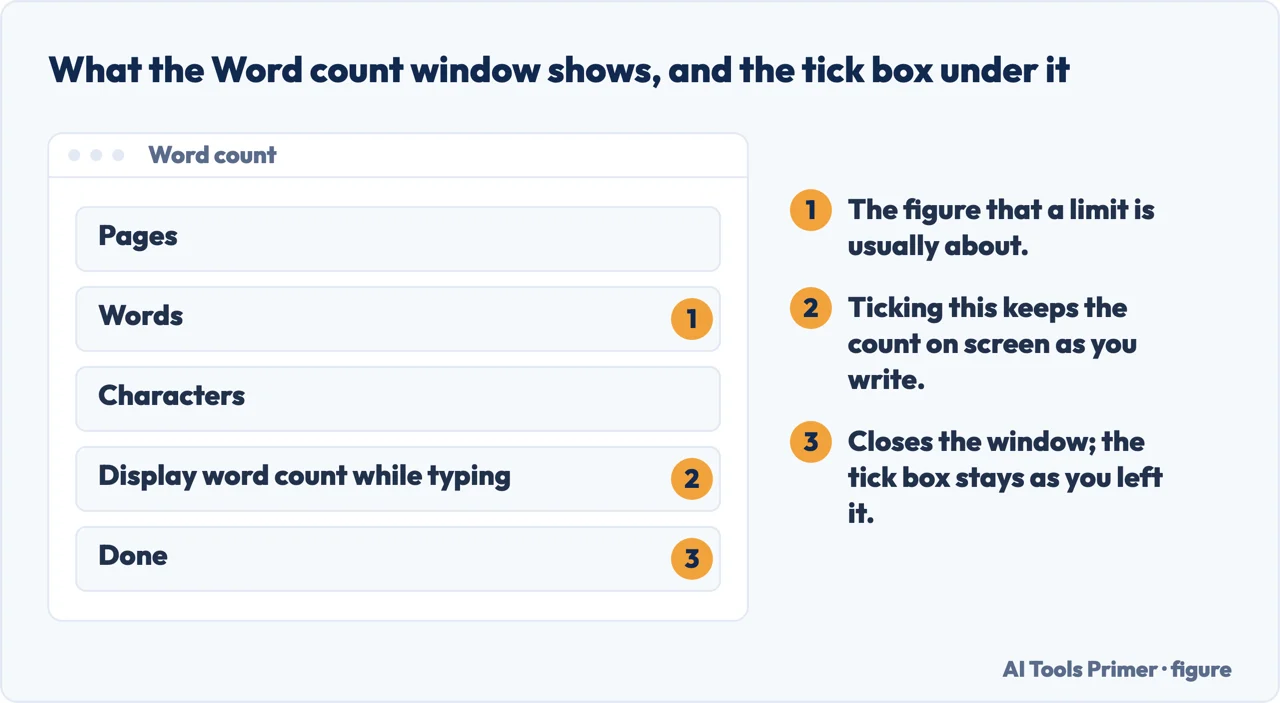
- At the top of the page, click Tools, then Word count. A window opens with the count of words, characters and pages.
- Tick “Display word count while typing”. That is the setting worth having: a limit you can see while writing changes what you write, and one you check at the end only tells you what to cut.
- Click Done to close the window. The count stays in the corner of the page.
- To count one passage instead, select it first. With a selection, the count applies to the selection — which is how you check a single section against its own limit.
That matters because word counts are almost never idle curiosity. There is a limit attached: an assignment, a submission, a job application, a field on a form that refuses anything longer.
The same sentence, counted six ways
Not an opinion — run it yourself. This is the text we counted, exactly as written:
The state-of-the-art model cost $1,250,000 and took 3.5 years — a well-documented delay. See https://example.org/report for the full write-up; don’t miss footnote 12.
One sentence, and the honest answer ranges from 22 to 34 — a difference of more than half. Nothing here is broken: each rule is defensible, and the tools that disagree are simply applying different ones. Which is why a limit stated as a number, with no rule attached, is an incomplete instruction.
The two most-used editors do not count the same thing, and both say so in one line. Google: “unless you select a section of the document, word count applies to everything except headers, footers, and footnotes.” Microsoft: “unless you have selected some text, Word counts all text in the document, as well as the characters.”
So a dissertation with footnotes, or a report with a running header on every page, comes out longer in Word than in Google Docs — same words, different rule about which words are words. Anyone working to a limit set by someone else is being measured by whichever tool that person opens, and the gap is not a rounding error: footnotes alone can run to hundreds of words in an academic paper.
Both offer a partial count for the same reason. In Word, “for a partial word count, select the words you want to count. The status bar shows the word count for that selection and for the entire document” — two numbers at once. In Google Docs the equivalent live readout is a setting rather than a default: tick “Display word count while typing”, and the box in the bottom left shows Pages, Words, Characters and Characters without spaces. That last line is the one to look at when the limit was written in characters rather than words.
And a last difference, which is the one that actually costs marks: the number the software gives you is not the number the marker uses.
A word counter and a character counter are not the same instrument. A word count is almost always checked against a limit set by somebody else. A character count is almost always a form with a hard field length — a bio, a listing, a subject line — where the software simply refuses the extra letters. And a reading time is a third question: not how long the text is, but how long it takes to say out loud.
The lesson is not that counters are unreliable. It is that a count is the answer to a question — what counts as a word — and different tools answer it differently. Knowing which question your limit is asking is the whole of this guide.
A limit is only half a rule. The other half is whose count decides — and if the number that matters is the one a marker reads, the safest habit is to know which of the two definitions your department uses before you write to it. When the limit belongs to an assessment, the people counting are usually also running the submission through a similarity check, and the report that comes back has its own way of being misread.
One setting is worth more than all of this. Turning on the count while you type puts the limit in front of you while there is still time to write to it — and a limit you only meet at the end tells you nothing except what to delete.
Where to start
Five ways in.
- “My essay is over the limit and I do not know why.”
- Start at why the numbers differ
Why the numbers differ
The specific decisions that separate one counter from another. Every one of them is visible in the test above, and every one is defensible.
Questions people also ask
How do I enable the word counter in Google Docs?
Open the document, click Tools at the top of the page, then Word count. To keep the counter on screen instead of opening it each time, tick “Display word count while typing” in that window, then click Done.
Can I set Google Docs to always show the word count?
Yes, but per document, not per account: the tick box lives in the Word count window of the document you are in. There is no account-wide setting, which is why the counter seems to disappear when you open a different file.
What does the Google Docs word count leave out?
Google says it plainly: “unless you select a section of the document, word count applies to everything except headers, footers, and footnotes.” If your limit includes footnotes, the number on your screen is not the number you are being judged on.
Why do two word counters disagree about the same paragraph?
Because they answer slightly different questions about what a word is — hyphenated compounds, numbers, dates, and text inside notes and captions are treated differently by different tools. The count is not a measurement so much as a definition, and each tool ships its own.
Not covered here. It will not rank the counting websites. They are all doing arithmetic, most of them do it correctly, and the differences between them are the rule differences described above rather than quality.
It will not tell you a universal answer to what is excluded. Titles, references and footnotes are counted by some institutions and not others, and any page that states a rule as if it were universal is guessing on your behalf.
And it will keep pointing at the least technical answer on the guide: ask. One message to whoever set the limit removes every ambiguity above, and it is faster than any tool here.
A note on the test at the top, because it is the method this whole site runs on. We did not read that counters disagree and repeat it. We wrote a sentence containing every awkward case at once — a four-part hyphenation, a currency figure with separators, a decimal, an em dash, a compound adjective, a URL, a contraction and a trailing number — and counted it under six explicit rules. The sample is printed in full so that anybody can paste it into any counter and check whether our figures hold. That is the only kind of claim worth publishing about a subject this easy to test. What holds instead is simple: the counting test above is published in full so anybody can reproduce it.
Sources
- Microsoft on showing word count in Word — counting while you type, and counting a selection — support.microsoft.com, read 6 September 2026.
- Google Docs Editors Help — Count the words in a document, including what word count leaves out — support.google.com, read 21 August 2026.
- University of the West of England, Policy on word count (that the coursework instructions in the module handbook state a maximum word count beyond which nothing will be marked, and that a 10% tolerance does not exist unless the module guide states it; and that the word count includes everything in the main body of the text, including headings, tables, citations, quotes and lists, while the list of references, appendices and footnotes are not included unless the coursework instructions state that the module is an exception) — www2.uwe.ac.uk, read 26 August 2026.
Written by Alberto Gulotta
Founder and editor of AI Tools Primer, writing from Palermo, Italy. Thirty-five years of taking computers apart, starting with a Commodore 64 — the long version is on the about page.
Something wrong on this page? Write to aitoolsprimer@gmail.com and it gets fixed.
Written on 21 August 2026 · last checked 3 September 2026.
Independence and limits
No affiliate links and no paid placements anywhere on this site. Nobody pays to appear here, and no company has seen this page before you did.
This is general information, not professional advice. Where a page touches money, health, safety or the law, it names its source and the date it was read — and your situation may still differ. See the privacy page and the cookie policy.