
Docs · guide
How to do hanging indent on Google Docs, device by device
By Alberto Gulotta · Updated · 15 min read
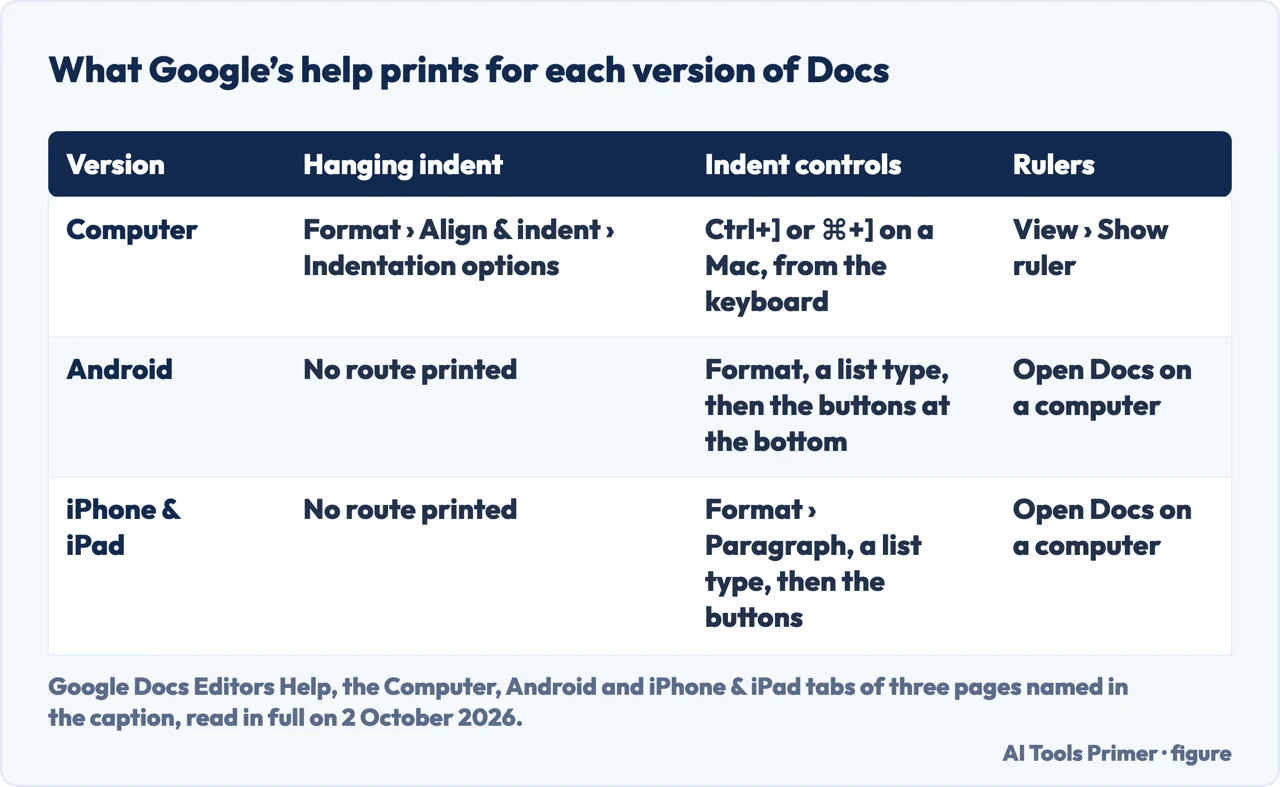
The short answer to how to do hanging indent on Google Docs: highlight the text, then Format › Align & indent › Indentation options, choose Hanging under Special indent, check the size and click Apply. That is Google’s route on a computer; its Android and iPhone & iPad tabs print none, and its shortcut list has none.
| Version of Docs | Hanging indent | What the page offers instead | Page read |
|---|---|---|---|
| On a computer | Format › Align & indent › Indentation options › Hanging, then Apply | The size in the box next to Hanging | Add a numbered list, bulleted list, or checklist, Computer tab |
| Android app | No section on the tab | Format, a list type, then Increase indent or Decrease indent at the bottom | The same page, Android tab |
| iPhone and iPad app | No section on the tab | Format › Paragraph, a list type, then Increase indent or Decrease indent | The same page, iPhone & iPad tab |
| Keyboard | No shortcut on any of the three tabs | Ctrl+] (⌘+] on a Mac): Increase paragraph indentation | Keyboard shortcuts for Google Docs |
| Rulers | On a computer: View › Show ruler | On the apps, the page sends you to a computer | View document outlines, rulers, & non-printing characters |
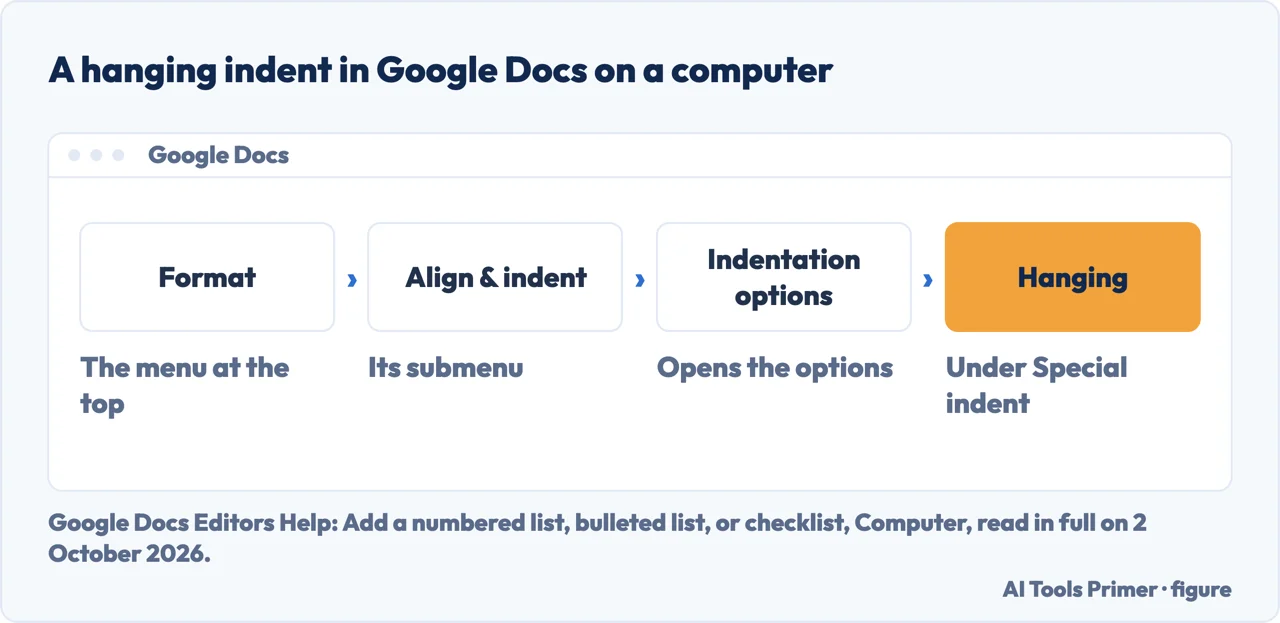
- Open the document in Google Docs on a computer. Google’s steps start there, on the Computer tab of its page Add a numbered list, bulleted list, or checklist, in a section headed Add a hanging indent.
- Highlight the text you want to indent. For a reference list, that is every entry. The setting goes on what is highlighted, so an entry left out keeps its old shape; that reading is ours.
- Open Indentation options. In the menu at the top: Format, then Align & indent, then Indentation options.
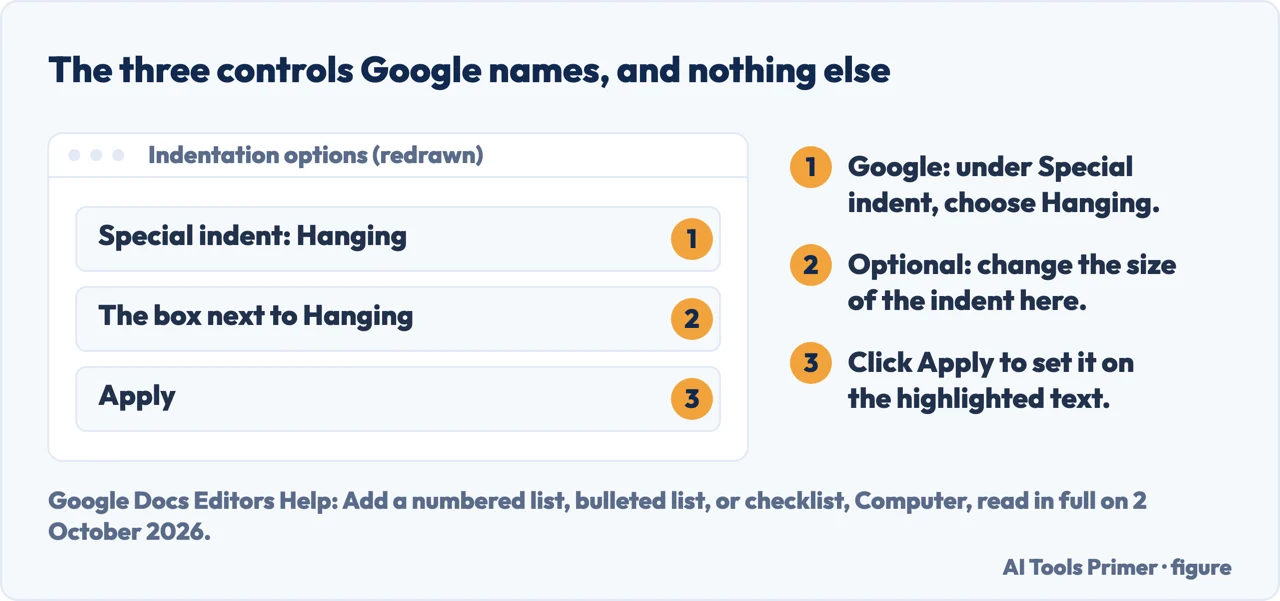
- Choose Hanging under Special indent. The page’s definition is the whole idea: “With a hanging indent, everything except the first line is indented.”
- Check the size, then click Apply. The page marks the size as optional: “In the box next to ‘Hanging,’ change the size of the indent.” It does not print a default, so read the box before you apply. For APA and MLA the figure is half an inch, below.
On an Android phone, an iPhone or an iPad
The same Google page has an Android tab and an iPhone & iPad tab, and neither has the section Add a hanging indent. What they print is the list section: open the document in the Google Docs app, tap Edit, then Format (on an iPhone or iPad, Format and then Paragraph), a list type and, optionally, Increase indent or Decrease indent at the bottom. Nothing on either tab separates the first line from the rest. That the apps have no route of their own is this guide’s reading of the two tabs, not a sentence Google prints.
The rulers are not there either. Google’s page on outlines and rulers says on both app tabs: “To use rulers, open Google Docs on a computer.”
An older answer says the same. In the Docs Editors Community thread that came first in the search results on 2 October 2026, a Google Product Expert volunteer, who is not a Google employee, answered in October 2019 that hanging indents were available on the computer version of Docs and not in the mobile app. That is almost seven years old and comes from the forum, not from Google’s help; the help tabs read on 2 October 2026 do not contradict it.
So the practical route is to open the document in a browser on a computer, set the indent there and go back to the phone. That advice is ours, and so is the reason behind it: the Docs API stores indents on the paragraph, so the setting should travel with the document.
No hanging indent in Google’s shortcut list
Google’s list of keyboard shortcuts for Docs was read on all three tabs for this guide, Computer, Android and iPhone & iPad: the word hanging does not appear on any of them. Under Paragraph formatting the list has Increase paragraph indentation, Ctrl+] on Windows and Chrome OS and ⌘+] on a Mac, and Decrease paragraph indentation with the opening bracket. Going by the name, those move every line of the paragraph together, which is the opposite of a hanging indent; that reading is ours.
From the keyboard, the way in is the Format menu: Google’s list opens a menu with a key and then lets you type the underlined letter of each item. Two Google pages give different keys for opening it. The shortcut list says Alt+O in Google Chrome and Alt+Shift+O in other browsers on a PC, Ctrl+Option+O on a Mac, and Alt+O on Chrome OS. The page on paragraphs and fonts says Alt+Shift+O for Windows and Chrome OS, and Control+Option+O on a Mac. On a Mac the two agree; on Windows in Chrome, and on Chrome OS, they do not, and this guide has not tested which one answers.
Selecting everything first. Select all is Ctrl+A, ⌘+A on a Mac, in the same list. Apply the hanging indent to the whole document only if the whole document is the list.
How deep the indent should be
“Apply a 0.5-in. hanging indent to the whole reference list, which keeps the first line of each reference flush left and indents any subsequent lines 0.5 in.”
That is APA Style’s page on setting up a reference list. MLA gives the same depth for a works-cited list: its page on hanging indents in Microsoft Word says “The default hanging indent spacing should be 0.5 inches, which is the standard spacing that the MLA recommends.” The sentence is about Word’s dialog. Another MLA page, written in 2016 for the eighth edition of the MLA Handbook, calls hanging indention the preferred way to distinguish entries in the list of works cited. Google’s page prints no number at all; the half inch is the figure APA and MLA give.
Centimetres. If the box shows centimetres, half an inch is 1.27 cm; that conversion is ours.
The two numbers underneath. Google’s Docs API stores a paragraph’s indents as separate values, among them indentFirstLine (“The amount of indentation for the first line of the paragraph”) and indentStart for the side where the text begins. A hanging indent is the case where the start indent is larger than the first-line indent; that description is ours, and the API reference does not use the word hanging. Apps Script sets the same two values with setIndentFirstLine and setIndentStart, in points, and the API defines a point as 1/72 of an inch: half an inch is 36 points, by this guide’s arithmetic. This guide prints no script and has tested none.
When the indent does not hang
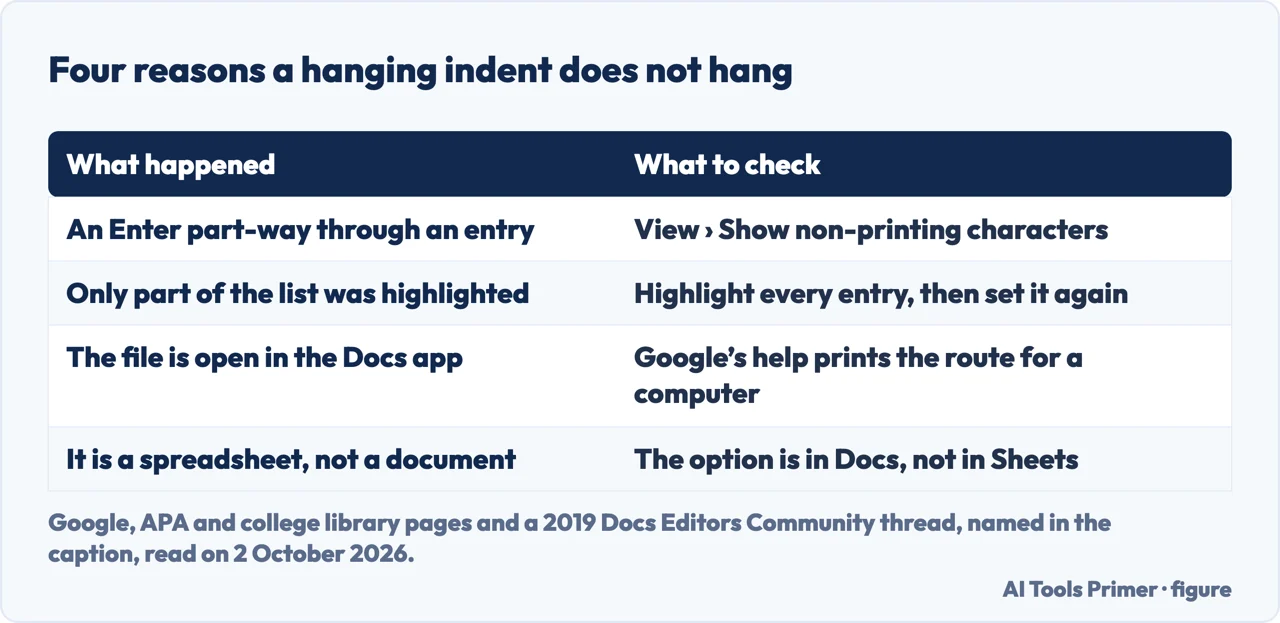
Four causes, each with the page that points to it. Reading them as the causes of a particular failure is this guide’s advice.
- An Enter mid-entry
- APA asks for each reference to be typed as a single paragraph. An entry broken by Enter is two paragraphs, and the second starts again with its first line at the margin; that reading is ours. The Delaware County Community College library notes after its steps that you may need to delete or add line breaks. To see them, View › Show non-printing characters: Google lists paragraph breaks and line breaks among what then appears in blue.
- Part of the list
- Google’s step is to highlight the text you want to indent, so an entry outside the selection stays as it was. Highlight the whole list and apply it again.
- The app
- Google’s Android and iPhone & iPad tabs print no hanging indent route. Use a computer.
- A spreadsheet
- The volunteer in the 2019 forum thread answered that the feature is only in Google Docs, not in Sheets. A Google Slides text box has its own route, below.
In Google Slides. The same Google page has a separate route for a presentation: highlight the text, then Format › Format options, Text fitting at the right, Hanging under Special indent, and the size under By. There is no Apply step in the Slides section. Docs puts the size in a box next to Hanging and ends with Apply.
Spacing the list as well. APA also asks for the whole reference list to be double-spaced, with no extra space between references. In Docs that is Format › Line & paragraph spacing, then Double, on Google’s page on paragraphs and fonts; the page on formatting in Google Docs has the margins and the rest of the checklist.
In Microsoft Word. The setting has the same name and a different dialog; the steps, with the Word shortcut, are on the page on hanging indents in Word.
Where to start
Five ways in.
- “Just give me the steps.”
- Five steps on a computer — the steps on a computer
- “I am on my phone.”
- What the apps offer — on an android phone an iphone or an ipad
- “Is there a shortcut?”
- Not in Google’s list — the shortcut that is not there
- “Half an inch or one?”
- APA and MLA — how deep the indent should be
- “It still does not hang.”
- Four causes — when the indent does not hang
The same indent elsewhere
Word, and the rest of the formatting a Google document is asked for, each have a guide of their own.
The list the indent is for
The indent shapes the entries; the styles decide what goes in them.
Questions people also ask
Are hanging indents 0.5 or 1?
Half an inch, for the two styles read here. APA asks for a 0.5-in. hanging indent on the reference list, and MLA calls 0.5 inches the standard spacing it recommends. Neither page gives one inch for the indent. Google’s page prints no default, so check the box next to Hanging before you click Apply.
How do I put a hanging indent?
In Google Docs on a computer: highlight the text, then Format, Align & indent, Indentation options. Under Special indent choose Hanging, change the size in the box next to it if you need to, and click Apply. Google’s Android and iPhone & iPad tabs print no hanging indent route.
Why isn’t my hanging indent working in Google Docs?
Three causes, by this guide’s reading of Google and APA: an Enter part-way through an entry makes two paragraphs; an entry left out of the selection keeps its old shape; and the apps print no route. View, Show non-printing characters shows the breaks.
How do I indent the second line in Google Docs?
That is a hanging indent: Format, Align & indent, Indentation options, then Hanging under Special indent. Ctrl+] (⌘+] on a Mac) is Increase paragraph indentation in Google’s list, and by this guide’s reading it moves every line, the first included.
Not covered here. It does not cover scripts: the API values and the Apps Script methods are named above, and no script is printed or tested here.
Nor does it cover indents set by dragging the ruler; the Google page on rulers read for this guide says how to show them and nothing about their indent markers.
Each route names the tab of the Google page it comes from; the Sources give the date of every reading.
Sources
- Google Docs Editors Help — Add a numbered list, bulleted list, or checklist, Computer tab: the section Add a hanging indent, with Format, Align & indent, Indentation options, Hanging under Special indent, the box next to Hanging and Apply, and the Google Slides route with Text fitting and By — support.google.com, read 2 October 2026.
- Google Docs Editors Help — Add a numbered list, bulleted list, or checklist, Android tab: Format, a list type, and Increase indent or Decrease indent at the bottom; no hanging indent section — support.google.com, read 2 October 2026.
- Google Docs Editors Help — Add a numbered list, bulleted list, or checklist, iPhone & iPad tab: Format, Paragraph, a list type, and Increase indent or Decrease indent; no hanging indent section — support.google.com, read 2 October 2026.
- Google Docs Editors Help — Keyboard shortcuts for Google Docs, Computer tab, also read on its Android and iPhone & iPad tabs: Increase and Decrease paragraph indentation, Select all, the Format menu keys; the word hanging on none of the three — support.google.com, read 2 October 2026.
- Google Docs Editors Help — Change how paragraphs & fonts look, Computer tab: the Format menu keys, and Format, Line & paragraph spacing, Double — support.google.com, read 2 October 2026.
- Google Docs Editors Help — View document outlines, rulers, & non-printing characters, Computer tab: Show ruler, and Show non-printing characters with paragraph breaks and line breaks in blue — support.google.com, read 2 October 2026.
- Google Docs Editors Help — View document outlines, rulers, & non-printing characters, Android tab: to use rulers, open Google Docs on a computer; the iPhone & iPad tab, read the same day, says the same — support.google.com, read 2 October 2026.
- Google for Developers — Google Docs API, REST Resource: documents: indentFirstLine, indentStart, and the point as 1/72 of an inch — developers.google.com, read 2 October 2026.
- Google for Developers — Apps Script, Class Paragraph: setIndentFirstLine and setIndentStart, in points — developers.google.com, read 2 October 2026.
- APA Style — Reference list setup: the 0.5-in. hanging indent, a single paragraph per reference, and double spacing with no extra space between references — apastyle.apa.org, read 2 October 2026.
- MLA Style Center — Hanging Indents and Microsoft Word: 0.5 inches as the standard spacing the MLA recommends — style.mla.org, read 2 October 2026.
- MLA Style Center — Does the MLA still recommend the use of hanging indention?: the preferred way to distinguish entries in the list of works cited — style.mla.org, read 2 October 2026.
- Google Docs Editors Community — How do I get hanging indents in google docs?, a thread from 2019, the first search result on 2 October 2026, read in part (13 of 18 replies): the answers of a Product Expert volunteer on the mobile app and on Sheets — support.google.com, read 2 October 2026.
- Delaware County Community College Learning Commons — How do I create a hanging indent in Google Docs?, last updated 24 May 2023, the fifth search result on 2 October 2026: the note on line breaks after the steps — dccc.libanswers.com, read 2 October 2026.
Written by Alberto Gulotta
Founder and editor of AI Tools Primer, writing from Palermo, Italy. Thirty-five years of taking computers apart, starting with a Commodore 64 — the long version is on the about page.
Something wrong on this page? Write to aitoolsprimer@gmail.com and it gets fixed.
Written on 2 October 2026.
Independence and limits
No affiliate links and no paid placements anywhere on this site. Nobody pays to appear here, and no company has seen this page before you did.
This is general information, not professional advice. Where a page touches money, health, safety or the law, it names its source and the date it was read — and your situation may still differ. See the privacy page and the cookie policy.